
-
Инструкции по эксплуатации
1

SONY PlayStation 3 Super Slim инструкция по эксплуатации
(56 страниц)
- Языки:Русский
-
Тип:
PDF -
Размер:
1.02 MB -
Описание:
Игровая приставка
Просмотр
На NoDevice можно скачать инструкцию по эксплуатации для SONY PlayStation 3 Super Slim. Руководство пользователя необходимо для ознакомления с правилами установки и эксплуатации SONY PlayStation 3 Super Slim. Инструкции по использованию помогут правильно настроить SONY PlayStation 3 Super Slim, исправить ошибки и выявить неполадки.
GB RU Safety and Support Безопасность и поддержка CECHL08 Before using this product, carefully read all product documentation and retain it for future reference. Перед использованием продукта внимательно прочтите документацию и сохраните ее для дальнейшего использования. 4-117-132-61(1)
WARNING To avoid electrical shock, do not open the cabinet. Refer servicing to qualified personnel only. Caution Use of controls or adjustments or performance of procedures other than those specified herein may result in hazardous radiation exposure. The use of optical instruments with this product
About DNAS Sony Computer Entertainment Inc. uses DNAS (Dynamic Network Authentication System), a proprietary authentication system, to help protect copyright and security in connecting the PS3™ system to a network. DNAS may retrieve information about a user’s hardware and software for
Table of contents WARNING . . . . . . . . . . . . . . . . . . . . . . . . . . . . . . . . . . . . . . . . . . . 2 About the PS3™ system documentation . . . . . . . . . . . . . . . . . . . 4 x Before use Precautions . . . . . . . . . . . . . . . . . . . . . . . . . . . . . . . . . . . . . . . . . .
Before use Precautions Safety Use and handling • Use in a well-lit area and keep a safe distance from the TV screen. • Avoid prolonged use of the PS3™ system. Take a 15-minute break during each hour of play. • Avoid playing when you are tired or need sleep. • Stop using the system immediately if
Notes on safety when using the DUALSHOCK®3 Wireless Controller* • Do not use the vibration function if you have any ailment or injury to the bones, joints or muscles of your hands or arms. If you have an ailment or an injury, do not play such titles using the DUALSHOCK®3 wireless controller unless
• Use only an Ethernet cable compatible with 10BASE-T, 100BASE-TX or 1000BASE-T networks. Do not use a cord for a standard residential telephone line or cables of types other than those mentioned here. Using the wrong type of cord or cable can cause more electrical current than necessary to flow
Using the backup utility You can back up data stored on the hard disk to a USB mass storage device and restore data that has been backed up. Select «Backup Utility» under (Settings) (System Settings) and follow the on-screen instructions to perform this operation. In some cases, you may not be able
Troubleshooting Before requesting service Go through this section if you experience difficulty in operating the PS3™ system. Should any problem persist, contact the appropriate PlayStation® customer service helpline which can be found within every PlayStation®, PlayStation®2, and PLAYSTATION®3
Audio There is no sound. , Check that the muting function on the TV or speakers is turned off. Also check that the volume is at the appropriate level. , If an audio device is connected, check the settings of the device. For details, refer to the instructions supplied with the audio device. , There
, In some cases, the system may not recognise the device if an external USB hub is used and more than the allotted number of devices are connected. Try removing unused devices. Wireless Controller The Wireless Controller does not function. , When using the Controller wirelessly, if the Controller
Other issues The system makes noise. , Because some discs read at higher speeds, disc noise may be louder than normal. , When using the system in a location where heat can build up, such as an enclosed AV cabinet, the internal fan will rotate rapidly to reduce the system’s temperature and this may
GUARANTEE GUARANTEE Thank you for buying this Product. We hope that you enjoy using it. This Guarantee does not cover your data, any separate software or PlayStation® games whether or not packaged or included with the Product, or any PlayStation® accessories or peripheral devices that are not
11. To avoid damage to or loss or erasure of removable external data storage media or peripherals or non-PS3™ components, you must remove these before submitting the Product for guarantee service. 12. You may not claim under this Guarantee when the Product is damaged as a result of: i. commercial
Additional information 1 Removing / replacing the hard disk The following section explains how to remove and replace the hard disk. Caution Notices • Depending on the type of service performed, the hard disk that had been in use prior to servicing may need to be reformatted. Be sure to back up
5 Free the hard disk from the system. 1 Remove the blue screw with the correct sized crosshead screwdriver. 2 Pull the handle forward. 1 2 Pull while sliding the handle to the left. Be careful not to hurt yourself during this operation. 6 Remove the hard disk from the system. Notices The hard disk
2 Remove the hard disk from the metal frame. Reinstalling the system software If the system software does not start when the system is turned on (such as when the hard disk has been replaced), a screen such as the one shown below is displayed on the system. In this case, you must reinstall the
Step 2: Save the update data on storage media Step 3: Install the system software Save the downloaded update data on any of the following types of storage media. Notices x Disc media such as a CD-R CD-R, CD-RW, DVD-R, DVD-RW, DVD+RW and BD-RE are supported. x USB mass storage device Storage media
Caution on disposal of the PS3™ system Caution If you come into contact with material from a leaking battery, take the following actions: • If the material gets into the eyes, do not rub. Immediately flush the eyes with clean water and seek medical attention. • If the material comes into contact
Power Specifications AC 220 — 240 V, 50 / 60 Hz Power consumption Design and specifications are subject to change without notice. PLAYSTATION®3 system Cell Broadband Engine™ GPU RSX™ Dolby Digital Plus, Dolby Digital 5.1 ch, DTS 5.1 ch, LPCM 7.1 ch, AAC, others*1 256 MB XDR Main RAM, 256 MB GDDR3
Playable discs PLAYSTATION®3 format BD-ROM BD-ROM Blu-ray Disc (BD) BD-R BD-RE*1 DVD+R/RW DVD DVD-R/RW AVCHD DSD Disc PlayStation® format CD-ROM*2*3 CD CD-DA (audio CD)*4 CD-R/RW *1 Playback of BD-RE ver. 1.0 discs is not supported. *2 PlayStation®2 format software titles do not perform on this
Region codes Depending on the disc, a region code that is based on the geographic region where the disc is distributed may be assigned. This system can play discs marked with the following region codes. Disc Copyright and trademarks » «, «PlayStation», «PLAYSTATION», «DUALSHOCK» and » » are
Copyright © 2004-2006 Cambridge Silicon Radio Ltd. The Bluetooth word mark and logos are owned by the Bluetooth SIG, Inc. and any use of such marks by Sony Computer Entertainment Inc. is under licence. DivX, DivX Certified, and associated logos are trademarks of DivX, Inc. and are used under
CONSUMER TO (i) ENCODE VIDEO IN COMPLIANCE WITH THE AVC STANDARD («AVC VIDEO») AND/OR (ii) DECODE AVC VIDEO THAT WAS ENCODED BY A CONSUMER ENGAGED IN A PERSONAL AND NON-COMMERCIAL ACTIVITY AND/OR WAS OBTAINED FROM A VIDEO PROVIDER LICENCED TO PROVIDE AVC VIDEO. NO LICENCE IS GRANTED OR SHALL BE
The USB-IF Logos are trademarks of Universal Serial Bus Implementers Forum, Inc. The «Wi-Fi CERTIFIED» logo is a certification mark of the Wi-Fi Alliance. About national export control This product may fall within the scope of national export control legislation. You must comply fully with the
ПРЕДУПРЕЖДЕНИЕ Bо избeжaниe поpaжeния элeктpичecким током нe откpывaйтe коpпyc aппapaтa. Для peмонтa обpaщaйтecь только к квaлифициpовaнномy cпeциaлиcтy. Пpeдyпpeждeниe Использование, регулировка или обслуживание изделия способами, не упомянутыми в данном руководстве, может привести к воздействию
• Работа в беспроводной сети не допускается в следующих местах: – Зоны, в которых работа в беспроводной сети запрещена, например, больницы. При работе с системой на территории медицинских учреждений соблюдайте правила, установленные для этих учреждений. – Вблизи пожарной сигнализации,
Содержание ПРЕДУПРЕЖДЕНИЕ. . . . . . . . . . . . . . . . . . . . . . . . . . . . . . . . . 26 О документации к системе PS3™ . . . . . . . . . . . . . . . . . . . . . . 28 x Перед использованием Меры предосторожности . . . . . . . . . . . . . . . . . . . . . . . . . . . . . 29 x Устранение
Перед использованием Меры предосторожности Безопасность Использование и обслуживание • Используйте устройство в хорошо освещенном помещении, располагая его на безопасном расстоянии от телевизионного экрана. • Старайтесь не использовать систему PS3™ слишком долго. Включайте в каждый час игры
• Не перемещайте систему и не изменяйте ее положение, если установлен диск. При вибрации диск или система могут быть повреждены. • Не выключайте систему во время сохранения или загрузки данных с жесткого диска. • Не вставайте и не кладите предметы на систему, не ставьте ее так, чтобы она тесно
Не разбирайте и не вносите изменения в систему или аксессуары Используйте систему PS3™ и аксессуары в соответствии с инструкциями в данном руководстве. Не разрешается анализ или модификация системы и аксессуаров, а также анализ и использование примененных в них схемотехнических решений. В случае
Конденсация влаги Если система или диск переносятся с холода в теплое помещение, то на линзе внутри системы или на диске может сконденсироваться влага. В этом случае система может работать неправильно. Извлеките диск, выключите систему и извлеките вилку из розетки. Не вставляйте диск в систему до
Копирование/перемещение файлов Ниже указаны типы файлов, которые можно скопировать или переместить с жесткого диска компьютера на устройство USB. Выберите файл, нажмите кнопку , затем выберите “Копировать” или “Переместить” в меню параметров. Если файл содержит данные, для которых установлена
Устранение неисправностей Перед обращением в службу Если при использовании системы PS3™ возникнут трудности, см. данный раздел. Если не удается устранить проблему, обратитесь в соответствующую службу технической поддержки PlayStation®, адрес которой можно найти в каждом руководстве к программному
Воспроизведение некоторых дисков BD невозможно. , Для воспроизведения видеоизображения на дисках BD с помощью имеющегося в продаже программного обеспечения в некоторых случаях требуется обновление ключа кодировки для AACS (Advanced Access Control System). Ключ кодировки можно обновить в процессе
Веб-страница отображается неправильно. , Некоторые веб-страницы могут отображаться неправильно из-за используемого веб-браузера. Дисковые накопители и устройства USB Система не распознает диск. , Извлеките диск и снова вставьте. , Если на диске имеется рисунок, вставьте его стороной с рисунком
, Перезагрузите беспроводной контроллер, нажав кнопку перезагрузки на задней панели контроллера с помощью острого предмета, например, ручки. Кнопка перезагрузки Заряд батареи расходуется, даже когда беспроводной контроллер не используется. , Батарея контроллера медленно разряжается, даже когда
Индикатор питания на передней панели системы мигает то красным, то зеленым. , Внутренние детали системы сильно нагрелись. Проверьте, не слишком ли жарко в помещении, где используется система, и не заблокированы ли вентиляционные отверстия. Если система попрежнему будет использоваться в указанных
новый или восстановленный компонент или узел (по усмотрению компании SCEE). Гарантия на замененный компонент действует в течение оставшегося первоначального срока гарантии. Настоящая гарантия является дополнением к правам потребителя (установленным законом) и никоим образом не влияет на них.
ii. использование вместе с любыми неавторизованными внешними устройствами (включая, без ограничений, устройства, улучшающие качество игр, адаптеры и источники питания); iii. любые переделки, настройки или изменения данного Продукта, выполненные по любым причинам, независимо от того, правильно или
Дополнительная информация Извлечение жесткого диска Извлечение/замена жесткого диска Внимание В следующем разделе описывается извлечение и замена жесткого диска. В целях безопасности перед извлечением жесткого диска обязательно выключите систему и отключите ее от источника питания. Внимание 1
5 Отсоедините жесткий диск от системы. 1 Выверните синий винт с помощью крестовой отвертки соответствующего размера. 2 Потяните на себя ручку. 1 2 Сдвиньте ручку влево до упора. Будьте аккуратны, чтобы при этом не нанести себе травму. 6 • Не касайтесь разъемов системы и не вставляйте в них
2 Извлеките жесткий диск из металлической рамки. Подсказка При потере крышки отсека HDD, винтов или других металлических деталей для получения запасных частей обратитесь в местную службу поддержки клиентов (список служб имеется в руководствах к программному обеспечению PLAYSTATION®3). 3 RU
Переустановка программного обеспечения системы Если после включения системы программное обеспечение системы не запускается (например, после замены жесткого диска), на дисплее может отображаться экран, аналогичный приведенному ниже. В этом случае необходимо переустановить системное программное
Чтобы сохранить обновленные данные, следуйте приведенным ниже инструкциям. С помощью ПК создайте на запоминающем устройстве папку с именем “PS3”. В папке “PS3” создайте папку “UPDATE”. Сохраните обновленные данные в папке “UPDATE”. Запоминающее устройство PS3 UPDATE Примечание Перед утилизацией
Батарея беспроводного контроллера Внимание При контакте с веществом, вытекающим из батареи, примите следующие меры. • Если вещество попало в глаза, не трите их. Немедленно промойте глаза чистой водой и обратитесь за медицинской помощью. • Если вещество попало на кожу или на одежду, немедленно
Диск BD/ DVD/ CD (только для чтения) Максимальная скорость чтения Питание BD × 2 (BD-ROM) DVD × 8 (DVD-ROM) CD × 24 (CD-ROM) AC 220 — 240 V, 50/60 Гц Потребляемая мощность Прибл. 280 Вт Внешние габариты (не включая максимально выступающие части) Прибл. 325 × 98 × 274 мм (ширина × высота × длина)
• Функция воспроизведения музыкальных компакт-дисков данной системы разработана в соответствии со стандартом для компактдисков. Некоторые записывающие компании начали продавать музыкальные диски, зашифрованные с применением технологий защиты авторских прав. Некоторые из этих музыкальных дисков не
«Blu-ray Disc» and Авторские права и товарные знаки “ ”, “PlayStation”, “PLAYSTATION”, “DUALSHOCK” и “ являются зарегистрированными товарными знаками Sony Computer Entertainment Inc. “PS3” также является торговой маркой этой компании. ” «AVCHD» and «AVCHD» logo are trademarks of Matsushita Electric
The DVD logo is a trademark. All of the Japanese fonts and some parts of the Latin fonts in this machine use characters provided by Fontworks Japan, Inc. HDMI, the HDMI logo and High-Definition Multimedia Interface are trademarks or registered trademarks of HDMI Licensing, LLC. ATOK is a registered
ADDITIONAL INFORMATION MAY BE OBTAINED FROM MPEG LA, L.L.C. SEE HTTP://WWW.MPEGLA.COM The USB-IF Logos are trademarks of Universal Serial Bus Implementers Forum, Inc. This product includes RSA BSAFE® Cryptographic software from RSA Security Inc. RSA, BSAFE are either registered trademarks or
Контроль над экспортом Это изделие может подпадать под действие местного законодательства по контролю экспорта. В отношении данного изделия вы должны полностью соблюдать требования такого законодательства и всех других применимых законов любой юрисдикции. Уведомление о Правилах экспортного контроля
eu.playstation.com/ps3 © 2008 Sony Computer Entertainment Inc. All rights reserved. Printed in China

CECH-4004-Serie
4-439-767-11(1) CECH-4004 Series
Kurzanleitung
Guida introduttiva
Snelstartgids
Guide de mise en route
Guide de mise en route
Guida introduttiva
Snelstartgids
Kurzanleitung
Mit dem Netzwerk verbinden
Bevor es losgeht
Weitere Dokumentation
Euro-AV-Anschluss
Se connecter au réseau
Initiation
Documentation relative
Ethernet-KabelMit dem Internet Mit dem Internet
Schließen Sie ein Ethernet-Kabel (separat erhältlich) an das PS3
TM
-System an.Wählen Sie (Einstellungen) (Netzwerk-Einstellungen) [Internetverbindungs-Einstellungen].Wählen Sie [Einfach].Überprüfen Sie, ob die Einstellungen korrekt sind, und speichern Sie dann die Einstellungen.
PlayStation®Network verwenden
Wireless-Router
(Access Point)
Router
Vorderseite
Legen Sie die Disc mit der Beschriftung nach oben ein.
Kategorie
Option
XMBTM (XrossMediaBar)-Menü
in den Video-Eingangs-Anschluss
des Fernsehgeräts
AV-Kabel Netzkabel
zum USB-
Anschluss
AC IN-
Anschluss
AV MULTI OUT-Anschluss
USB-Anschluss
in die Steckdose
Leuchtet grün: System eingeschaltet
Blinkt grün: System schaltet sich aus
Leuchtet rot: System aus (im Standbymodus)
Verbinden und installieren Disc-Inhalt abspielen
* L3- und R3-Taste werden durch
Drücken der Sticks betätigt.
PlayStation®Network ermöglicht Ihnen den direkten Zugriff auf eine Vielzahl von Diensten
wie Online-Spiele, herunterladbare Spiele, Filme und Inhalte vom (PlayStation
®Store)
sowie Chat-Optionen unter (Freunde). Um PlayStation
®Network nutzen zu können,
benötigen Sie ein Sony Entertainment Network-Konto. Um ein Konto zu erstellen, wählen
Sie (Einschreiben) unter (PlayStation
®Network) und folgen den Anweisungen auf
dem Bildschirm.
PlayStation®Network und PlayStation®Store sind nicht in allen Ländern und Sprachen verfügbar.
Einzelheiten unter eu.playstation.com/legal. Breitband-Internetverbindung erforderlich. Die Benutzer
tragen die Kosten für die Breitband-Internetverbindung. Benutzer müssen mindestens 7 Jahre alt sein.
Benutzer unter 18 Jahren benötigen die Zustimmung eines Erziehungsberechtigten. Für einige Inhalte
und/oder Dienste können Gebühren anfallen. Eine Registrierung ist auch über einen Internetbrowser
unter eu.playstation.com möglich.
Design und technische Angaben können sich ohne vorherige Ankündigung ändern.
„ “, „PlayStation“, „ “, „DUALSHOCK“, „ “ und „ “ sind eingetragene Warenzeichen von
Sony Computer Entertainment Inc.
„XMB“ und „xross media bar“ sind Warenzeichen der Sony Corporation und von Sony Computer Entertainment Inc.
„SONY“ und „ “ sind eingetragene Warenzeichen der Sony Corporation. „Sony Entertainment Network“ ist eine Marke
desselben Unternehmens.
HDMI, the HDMI logo and High-Definition Multimedia Interface are trademarks or registered trademarks of HDMI Licensing, LLC.
©2012 Sony Computer Entertainment Inc. Alle Rechte vorbehalten.
Wechselt
zwischen
Groß— und
Kleinschreibung.
Löschen Geben Sie die
Zeichen ein und
schließen Sie die
Tastatur.
Sicherheit und Support
Dieses Dokument enthält Informationen über die sichere Verwendung des PS3
TM
-Systems. Lesen Sie es gründlich,
bevor Sie das PS3
TM
-System verwenden.
Dieses Dokument enthält Informationen zur Kindersicherung.
Online-Benutzerhandbuch eu.playstation.com/ps3/support/manuals/
Dieses Handbuch enthält detaillierte Informationen über die Verwendung des PS3
TM
-Systems. Informationen
finden Sie auch unter (Netzwerk) (Online-Bedienungsanleitungen).
Aktualisierung der System-Software eu.playstation.com/ps3
Auf dieser Seite finden Sie die neuesten Informationen zu System-Software-Aktualisierungen.
Support eu.playstation.com/ps3/support/
Auf der offiziellen Website des PlayStation®-Produktsupports finden Sie die neuesten Fragen und Antworten zu
Ihrem Produkt.
Rückseite
Disc-Abdeckung
Power-Taste/Power-Kontrollleuchte
Systemspeicher-Kontrollleuchte
USB-Anschlüsse
LAN-Anschluss
HDMI OUT-Anschluss
AC IN-Anschluss
AV MULTI OUT-Anschluss
DIGITAL OUT (OPTICAL)-Anschluss
DUALSHOCK®3 Wireless-Controller
Linker Stick/L3-Taste*
SELECT-Taste
L1-Taste L2-Taste
Richtungstasten
USB-Anschluss
START-Taste
R1-Taste R2-Taste
Rechter Stick/R3-Taste*
Anschluss-Kontrollleuchten
PS-Taste: Öffnet das XMB
TM-Menü.
Schaltet das System ein/aus.
Beendet das Spiel.
Verbinden über ein Netzwerkkabel Drahtlos verbinden
Gedruckt in China
-Taste: Bricht den Vorgang ab.
-Taste: Bestätigt die Auswahl.
-Taste:
Öffnet das Optionsmenü/
die Systemsteuerung.
・Um ein Spiel zu beenden, drücken Sie auf dem Controller die PS-Taste und wählen anschließend (Spiel verlassen).
Um das Abspielen anderer Disc-Arten zu beenden, drücken Sie die -Taste auf dem Controller.
・Speicherdaten für Software im PlayStation
®3-Format werden im Systemspeicher gespeichert. Um diese Daten
anzuzeigen, gehen Sie zu (Spiel) (Speicherdaten-Dienstprogramm(PS3
TM
)).
Netzwerk-Gateway-Gerät
wie z. B. ein DSL-Modem
Netzwerk-Gateway-Gerät
wie z. B. ein DSL-Modem
Câble EthernetÀ Internet À Internet
Branchez un câble Ethernet (vendu séparément) au système PS3
TM
.
Sélectionnez (Paramètres) (Paramètres réseau) [Paramètres connexion Internet].Sélectionnez [Facile].Vérifiez que les paramètres sont corrects, puis sauvegardez les paramètres.
Utilisation de PlayStation®Network
Routeur sans fil
(point d’accès)
Routeur
Avant du système
Insérez le disque, face imprimée vers le haut.
Catégorie
Option
Menu XMBTM (XrossMediaBar)
vers le
connecteur
USB
Vert fixe : Système allumé
Vert clignotant : Système en cours d’arrêt
Rouge fixe : Système arrêté (en mode veille)
Connexion et configuration Lecture du contenu du disque
* Les touches L3 et R3 fonctionnent
lorsque l’on appuie sur les joysticks.
PlayStation®Network vous donne un accès instantané à de nombreux services, des jeux
en ligne, des jeux téléchargeables, des films et du contenu (PlayStation
®Store) et des
outils chat avec des (Amis). Pour utiliser PlayStation
®Network, vous devez posséder
un compte Sony Entertainment Network. Pour créer un compte, sélectionnez
(S‘inscrire)
dans (PlayStation
®Network) puis suivez les instructions à l’écran.
PlayStation®Network et PlayStation®Store ne sont pas disponibles dans tous les pays et dans
toutes les langues. Plus pour de détails, consultez eu.playstation.com/legal. Connexion Internet
haut débit requise. Les utilisateurs doivent s’acquitter des frais d’accès à Internet. Les
utilisateurs doivent être âgés d’au moins 7 ans et les utilisateurs de moins de 18 ans doivent
obtenir une autorisation parentale. Certains contenus et/ou services sont payants. Inscription
possible via votre navigateur internet sur eu.playstation.com.
La conception et les spécifications peuvent être modifiées sans préavis.
» «, «PlayStation», » «, «DUALSHOCK», » » et » » sont des marques déposées de Sony Computer Entertainment Inc.
«XMB» et «xross media bar» sont des marques de Sony Corporation et Sony Computer Entertainment Inc.
«SONY» et » » sont des marques déposées de Sony Corporation. «Sony Entertainment Network» est également une marque
commerciale de la même société.
HDMI, the HDMI logo and High-Definition Multimedia Interface are trademarks or registered trademarks of HDMI Licensing, LLC.
© 2012 Sony Computer Entertainment Inc. Tous droits réservés.
Basculez entre
les minuscules et
les majuscules
Supprimer Entrez les
caractères puis
quittez le clavier
Sécurité et support technique
Ce document contient des informations permettant d’utiliser de manière sûre le système PS3
TM
. Veillez à le lire
avant d’utiliser le système PS3
TM
.
Ce document inclut les informations sur le contrôle parental.
Guide de l’utilisateur en ligne eu.playstation.com/ps3/support/manuals/
Ce guide contient des informations détaillées sur l’utilisation du système PS3
TM
. Vous pouvez aussi consulter
(Réseau) (Mode d’emploi en ligne).
Mises à jour du logiciel système eu.playstation.com/ps3
Ce site fournit les informations les plus récentes sur les mises à jour du logiciel système.
Support eu.playstation.com/ps3/support/
Le site officiel du support produit PlayStation® fournit les dernières questions et réponses relatives à votre produit.
Arrière du système
Couvercle du disque
Touche d’alimentation/Indicateur d’alimentation
Indicateur d’accès stockage système
Connecteurs USB
Connecteur LAN
Connecteur HDMI OUT
Prise AC IN
Connecteur AV MULTI OUT
Connecteur DIGITAL OUT (OPTICAL)
Manette sans fil DUALSHOCK®3
Joystick gauche/Touche L3*
Touche SELECT
Touche L1 Touche L2
Touches directionnelles
Connecteur USB
Touche START
Touche R1 Touche R2
Joystick droit/Touche R3*
Indicateurs de port
Touche PS : Affiche le menu XMB
TM
Allume/éteint le système
Quitte un jeu
Se connecter à l’aide d’une connexion par câble
Se connecter sans fil
Imprimé en Chine
Touche : Annuler une action
Touche : Confirmer la sélection
Touche : Affiche le menu des
options/le panneau
de commande
・Pour quitter un jeu, appuyez sur la touche PS sur la manette, puis sélectionnez (Quitter le jeu). Pour arrêter de
jouer à d’autres types de disques, appuyez sur la touche sur la manette.
・Les données sauvegardées pour les logiciels au format PlayStation
®3 sont placées sur un stockage système. Pour
afficher les données, accédez à (Jeu) (Utilitaire des données sauvegardées(PS3
TM
)).
Dispositif de passerelle
réseau tel qu’un modem DSL
Dispositif de passerelle
réseau tel qu’un modem DSL
Verbinden Sie Ihr PS3
TM
-System mit einem Fernseher.
Für die High-Definition-Ausgabe verbinden Sie den Fernseher und das PS3
TM
-System mit einem HDMI
TM
-Kabel
(separat erhältlich).
Schalten Sie den Fernseher ein und wählen Sie den passenden Anschluss aus.Drücken Sie die Power-Taste, um das PS3
TM
-System einzuschalten.
Wenn kein Videobild angezeigt wird, schalten Sie das PS3
TM
-System aus und wieder ein, indem Sie mindestens
fünf Sekunden lang die Power-Taste drücken (bis ein zweiter Signalton ertönt).
Drücken Sie die PS-Taste auf dem Wireless-Controller.Folgen Sie den Anweisungen auf dem Bildschirm, um die Erstinstallation durchzuführen.Öffnen Sie die Disc-Abdeckung und legen Sie die Disc ein.
Um die Disc-Abdeckung zu öffnen, drücken Sie entweder die —(Öffnen-)Taste oder schieben Sie die Disc-Abdeckung
nach links. Drücken Sie die Disc an den dafür vorgesehen Platz, bis Sie ein Klick-Geräusch hören.
Schließen Sie die Disc-Abdeckung.
Sobald Sie die Disc-Abdeckung geschlossen haben, startet die Disc von selbst. Falls sie nicht automatisch
abgespielt wird, wählen Sie im XMB
TM-Menü das Disc-Symbol und drücken dann die -Taste.
Wählen Sie (Einstellungen) (Netzwerk-Einstellungen) [Internetverbindungs-Einstellungen].Wählen Sie [Einfach] [Drahtlos] [Scannen].Wählen Sie den Access Point, den Sie verwenden möchten.Überprüfen Sie, ob die SSID korrekt ist,und bestätigen Sie.Wählen Sie die Art des Kodierungsschlüssels
aus.
Geben Sie den Kodierungsschlüssel ein.
Drücken Sie die -Taste, um die Tastatur anzuzeigen.
Geben Sie den Kodierungsschlüssel ein und wählen
Sie anschließend [Eingabe].
Überprüfen Sie, ob die Einstellungen korrekt sind, und speichern Sie dann die Einstellungen.Reliez votre système PS3
TM
à un téléviseur.
Pour une sortie haute définition, reliez le téléviseur et le système PS3
TM
à l’aide d’un câble HDMI™ (vendu séparément).
Allumez le téléviseur puis choisissez l’entrée appropriée.Appuyez sur la touche d’alimentation afin d’allumer le système PS3
TM
.
Si la vidéo ne s’affiche pas, éteignez le système PS3
TM
et rallumez-le en appuyant sur la touche d’alimentation pendant
au moins cinq secondes (jusqu’à l’obtention d’un deuxième bip sonore).
Appuyez sur la touche PS sur la manette sans fil.Suivez les instructions à l’écran pour réaliser la configuration initiale.Sélectionnez (Paramètres) (Paramètres réseau) [Paramètres connexion Internet].Sélectionnez [Facile] [Sans fil] [Scan].Sélectionnez le point d’accès que vous souhaitez utiliser.Vérifiez que le SSID est correct et appuyez sur la touche droite.Sélectionnez le type de clé de chiffrement.Entrez la clé de chiffrement.
Appuyez sur la touche pour afficher le clavier.
Entrez la clé de chiffrement et sélectionnez [Entrer].
Vérifiez que les paramètres sont corrects, puis sauvegardez les paramètres.Ouvrez le couvercle du disque et insérez le disque.
Pour ouvrir le couvercle du disque, vous pouvez appuyer sur la touche (ouverture) ou faire glisser manuellement
le couvercle du disque vers la gauche. Insérez le disque jusqu’à entendre un clic.
Refermez le couvercle du disque.
La fermeture du couvercle du disque lance automatiquement la lecture du disque. Si le disque ne se lance pas
automatiquement, sélectionnez l’icône du disque dans le menu XMB
TM, puis appuyez sur la touche .
-(Öffnen-)Taste
Touche (ouverture)
USB-Kabel
Connecteur Euro-AV
Câble USB
vers le connecteur d’entrée
vidéo téléviseur
Câble AV Cordon d’alimentation
Prise AC INConnecteur AV MULTI OUT
Connecteur USB
vers la prise
Инструкция и руководство для
Sony PlayStation 3  на русском на английском


64 страницы подробных инструкций и пользовательских руководств по эксплуатации
 10:05
10:05
???? КУПИТЬ ЛИ Playstation 3 в 2019 году ОЩУЩЕНИЕ МНЕНИЕ .. ОБЗОР Ps3 А надо ли?????
 12:57
12:57
???? Купил Playstation 3 в 2020 году ОЩУЩЕНИЕ МНЕНИЕ … PS3 А надо ли?????
 08:22
08:22
ТОП 10 Лучшие ИГРЫ на PlayStation 3 (PS3) Обзор ЛУЧШИХ ИГР на PS3
 06:09
06:09
КАК ВЫБРАТЬ Б/У PlayStation 3, НА ЧТО ОБРАТИТЬ ВНИМАНИЕ?
 07:59
07:59
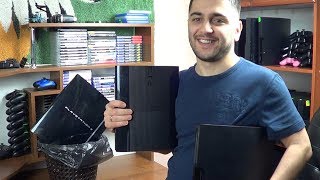
Купил PlayStation 3 super slim ПРОШИТУЮ. Показываю игры, рассказываю стоит ли покупать.
 12:29
12:29
Какую модель Playstation 3 выбрать и где купить?
 06:59
06:59
ПОКУПАЕМ Б/У SONY PLAYSTATION 3 SUPER SLIM / НА ЧТО ОБРАЩАТЬ ВНИМАНИЕ
 06:01
06:01
КУПИЛ PS3 в 2020 году — Мнение/Стоит ли Покупать?
Quick Reference Краткий справочник…
Quick reference краткий справочник
- Изображение
- Текст
Quick Reference
Краткий справочник
2-894-645-72(1)
PS3-1004 2-894-645-72(1)

2about the ps3™ system documentation, Friends, Network
Game, Video, Music, Photo, Settings, Users
- Изображение
- Текст
PS3-1004 2-894-645-72(1)
2
About the PS3™ system documentation
The PS3™ system documentation includes the following:
• Safety and Support
Before using the product, carefully read this document first. It contains safety information
related to use of the PS3™ system, troubleshooting, specifications and other information.
• Quick Reference
(this document)
This document contains information on setting up the PS3™ system, preparing for use and
basic hardware operations.
• User’s Guide
(access from :
eu.playstation.com/manuals
)
This online document is accessed through the Internet and contains detailed information
related to the use of the PS3™ system software (
page 27).
Friends
Chatting and exchanging messages
Network
Connecting to the Internet
Game
Playing games
Video
Playing video
Music
Playing music
Photo
Displaying images
Settings
Adjusting PS3™ system settings
Users
Selecting users to log in to the PS3™
system
Check that you have all of the following items. If any items are missing, contact
the appropriate PlayStation
®
customer service helpline which can be found
within every PlayStation
®
, PlayStation
®
2 and PLAYSTATION
®
3 software manual.
s
PLAYSTATION
®
3 system
s
SIXAXIS™ Wireless Controller
s
Printed Materials
s
AC Power Cord
s
USB Cable
s
Ethernet Cable
s
AV Cable

PS3-1004 2-894-645-72(1)
3
EN
RU
Home Menu
Category
Item
Using «XMB» (XrossMediaBar)
The PS3™ system includes a user interface called «XMB»
(XrossMediaBar). The main screen for «XMB» is called the «Home
Menu».
1
2
3
Select a category using the left or
right button.
Select an item using the up or
down button.
Press the button to confirm the
selected item.
button: Displays the options menu/control panel
Icons
Options menu
Selecting an icon and pressing the
button will display the options menu.
Pressing the button during content
playback will display the control panel.
Control panel
button:
Cancels an operation
Directional buttons:
Used to select on-screen categories/items
button:
Confirms the selected item
PS button:
Displays the Home Menu
Turns the system on/off

PS3-1004 2-894-645-72(1)
4
Getting started
Part names
01
System front
CF
SD/miniSD
Disc slot
CF*
1
slot*
3
SD*
2
Memory Card slot*
3
Memory Stick™ slot*
3
Slot cover*
3
Power button
Vent
USB connectors
HDD access indicator
WLAN access indicator*
3
PS family logo
Can be rotated to match the
position of the system
Eject button
Eject button*
3
*
1
CompactFlash
®
*
2
Secure Digital *
3
On equipped models only
Caution
• Do not use the system in a closed cabinet or other locations where heat
may build up. Doing so may cause the system to overheat and may lead to
fire, injury or malfunction.
• If the system’s internal temperature becomes elevated, the power indicator
will flash alternately in red and green. In this case, turn off the system
(
page 13) and leave it unused for a while. After the system cools down,
move it to a location with good ventilation, and then resume use.
System rear
AV MULTI OUT connector
DIGITAL OUT (OPTICAL) connector
HDMI OUT connector
MAIN POWER switch
AC IN connector
Vent
LAN connector
Notice
Do not place the system in an area subject to excessive
dust or cigarette smoke. Dust build-up or cigarette
smoke residue on the internal components (such as the
lens) may cause the system to malfunction.
Hint
The system can be set in a horizontal or vertical position.
Set as shown in the diagram at right when setting in the
vertical position.

Getting started, Part names, Sixaxis™ wireless controller
Страница 5
- Изображение
- Текст
PS3-1004 2-894-645-72(1)
5
EN
RU
SIXAXIS™ Wireless Controller
SELECT button
USB connector
L2 button
L1 button
Directional
buttons
Left stick/
L3 button*
R2 button
R1 button
button
button
button
button
Right stick/
R3 button*
Port indicators
START button
PS button
* The L3 and R3 buttons function when the sticks are pressed.
Hint
For details on the Wireless Controller, see «Using the SIXAXIS™ Wireless
Controller» (
page 14).
Getting started
Part names

PS3-1004 2-894-645-72(1)
6
Getting started
Setting up the PS3™ system
02
Step 1: Connect to a TV
Video output on the PS3™ system
The PS3™ system can output two types of resolution: HD and SD. Refer to the instruction manual
for the TV in use to check which video mode is supported.
*
1
This number indicates the number of scan lines. Note that «i» stands for «interlace» and «p» stands for
«progressive». Using progressive results in high-quality video with minimal flickering.
*
2
The video output setting on the system will display as «Standard (PAL)».
HD
(High Definition)
SD
(Standard Definition)
Video mode *
1
1080p
1080i
720p
576p
576i *
2
Aspect ratio
16:9
16:9
16:9
16:9
4:3
16:9
4:3
Screens showing the difference in resolution
HD screen
SD screen
Procedure flow for setting up the
system
m
Step 3: Connect the Ethernet
Cable. Page 10
Step 4: Connect the AC Power
Cord. Page 11
m
m
m
Step 2: Connect digital audio
devices. Page 9
Step 5: Perform initial setup of
the system software.
Page 11
Step 1: Connect to a TV.
Page 6

Getting started, Setting up the ps3™ system, Video output cable types
Страница 7
- Изображение
- Текст
PS3-1004 2-894-645-72(1)
7
EN
RU
Getting started
Setting up the PS3™ system
Video output cable types
The resolution displayed on the TV varies depending on the input connectors on the TV and the type of cable in use. Select a cable to match
the TV in use.
Cable type
Input connector on the TV
Supported video modes*¹
HDMI Cable
(sold separately)
HDMI IN connector
1080p / 1080i / 720p / 576p
Component AV Cable
(sold separately)
Component VIDEO IN
connector
Y
L
R
P
R
/C
R
P
B
/C
B
COMPONENT VIDEO IN
AUDIO IN
1080p / 1080i / 720p/ 576p / 576i*²
S VIDEO Cable
(sold separately)
S VIDEO IN connector
S VIDEO
L-AUDIO-R
576i*²
AV Cable
(supplied)
VIDEO IN connector
(composite)
VIDEO
L-AUDIO-R
576i*²
*
1
Depending on the type of TV or content to be played, some video modes may not be supported.
*
2
The video output setting on the system will display as «Standard (PAL)».

Getting started, Setting up the ps3™ system, Connection methods
Connecting to a tv using an hdmi cable, Connecting with other types of cables
- Изображение
- Текст
8
PS3-1004 2-894-645-72(1)
Getting started
Setting up the PS3™ system
Connection methods
Caution
• Do not plug the AC Power Cord for the system into an electrical outlet until
you have made all other connections.
• The socket-outlet shall be installed near the equipment and shall be easily
accessible.
Connecting to a TV using an HDMI Cable
Connect the system to the TV using an HDMI Cable (sold separately).
An HDMI Cable can output both video and audio and enables you to
enjoy digital-quality video and audio with minimal loss of picture
quality.
TV
HDMI IN connector
HDMI Cable (sold separately)
HDMI OUT connector
Connecting with other types of cables
Connect cables other than the HDMI Cable to the AV MULTI OUT
connector on the system.
VIDEO
AUDIO
L
R
TV
VIDEO IN connector
AV Cable
(supplied)
AV MULTI OUT connector
Example: When using the supplied AV Cable
Hint
If you change the type of cable used to connect the system, the picture may
not be displayed. If this happens, turn off the system and then turn it on again
by touching the power button on the system front until it makes a small beep
(about 5 seconds). The picture will be displayed at the system’s default
resolution.

Getting started, Setting up the ps3™ system, Step 2: connect digital audio devices
Audio output on the ps3™ system, Connecting with an optical cable
- Изображение
- Текст
PS3-1004 2-894-645-72(1)
9
EN
RU
Step 2: Connect digital audio devices
You can connect audio devices that support digital audio output,
such as an AV receiver for home entertainment use.
Hint
When connecting a digital audio device to the system, go to
(Settings)
(Sound Settings) «Audio Output Settings», and adjust the settings as
necessary for the audio device.
Audio output on the PS3™ system
The supported channels may vary depending on the output
connector to be used.
PS3™ system output connectors
Channels that can be used for output
2 Ch.
5.1 Ch.
7.1 Ch.
AV MULTI OUT connector
DIGITAL OUT (OPTICAL)
connector *
1
HDMI OUT connector
*
2
*
3
*
1
Audio from a Super Audio CD cannot be output from the DIGITAL OUT
(OPTICAL) connector.
*
2
A device compatible with Linear PCM 7.1 Ch. is required to output 7.1 Ch.
audio from the HDMI OUT connector.
*
3
This system does not support output from the DTS-HD 7.1 Ch. DTS-HD 7.1
Ch audio is output from a 5.1 or lower channel.
Connecting with an optical cable
The audio will be output from the optical cable. The picture will be
output from the video output cable.
Optical cable for audio
(sold separately)
Digital audio device
such as an AV receiver
TV
Video output cable
for the TV in use
(
page 7)
Getting started
Setting up the PS3™ system

Getting started, Setting up the ps3™ system, Connecting with an hdmi cable
Step 3: connect the ethernet cable
- Изображение
- Текст
10
PS3-1004 2-894-645-72(1)
Getting started
Setting up the PS3™ system
Connecting with an HDMI Cable
Both audio and video will be output from the HDMI Cable. You can
output the TV picture via an audio device.
HDMI Cable (sold separately)
Digital audio device such
as an AV receiver
HDMI Cable (sold separately)
TV
Hints
• If your TV is not equipped with an HDMI input connector, use a video output
cable of the correct type for your TV (
page 7) to connect it to the PS3™
system directly.
• If a device is connected to the PS3™ system via an HDMI Cable, do not turn
off the device while the PS3™ system is turned on (power indicator is lit
green). Doing so may cause sound distortions or produce abnormal sounds.
Step 3: Connect the Ethernet Cable
Using an Ethernet Cable, you can connect the system to the Internet.
For details on network settings, see «Adjusting network settings»
(
page 22).
Caution
The system supports 10BASE-T, 100BASE-TX and 1000BASE-T networks. Do
not connect a standard telephone line or other types of cords or cables that
are not compatible with the system directly to the LAN connector on the
system, as this may cause heat build-up, fire or malfunction.
LAN connector
Ethernet Cable (supplied)
LAN access indicator
Hint
If using a PS3™ system that is equipped with the wireless LAN feature, you can
connect to the Internet without using an Ethernet Cable. For details, see «Using
a wireless connection» (
page 23).
