
-
Инструкции по эксплуатации
1

Pentax K-50 инструкция по эксплуатации
(288 страниц)
- Языки:Русский
-
Тип:
PDF -
Размер:
35.62 MB
Просмотр
На NoDevice можно скачать инструкцию по эксплуатации для Pentax K-50. Руководство пользователя необходимо для ознакомления с правилами установки и эксплуатации Pentax K-50. Инструкции по использованию помогут правильно настроить Pentax K-50, исправить ошибки и выявить неполадки.
-
Contents
-
Table of Contents
-
Troubleshooting
-
Bookmarks
Quick Links
SLR Digital Camera
K-50
Operating Manual
To ensure the best performance from your camera, please read
the Operating Manual before using the camera.
Related Manuals for Pentax K-50
Summary of Contents for Pentax K-50
-
Page 1
SLR Digital Camera K-50 Operating Manual To ensure the best performance from your camera, please read the Operating Manual before using the camera. -
Page 2
Regarding copyrights Images taken with the K-50 that are for anything other than personal enjoyment cannot be used without permission according to the rights as specified in the Copyright Act. Please take care, as there are cases where limitations are placed on taking pictures even for personal enjoyment during demonstrations, performances or of items on display. -
Page 3: For Using Your Camera Safely
To users of this camera • Do not use or store this camera in the vicinity of equipment that generates strong electromagnetic radiation or magnetic fields. Strong static charges or the magnetic fields produced by equipment such as radio transmitters could interfere with the monitor, damage the stored data, or affect the camera’s internal circuitry and cause camera misoperation.
-
Page 4
PENTAX Service Center. Continued use can cause a fire or electrical shock. • If water should happen to get inside the product, consult a PENTAX Service Center. Continued use can cause a fire or electrical shock. -
Page 5
• Do not touch or short-circuit the terminal area of the AC plug cord while the cord is plugged in. • Do not handle the power plug with wet hands. This can cause an electric shock. • Do not drop the product, or subject it to violent impact. This can cause the product breakdown. -
Page 6: Care To Be Taken During Handling
• The batteries should be inserted correctly, observing (+) and (-) marks on the batteries. Inserting the batteries incorrectly may cause an explosion or fire. • When replacing the batteries, do not combine different brands, types or capacities. Also, do not combine old batteries with new ones. Inserting the batteries incorrectly may cause an explosion or fire.
-
Page 7: Cleaning Your Camera
• Use a lens brush to remove dust accumulated on the lens or viewfinder. Never use a spray blower for cleaning as it may damage the lens. • Please contact a PENTAX Service Center for professional cleaning of the CMOS sensor. (This will involve a fee.) •…
-
Page 8
• Avoid using or storing the camera where it may be exposed to static electricity or electrical interference. • Avoid using or storing the camera in direct sunlight or in locations where it may be exposed to rapid changes in temperature or to condensation. About SD Memory Cards •… -
Page 9
In order to better serve you, we request that you complete the user registration, which can be found on the CD-ROM supplied with the camera or on the PENTAX website. Refer to p.239 for details. Thank you for your cooperation. -
Page 10
Memo… -
Page 11: Table Of Contents
Contents For Using Your Camera Safely …………1 Care to be Taken During Handling …………4 Contents………………..9 Composition of the Operating Manual ……….15 Before Using Your Camera Checking the Contents of the Package ……..18 Names and Functions of the Working Parts ……19 Capture Mode ………………
-
Page 12
Basic Operations Basic Shooting Operation …………64 Letting the Camera Choose the Optimal Settings……64 Using the Built-in Flash ……………68 Setting the Flash Mode …………..68 Using the Built-in Flash …………..71 Reviewing Images …………….72 Playing Back Images …………….. 72 Deleting a Single Image…………..73 Shooting Functions How to Operate the Shooting Functions……..76 Direct Keys Setting Items………….. -
Page 13
Using the Shake Reduction Function to Prevent Camera Shake ……………….116 Taking Pictures Using the Shake Reduction Function….. 116 Shooting with the Self-timer …………. 119 Shooting with a Remote Control Unit (Optional) ……121 Taking Pictures Continuously………..123 Continuous Shooting……………. 123 Interval Shooting …………….125 Multi-exposure …………….. -
Page 14
Saving Frequently Used Settings ……….170 Saving the Settings …………….170 Checking the Saved USER Settings……….173 Using Saved USER Settings…………173 Resetting to Default Settings …………174 Playback Functions and Image Editing How to Operate the Playback/Edit Functions ……176 Playback Mode Palette Items …………176 Playback Menu Items…………… -
Page 15
Changing Additional Settings How to Operate the Set-up Menu ……….206 Set-up Menu Items…………….206 Camera Settings ……………..208 Setting the Sound Effects, Date and Time, and Display Language ………………208 Setting the Monitor and the Menu Displays ……..212 Battery Settings…………….216 Selecting Settings to Save in the Camera (Memory) ……. -
Page 16
Using the Flash Using the Built-in Flash ………….242 Flash Characteristics in Each Exposure Mode …….. 242 Using the Slow-speed Sync Flash ……….. 242 Distance and Aperture when Using the Built-in Flash…… 244 Using an External Flash (Optional)………..245 Using the P-TTL Auto Flash…………. 246 Using the High-speed Sync Flash………… -
Page 17: Composition Of The Operating Manual
Composition of the Operating Manual This Operating Manual contains the following chapters. 1 Before Using Your Camera Explains the provided accessories and the names and functions of the working parts. 2 Getting Started Explains your first steps from purchasing the camera to taking pictures. Be sure to read this chapter and follow the instructions.
-
Page 18
The symbols used in this Operating Manual are explained below. Indicates reference page numbers explaining a related operation. Indicates useful information. Indicates precautions to take when operating the camera. In this manual, the arrow keys of the four-way controller are referred to in the following way. -
Page 19: Before Using Your Camera
Before Using Your Camera Check the package contents and the names and functions of the working parts before use. Checking the Contents of the Package ….18 Names and Functions of the Working Parts ..19 How to Change Function Settings …… 38…
-
Page 20: Checking The Contents Of The Package
Checking the Contents of the Package The following accessories are packaged with the camera. Check that all accessories are included. Hot shoe cover F Eyecup F Body mount cover (installed on camera) (installed on camera) (installed on camera) Strap Rechargeable lithium-ion Battery charger O-ST132 battery D-LI109…
-
Page 21: Names And Functions Of The Working Parts
Names and Functions of the Working Parts Microphone Image plane indicator AF assist light Strap lug Lens mount index (red dot) Mirror Self-timer lamp/ Remote control receiver AF coupler Lens information contacts Hot shoe Built-in flash Diopter adjustment Speaker lever Viewfinder Strap lug SD Memory Card…
-
Page 22: Capture Mode
Capture Mode Here, you can learn which parts are used and how they function when in capture mode. The factory default setting of each part is explained here, but some parts have multiple functions and work differently depending on the selected setting. 1 m (EV Compensation) 2 d (Green) button button…
-
Page 23: Mode Dial
5 Front e-dial (R) c Rear e-dial (S) Changes the set value. Sets the shutter speed, You can change the menu aperture and EV when a menu screen is compensation values. (p.90) displayed. (p.41) You can change the settings when the control panel is 6 Lens unlock button displayed.
-
Page 24: Playback Mode
g Four-way controller h 3 button (2345) Displays the [A Rec. Mode 1] menu (p.77). Press this button Displays the Sensitivity/White when a menu screen is Balance/Flash Mode/Drive displayed to return to the Mode setup menu. (p.76) previous screen. (p.40) When the control panel or a menu screen is displayed, use this to move the cursor or…
-
Page 25: Shutter Release Button
1 m (EV Compensation) 7 Rear e-dial (S) button Use this to magnify an image or display multiple images at When the file format of the last the same time (p.179, p.180). captured image is JPEG, and its data still remains in the 8 Q (Playback) button buffer memory, press this Switches to capture mode.
-
Page 26: Monitor Display
Monitor Display Various information appears on the monitor depending on the status of the camera. The brightness level and the color of the monitor can be adjusted. (p.213) Capture Mode With this camera, you can take pictures while looking through the viewfinder or while viewing the image on the monitor.
-
Page 27: Status Screen
Status screen The settings for shooting with the viewfinder are displayed. (All items are displayed here for explanatory purposes. The actual display may differ.) 2000 1600 +1.0 +1.0 G1A1 G1A1 123/999 123/999 Capture mode (p.82) Sensitivity (p.87) AE Lock (p.96) Flash Mode (p.68) GPS positioning status AF point (p.104)
-
Page 28: Live View
Live View Live View is displayed when the U/i button is pressed. You can capture images while checking the composition on the monitor. (All items are displayed here for explanatory purposes. The actual display may differ.) 1 2 3 4 5 6 7 8 9 001/999 001/999 +1.7…
-
Page 29
* For indicator 26, multiple face detection frames are displayed when [Contrast AF] is set to [Face Detection]. A main face detection frame is displayed in yellow and other frames in white. (p.106) • The Live View image may differ from the actual image captured if the brightness of the subject is low or high. -
Page 30: Control Panel
Control panel Press the M button in standby mode to display the control panel and change settings. (p.39) Still picture capture mode Custom Image Custom Image Bright Bright C mode Exposure Setting Exposure Setting Program AE Program AE 1:15’30» 1:15’30″…
-
Page 31
• If no operations are made within 1 minute in the control panel, the camera returns to standby mode. • You can change the display color of the status screen and control panel. Set in [LCD Display] of the [R Set-up 1] menu. (p.212) … -
Page 32
Playback Mode The captured image and shooting information are displayed in the single image display of playback mode. 1Playing Back Images (p.72) Press the M button to call up the playback information display selection screen. Use the four-way controller (2345) to select the type of screen display that appears in the single image display and press the 4 button. -
Page 33: Detailed Information Display
Detailed Information Display Use the four-way controller (23) to switch between pages. (All items are displayed here for explanatory purposes. The actual display may differ.) Page 1 Still picture 4 5 6 100-0001 100-0001 2000 2000 50mm 50mm ±0 ±0 ±0 ±0 F2.8 F2.8…
-
Page 34
Shake Reduction (p.116)/ Shadow Correction (p.150) Horizon Correction (p.118)/ Distortion Correction (p.153) Movie SR (p.131) Lateral Chromatic Aberration Adjustment (p.153) Focus mode (p.101)/AF point (p.104)/Contrast AF (p.106) Custom Image (p.157) Aperture value Custom Image parameters (p.158) EV Compensation (p.92) Flash Mode (p.68) Color Space (p.144) Flash Exposure Compensation Shooting date and time… -
Page 35: Using The Histogram
Histogram Display/RGB Histogram Display Use the four-way controller (23) to switch between the Histogram Display and RGB Histogram Display. 100-0001 100-0001 100-0001 100-0001 2000 2000 F2.8 F2.8 2000 2000 F2.8 F2.8 Histogram Display RGB Histogram Display Histogram (Brightness) Aperture value Protect setting Sensitivity Folder number-File number…
-
Page 36
When the image is underexposed, the part to the left is cut off (underexposed portions with no detail) and when the image is overexposed, the part to the right is cut off (overexposed portions with no detail). You can set whether to display the bright/dark area warning during capture or playback mode. -
Page 37: Viewfinder
Viewfinder When shooting with the viewfinder, the following information appears in the viewfinder. AF frame Spot metering frame (p.97) AF point (p.104) The AF point in use for autofocus appears in red (Superimpose AF Area) when the shutter release button is pressed halfway. (p.104) Flash indicator (p.71) Lit: when the flash is available.
-
Page 38
ISO/ISO AUTO (p.87) Appears when the sensitivity is displayed. Sensitivity/Remaining image storage capacity Underlined when it can be adjusted. Displays the number of recordable still pictures (up to “9999”) immediately after shooting. Displays the compensation value while adjusting the EV compensation. Displays the amount of deviation from the correct exposure when in a mode and Electronic Level is activated. -
Page 39
Electronic Level Display When the camera is not level, a bar scale indicating the horizontal camera angle is displayed in the EV bar scale, if [Electronic Level] of the [A Rec. Mode 3] menu is activated. This is not active by default. (p.212) When level (at 0°) When tilted 5°… -
Page 40: How To Change Function Settings
How to Change Function Settings Function settings can be changed using the direct keys, control panel or menus. This section explains the basic ways to change function settings. Using the Direct Keys In standby mode, you can set Sensitivity, White Balance, Flash Mode and Drive Mode by pressing the four-way controller (2345).
-
Page 41: Using The Control Panel
Using the Control Panel In standby mode, you can switch to the control panel and change settings. Below, how to set [JPEG Quality] is explained as an example. Press the M button in standby mode. The control panel appears. Use the four-way controller Custom Image Custom Image (2345) to select the item you…
-
Page 42: Using The Menus
Press the 4 button. The camera returns to the control panel. Next, set other items. Press the 3 button or the shutter release button halfway. The camera is ready to take a picture. You can also change the setting by turning the rear e-dial (S) after selecting the item you want to change in Step 2 ([Recording Sound Level] for C mode can only be set using this operation).
-
Page 43
Press the four-way controller (5) 2 3 4 twice. Custom Image Custom Image Digital Filter Digital Filter Each time the four-way controller (5) is HDR Capture HDR Capture pressed, the menu will change in the Image Capture Settings Image Capture Settings AE Metering AE Metering following sequence: [A Rec. -
Page 44
Press the 4 button. The setting is saved. Press the 3 button if a submenu is displayed. Next, set other items. Press the 3 button. The screen that was displayed before selecting the menu item appears again. Your settings may not be saved if the camera is turned off improperly (such as by removing the battery while the camera is on). -
Page 45: Getting Started
Getting Started This chapter explains your first steps from purchasing the camera to taking pictures. Be sure to read this and follow the instructions. Attaching the Strap ……….44 Inserting the Battery ……….45 Inserting/Removing an SD Memory Card ..52 Attaching a Lens ……….
-
Page 46: Attaching The Strap
Attaching the Strap Pass the end of the strap through the strap lug, then secure it on the inside of the clasp. Attach the other end of the strap in the same manner as described above.
-
Page 47: Inserting The Battery
Inserting the Battery The following power supplies can be used with the camera. • Rechargeable Lithium-ion Battery D-LI109 (provided) • AA Battery Holder D-BH109 with four AA batteries (optional) • AC Adapter Kit K-AC128 (optional) Using the Lithium-ion Battery Use the battery charger D-BC109 and the rechargeable lithium-ion battery D-LI109 to power the camera.
-
Page 48: Battery Charger
Face the 2 mark on the battery up, and insert the battery into the battery charger. First, insert the battery at an angle, as shown in the illustration, and then push down on the battery until it clicks. The indicator lamp lights up when charging and turns off when the battery is fully charged.
-
Page 49
Inserting/Removing the Battery • Do not open the battery cover or remove the battery while the power is on. • Insert the battery correctly. If the battery is inserted incorrectly, it may not be removed. Wipe the electrodes of the battery with a soft dry cloth before inserting. -
Page 50: Using The Aa Batteries
Close the battery cover. The battery cover is locked. Using the AA Batteries When using AA batteries, be sure to use the optional AA Battery Holder D-BH109. Use four AA lithium batteries, AA Ni-MH rechargeable batteries, or AA alkaline batteries. Available Batteries Characteristics AA lithium batteries…
-
Page 51: Battery Level Indicator
Open the battery cover. Refer to Step 1 on p.47. Remove the battery if it is inserted in the camera. Insert the battery holder into the battery chamber until it locks into place, and close the battery cover. • To use the AA batteries, set the AA battery type in [AA Battery Type] of the [R Set-up 3] menu before use.
-
Page 52: Using The Ac Adapter
Using the AC Adapter We recommend the use of the optional AC adapter kit K-AC128 when using the monitor for a long time or when connecting the camera to a computer or AV device. The AC Adapter Kit K-AC128 includes AC Adapter D-AC120, DC Coupler D-DC128, and AC plug cord.
-
Page 53
Connect the DC coupler and the AC adapter. Connect the AC adapter to the AC plug cord. Plug the AC plug cord into the power outlet. • Make sure the camera is turned off before connecting or disconnecting the AC adapter. •… -
Page 54: Inserting/Removing An Sd Memory Card
Inserting/Removing an SD Memory Card This camera uses a commercially available SD Memory Card, SDHC Memory Card, or SDXC Memory Card. Make sure the camera is turned off before inserting or removing the SD Memory Card. • Do not remove the SD Memory Card while the card access lamp is lit. •…
-
Page 55
Push the SD Memory Card in once to remove. Close the card cover (3), and then slide it in the direction of the arrow (4). Be sure to fully close the card cover. The camera will not turn on if the card cover is open. -
Page 56: Attaching A Lens
• The camera body and lens mount incorporate lens information contacts. Dirt, dust, or corrosion on the contacts may damage the electrical system. Please contact a PENTAX Service Center for professional cleaning. • Some functions will be restricted when one of lenses described in (b) is used with the aperture ring set to the position other than s, or when a lens other than listed above and/or other accessories are used.
-
Page 57
Align the lens mount index (red dots: 3) on the camera and the lens, and secure by turning the lens clockwise until it clicks. After attaching, turn the lens counterclockwise to make sure that the lens is locked in place. Remove the front lens cap by pushing the indicated portions inward. -
Page 58: Adjusting The Viewfinder Diopter
Adjusting the Viewfinder Diopter You can adjust the viewfinder diopter to suit your eyesight. The Eyecup F is attached to the viewfinder portion when the camera leaves the factory. The diopter can be adjusted with the eyecup attached. However, adjustment is easier with the eyecup removed. Remove the eyecup by pulling it out in the direction of the arrow.
-
Page 59: Turning The Camera On And Off
Turning the Camera On and Off Turn the main switch to [ON]. The camera turns on. Set the main switch to the position [OFF] to turn off the camera. • Always turn the camera off when not in use. • The power will automatically turn off when you do not perform any operations within a set period of time (Auto Power Off).
-
Page 60: Initial Settings
Initial Settings The first time the camera is turned on, the [ Language/ u] screen appears on the monitor. Follow the procedure below to set the language displayed on the monitor and the current date and time. If the [Date Adjustment] screen appears, Date Adjustment Date Adjustment proceed to “Setting the Date and Time”…
-
Page 61
Use the four-way controller (45) Hometown Hometown to select a city. Turn the rear e-dial (S) to change the region. Refer to “List of World Time Cities” (p.211) New York New York for cities that can be selected as a hometown. -
Page 62: Setting The Date And Time
Setting the Date and Time Set the current date and time and the display style. Press the four-way controller Date Adjustment Date Adjustment (5), and use the four-way Date Format Date Format mm/dd/yy mm/dd/yy 24h controller (23) to select the date Date Date 0 1 / 0 1 / 2 0 1 3…
-
Page 63
Press the four-way controller (3) Date Adjustment Date Adjustment to select [Settings complete], and Date Format Date Format mm/dd/yy mm/dd/yy 24h press the 4 button. Date Date 0 5 / 0 5 / 2 0 1 3 0 5 / 0 5 / 2 0 1 3 The camera is ready to take a picture. -
Page 64
Memo… -
Page 65: Basic Operations
Basic Operations This chapter explains basic operations for shooting by setting the mode dial to n (Auto Picture) to have the camera select the optimum settings based on the subject. For information about advanced functions and settings for taking pictures, refer to chapter 4 and onward. Basic Shooting Operation ……..
-
Page 66: Basic Shooting Operation
Basic Shooting Operation Letting the Camera Choose the Optimal Settings This camera features various capture modes, focus modes, and drive modes. This section explains how to take pictures by simply pressing the shutter release button. You can take pictures while looking through the viewfinder or while viewing the image on the monitor.
-
Page 67
Set the focus mode switch to l. In n mode, the focus mode changes to f (Autofocus/Auto) mode. 1Setting the Focus Mode (p.101) Look through the viewfinder to view the subject. When using a zoom lens, turn the zoom ring to the right or left to change the angle of view. -
Page 68
Press the shutter release button fully. The picture is taken. This action is referred to as “releasing the shutter” or “release”. Review the captured image on the monitor. The image appears for 1 second on the monitor shortly after it is captured (Instant Review). -
Page 69
Taking Pictures Using Live View Press the U/i button in Step 3 on p.65. The Live View image is displayed on the monitor. Position the subject inside the AF frame on the monitor, and press the shutter release button halfway. The autofocus system operates. -
Page 70: Using The Built-In Flash
Using the Built-in Flash Use a flash to take pictures in low light or backlit conditions. The built-in flash is optimum for a subject at a distance from approx. 0.7 m to 5 m. Vignetting (darkening of the corners of the image due to a lack of light) may occur when used at a distance closer than 0.7 m (this distance varies slightly depending on the lens being used and the sensitivity setting (p.244)).
-
Page 71
The flash modes that can be selected differ depending on the capture mode. Capture Mode Selectable Flash Mode C/i/E/F/r e/K/c E/F/G/H/I/r b/L/a/p E/F/k/r The flash does not discharge in the following capture modes: • C mode • K (Sunset) or d (Blue Sky) of n mode •… -
Page 72: Compensating Flash Output
Compensating Flash Output You can adjust the flash output in a range of -2.0 to +1.0. The following flash compensation values can be set according to the step interval set in [1. EV Steps] of the [A Custom Setting 1] menu. EV Steps Selectable Flash Compensation Value -2.0, -1.7, -1.3, -1.0, -0.7, -0.3, 0.0, +0.3, +0.7, +1.0…
-
Page 73: Using The Built-In Flash
Using the Built-in Flash Press the E button. The built-in flash pops up and begins charging. While the flash is charging, E blinks in the viewfinder or Live View screen. When the flash is fully charged, E stops blinking and stays lit continuously. When you do not want the flash to discharge, keep the built-in flash retracted.
-
Page 74: Reviewing Images
Reviewing Images Playing Back Images You can play back captured images with the camera. Press the Q button. The camera switches to the single image display of playback mode and the most recently captured image (for movies, only the first frame) is displayed on the monitor.
-
Page 75: Deleting A Single Image
Deleting a Single Image You can delete images one by one. • Deleted images cannot be restored. • Protected images cannot be deleted. (p.222) Press the Q button, and display an image to delete. Press the U/i button. The delete confirmation screen appears. Press the four-way controller (2) 100-0001 100-0001…
-
Page 76
Memo… -
Page 77: Shooting Functions
Shooting Functions This chapter describes the various basic and advanced shooting functions available with this camera. How to Operate the Shooting Functions … 76 Selecting the Appropriate Capture Mode ..82 Setting the Exposure ……….. 87 Focusing …………. 101 Checking the Depth of Field (Preview) ….. 114 Using the Shake Reduction Function to Prevent Camera Shake …………
-
Page 78: How To Operate The Shooting Functions
How to Operate the Shooting Functions You can change capture-related settings using the direct keys, control panel, [A Rec. Mode] menu, [C Movie] menu or [A Custom Setting] menu. For details on how to use the direct keys and menus, refer to “How to Change Function Settings”…
-
Page 79: Rec. Mode Menu Items
Rec. Mode Menu Items The following items are available in the [A Rec. Mode 1-4] menus. Press the 3 button in standby mode to display the [A Rec. Mode 1] menu. Menu Item Function Page Sets the capture mode when the mode dial Exposure Mode p.173 is set to B or C.
-
Page 80
Menu Item Function Page Reduces distortions and lateral chromatic Lens Correction p.153 aberrations occurring due to lens properties. Creates a picture by taking multiple Multi-exposure exposures and merging them into a single p.128 image. Takes pictures at a set interval from a set Interval Shooting p.125 time. -
Page 81: Movie Menu Items
Movie Menu Items The following items are available in the [C Movie 1] menu. Press the 3 button when the mode dial is set to C to display the [C Movie 1] menu. Menu Item Function Page Selects the movie exposure mode Exposure Setting from e, c, or a mode.
-
Page 82: Custom Setting Menu Items
Custom Setting Menu Items The following items of the [A Custom Setting 1-4] menus enable you to make the best use of the camera. Menu Item Function Page Sets the adjustment steps for 1. EV Steps p.92 exposure. Sets the adjustment steps for ISO 2.
-
Page 83
Menu Item Function Page Sets whether to display the active 15. Superimpose AF Area p.104 AF point in red in the viewfinder. 16. Release While Sets whether to release the shutter p.71 Charging while charging the built-in flash. Sets the built-in flash discharge 17. -
Page 84: Selecting The Appropriate Capture Mode
Selecting the Appropriate Capture Mode This camera features various capture modes, enabling you to take pictures with settings suited for your photographic vision. In this manual, the capture modes are referred to as follows. Capture Mode Characteristics Page Automatically selects the optimal capture n (Auto Picture) mode p.83 mode for the subject.
-
Page 85: Auto Picture Modes
The selected capture mode is displayed for 3 seconds on the monitor (guide display). Program Program Automatic Exposure Automatic Exposure You can set the camera to not display the guides in [LCD Display] of the [R Set-up 1] menu. (p.212) Auto Picture Modes When set to n (Auto Picture) mode, the camera automatically selects the optimal mode from the following capture modes for the subject.
-
Page 86: Scene Modes
Scene Modes When set to H (Scene) mode, you can choose from the following shooting scenes. Mode Characteristics For capturing portraits. Reproduces a healthy and bright skin tone. Portrait For capturing landscape views. Increases color saturation and Landscape produces a vivid color image. For capturing tiny objects at close focus range like flowers, Macro coins, jewelry, and more.
-
Page 87: Selecting A Scene Mode
Mode Characteristics U Candlelight For capturing scenes in candlelight. Stage For capturing moving subjects in poorly lit place. Lighting E Museum For capturing images in places where a flash is prohibited. The flash is deactivated in K, d, A, Z, y, U, n, and E modes. To prevent camera shake, either turn on the Shake Reduction function, or mount the camera on a tripod.
-
Page 88: Exposure Modes
Use the four-way controller Portrait Portrait (2345) or rear e-dial (S) to choose a scene mode, and press the 4 button. For capturing portraits. For capturing portraits. The camera returns to the control panel Reproduces a healthy Reproduces a healthy and is ready to take a picture.
-
Page 89: Setting The Exposure
Setting the Exposure Setting the Sensitivity You can set the sensitivity to suit the brightness of the surroundings. The sensitivity can be set to [ISO AUTO] or within a sensitivity range equivalent to ISO 100 to 51200. The default setting is [ISO AUTO]. Press the four-way controller (2) in standby mode.
-
Page 90
• In L mode, or Z (Night Scene HDR)/l (Night Snap)/n (Stage Lighting) of H mode, the sensitivity is fixed to [ISO AUTO (up to ISO 6400 for H mode)]. • In K or p mode, [ISO AUTO] is not displayed. If the mode dial is set to p, the sensitivity is set to the last fixed value. -
Page 91: Changing The Exposure Mode
Changing the Exposure Mode This camera features the following exposure modes. The settings available for each exposure mode are as follows. z: Available #: Restricted ×: Not available Change Change Change Exposure Mode Shutter Speed Aperture Value Sensitivity Compensation Program Automatic Exposure Sensitivity Priority ×…
-
Page 92
The value that can be changed is underlined in the viewfinder. During Live View, 5 appears for the value that can be changed. [ 128 ] [ 128 ] 2000 2000 F2.8 F2.8 1600 1600 Turn the rear e-dial (S). The aperture value can be changed in c, L, a, or p mode. -
Page 93: Bulb Shooting
Bulb Shooting This is useful when capturing images of night scenes and fireworks which require long exposures. Set the mode dial to p (Bulb). Press the shutter release button. The shutter remains open as long as the shutter release button is kept pressed.
-
Page 94: Adjusting The Exposure
Adjusting the Exposure This allows you to deliberately overexpose (brighten) or underexpose (darken) your picture. The compensation value can be set between -5 and +5 EV (-2 and +2 EV in C mode). The value that can be set varies according to the step interval set in [1.
-
Page 95: Exposure Bracketing
+1.7 +1.7 ±0EV ±0EV 2000 2000 F2.8 F2.8 1600 1600 Available operations m button Starts/ends selecting the compensation value. d button Resets the compensation value to the default setting. • EV Compensation is not available in p mode. • The set compensation value is not canceled by turning the camera off or by switching to another capture mode.
-
Page 96
Exposure Bracketing is not available in the following situations. • when p mode, or (Moving Object)/Z (Night Scene HDR)/Z (Pet)/R (Kids) of H mode is set • when Interval Shooting, Multi-exposure or HDR Capture is set Press the four-way controller (5) in standby mode. The Drive Mode setting screen appears. -
Page 97
Press the shutter release button fully. Press and hold the shutter release button until three pictures are taken. The pictures will be taken according to the order set in [6. Bracketing Order] of the [A Custom Setting 1] menu. • When the focus mode is set to l, the focus position is locked in the first image and is used for subsequent images. -
Page 98: Locking The Exposure Before Shooting (Ae Lock)
Locking the Exposure Before Shooting (AE Lock) AE Lock is a function that locks the exposure (brightness) prior to taking a picture. Use this when the subject is too small to obtain a proper exposure or is backlit. Assign [AE Lock] to the =/L button. Refer to “Setting the =/L Button Operation”…
-
Page 99: Selecting The Metering Method
Selecting the Metering Method Choose the part of the sensor to use for measuring brightness and determining exposure. The sensor meters the brightness in multiple zones. (default setting) Multi- Even in backlit locations, this mode automatically determines what level segment of brightness is in which portion and automatically adjusts exposure.
-
Page 100: Reducing The Image Noise (Noise Reduction)
Reducing the Image Noise (Noise Reduction) When shooting with a digital camera, image noise (image roughness or unevenness) becomes noticeable in the following situations. • when shooting with a high sensitivity setting • when shooting with long exposures • when the temperature of the CMOS sensor is high You can reduce image noise by using Noise Reduction.
-
Page 101
Press the 4 button. If you select [Auto], [Low], [Medium], [High] or [Off], proceed to Step 7. Use the four-way controller (23) to select [Setting], and press the four-way controller (5). The screen to set the noise reduction level according to the ISO sensitivity appears. -
Page 102
Slow Shutter Speed NR Reduces noise during long exposures. Select [Slow Shutter Speed NR] in the [A Rec. Mode 3] menu, and press the four-way controller (5). Use the four-way controller (23) to select a setting, and press the High-ISO NR High-ISO NR 4 button. -
Page 103: Focusing
Focusing Setting the Focus Mode Set the focus mode switch to l, A, or . The autofocus methods for shooting with the viewfinder differ from those for shooting with Live View. TTL phase-matching autofocus: Select from l, k, or f mode which enables automatically switching between l Shooting with the viewfinder and k.
-
Page 104
Autofocus Modes when Shooting with the Viewfinder The following autofocus modes can be selected when shooting with the viewfinder. When the shutter release button is pressed halfway and the subject comes into focus, the focus is locked (focus lock) at that position. -
Page 105
The subject is kept in focus by continuous adjustment while the shutter release button is pressed halfway. The focus indicator ] appears and you will hear a beep when the subject comes into focus. The shutter can be released even if the subject is not in focus. -
Page 106: Selecting The Focusing Point (Af Point)
Selecting the Focusing Point (AF Point) Sets the focusing point when shooting with the viewfinder. The selected focus point will light red in the viewfinder (Superimpose AF Area). Auto (5 AF Out of the 5 AF points, the camera selects the optimum AF Points) point even if the subject is not centered.
-
Page 107
Selecting the Desired Focusing Point Select S in Step 3 on p.104, and press the 4 button. Press the 3 button or the shutter release button halfway. The camera returns to the status screen and is ready to take a picture. Select the desired AF point. -
Page 108: Setting The Contrast Af During Live View
Setting the Contrast AF during Live View You can select from the following autofocus methods when shooting with Live View. Detects and tracks faces of people. (default setting) Face The main face detection frame for autofocus and auto Detection exposure is displayed in yellow. Tracks the subject in focus when the shutter release button is E Tracking pressed halfway.
-
Page 109
• You can also change the setting from [Contrast AF] in [Live View] of the [A Rec. Mode 4] menu. • [Contrast AF] is fixed to D in U (Standard)/c (Portrait)/. (Night Scene Portrait) of n mode or c (Portrait)/. (Night Scene Portrait)/R (Kids) of H mode. -
Page 110
Selecting the Desired Focusing Area You can set the range of the autofocusing area (AF area). Select G in Step 3 on p.106, and press the 4 button. The camera returns to the control panel. Press the 3 button or the shutter release button halfway. -
Page 111: Checking The Focus
Checking the Focus When shooting with Live View, you can check the focus lock position by magnifying the image on the monitor, centering around the area in focus. View the subject on the monitor, and press the shutter release button halfway. The autofocus system operates.
-
Page 112: Adjusting The Focus Manually (Manual Focus)
Adjusting the Focus Manually (Manual Focus) While looking through the viewfinder or viewing the Live View screen, turn the focusing ring until the subject is clearly visible. In mode, the shutter can be released by pressing the shutter release button fully even if the subject is not in focus.
-
Page 113
Focusing Using Live View Set the focus mode switch to . While viewing the monitor, turn the focusing ring. When it is difficult to check the focus, press the 4 button. The image on the monitor is magnified. Available operations Rear e-dial (S) to the right (y) Magnifies the image (up to 6 times) Rear e-dial (S) to the left (f) Reduces the image (up to 2 times) -
Page 114: Af Fine Adjustment
AF Fine Adjustment You can precisely fine tune your lenses with the camera’s autofocus system. • Be sure to use [AF Fine Adjustment] only when necessary. Care should be taken as adjusting the autofocus may make it difficult to capture images with the appropriate focus.
-
Page 115
Available operations Four-way controller (5)/ Adjusts the focus to a closer position. Rear e-dial (S) to the right (y) Four-way controller (4)/ Adjusts the focus to a farther position. Rear e-dial (S) to the left (f) | button Resets the adjustment value to the default setting. -
Page 116: Checking The Depth Of Field (Preview)
Checking the Depth of Field (Preview) You can use the preview function to check depth of field, composition, exposure and focus before taking a picture. There are two preview methods. Preview Method Description Optical Preview For checking the depth of field with the viewfinder. For checking the composition, exposure and Digital Preview focus on the monitor.
-
Page 117: Displaying The Digital Preview
Displaying the Digital Preview Assign [Digital Preview] to the V/Y button. Refer to “Setting the V/Y Button Operation” (p.167) for details. Focus on the subject, and press the V/Y button. | appears on the monitor during preview and you can check the composition, exposure and focus.
-
Page 118: Using The Shake Reduction Function To Prevent Camera Shake
In this case, it is recommended to deactivate the Shake Reduction function and use the camera with a tripod. • The Shake Reduction function is available with any PENTAX lens compatible with this camera. However, be sure to set the focal length before using a lens for which focal length information cannot be automatically obtained.
-
Page 119
Use the four-way controller (45) Shake Reduction Shake Reduction to select Q or R, and press the 4 button. The camera returns to the control panel. Cancel Cancel MENU Uses Shake Reduction. (default setting) Does not use Shake Reduction. Press the shutter release button halfway. The Shake Reduction function is activated, and k appears in the status screen, viewfinder, and Live View screen. -
Page 120
Correcting the Tilt of the Images When an image is tilted, it can be corrected up to a maximum of ±1.0 degrees (when Shake Reduction is turned on). Select [Horizon Correction] in the [A Rec. Mode 3] menu. Use the four-way controller (45) to select P (Off) or O (On). -
Page 121: Shooting With The Self-Timer
Shooting with the Self-timer Self-timer The shutter is released after about 12 seconds. Use this mode (12 sec.) to include the photographer in the picture. The shutter is released about 2 seconds after the shutter release Self-timer button is pressed. Use this mode to avoid camera shake when (2 sec.) the shutter release button is pressed.
-
Page 122
Press the shutter release button fully. For g, the self-timer lamp starts blinking slowly and then blinks rapidly 2 seconds before the shutter is released. A beep is heard and the rate increases. The shutter will be released about 12 seconds after the shutter release button is pressed fully. -
Page 123: Shooting With A Remote Control Unit (Optional)
Shooting with a Remote Control Unit (Optional) The shutter can be released from a distance by using an optional remote control unit. The shutter is released immediately after the shutter Remote Control release button on the remote control unit is pressed. Remote Control The shutter is released about 3 seconds after the shutter (3 sec.
-
Page 124: Control Unit
S button. The { button cannot be used. • The Remote Control F can send a remote control signal about 30,000 times. Contact a PENTAX Service Center to replace the battery (this will involve a fee).
-
Page 125: Taking Pictures Continuously
Taking Pictures Continuously Continuous Shooting Pictures can be taken continuously while the shutter release button is fully pressed. Continuous Up to approximately 6 frames per second can be taken Shooting (Hi) continuously (for JPEG images). Continuous Up to approximately 3 frames per second can be taken Shooting (Lo) continuously (for JPEG images).
-
Page 126
Press the shutter release button fully. Pictures are taken continuously while the shutter release button is fully pressed. Take your finger off the shutter release button to stop. • The capture mode is fixed to g in (Moving Object)/Z (Pet)/R (Kids) of H mode. -
Page 127: Interval Shooting
Interval Shooting Takes pictures at a set interval from a set time. The following items can be set. Interval Set the time interval between shots from 3 seconds to 24 hours. Set from 2 to 999. Number of The number of pictures that can be set varies depending on the shooting Shots conditions such as the amount of available space on the SD Memory Card.
-
Page 128
Use the four-way controller (23) to select [Start Interval], and press the four-way controller (5). Use the four-way controller (23) to select [Now] or [Set Time], and press the 4 button. If you selected [Now], proceed to Step 10. Use the four-way controller (23) to select [Start Time], and press the four-way controller (5). -
Page 129
• Refer to “Interval Movie” (p.134) for information on how to perform Interval Shooting in C mode. • If the mode dial or the main switch is turned while shooting, the pictures that have been already taken are saved and Interval Shooting is ended. •… -
Page 130: Multi-Exposure
Multi-exposure You can create a picture by taking multiple exposures and merging them into a single image. Multi-exposure is not available in the following situations. • when Z (Night Scene HDR) of H mode, or C mode is set • when Interval Shooting, Digital Filter or HDR Capture is set Select [Multi-exposure] in the [A Rec.
-
Page 131: Take The Picture
Take the picture. The composite picture is displayed in Instant Review each time the shutter release button is pressed. The following operations can be performed during Instant Review. Available operations U/i button Discards pictures taken up to that point and takes pictures again from the first frame.
-
Page 132: Recording Movies
Recording Movies This camera enables you to record movies with the following format. • Sound Monaural • File format MPEG-4 AVC/H.264 (File extension: .MOV) Changing the Settings for Movie Recording Settings for recording movies can be changed using the [C Movie] menu or the control panel.
-
Page 133
Select [Recorded Pixels]. Display Recorded Pixels Aspect Ratio Frame Rate (fps) Resolution a (default setting) 1920×1080 30/25/24 1280×720 60/50/30/25/24 640×480 30/25/24 When the setting is changed, the amount of recordable time for that setting appears at the top right of the screen. Select [Framerate]. -
Page 134: Recording Movies
Recording Movies Set the mode dial to C. Live View for movie recording is displayed. View the subject on the monitor. Recording Sound Level Movie SR Change the exposure setting as necessary. 10’30» 10’30» Recordable Time Available operations Rear e-dial (S) Exposure Setting c/a: Adjusts the aperture value (only before shooting).
-
Page 135
• When [Recording Sound Level] is set to a value other than l (0), the camera operation sounds are also recorded. When recording a movie, mount the camera onto a tripod and do not operate the camera while recording. • The flash is not available. •… -
Page 136: Interval Movie
Interval Movie Takes still pictures at a set interval from a set time and saves them as a single movie file (Motion JPEG, file extension: .AVI). The following items can be set. Select from 3 sec., 5 sec., 10 sec., 30 sec., 1 min., 5 min., 10 Interval min., 30 min., or 1 hour.
-
Page 137
Use the four-way controller (45) to select hours, minutes, or seconds, and use the four-way controller (23) to set the time. Press the 4 button to complete the setting. Use the four-way controller (23) to select [Start Interval], and press the four-way controller (5). Use the four-way controller (23) to select [Now] or [Set Time], and press the 4 button. -
Page 138: Playing Back Movies
Playing Back Movies Recorded movies can be played back in playback mode in the same manner as saved still pictures. Select the movie to play back in the single image display of playback mode. The first frame of the movie is displayed on the monitor. Press the four-way controller (2).
-
Page 139
Capturing a Still Picture from a Movie You can capture a single frame from a movie and save it as a JPEG still picture. Press the four-way controller (2) in Step 2 on p.136 to pause the movie. Use the four-way controller (45) Frame number/ Total number of frames to display the frame to save as a… -
Page 140: Editing Movies
Editing Movies Movies can be divided and unwanted segments can be deleted. Select the movie to play back in the single image display of playback mode. The first frame of the movie is displayed on the monitor. Press the four-way controller (3). The playback mode palette appears.
-
Page 141
Use the four-way controller (45) to move the selection frame, and press the 4 button. 00’05» 00’05» The segment(s) to delete are specified. 10’00» 10’00» Multiple segments can be deleted at once. Select segments for deletion Select segments for deletion MENU Press the 4 button again to cancel the selection. -
Page 142
Memo… -
Page 143: Shooting Settings
Shooting Settings This chapter describes image file formats and camera operating settings in capture mode. Setting a File Format ………. 142 Setting the White Balance ……… 145 Correcting Images ……….150 Setting the Image Finishing Tone ….. 157 Customizing the Button/E-dial Functions ..164 Saving Frequently Used Settings …..
-
Page 144: Setting A File Format
Setting a File Format Set the file format, number of recorded pixels, quality level, and color space of still pictures. Select [Image Capture Settings] in the [A Rec. Mode 1] menu, and press the four-way controller (5). The [Image Capture Settings] screen appears. Use the four-way controller (23) Image Capture Settings Image Capture Settings…
-
Page 145: File Format
File Format You can set the format of image files. Captures images in JPEG format. (default setting) JPEG You can change the [JPEG Recorded Pixels] and [JPEG Quality] settings. Captures images in CMOS sensor output format without processing. RAW files are recorded with the general-purpose DNG (Digital Negative) format designed by Adobe Systems.
-
Page 146: Jpeg Quality
JPEG Quality You can set the image quality level (compression ratio). The default setting is C (Best). C Best Quality: clearer File size: larger Better Good Quality: grainier File size: smaller Color Space You can select a color space to use. Mainly used for devices such as a computer.
-
Page 147: Setting The White Balance
Setting the White Balance Adjusts the color of an image based on ambient light conditions so that white objects appear white. Color Item Setting Temperature Automatically adjusts the white balance. Approx. 4,000 to F Auto (default setting) 8,000K Daylight For use when taking pictures in sunlight. Approx.
-
Page 148
Press the four-way controller (3) in standby mode. The White Balance setting screen appears. The last image taken is displayed in the background. Use the four-way controller (45) Auto White Balance Auto White Balance to select the white balance. When J is selected, press the four-way controller (3) and use the four-way controller (45) to select D, N, W, or L. -
Page 149: Adjusting The White Balance Manually
Press the 4 button. The screen that was displayed in Step 2 appears again. Press the 4 button. The camera is ready to take a picture. To set the white balance for when the flash discharges, select [Auto White Balance], [Unchanged] or [Flash] in [9. WB When Using Flash] of the [A Custom Setting 2] menu.
-
Page 150
Use the four-way controller (2345) to move the frame to the position you want to measure. Press the 4 button. The white balance is measured, and the screen that was displayed in Step 2 appears again. Adjust the white balance as necessary. The message [The operation could not be completed correctly] appears when measuring is unsuccessful. -
Page 151: Adjusting The White Balance With Color Temperature
Use the four-way controller (23) 100-0001 100-0001 to select a number, and press the Saves this image’s White Saves this image’s White 4 button. Balance settings as a custom Balance settings as a custom selection selection The white balance settings of the selected Save as Manual 1 Save as Manual 1 image are saved as Manual White…
-
Page 152: Correcting Images
Correcting Images The camera and lens properties can be automatically modified for when taking pictures. Brightness Adjustment Expands the dynamic range and enables a wider range of tones expression by the CMOS sensor and reduces the occurrence of overexposed and underexposed areas. Press the M button in standby mode.
-
Page 153: High Dynamic Range Image Capture
When the sensitivity is set to less than ISO 200 setting, [Highlight Correction] cannot be set to [On]. You can also set [Highlight Correction] and [Shadow Correction] in [D-Range Settings] of the [A Rec. Mode 2] menu. High Dynamic Range Image Capture High dynamic range photography is a way of expressing the entire range from dark to bright areas by capturing multiple images with different exposures (underexposed, properly exposed (standard), and…
-
Page 154
Press the four-way controller HDR Capture HDR Capture (5), use the four-way controller HDR Capture HDR Capture (23) to select a setting, and Auto Align Auto Align Exposure Bracket Value Exposure Bracket Value press the 4 button. Cancel Cancel MENU Use the four-way controller (23) to select [Auto Align], and use the four-way controller (45) to select O or P. -
Page 155: Lens Correction
Lens Correction Reduces distortions and lateral chromatic aberrations occurring due to lens properties. Distortion Distortion is a phenomenon in which the center of the image appears inflated (barrel distortion) or the center of the image appears pinched (pincushion distortion). Distortion occurs more easily when using a zoom lens or a small diameter lens, and straight walls or the horizon in an image appear curved.
-
Page 156
• Corrections can only be made when using DA, DA L, D FA or some FA lenses. The Lens Correction functions cannot be selected when an incompatible lens is attached. (p.261) • The Lens Correction functions are disabled when using an accessory such as a close-up ring or rear converter that is attached between the camera and the lens. -
Page 157: Composition Adjustment
Composition Adjustment It allows you to adjust the composition of your image using the Shake Reduction mechanism. Use this when you want to adjust the composition, such as when using a tripod. Select [Composition Adjust.] in the [A Rec. Mode 3] menu, and press the four-way controller (5).
-
Page 158
Press the 4 button. The camera returns to normal Live View and is ready to take a picture. • Shake Reduction and Horizon Correction are not available. • The adjustment value is reset when Live View is ended. • If you use the Composition Adjustment function frequently, you can assign the function to the |/Y button. -
Page 159: Setting The Image Finishing Tone
Setting the Image Finishing Tone Take pictures with settings to suit for your creative photographic vision. Custom Image Select the desired picture style from the following modes and enjoy taking pictures with a creative finishing tone. Image Tone Image Saturation, hue and contrast are set relatively high to create a Bright bright sharp image.
-
Page 160
Use the four-way controller (2345) to select [Custom Image], and press the 4 button. The Custom Image setting screen appears. The last image taken is displayed in the background. Use the four-way controller Bright Bright (2345) to select an image finishing tone. -
Page 161
The following parameters can be changed according to the selected image finishing tone. Image Tone Parameter Saturation: -4 to +4 Bright/ Hue: -4 to +4 Natural/ Portrait/ High/Low Key Adj: -4 to +4 Landscape/ Vibrant/ Contrast: -4 to +4 Radiant Sharpness: -4 to +4 Saturation: -4 to +4 Toning: Off/Green/Yellow/Orange/Red/Magenta/Purple/Blue/Cyan… -
Page 162
You can also change the settings from the [A Rec. Mode 1] menu. Saving the Cross Processing Settings of a Captured Image The outcome of cross processing varies each time a picture is taken. If a cross processed image that you like comes out, you can save the Cross Processing settings used in that image. -
Page 163: Digital Filter
Digital Filter You can apply a filter effect when taking pictures. The following filters can be selected. Filter Name Effect Parameter Extracted Color 1: Red/Magenta/Blue/ Cyan/Green/Yellow For extracting one or two specific colors Extractable Range of Color 1: 1 to 5 Extract Color and making the rest of Extracted Color 2: Off/Red/Magenta/…
-
Page 164
Press the M button in standby mode. The control panel appears. Use the four-way controller (2345) to select [Digital Filter], and press the 4 button. The Digital Filter setting screen appears. The last image taken is displayed in the background. Use the four-way controller Toy Camera Toy Camera… -
Page 165
Press the 4 button. The camera returns to the control panel. • You can also change the settings from the [A Rec. Mode 1] menu. • Select [No Filter] in Step 3 to finish shooting with a digital filter. • After shooting, you can also apply digital filter effects to JPEG/RAW images in playback mode. -
Page 166: Customizing The Button/E-Dial Functions
Customizing the Button/E-dial Functions Functions can be assigned to the front/rear e-dial, V/Y button, and =/L button. The current functions assigned to the buttons/dials can be checked with guide display. Program Program Automatic Exposure Automatic Exposure Setting the E-dials Operation For each exposure mode, you can select the parameters for when the front and rear e-dials are turned and | button is pressed.
-
Page 167
Press the four-way controller Exposure Mode Exposure Mode (5), and use the four-way controller (23) to select the desired setting. The following settings can be selected for each exposure mode. Cancel Cancel MENU Exposure Front E-dial Rear E-dial | Button Mode (default setting) eSHIFT… -
Page 168
Exposure Front E-dial Rear E-dial | Button Mode (default setting) (default setting) eLINE bSHIFT cSHIFT – – – (default setting) – – – – Depends on the [Exposure Setting] (p.130) of the [C Movie 1] menu. b: Change shutter speed c: Change aperture value o: Change sensitivity m: Adjust EV compensation value }e: Return to e eLINE: Program line eSHIFT: Program shift –: Not available Press the 4 button. -
Page 169: Setting The V/Y Button Operation
Setting the V/Y Button Operation You can assign one of the following functions to the V/Y button. Temporarily changes the file format. Simultaneously saves an image in both JPEG and RAW formats, regardless of the One Push File [File Format] setting. You can set whether or not to apply the Format setting to only one image, and select the file format when the V/Y button is pressed.
-
Page 170
Press the 3 button three times. The screen that was displayed before selecting the menu item appears again. Setting the One Push File Format When [One Push File Format] is assigned to the V/Y button, specify the function settings. Select [One Push File Format] in Step 3 on p.167. Use the four-way controller (23) to select [Cancel after 1 shot], and use the four-way controller (45) to select O or The recording format returns to the original file format after a picture… -
Page 171: Setting The =/L Button Operation
Setting the =/L Button Operation You can assign one of the following functions to the =/L button. Separate settings can be made for still picture shooting and movie recording. Both the =/L button and shutter release button are Enable AF1 available to perform autofocus.
-
Page 172: Saving Frequently Used Settings
Saving Frequently Used Settings You can save the current camera settings in A mode and easily retrieve them. The following settings can be saved. • Capture mode ( • Color Space • Sensitivity • AE Metering • White Balance • AF.A •…
-
Page 173
Press the four-way controller Save USER Mode Save USER Mode (5). Save USER Mode Save USER Mode Rename USER Mode Rename USER Mode Check Saved Settings Check Saved Settings Reset USER Mode Reset USER Mode MENU Use the four-way controller Save USER Mode Save USER Mode (23) to select [USER1] or… -
Page 174
Enter the text. Rename USER Mode Rename USER Mode Text selection Up to 18 single-byte cursor alphanumeric characters and Finish Finish symbols can be Text input cursor entered. Delete One Character Delete One Character Cancel Cancel Enter Enter MENU Available operations Four-way controller Moves the text selection cursor. -
Page 175: Checking The Saved User Settings
Checking the Saved USER Settings Select [Check Saved Settings] in Step 3 of p.171, and press the four-way controller (5). The [Check Saved Settings] screen appears. Use the four-way controller (23) to select [USER1] or [USER2], and press the four-way controller (5). The current settings saved as A mode are displayed.
-
Page 176: Resetting To Default Settings
Change the settings as necessary. The capture mode can be changed in 2 3 4 [Exposure Mode] of the [A Rec. Mode 1] Exposure Mode Exposure Mode menu. Custom Image Custom Image Digital Filter Digital Filter This screen appears only when the mode HDR Capture HDR Capture dial is set to B or C.
-
Page 177: Playback Functions And Image Editing
Playback Functions and Image Editing This chapter describes how to use the various playback functions and how to edit the captured images. How to Operate the Playback/Edit Functions …………176 Setting the Playback Display Method ….178 Selecting the Playback Functions ….179 Deleting Multiple Images ……..
-
Page 178: How To Operate The Playback/Edit Functions
How to Operate the Playback/Edit Functions Make settings related to playing back and editing images in the playback mode palette or [Q Playback] menu. For details on how to use the menus, refer to “Using the Menus” (p.40). Playback Mode Palette Items Press the four-way controller (3) in the Image Rotation Image Rotation…
-
Page 179: Playback Menu Items
Item Function Page Saves the white balance settings of a K Save as Manual WB p.148 captured image as Manual White Balance. Saves the settings for an image captured in Save Cross Cross Processing mode of Custom Image to p.160 Processing Favorite.
-
Page 180: Setting The Playback Display Method
Setting the Playback Display Method You can set the initial magnification when magnifying images in the single image display (p.179), whether to display the bright/dark area warning, and whether to automatically rotate images that are captured with the camera held vertically. Select [Quick Zoom] in the [Q Playback 1] menu, and press the four-way controller (5).
-
Page 181: Selecting The Playback Functions
Selecting the Playback Functions You can display images in a list or play back saved images successively. Magnifying Images Images can be magnified up to 16 times in playback mode. Select an image in the single image display. Turn the rear e-dial (S) to the 100-0001 100-0001 right (toward y).
-
Page 182: Displaying Multiple Images
Displaying Multiple Images Turn the rear e-dial (S) to the left (toward f) in the single image display. The 9 thumbnail display screen appears (default setting). 100 — 0010 100 — 0010 Turn the rear e-dial (S) to the left (toward f) again to switch to the folder display.
-
Page 183: Calendar Filmstrip Display
Changing the Multiple Image Display Style You can change the number of images displayed at the same time, or display the images by shooting date. Press the M button in Step 1 on p.180. The display style selection screen appears. Use the four-way controller 9 Thumbnail Display 9 Thumbnail Display…
-
Page 184
Available operations Four-way controller (23) Selects a shooting date. Four-way controller (45) Selects an image taken on the selected shooting date. Rear e-dial (S) to the Displays the selected image in the single right (y) image display. Turn to the left (f) to return to the Calendar Filmstrip Display. -
Page 185: Playing Back Images Continuously
Playing Back Images Continuously You can play back all images saved on your SD Memory Card successively in a slideshow. Setting the Slideshow Display Sets how images will be displayed during Slideshow. Select [Slideshow] in the [Q Playback 1] menu, and press the four-way controller (5).
-
Page 186: Starting The Slideshow
Starting the Slideshow Select [Start] in Step 2 on p.183, and press the 4 button. Or, select u (Slideshow) in the playback mode palette, and press the 4 button. The start screen is displayed and the slideshow starts. Start Start Available operations 4 button Pauses/resumes playback.
-
Page 187: Rotating Images
Rotating Images You can rotate captured images during playback. If you set the camera so that it saves images with rotation information at the time of shooting, even when you take pictures with the camera held vertically, the images can be played back with the correct image orientation.
-
Page 188: Deleting Multiple Images
Deleting Multiple Images You can delete multiple images at once. Be aware that deleted images cannot be restored. 1Protecting Images from Deletion (Protect) (p.222) Deleting Selected Images You can delete multiple images at once. • Protected images cannot be selected. •…
-
Page 189: Deleting A Folder
Press the U/i button. The delete confirmation screen appears. Use the four-way controller (23) to select [Select & Delete], and press the 4 button. The selected images are deleted. Deleting a Folder Turn the rear e-dial (S) two clicks to the left (toward f) in the single image display.
-
Page 190: Deleting All Images
Deleting All Images You can delete all images saved on the SD Memory Card at once. Select [Delete All Images] in the [Q Playback 1] menu, and press the four-way controller (5). The confirmation screen for deleting all images is displayed. Press the four-way controller (2) to select [Delete All Images], and press the 4 button.
-
Page 191: Processing Images
Processing Images Changing the Number of Recorded Pixels (Resize) Changes the number of recorded pixels of a selected image, and saves it as a new image. • Only JPEG images captured with this camera can be resized. • Images already resized to Z or S with this camera cannot be resized. Select the image to resize in the single image display, and press the four-way controller (3).
-
Page 192: Cutting Out Part Of The Image (Cropping)
Cutting Out Part of the Image (Cropping) Crops out only the desired area of a selected image and saves it as a new image. • Only JPEG images captured with this camera can be cropped. • Images already resized to Z or S with this camera cannot be cropped. Select the image to crop in the single image display, and press the four-way controller (3).
-
Page 193: Processing Images With Digital Filters
Processing Images with Digital Filters You can edit captured images using digital filters. The following filters are available. Filter Name Effect Parameter Filter Effect: OFF/Red/Green/Blue/ Creates a monochrome Infrared Filter Monochrome image. Toning (B-A): 7 levels Extracted Color 1: Red/Magenta/ Blue/Cyan/Green/Yellow Extracts one or two Extractable Range of Color 1: 1 to 5…
-
Page 194
Filter Name Effect Parameter Creates an image that Pastel looks as though it was Low/Medium/High drawn with a crayon. Lessens the tone of the image to create an image Posterization Intensity: 1 to 5 that looks as though it was hand-drawn. -
Page 195
Select an image for applying the digital filter in the single image display, and press the four-way controller (3). The playback mode palette appears. Use the four-way controller (2345) to select D (Digital Filter), and press the 4 button. The screen to select a filter appears. Use the four-way controller 100-0001 100-0001… -
Page 196: Recreating Filter Effects
Use the four-way controller (23) to select [Apply additional Continue selecting filters? Continue selecting filters? filter(s)] or [Save as], and press the 4 button. Apply additional filter(s) Apply additional filter(s) Select [Apply additional filter(s)] when Save as Save as Cancel Cancel you want to apply additional filters to the same image.
-
Page 197
To check the parameter details, 100-0001 100-0001 press the M button. Reapplies following digital filter Reapplies following digital filter effects from previous image effects from previous image You can check the filter parameters. Press the 3 button to return to the 1. -
Page 198: Joining Multiple Images (Index)
Joining Multiple Images (Index) Join a number of images together and display them as an index image. You can have the camera select the images to include in the index image or you can select them yourself. The images will be randomly arranged or displayed by file number depending on the layout selected.
-
Page 199
Use the four-way controller (23) to select the background color, and press the 4 button. You can select a white or black background. Use the four-way controller (23) to select [Selection], and press the four-way controller (5). Use the four-way controller (23) to select a type of image selection, and press the 4 button. -
Page 200: Developing Raw Images
Developing RAW Images You can convert captured RAW images into JPEG images, and save them as new files. Only RAW images captured with this camera can be edited. RAW images captured with other cameras cannot be edited on this camera. Developing One RAW Image Select a RAW image in the single image display, and press the four-way controller (3).
-
Page 201
The following parameters can be changed. Parameter Value Page Aspect Ratio (K/J/I/L), JPEG Image Capture Settings Recorded Pixels , JPEG Quality, Color p.143 Space Distortion Correction/Lateral Chromatic Aberration Adjustment (This can be Lens Correction p.153 selected only for images taken with a compatible lens. -
Page 202: Developing Multiple Raw Images
Developing Multiple RAW Images You can develop multiple RAW images with the same settings. Select [Developing multiple images] in Step 3 on p.198, and press the 4 button. Images are displayed in [4 Thumbnail Display], [9 Thumbnail Display], [16 Thumbnail Display] or [36 Thumbnail Display] (the display style that was selected last).
-
Page 203
Use the four-way controller (2345) to set [JPEG Recorded JPEG Recorded Pixels JPEG Recorded Pixels Pixels] and [JPEG Quality]. When [Develop images as shot] is selected in Step 4, select p, E, a or f for [JPEG Recorded Pixels]. When [Develop images with modified MENU settings] is selected, refer to p.199 to change other parameters. -
Page 204: Connecting The Camera To An Av Device
Connecting the Camera to an AV Device You can connect the camera to a TV or other device and play back captured images. • For an AV device with multiple video input terminals, check the operating manual of the device, and select a suitable video input terminal for connecting the camera.
-
Page 205: Setting The Video Output Format
Turn the AV device and camera on. The camera turns on in video mode, and the camera information is displayed on the screen of the connected AV device. • You cannot adjust the volume on the camera while the camera is connected to an AV device.
-
Page 206
Memo… -
Page 207: Changing Additional Settings
Changing Additional Settings This chapter describes how to change additional settings. How to Operate the Set-up Menu …… 206 Camera Settings ……….208 File Management Settings ……… 221…
-
Page 208: How To Operate The Set-Up Menu
How to Operate the Set-up Menu The [R Set-up] menu offers you general settings related to the camera. For details on how to use the menus, refer to “Using the Menus” (p.40). Set-up Menu Items The following items are available in the [R Set-up 1-4] menus. Press the 3 button in capture/playback mode, and use the four-way controller (45) or rear e-dial (S) to display the [R Set-up 1-4] menus.
-
Page 209
Menu Item Function Page Create New Creates a new folder on the SD Memory Card. p.224 Folder Sets the method used to assign file names for File Name p.225 images. Copyright Sets the photographer and copyright p.226 Information information embedded in Exif. Eye-Fi Sets when using an Eye-Fi card. -
Page 210: Camera Settings
Camera Settings Setting the Sound Effects, Date and Time, and Display Language Setting the Sound Effects You can turn the camera operation sound on or off, or change its volume. The sound for the following items can be set. • In-focus •…
-
Page 211
Setting the World Time The date and time set in “Initial Setting” (p.58) serve as the date and time of your present location. Setting the destination in [World Time] enables you to display the local date and time on the monitor when traveling abroad. -
Page 212
Press the 3 button twice. The screen that was displayed before selecting the menu item appears again. • Refer to “List of World Time Cities” (p.211) for cities that can be selected as a destination or hometown. • Select [W Hometown] in Step 3 to change the city and DST setting. •… -
Page 213: List Of World Time Cities
List of World Time Cities Video Video Region City Output Region City Output Format Format North Honolulu NTSC Africa/ Istanbul America West Asia Anchorage NTSC Cairo Vancouver NTSC Jerusalem San Francisco NTSC Nairobi Los Angeles NTSC Jeddah Calgary NTSC Tehran Denver NTSC…
-
Page 214: Setting The Monitor And The Menu Displays
Setting the Monitor and the Menu Displays Setting the Electronic Level Display The bar scale of the electronic level can be displayed in the viewfinder or Live View screen. Set in [Electronic Level] of the [A Rec. Mode 3] menu. Does not display the bar scale of the electronic level.
-
Page 215
Adjusting the Brightness and the Color of the Monitor Adjusts the brightness and the color of the monitor. Select [LCD Display Settings] in the [R Set-up 1] menu, and press the four-way controller (5). The [LCD Display Settings] screen appears. Use the four-way controller (23) LCD Display Settings LCD Display Settings… -
Page 216: Setting The Display For Instant Review
Setting the Display for Instant Review You can set the operation and display settings during Instant Review (p.66). Select [Instant Review] in the [A Rec. Mode 4] menu, and press the four-way controller (5). The [Instant Review] screen appears. Press the four-way controller Instant Review Instant Review (5), use the four-way controller…
-
Page 217
Setting the Initial Menu Tab to be Displayed Set the initial menu tab displayed on the monitor when the 3 button is pressed. Select [19. Save Menu Location] in the [A Custom Setting 3] menu, and press the four-way controller (5). The [19. -
Page 218: Battery Settings
Battery Settings Minimizing Battery Consumption You can set the camera to turn off automatically if unused after a certain length of time. Set in [Auto Power Off] of the [R Set-up 3] menu. Select from [1min.] (default setting), [3min.], [5min.], [10min.], [30min.], or [Off]. •…
-
Page 219: Selecting Settings To Save In The Camera (Memory)
Press the 3 button. The screen that was displayed before selecting the menu item appears again. When the type of batteries actually being used is different from the item you selected here, the battery level will not be correctly determined. Please set the correct battery type.
-
Page 220
Use the four-way controller (23) Memory Memory to select an item, and use the Flash Mode Flash Mode four-way controller (45) to Drive Mode Drive Mode White Balance White Balance select O or P. Custom Image Custom Image Sensitivity Sensitivity Turn the rear e-dial (S) to display the EV Compensation EV Compensation… -
Page 221: Resetting The Camera Settings
Resetting the Camera Settings Resets the settings you selected in the menu screen to the default values. You cannot reset the settings when the mode dial is set to B or C. Resetting the Rec. Mode/Movie/Playback/Set-up Menus Settings of the direct keys and for the items of the [A Rec. Mode] menu, [C Movie] menu, [Q Playback] menu, [R Set-up] menu, and playback mode palette can be reset to default values.
-
Page 222: Checking The Camera Version Information
Press the four-way controller (2) to select [Reset], and press the 4 button. The settings are reset, and the screen that was displayed before selecting the menu item appears again. Checking the Camera Version Information You can check the version information for software (firmware) in the camera.
-
Page 223: File Management Settings
When an SD Memory Card is formatted, the volume label assigned to the card is “K-50”. When this camera is connected to a computer, the SD Memory Card is recognized as a removable disk with the name “K-50”.
-
Page 224: Protecting Images From Deletion (Protect)
Protecting Images from Deletion (Protect) You can protect images from being accidentally deleted. Even protected images are deleted if the inserted SD Memory Card is formatted. Press the four-way controller (3) in the single image display of playback mode. The playback mode palette appears. Use the four-way controller (2345) to select Z (Protect), and press the 4 button.
-
Page 225: Setting The Naming System Of The Folder
Setting the Naming System of the Folder When images are captured with this camera, a folder is automatically created and the captured images are stored in the new folder. Each folder name consists of a sequential number from 100 to 999 and a string of 5 characters.
-
Page 226: Creating New Folders
Available operations Four-way controller Moves the text selection cursor. (2345) Rear e-dial (S) Moves the text input cursor. 4 button Enters a character selected with the text selection cursor at the position of the text input cursor. d button Returns the folder name to [PENTX]. After entering the text, move the text selection cursor to [Finish], and press the 4 button.
-
Page 227: Setting The File Name
Press the four-way controller (2) Create New Folder Create New Folder to select [Create folder], and Creates a new storage folder Creates a new storage folder press the 4 button. with the following name: with the following name: 101PENTX 101PENTX A folder with a new number is created.
-
Page 228: Setting The Photographer Information
Change the text. Enter the text in the same way as [Folder Name]. Refer to Steps 4 to 6 on p.223. Selecting the File Number Setting You can select a method for assigning the file number of an image when saved to a new folder.
-
Page 229
Use the four-way controller (23) to select [Photographer], and press the four-way controller (5). The text-entry screen appears. Enter the text. Photographer Photographer Text selection Up to 32 single-byte cursor alphanumeric Finish Finish characters and symbols can be Text input cursor entered. -
Page 230: Using An Eye-Fi Card
Using an Eye-Fi Card You can transfer images to your computer via wireless LAN by using an SD Memory Card with a built-in wireless LAN (Eye-Fi card). • Be sure to set up a wireless LAN access point on a computer in advance for the Eye-Fi card connection.
-
Page 231
• When an Eye-Fi card is used, a new folder is created for every 100 images saved. • Auto Power Off does not function when images are being transferred. • When transferring a large number of images, use the optional AC adapter kit or install a fully charged battery. -
Page 232
Use the four-way controller (2345) to select the folder to transfer, and press the 4 button. When [Select image(s)] is selected, the screen to select the image(s) appears. When [Select a folder] is selected, the transfer confirmation screen appears. Proceed to Step 7. Select the image(s) to transfer. -
Page 233: Setting The Dpof Settings
Setting the DPOF Settings By adding DPOF (Digital Print Order Format) settings to stored images on the SD Memory Card, you can specify the number of copies and whether to imprint the date on the images in advance and order conventional photograph prints by taking this SD Memory Card to a store for printing.
-
Page 234
Press the M button to select P or O for printing the date. The date is not printed. The date is printed. Repeat Steps 4 to 6 to make DPOF settings for other images. Press the 4 button. The DPOF settings for the selected image or all images are saved and the camera returns to the single image display. -
Page 235: Connecting To A Computer
Connecting to a Computer This chapter explains how to connect the camera to a computer, install the supplied software on the CD-ROM, etc. Manipulating Captured Images on a Computer …………234 Saving Images on a Computer ……235 Using the Provided Software ……237…
-
Page 236: Manipulating Captured Images On A Computer
Manipulating Captured Images on a Computer The captured still pictures and movies can be transferred to a computer by connecting the camera using a USB cable, and RAW images can be developed using the provided software “SILKYPIX Developer Studio 3.0 LE”.
-
Page 237: Saving Images On A Computer
Saving Images on a Computer Setting the USB Connection Mode Set the USB connection mode when connecting the camera to a computer. Select [Interface Options] in the [R Set-up 2] menu, and press the four-way controller (5). The [Interface Options] screen appears. Use the four-way controller (23) to select [USB Connection], and press the four-way controller (5).
-
Page 238: Connecting The Camera And A Computer
The camera is recognized as a removable disk or an SD Memory Card with a volume label “K-50”. If the “K-50” dialog appears when the camera is turned on, select [Open folder to view files using Windows Explorer] and click the OK button.
-
Page 239: Using The Provided Software
• For Windows 1 Click [My Computer] from the Start menu. 2 Double-click the [CD/DVD drive (S-SW138)] icon. 3 Double-click the [Setup.exe] icon. • For Macintosh 1 Double-click the CD/DVD (S-SW138) icon on the desktop. 2 Double-click the [PENTAX Installer] icon.
-
Page 240
Click [SILKYPIX Developer Studio 3.0 LE]. For Macintosh, follow the instructions on the screen to perform subsequent steps. Select the desired language in the [Choose Setup Language] screen, and click [OK]. When the [InstallShield Wizard] screen appears in the selected language, click [Next]. Follow the instructions on the screen to perform subsequent steps. -
Page 241
Regarding User Registration To better serve you, please take a moment to register your software. Click [User Registration] on the screen in Step 3 on p.238. A world map for Internet User Registration is displayed.If the computer is connected to the Internet, click the displayed country or area and then follow the instructions to register your software. -
Page 242
Memo… -
Page 243: Using The Flash
Using the Flash This chapter provides details on the built-in flash and describes how to take pictures with an external flash. Using the Built-in Flash ……..242 Using an External Flash (Optional) ….245…
-
Page 244: Flash Characteristics In Each Exposure Mode
Using the Built-in Flash Flash Characteristics in Each Exposure Mode Using the Flash in b Mode Any desired shutter speed of 1/180 sec. or slower can be set. Using the Flash in c Mode The shutter speed automatically changes over a range from 1/180 sec. to a slow shutter speed that reduces camera shake (the slowest shutter speed depends on the focal length of the lens in use).
-
Page 245
Using e/K/c Mode Set the mode dial to e, K or c. Press the E button. The built-in flash pops up. Set the flash mode to G or H. The shutter speed is set slower to give a proper exposure for the background. -
Page 246: Distance And Aperture When Using The Built-In Flash
Distance and Aperture when Using the Built-in Flash Relationships among the guide number, aperture and distance must be considered when shooting with the flash to obtain a correct exposure. Calculate the shooting distance or aperture value in the following way, and adjust the shooting conditions if the flash output is not sufficient.
-
Page 247: Using An External Flash (Optional)
Using an External Flash (Optional) Using an optional external flash AF540FGZ, AF360FGZ, AF200FG or AF160FC enables a variety of flash modes such as P-TTL auto flash mode. z: Available Some functions are restricted. ×: Functions are unavailable. Flash Built-in AF540FGZ AF200FG Flash AF360FGZ…
-
Page 248: Using The P-Ttl Auto Flash
Using the P-TTL Auto Flash You can use the P-TTL auto flash with an AF540FGZ, AF360FGZ, AF200FG or AF160FC flash unit. Remove the cover of the hot shoe, and attach the external flash. Turn on the camera and the external flash. Set the external flash mode to [P-TTL].
-
Page 249: Using The High-Speed Sync Flash
Using the High-speed Sync Flash With an AF540FGZ or AF360FGZ flash unit, you can discharge a flash to take a picture at a shutter speed faster than 1/180 seconds. Remove the cover of the hot shoe, and attach the external flash.
-
Page 250: Using Flash In Wireless Mode
Using Flash in Wireless Mode By using two external flashes (AF540FGZ or AF360FGZ) or using the built-in flash with one or more external flashes, you can shoot in P-TTL flash mode without connecting the flash units with a cord. • Set the external flash to WIRELESS. •…
-
Page 251
Wireless Shooting Using a Combination of the Built-in Flash and an External Flash Unit Set the camera to wireless flash mode when using an external flash in combination with the built-in flash. Remove the external flash unit after the channel is set on the camera, and place it at the desired location. -
Page 252: Connecting An External Flash With An Extension Cord
Wireless Shooting Using a Combination of External Flash Units Set the wireless mode of the external flash directly connected to the camera to [MASTER] or [CONTROL]. Discharge both the flash directly connected to the MASTER camera and the wireless flash unit as the main flash. Discharges the flash directly connected to the camera as CONTROL a control flash only, not as the main flash.
-
Page 253: Multiple Flash Shooting Using Extension Cords
When combining with the built-in flash Multiple Flash Shooting Using Extension Cords You can combine two or more external flashes (AF540FGZ, AF360FGZ or AF200FG). For connecting an AF540FGZ flash unit, you can use the extension cord connection terminal on the flash. For connecting an AF360FGZ or AF200FG flash unit, as shown in the illustration, connect an external flash and the Hot Shoe Adapter F (4;…
-
Page 254: Using The Contrast Control Sync Flash
Using the Contrast Control Sync Flash Combining two or more external flashes (AF540FGZ, AF360FGZ or AF200FG) or using an external flash in combination with the built-in flash allows multiple flash photography (contrast control sync flash photography). This is based on the difference between the amounts of light discharged from multiple units.
-
Page 255: Appendix
Appendix Default Settings ……….254 Functions Available with Various Lens Combinations …………. 261 Cleaning the CMOS Sensor ……. 266 Using the GPS Unit ……….269 Error Messages ……….272 Troubleshooting ……….275 Main Specifications ……….278 Index …………..285 WARRANTY POLICY ………. 292…
-
Page 256: Default Settings
Default Settings The table below shows the factory default settings. The functions set in Memory (p.217) are saved even when the camera is turned off. Reset Setting Yes: The setting returns to the default setting with the reset function (p.219). No: The setting is saved even after reset.
-
Page 257
Reset Item Default Setting Page Setting AE Metering Multi-segment p.97 AF.A p.103 Expanded Area AF p.105 Auto Settings AF Active Area p.104 (5 AF Points) AF Assist Light p.103 Distortion Correction Lens p.153 Correction Lat-Chromatic-Ab Adj Number of Shots 2 times Multi- p.128 exposure… -
Page 258
Reset Item Default Setting Page Setting Display Time 1sec. Enlarge Instant Review Instant Save RAW Data p.214 Review Histogram Display Bright/Dark Area Rb, Sc, R—, So, Rb, S—, E-Dial R—, Sc, p.164 Programming Rb, Sc, |eLINE R—, Sc, R—, S—, One Push p.167 Button… -
Page 259
[C Movie] Menu Reset Item Default Setting Page Setting Exposure Setting Recorded Pixels Movie Capture Settings Framerate 30 fps p.130 Quality Level Recording Sound Level Movie SR Interval 3sec. Recording 00:00’12» Time Interval Movie p.134 Start Interval Start Time 12:00 AM/00:00 Playback Mode Palette Reset Item… -
Page 260
[Q Playback] Menu Reset Item Default Setting Page Setting Display Duration 3sec. Slideshow Screen Effect p.183 Repeat Playback Quick Zoom Bright/Dark Area p.178 Auto Image Rotation Delete All Images — — p.188 [R Set-up] Menu Reset Item Default Setting Page Setting p.58 Language/u… -
Page 261: A Custom Setting] Menu
Reset Item Default Setting Page Setting Embed Copyright Data Copyright p.226 Information Photographer — Copyright Holder — Eye-Fi Communication Eye-Fi p.228 Communication Info — — Auto Power Off 1min. p.216 AA Battery Type Auto-detect p.216 Reset — — p.219 — —…
-
Page 262
Reset Item Default Setting Page Setting 14. AF with Remote Control p.122 15. Superimpose AF Area p.104 16. Release While Charging p.71 17. Flash in Wireless Mode p.249 18. Save Rotation Info p.178 19. Save Menu Location Reset Menu Location p.215 20. -
Page 263: Functions Available With Various Lens Combinations
Functions Available with Various Lens Combinations All camera capture modes are available when DA, DA L, or FA J lens is used, or when a lens with an s position is used with the aperture ring set to the s position. When they are used in a position other than s, or other lenses are used, the following restrictions apply.
-
Page 264: This Camera
*5 Distortion Correction is disabled when a DA FISH-EYE 10-17mm lens is used. *6 To use an FA SOFT 28mm F2.8 lens, FA SOFT 85mm F2.8 lens, or F SOFT 85mm F2.8 lens, set [22. Using Aperture Ring] to [Enable] in the [A Custom Setting 4] menu. Pictures can be taken with the aperture you set, but only within manual aperture range.
-
Page 265
Lens and Built-in Flash Depending on the lens used with this camera, the use of the built-in flash may not be available or may be limited due to vignetting. The built-in flash cannot be regulated and fully discharges when A lenses not set to the s position, lenses manufactured prior to the A lenses or soft focus lenses are used. -
Page 266: Setting The Focal Length
Setting the Focal Length The Shake Reduction function operates by obtaining the lens information such as focal length. Set the focal length when using a lens for which the focal length information cannot be automatically obtained. Make sure that [Shake Reduction] is activated, and turn the camera off.
-
Page 267: Using The Aperture Ring
Using the Aperture Ring The shutter can be released even if the aperture ring of the D FA, FA, F or A lens is not set to the s position or a lens without an s position is attached. Select [Enable] in [22. Using Aperture Ring] 22.
-
Page 268: Cleaning The Cmos Sensor
Cleaning the CMOS Sensor If the CMOS sensor becomes dirty or dusty, shadows may appear in the image in certain situations such as when shooting against a white background. This indicates that the CMOS sensor must be cleaned. Removing Dust by Shaking the CMOS Sensor (Dust Removal) Shaking the CMOS sensor removes dust from the sensor unit.
-
Page 269: Removing Dust With A Blower
Raise the mirror up and open the shutter when cleaning the CMOS sensor with a blower. Please contact a PENTAX Service Center for professional cleaning as the CMOS sensor is a precision part. Cleaning services involve a fee. • The self-timer lamp blinks while cleaning the sensor.
-
Page 270: Turn The Camera Off
Press the four-way controller (2) Sensor Cleaning Sensor Cleaning to select [Mirror Up], and press Raises mirror and opens shutter Raises mirror and opens shutter the 4 button. for access to clean sensor. for access to clean sensor. Turn the power off to finish Turn the power off to finish The mirror is locked in the up position.
-
Page 271: Using The Gps Unit
Using the GPS Unit The following functions are available when the optional GPS unit O-GPS1 is attached to this camera. Displays the latitude, N 36°45.410′ N 36°45.410′ longitude, altitude of the W140°02.000′ W140°02.000′ current location, lens direction and 0° Electronic Compass Coordinated Universal Time (UTC) in standby mode.
-
Page 272: Shooting Celestial Bodies (Astrotracer)
Shooting Celestial Bodies (ASTROTRACER) Select [GPS] in the [A Rec. Mode 4] menu, and press the four-way controller (5). The [GPS] screen appears. Select [ASTROTRACER], and press the four-way controller ASTROTRACER ASTROTRACER (5). Calibration Calibration Positioning Interval Positioning Interval 1min. 1min.
-
Page 273
Press the shutter release button fully again. Exposure ends. When [Timed Exposure] is enabled, shooting ends automatically after the set [Exposure Time] has elapsed. • When you do not want the indicators on the GPS unit to turn on while shooting with the ASTROTRACER function, you can turn them off by selecting the OFF icon for [GPS LED Indicators] in Step 3. -
Page 274: Error Messages
Error Messages Error Messages Description The SD Memory Card is full and no more images can be saved. Insert a new SD Memory Card or Memory card full delete unwanted files. (p.52, p.186) You may be able to save more images if you change the image capture settings.
-
Page 275
Error Messages Description Not enough battery Appears during Pixel Mapping if the battery level power remaining to is insufficient. Install a fully charged battery or activate Pixel Mapping use the optional AC adapter kit. Not enough battery Appears during sensor cleaning if the battery power remaining to level is insufficient. -
Page 276
Error Messages Description This function is not available You are trying to set a function that is not available in n, H or C mode. in the current mode Camera overheated. Live View cannot be used because the camera’s Disabling Live View internal temperature is too high. -
Page 277: Troubleshooting
Troubleshooting In rare cases, the camera may not operate correctly due to static electricity. This can be remedied by taking the battery out and putting it back in again. After these procedures are done, if the camera operates correctly, it does not require any repairs. We recommend checking the following items before contacting a service center.
-
Page 278
Problem Cause Remedy Position the subject in the AF area. If the subject is outside the AF area, aim the The subject is not in camera at the subject and lock the focus, the AF area then compose a picture and press the Autofocus does shutter release button fully. -
Page 279
Problem Cause Remedy The Shake Turn the Shake Reduction function on. Reduction function (p.116) is off If a lens for which the focal length The focal length is information cannot be obtained is used, not set set the focal length in the [Input Focal Length] screen. -
Page 280: Main Specifications
Main Specifications Model Description TTL autofocus, auto-exposure SLR digital camera with a built-in Type retractable P-TTL flash PENTAX K bayonet mount (AF coupler, lens information Lens Mount contacts, K-mount with power contacts) Compatible Lens K (power zoom not compatible), K…
-
Page 281
Diopter Adjustment Approx. -2.5 to +1.5 m Focusing Screen Interchangeable Natural-Bright-Matte III focusing screen Live View Type TTL method using CMOS image sensor Focusing Contrast detection: Face Detection, Tracking, Select, Spot Mechanism Field of view: approx. 100%, Magnified view (2×, 4×, 6×), Grid Display Display (4 ×… -
Page 282
Angle of view coverage: equivalent to 28 mm in 35 mm format P-TTL, Red-eye Reduction, Slow-speed Sync, Trailing Curtain Sync; Flash Modes High-speed Sync and Wireless Sync are also available with a PENTAX dedicated external flash. Sync Speed 1/180 sec. Flash Exposure -2.0 to +1.0 EV… -
Page 283
Capture Functions Bright, Natural, Portrait, Landscape, Vibrant, Radiant, Muted, Custom Image Bleach Bypass, Reversal Film, Monochrome, Cross Processing Noise Reduction High-ISO NR, Slow Shutter Speed NR Dynamic Range Highlight Correction, Shadow Correction Settings Lens Correction Distortion Correction, Lateral Chromatic Aberration Correction Digital Filter Extract Color, Toy Camera, Retro, High Contrast, Shading, Invert Color, Color Auto, HDR 1, HDR 2, HDR 3… -
Page 284
Playback Functions Single frame, multi-image display (4, 9, 16, 36, and 81 thumbnails), display magnification (up to 16×, scrollable, quick zoom), image rotation, histogram display (Y histogram, RGB histogram), bright/ dark area warning, auto image rotation, detailed information Playback View display, copyright information display (photographer, copyright holder), GPS data (latitude, longitude, altitude, direction, Coordinated Universal Time (UTC)), folder display, calendar… -
Page 285
Power Supply Rechargeable Lithium-ion Battery D-LI109 Battery Type With AA battery holder D-BH109 (optional), four AA batteries (lithium, Ni-MH rechargeable, alkaline) can be used. AC Adapter AC Adapter kit K-AC128 (optional) (With D-LI109) Number of recordable images (with 50% flash usage): approx. 410 images, (without flash usage): approx. -
Page 286
Approximate Image Storage Capacity and Playback Time When using the fully charged battery or new AA batteries Flash Photography Normal Playback Battery Temperature Shooting Time 50% Use 100% Use 23°C 270 minutes D-LI109 0°C 210 minutes AA lithium batteries 23°C 1250 560 minutes… -
Page 287: Index
Index Symbols Accessories ……18 Adding the date (DPOF) ..232 [A Rec. Mode] menu ..77, 254 AdobeRGB ……144 [C Movie] menu ..79, 130, 257 AE Lock ……..96 [Q Playback] menu ..177, 258 AE Metering ……97 [R Set-up] menu ..206, 258 AF area ………108 [A Custom Setting] menu AF Assist Light ..19, 65, 103…
-
Page 288
Battery type ……216 Contrast (Custom Image) ..159 Bleach Bypass (Custom Image) Contrast AF ……106 ……….157 Contrast Control Sync ..252 Blue Sky d ….83, 84 Contrast detection AF …101 Body mount cover ….54 Control panel ….28, 39 Bracketing shooting …. -
Page 289
D-Range Settings ….151 Fine Sharpness (Custom Image) Drive Mode ……76 ……….159 DST …….. 59, 209 Firmware ……220 Dust Removal …… 266 Firmware Info/Options ..220 Dynamic Range ….150 Fish-eye (Digital Filter) ..192 Flash …….68, 241 Flash (White Balance) ..145 E-dial …….. -
Page 290
HDR Capture ……. 151 JPEG ……..143 High Contrast (Digital Filter) JPEG Quality ……144 ……..161, 191 JPEG Recorded Pixels ..143 High Dynamic Range Image Capture …….. 151 Kelvin ……..149 High/Low Key Adjustment Kids R ……..84 (Custom Image) ….159 High-ISO NR ……98 Highlight Correction ….. -
Page 291
Manual focus ….110 Ni-MH rechargeable batteries Manual White Balance ..147 ……….48 Matte field ……110 Noise Reduction …..98 Memory …….. 217 NTSC ……..203 Memory card ……52 3 button …. 22, 23, 40 4 button ….21, 23, 105 Menu display …… -
Page 292
P-TTL ……..246 Self-timer lamp ….19, 120 Sensitivity …….87, 199 Sensitivity Priority (Automatic Quality Level ….131, 144 Exposure) mode K Quick Zoom ……178 ……….89 Sensor Cleaning ….267 [R Set-up] menu ..206, 258 Radiant (Custom Image) ..157 Shade (White Balance) ..145 RAW …….. -
Page 293
Standard U ……83 Standard Information Display Vibrant (Custom Image) ..157 ……….30 Video terminal ……202 Standby mode ……24 VIDEO/PC output terminal Starburst (Digital Filter) ..192 ……..202, 236 Status screen ……25 Viewfinder ……35, 56 Strap ……..44 Volume ……131, 208 Sunset K ……. -
Page 294: Warranty Policy
Shipping charges are to be borne by the owner. If your PENTAX was purchased outside of the country where you wish to have it serviced during the warranty period, regular handling and servicing fees may be charged by the manufacturer’s representatives in that…
-
Page 295
Therefore, we recommend that you review the warranty card supplied with your product at the time of purchase, or contact the PENTAX distributor in your country for more information and to receive a copy of the warranty policy. -
Page 296
For customers in USA STATEMENT OF FCC COMPLIANCE This device complies with Part 15 of the FCC Rules. Operation is subject to the following two conditions: (1) This device may not cause harmful interference, and (2) this device must accept any interference received, including interference that may cause undesired operation. -
Page 297: Declaration Of Conformity
Declaration of Conformity According to 47CFR, Parts 2 and 15 for Class B Personal Computers and Peripherals PENTAX RICOH IMAGING AMERICAS CORPORATION Located at: 633 17 Street, Suite 2600 Denver, Colorado 80202 U.S.A. Phone: 800-877-0155 FAX: 303-790-1131 Declare under sole responsibility that the product identified herein complies with 47CFR Parts 2 and 15 of the FCC rules as a Class B digital device.
-
Page 298
Information for Users on Collection and Disposal of Old Equipment and Used Batteries 1. In the European Union These symbols on the products, packaging and/or accompanying documents mean that used electrical and electronic equipment and batteries should not be mixed with general household waste. -
Page 299
Memo… -
Page 300
23D, Jun Yao International Plaza, 789 Zhaojiabang Road, CHINA CO., LTD. Xu Hui District, Shanghai, 200032, CHINA (http://www.pentax.com.cn) http://www.pentax.jp/english • Specifications and external dimensions are subject to change without notice. 53676 Copyright © PENTAX RICOH IMAGING CO., LTD. 2013 R01DTD13 Printed in Philippines…
This manual is also suitable for:
K-30
Cover_K-50.fm Page i Tuesday, June 11, 2013 10:31 AM PENTAX RICOH IMAGING CO., LTD. 2-35-7, Maeno-cho, Itabashi-ku, Tokyo 174-8639, JAPAN (http://www.pentax.jp) 112 Quai de Bezons, B.P. 204, 95106 Argenteuil Cedex, FRANCE (HQ — http://www.pentax.eu) (France — http://www.pentax.fr) PENTAX RICOH
K-50_ENG.book Page 0 Tuesday, June 4, 2013 10:35 AM Thank you for purchasing this PENTAX K-50 Digital Camera. Please read this manual before using the camera in order to get the most out of all the features and functions. Keep this manual safe, as it can be a valuable tool in helping you to
K-50_ENG.book Page 1 Tuesday, June 4, 2013 10:35 AM To users of this camera • Do not use or store this camera in the vicinity of equipment that generates strong electromagnetic radiation or magnetic fields. Strong static charges or the magnetic fields produced by equipment such as radio
K-50_ENG.book Page 2 Tuesday, June 4, 2013 10:35 AM 2 • If any irregularities occur during use, such as smoke or a strange odor, stop use immediately, remove the battery or the AC adapter, and contact your nearest PENTAX Service Center. Continued use can cause a fire or electrical shock. Caution •
K-50_ENG.book Page 3 Tuesday, June 4, 2013 10:35 AM Caution • Do not place or drop heavy objects on or forcefully bend the AC plug cord. Doing so may damage the cord. Should the AC plug cord be damaged, consult a PENTAX Service Center. • Do not touch or short-circuit the terminal area of the AC
K-50_ENG.book Page 4 Tuesday, June 4, 2013 10:35 AM 4 About the Usage of AA Batteries Warning • If any leakage from the battery should come in contact with your eyes, do not rub them. Flush your eyes with clean water and get medical attention immediately. Caution • When using the optional AA
K-50_ENG.book Page 5 Tuesday, June 4, 2013 10:35 AM 5 Care to be Taken During Handling Before Using Your Camera • When traveling, take the Worldwide Service Network listing that is included in the package. This will be useful if you experience problems abroad. • When the camera has not been used
K-50_ENG.book Page 6 Tuesday, June 4, 2013 10:35 AM 6 Cleaning Your Camera • Do not clean the camera with organic solvents such as thinner, alcohol, or benzine. • Use a lens brush to remove dust accumulated on the lens or viewfinder. Never use a spray blower for cleaning as it may damage the lens.
K-50_ENG.book Page 7 Tuesday, June 4, 2013 10:35 AM • Please note that deleting data stored on an SD Memory Card, or formatting an SD Memory Card does not completely erase the original data. Deleted data can sometimes be recovered using commercially available software. If you are going to discard,
K-50_ENG.book Page 8 Tuesday, June 4, 2013 10:35 AM 8 Memo
K-50_ENG.book Page 9 Tuesday, June 4, 2013 10:35 AM 9 Contents For Using Your Camera Safely …………………………………………………… 1 Care to be Taken During Handling ……………………………………………… 5
K-50_ENG.book Page 10 Tuesday, June 4, 2013 10:35 AM 10 Basic Operations 63 Basic Shooting Operation …………………………………………………….. 64 Letting the Camera Choose the Optimal Settings………………………… 64 Using the Built-in
K-50_ENG.book Page 11 Tuesday, June 4, 2013 10:35 AM Using the Shake Reduction Function to Prevent Camera Shake ….. 117 Taking Pictures Using the Shake Reduction Function ………………… 117 Shooting with the Self-timer ……………………………………………………. 120
K-50_ENG.book Page 12 Tuesday, June 4, 2013 10:35 AM 12 Playback Functions and Image Editing 175 How to Operate the Playback/Edit Functions ………………………… 176 Playback Mode Palette Items …………………………………………………. 176 Playback Menu
K-50_ENG.book Page 13 Tuesday, June 4, 2013 10:35 AM File Management Settings ………………………………………………….. 221 Formatting an SD Memory Card ……………………………………………… 221 Protecting Images from Deletion (Protect)
K-50_ENG.book Page 14 Tuesday, June 4, 2013 10:35 AM 14 Appendix 253 Default Settings ………………………………………………………………… 254 Functions Available with Various Lens Combinations …………….. 261 Setting the Focal Length
K-50_ENG.book Page 15 Tuesday, June 4, 2013 10:35 AM 15 Composition of the Operating Manual This Operating Manual contains the following chapters. 1 Before Using Your Camera Explains the provided accessories and the names and functions of the working parts. 2 Getting Started Explains your first
K-50_ENG.book Page 16 Tuesday, June 4, 2013 10:35 AM 16 The symbols used in this Operating Manual are explained below. 1 Indicates reference page numbers explaining a related operation. Indicates useful information. Indicates precautions to take when operating the camera. In this manual, the arrow
K-50_ENG.book Page 17 Tuesday, June 4, 2013 10:35 AM 1 Before Using Your Camera Check the package contents and the names and functions of the working parts before use. Checking the Contents of the Package ………………18 Names and Functions of the Working Parts ………..19 How to Change
K-50_ENG.book Page 18 Tuesday, June 4, 2013 10:35 AM 18 Checking the Contents of the Package The following accessories are packaged with the camera. Check that all accessories are included. 1 Before Using Your Camera Hot shoe cover FK (installed on camera) Eyecup FR (installed on camera) Body mount
K-50_ENG.book Page 19 Tuesday, June 4, 2013 10:35 AM Names and Functions of the Working Parts 19 Microphone Lens mount index (red dot) Self-timer lamp/ Remote control receiver Image plane indicator Strap lug Mirror AF coupler Lens information contacts Hot shoe Diopter adjustment lever Viewfinder
K-50_ENG.book Page 20 Tuesday, June 4, 2013 10:35 AM 20 Capture Mode Here, you can learn which parts are used and how they function when in capture mode. 1 Before Using Your Camera The factory default setting of each part is explained here, but some parts have multiple functions and work
K-50_ENG.book Page 21 Tuesday, June 4, 2013 10:35 AM 5 Front e-dial (R) Changes the set value. You can change the menu when a menu screen is displayed. (p.41) Press to detach a lens. (p.55) 7 Mode dial Changes the capture mode. (p.83) 8 E (Flash pop-up) button Press to pop up the built-in flash.
K-50_ENG.book Page 22 Tuesday, June 4, 2013 10:35 AM 22 1 g Four-way controller (2345) Before Using Your Camera Displays the Sensitivity/White Balance/Flash Mode/Drive Mode setup menu. (p.76) When the control panel or a menu screen is displayed, use this to move the cursor or change the item to
K-50_ENG.book Page 23 Tuesday, June 4, 2013 10:35 AM 1 m (EV Compensation) button 2 Shutter release button Press halfway to switch to capture mode. 3 Main switch Move to turn the camera on and off. (p.57) 4 Front e-dial (R) Use this to display the next or previous image. (p.72) 5 U/i (Delete)
K-50_ENG.book Page 24 Tuesday, June 4, 2013 10:35 AM 24 Monitor Display Various information appears on the monitor depending on the status of the camera. 1 Before Using Your Camera The brightness level and the color of the monitor can be adjusted. (p.213) Capture Mode With this camera, you can take
K-50_ENG.book Page 25 Tuesday, June 4, 2013 10:35 AM 25 Status screen The settings for shooting with the viewfinder are displayed. (All items are displayed here for explanatory purposes. The actual display may differ.) 1 F 5.6 1600 10 10 14 10 +1.0 G1A1 123/999 1 2 3 4 5 Capture mode (p.83) AE Lock
K-50_ENG.book Page 26 Tuesday, June 4, 2013 10:35 AM 26 Live View Live View is displayed when the U/i button is pressed. You can capture images while checking the composition on the monitor. (All items are displayed here for explanatory purposes. The actual display may differ.) 1 2 3 4 5 6 7 8 9 10
K-50_ENG.book Page 27 Tuesday, June 4, 2013 10:35 AM * For indicator 26, multiple face detection frames are displayed when [Contrast AF] is set to [Face Detection]. A main face detection frame is displayed in yellow and other frames in white. (p.107) You can change the Live View display settings in
K-50_ENG.book Page 28 Tuesday, June 4, 2013 10:35 AM 28 Control panel Press the M button in standby mode to display the control panel and change settings. (p.39) Still picture capture mode 1 Custom Image Bright 1 2 Before Using Your Camera 128 3 4 5 6 7 8 9 10 11 12 13 14 15 16 17 18 19 20 21 C
K-50_ENG.book Page 29 Tuesday, June 4, 2013 10:35 AM 29 Shooting Info Display If you press the M button while the control panel is displayed, you can select the type of information displayed in standby mode for when shooting with the viewfinder. Use the four-way controller (2345) to select a
K-50_ENG.book Page 30 Tuesday, June 4, 2013 10:35 AM 30 Playback Mode 1 Before Using Your Camera The captured image and shooting information are displayed in the single image display of playback mode. 1Playing Back Images (p.72) Press the M button to call up the playback information display
K-50_ENG.book Page 31 Tuesday, June 4, 2013 10:35 AM 31 Detailed Information Display Use the four-way controller (23) to switch between pages. (All items are displayed here for explanatory purposes. The actual display may differ.) Page 1 1 Still picture 1 3 4 5 6 8 1/ 2000 50mm F2.8 +1.5 +1.0 1600
K-50_ENG.book Page 32 Tuesday, June 4, 2013 10:35 AM 32 1 Before Using Your Camera 12 Shake Reduction (p.117)/ Horizon Correction (p.119)/ Movie SR (p.132) 13 Focus mode (p.102)/AF point (p.105)/Contrast AF (p.107) Aperture value EV Compensation (p.93) Flash Mode (p.68) Flash Exposure Compensation
K-50_ENG.book Page 33 Tuesday, June 4, 2013 10:35 AM 33 Histogram Display/RGB Histogram Display Use the four-way controller (23) to switch between the Histogram Display and RGB Histogram Display. 1 2 3 4 2 100-0001 3 100-0001 4 10 1 5 1/ 2000 F2.8 6 7 11 1/ 2000 200 8 5 Histogram Display 1 2 3 4 5
K-50_ENG.book Page 34 Tuesday, June 4, 2013 10:35 AM 34 1 When the image is underexposed, the part to the left is cut off (underexposed portions with no detail) and when the image is overexposed, the part to the right is cut off (overexposed portions with no detail). You can set whether to display
K-50_ENG.book Page 35 Tuesday, June 4, 2013 10:35 AM 35 Viewfinder When shooting with the viewfinder, the following information appears in the viewfinder. 2 1 3 4 5 13 1 2 3 4 5 6 7 8 9 6 7 8 9 10 11 12 14 15 16 17 18 19 AF frame Spot metering frame (p.98) AF point (p.105) The AF point in use for
K-50_ENG.book Page 36 Tuesday, June 4, 2013 10:35 AM 36 10 11 1 Before Using Your Camera 12 13 14 15 16 17 18 19 ISO/ISO AUTO (p.88) Appears when the sensitivity is displayed. Sensitivity/Remaining image storage capacity Underlined when it can be adjusted. Displays the number of recordable still
K-50_ENG.book Page 37 Tuesday, June 4, 2013 10:35 AM Electronic Level Display 37 When the camera is not level, a bar scale indicating the horizontal camera angle is displayed in the EV bar scale, if [Electronic Level] of the [A Rec. Mode 3] menu is activated. This is not active by default. (p.212)
K-50_ENG.book Page 38 Tuesday, June 4, 2013 10:35 AM How to Change Function Settings 38 1 Function settings can be changed using the direct keys, control panel or menus. This section explains the basic ways to change function settings. Before Using Your Camera Using the Direct Keys In standby mode,
K-50_ENG.book Page 39 Tuesday, June 4, 2013 10:35 AM 39 Using the Control Panel In standby mode, you can switch to the control panel and change settings. Below, how to set [JPEG Quality] is explained as an example. Press the M button in standby mode. Before Using Your Camera 1 1 The control panel
K-50_ENG.book Page 40 Tuesday, June 4, 2013 10:35 AM 40 5 Press the 4 button. The camera returns to the control panel. Next, set other items. 1 Before Using Your Camera 6 Press the 3 button or the shutter release button halfway. The camera is ready to take a picture. You can also change the setting
K-50_ENG.book Page 41 Tuesday, June 4, 2013 10:35 AM 2 41 Press the four-way controller (5) twice. 1 2 3 4 Custom Image Digital Filter HDR Capture Image Capture Settings AE Metering 3 4 Use the four-way controller (23) to select an item. Press the four-way controller (5). Available settings are
K-50_ENG.book Page 42 Tuesday, June 4, 2013 10:35 AM 42 6 Press the 4 button. The setting is saved. Press the 3 button if a submenu is displayed. Next, set other items. 1 Before Using Your Camera 7 Press the 3 button. The screen that was displayed before selecting the menu item appears again. Your
K-50_ENG.book Page 43 Tuesday, June 4, 2013 10:35 AM 2 Getting Started This chapter explains your first steps from purchasing the camera to taking pictures. Be sure to read this and follow the instructions. Attaching the Strap ………………………………………….44 Inserting the
K-50_ENG.book Page 44 Tuesday, June 4, 2013 10:35 AM Attaching the Strap 44 1 Pass the end of the strap through the strap lug, then secure it on the inside of the clasp. 2 Getting Started 2 Attach the other end of the strap in the same manner as described above.
K-50_ENG.book Page 45 Tuesday, June 4, 2013 10:35 AM Inserting the Battery 45 The following power supplies can be used with the camera. • Rechargeable Lithium-ion Battery D-LI109 (provided) • AA Battery Holder D-BH109 with four AA batteries (optional) • AC Adapter Kit K-AC128 (optional) 2 Use the
K-50_ENG.book Page 46 Tuesday, June 4, 2013 10:35 AM 46 3 Face the 2 mark on the battery up, and insert the battery into the battery charger. First, insert the battery at an angle, as shown in the illustration, and then push down on the battery until it clicks. The indicator lamp lights up when
K-50_ENG.book Page 47 Tuesday, June 4, 2013 10:35 AM 47 Inserting/Removing the Battery 1 Slide the battery cover unlock switch in the direction of the arrow (1), and open the battery cover (2). 2 1 2 With the 2 mark facing towards outside of the camera, push the battery in until it locks into
K-50_ENG.book Page 48 Tuesday, June 4, 2013 10:35 AM 48 3 Close the battery cover. The battery cover is locked. 2 Getting Started Using the AA Batteries When using AA batteries, be sure to use the optional AA Battery Holder D-BH109. Use four AA lithium batteries, AA Ni-MH rechargeable batteries, or
K-50_ENG.book Page 49 Tuesday, June 4, 2013 10:35 AM 2 49 Open the battery cover. Refer to Step 1 on p.47. Remove the battery if it is inserted in the camera. 3 Insert the battery holder into the battery chamber until it locks into place, and close the battery cover. 2 Battery Level Indicator You
K-50_ENG.book Page 50 Tuesday, June 4, 2013 10:35 AM 50 Using the AC Adapter We recommend the use of the optional AC adapter kit K-AC128 when using the monitor for a long time or when connecting the camera to a computer or AV device. The AC Adapter Kit K-AC128 includes AC Adapter D-AC120, DC
K-50_ENG.book Page 51 Tuesday, June 4, 2013 10:35 AM 5 51 Connect the DC coupler and the AC adapter. 7 2 6 6 Connect the AC adapter to the AC plug cord. 7 Plug the AC plug cord into the power outlet. • Make sure the camera is turned off before connecting or disconnecting the AC adapter. • Make sure
K-50_ENG.book Page 52 Tuesday, June 4, 2013 10:35 AM Inserting/Removing an SD Memory Card 52 This camera uses a commercially available SD Memory Card, SDHC Memory Card, or SDXC Memory Card. Make sure the camera is turned off before inserting or removing the SD Memory Card. 2 Getting Started • Do
K-50_ENG.book Page 53 Tuesday, June 4, 2013 10:35 AM 53 Push the SD Memory Card in once to remove. 2 Close the card cover (3), and then slide it in the direction of the arrow (4). 4 3 Be sure to fully close the card cover. The camera will not turn on if the card cover is open. For details on the
K-50_ENG.book Page 54 Tuesday, June 4, 2013 10:35 AM Attaching a Lens 54 2 Attach a proper lens to the camera body. When you use one of the following lenses with this camera, all the camera’s capture modes are available. (a) DA, DA L, D FA, FA J lenses (b) Lenses with an s (Auto) position; when
K-50_ENG.book Page 55 Tuesday, June 4, 2013 10:35 AM 3 55 Align the lens mount index (red dots: 3) on the camera and the lens, and secure by turning the lens clockwise until it clicks. After attaching, turn the lens counterclockwise to make sure that the lens is locked in place. 2 Getting Started 4
K-50_ENG.book Page 56 Tuesday, June 4, 2013 10:35 AM Adjusting the Viewfinder Diopter 56 You can adjust the viewfinder diopter to suit your eyesight. The Eyecup FR is attached to the viewfinder portion when the camera leaves the factory. The diopter can be adjusted with the eyecup attached.
K-50_ENG.book Page 57 Tuesday, June 4, 2013 10:35 AM Turning the Camera On and Off 1 57 Turn the main switch to [ON]. The camera turns on. Set the main switch to the position [OFF] to turn off the camera. Getting Started • Always turn the camera off when not in use. • The power will automatically
K-50_ENG.book Page 58 Tuesday, June 4, 2013 10:35 AM Initial Settings 58 The first time the camera is turned on, the [Language/u] screen appears on the monitor. Follow the procedure below to set the language displayed on the monitor and the current date and time. 2 Getting Started If the [Date
K-50_ENG.book Page 59 Tuesday, June 4, 2013 10:35 AM 3 59 Use the four-way controller (45) to select a city. Turn the rear e-dial (S) to change the region. Refer to “List of World Time Cities” (p.211) for cities that can be selected as a hometown. 5 New York DST MENU Cancel OK OK Press the four-way
K-50_ENG.book Page 60 Tuesday, June 4, 2013 10:35 AM 60 Setting the Date and Time Set the current date and time and the display style. 1 2 Press the four-way controller (5), and use the four-way controller (23) to select the date format. Getting Started Choose [mm/dd/yy], [dd/mm/yy] or [yy/mm/dd].
K-50_ENG.book Page 61 Tuesday, June 4, 2013 10:35 AM 6 61 Press the four-way controller (3) to select [Settings complete], and press the 4 button. The camera is ready to take a picture. If you set the date and time from the menu, the [R Set-up 1] menu reappears. In this case, press the 3 button.
K-50_ENG.book Page 62 Tuesday, June 4, 2013 10:35 AM 62 Memo
K-50_ENG.book Page 63 Tuesday, June 4, 2013 10:35 AM 3 Basic Operations This chapter explains basic operations for shooting by setting the mode dial to n (Auto Picture) to have the camera select the optimum settings based on the subject. For information about advanced functions and settings for
K-50_ENG.book Page 64 Tuesday, June 4, 2013 10:35 AM Basic Shooting Operation 64 Letting the Camera Choose the Optimal Settings 3 This camera features various capture modes, focus modes, and drive modes. This section explains how to take pictures by simply pressing the shutter release button. You
K-50_ENG.book Page 65 Tuesday, June 4, 2013 10:35 AM 2 65 Set the focus mode switch to l. In n mode, the focus mode changes to f (Autofocus/Auto) mode. 1Setting the Focus Mode (p.102) 3 Look through the viewfinder to view the subject. When using a zoom lens, turn the zoom ring to the right or left
K-50_ENG.book Page 66 Tuesday, June 4, 2013 10:35 AM 66 5 Press the shutter release button fully. The picture is taken. This action is referred to as “releasing the shutter” or “release”. 6 Review the captured image on the monitor. The image appears for 1 second on the monitor shortly after it is
K-50_ENG.book Page 67 Tuesday, June 4, 2013 10:35 AM 67 Taking Pictures Using Live View 1 Press the U/i button in Step 3 on p.65. The Live View image is displayed on the monitor. 3 Position the subject inside the AF frame on the monitor, and press the shutter release button halfway. The autofocus
K-50_ENG.book Page 68 Tuesday, June 4, 2013 10:35 AM 68 Using the Built-in Flash Use a flash to take pictures in low light or backlit conditions. The built-in flash is optimum for a subject at a distance from approx. 0.7 m to 5 m. Vignetting (darkening of the corners of the image due to a lack of
K-50_ENG.book Page 69 Tuesday, June 4, 2013 10:35 AM The flash modes that can be selected differ depending on the capture mode. Capture Mode Selectable Flash Mode n/H C/i/E/F/r e/K/c E/F/G/H/I/r b/L/a/p E/F/k/r Press the four-way controller (4) in standby mode. The Flash Mode setting screen
K-50_ENG.book Page 70 Tuesday, June 4, 2013 10:35 AM 70 Compensating Flash Output You can adjust the flash output in a range of -2.0 to +1.0. The following flash compensation values can be set according to the step interval set in [1. EV Steps] of the [A Custom Setting 1] menu. EV Steps 3
K-50_ENG.book Page 71 Tuesday, June 4, 2013 10:35 AM 71 Using the Built-in Flash 1 Press the E button. 2 Take a picture. The flash discharges. When the flash mode is set to C or i, the flash is not discharged if the lighting conditions do not require flash for correction even when the flash is
K-50_ENG.book Page 72 Tuesday, June 4, 2013 10:35 AM Reviewing Images 72 Playing Back Images You can play back captured images with the camera. 1 Press the Q button. The camera switches to the single image display of playback mode and the most recently captured image (for movies, only the first
K-50_ENG.book Page 73 Tuesday, June 4, 2013 10:35 AM 73 Deleting a Single Image You can delete images one by one. • Deleted images cannot be restored. • Protected images cannot be deleted. (p.222) 1 Press the Q button, and display an image to delete. 2 Press the U/i button. 3 Basic Operations The
K-50_ENG.book Page 74 Tuesday, June 4, 2013 10:35 AM 74 Memo
K-50_ENG.book Page 75 Tuesday, June 4, 2013 10:35 AM 4 Shooting Functions This chapter describes the various basic and advanced shooting functions available with this camera. How to Operate the Shooting Functions …………….76 Selecting the Appropriate Capture Mode ……………83 Setting
K-50_ENG.book Page 76 Tuesday, June 4, 2013 10:35 AM 76 How to Operate the Shooting Functions You can change capture-related settings using the direct keys, control panel, [A Rec. Mode] menu, [C Movie] menu or [A Custom Setting] menu. For details on how to use the direct keys and menus, refer to
K-50_ENG.book Page 77 Tuesday, June 4, 2013 10:35 AM 77 Rec. Mode Menu Items The following items are available in the [A Rec. Mode 1-4] menus. Press the 3 button in standby mode to display the [A Rec. Mode 1] menu. Function Page Exposure Mode *1 Sets the capture mode when the mode dial is set to B
K-50_ENG.book Page 78 Tuesday, June 4, 2013 10:35 AM Menu Item AF Settings 78 A2 4 Shooting Functions A3 Function Page AF.A *2 Sets the action for l/k when shooting with the viewfinder. p.104 Expanded Area AF Sets whether to continue to focus on your subject based on information from the focus
K-50_ENG.book Page 79 Tuesday, June 4, 2013 10:35 AM Menu A4 Item Page Live View Sets the Live View display and focus method settings. p.108 Instant Review Sets the Instant Review display settings. p.214 E-Dial Programming For each exposure mode, you can set what the front and rear dials control.
K-50_ENG.book Page 80 Tuesday, June 4, 2013 10:35 AM 80 Movie Menu Items The following items are available in the [C Movie 1] menu. Press the 3 button when the mode dial is set to C to display the [C Movie 1] menu. 4 Shooting Functions C1 Item Function Exposure Setting *1 Selects the movie exposure
K-50_ENG.book Page 81 Tuesday, June 4, 2013 10:35 AM 81 Custom Setting Menu Items The following items of the [A Custom Setting 1-4] menus enable you to make the best use of the camera. Menu Item Function p.93 2. Sensitivity Steps Sets the adjustment steps for ISO sensitivity. p.89 3. Meter
K-50_ENG.book Page 82 Tuesday, June 4, 2013 10:35 AM 82 Menu A3 Item Function Page 15. Superimpose AF Area Sets whether to display the active AF point in red in the viewfinder. p.105 16. Release While Charging Sets whether to release the shutter while charging the built-in flash. p.71 17. Flash in
K-50_ENG.book Page 83 Tuesday, June 4, 2013 10:35 AM Selecting the Appropriate Capture Mode 83 This camera features various capture modes, enabling you to take pictures with settings suited for your photographic vision. In this manual, the capture modes are referred to as follows. Characteristics
K-50_ENG.book Page 84 Tuesday, June 4, 2013 10:35 AM 84 The selected capture mode is displayed for 3 seconds on the monitor (guide display). Program Automatic Exposure You can set the camera to not display the guides in [LCD Display] of the [R Set-up 1] menu. (p.212) 4 Auto Picture Modes Shooting
K-50_ENG.book Page 85 Tuesday, June 4, 2013 10:35 AM 85 Scene Modes When set to H (Scene) mode, you can choose from the following shooting scenes. Mode c Portrait Characteristics For capturing portraits. Reproduces a healthy and bright skin tone. For capturing landscape views. Increases color
K-50_ENG.book Page 86 Tuesday, June 4, 2013 10:35 AM 86 Mode Characteristics U Candlelight For capturing scenes in candlelight. Stage For capturing moving subjects in poorly lit place. n Lighting For capturing images in places where a flash is prohibited. E Museum The flash is deactivated in K, d,
K-50_ENG.book Page 87 Tuesday, June 4, 2013 10:35 AM 87 4 Use the four-way controller (2345) or rear e-dial (S) to choose a scene mode, and press the 4 button. The camera returns to the control panel and is ready to take a picture. For capturing portraits. Reproduces a healthy ġand bright skin tone
K-50_ENG.book Page 88 Tuesday, June 4, 2013 10:35 AM 88 Setting the Exposure Setting the Sensitivity You can set the sensitivity to suit the brightness of the surroundings. The sensitivity can be set to [ISO AUTO] or within a sensitivity range equivalent to ISO 100 to 51200. The default setting is
K-50_ENG.book Page 89 Tuesday, June 4, 2013 10:35 AM 89 • In L mode, or Z (Night Scene HDR)/l (Night Snap)/n (Stage Lighting) of H mode, the sensitivity is fixed to [ISO AUTO (up to ISO 6400 for H mode)]. • In K or p mode, [ISO AUTO] is not displayed. If the mode dial is set to p, the sensitivity
K-50_ENG.book Page 90 Tuesday, June 4, 2013 10:35 AM 90 Changing the Exposure Mode This camera features the following exposure modes. The settings available for each exposure mode are as follows. z: Available #: Restricted ×: Not available Change Change Change Shutter Speed Aperture Value
K-50_ENG.book Page 91 Tuesday, June 4, 2013 10:35 AM 91 The value that can be changed is underlined in the viewfinder. During Live View, 5 appears for the value that can be changed. 1/ 2000 2 F2.8 1600 [ 128 ] Turn the rear e-dial (S). The aperture value can be changed in c, L, a, or p mode. The
K-50_ENG.book Page 92 Tuesday, June 4, 2013 10:35 AM 92 Bulb Shooting This is useful when capturing images of night scenes and fireworks which require long exposures. 1 Set the mode dial to p (Bulb). 2 Press the shutter release button. The shutter remains open as long as the shutter release button
K-50_ENG.book Page 93 Tuesday, June 4, 2013 10:35 AM 93 Adjusting the Exposure This allows you to deliberately overexpose (brighten) or underexpose (darken) your picture. The compensation value can be set between -5 and +5 EV (-2 and +2 EV in C mode). The value that can be set varies according to
K-50_ENG.book Page 94 Tuesday, June 4, 2013 10:35 AM 94 +1.7 EV 1/ 2000 F2.8 1600 ±0EV 128 Available operations m button d button 4 Starts/ends selecting the compensation value. Resets the compensation value to the default setting. Shooting Functions • EV Compensation is not available in p mode. •
K-50_ENG.book Page 95 Tuesday, June 4, 2013 10:35 AM 95 Exposure Bracketing is not available in the following situations. • when p mode, or (Moving Object)/Z (Night Scene HDR)/Z (Pet)/ R (Kids) of H mode is set • when Interval Shooting, Multi-exposure or HDR Capture is set 1 Press the four-way
K-50_ENG.book Page 96 Tuesday, June 4, 2013 10:35 AM 96 6 Press the shutter release button fully. Press and hold the shutter release button until three pictures are taken. The pictures will be taken according to the order set in [6. Bracketing Order] of the [A Custom Setting 1] menu. 4 Shooting
K-50_ENG.book Page 97 Tuesday, June 4, 2013 10:35 AM 97 Locking the Exposure Before Shooting (AE Lock) AE Lock is a function that locks the exposure (brightness) prior to taking a picture. Use this when the subject is too small to obtain a proper exposure or is backlit. 1 Assign [AE Lock] to the
K-50_ENG.book Page 98 Tuesday, June 4, 2013 10:35 AM 98 Selecting the Metering Method Choose the part of the sensor to use for measuring brightness and determining exposure. The sensor meters the brightness in multiple zones. (default setting) L MultiEven in backlit locations, this mode
K-50_ENG.book Page 99 Tuesday, June 4, 2013 10:35 AM 99 Reducing the Image Noise (Noise Reduction) When shooting with a digital camera, image noise (image roughness or unevenness) becomes noticeable in the following situations. • when shooting with a high sensitivity setting • when shooting with
K-50_ENG.book Page 100 Tuesday, June 4, 2013 10:35 AM 100 3 Press the 4 button. If you select [Auto], [Low], [Medium], [High] or [Off], proceed to Step 7. 4 Use the four-way controller (23) to select [Setting], and press the four-way controller (5). The screen to set the noise reduction level
K-50_ENG.book Page 101 Tuesday, June 4, 2013 10:35 AM 101 Slow Shutter Speed NR Reduces noise during long exposures. 1 2 Use the four-way controller (23) to select a setting, and press the 4 button. 1 2 3 4 High-ISO NR Slow Shutter Speed NR Composition Adjust. Electronic Level Horizon Correction
K-50_ENG.book Page 102 Tuesday, June 4, 2013 10:35 AM 102 Focusing Setting the Focus Mode Set the focus mode switch to l, A, or . 4 Shooting Functions The autofocus methods for shooting with the viewfinder differ from those for shooting with Live View. Shooting with the viewfinder TTL
K-50_ENG.book Page 103 Tuesday, June 4, 2013 10:35 AM 103 Autofocus Modes when Shooting with the Viewfinder The following autofocus modes can be selected when shooting with the viewfinder. When the shutter release button is pressed halfway and the subject comes into focus, the focus is locked
K-50_ENG.book Page 104 Tuesday, June 4, 2013 10:35 AM 104 The subject is kept in focus by continuous adjustment while the shutter release button is pressed halfway. The focus indicator ] appears and you will hear a beep when the subject comes into focus. The shutter can be released even if the
K-50_ENG.book Page 105 Tuesday, June 4, 2013 10:35 AM 105 Selecting the Focusing Point (AF Point) Sets the focusing point when shooting with the viewfinder. The selected focus point will light red in the viewfinder (Superimpose AF Area). b Auto (5 AF Points) Out of the 5 AF points, the camera
K-50_ENG.book Page 106 Tuesday, June 4, 2013 10:35 AM 106 Selecting the Desired Focusing Point 1 Select S in Step 3 on p.105, and press the 4 button. 2 Press the 3 button or the shutter release button halfway. The camera returns to the status screen and is ready to take a picture. 3 Select the
K-50_ENG.book Page 107 Tuesday, June 4, 2013 10:35 AM 107 Setting the Contrast AF during Live View You can select from the following autofocus methods when shooting with Live View. Detects and tracks faces of people. (default setting) The main face detection frame for autofocus and auto exposure is
K-50_ENG.book Page 108 Tuesday, June 4, 2013 10:35 AM 108 4 Shooting Functions • You can also change the setting from [Contrast AF] in [Live View] of the [A Rec. Mode 4] menu. • [Contrast AF] is fixed to D in U (Standard)/c (Portrait)/. (Night Scene Portrait) of n mode or c (Portrait)/. (Night
K-50_ENG.book Page 109 Tuesday, June 4, 2013 10:35 AM 109 Selecting the Desired Focusing Area You can set the range of the autofocusing area (AF area). 1 Select G in Step 3 on p.107, and press the 4 button. The camera returns to the control panel. 2 Press the 3 button or the shutter release button
K-50_ENG.book Page 110 Tuesday, June 4, 2013 10:35 AM 110 Checking the Focus When shooting with Live View, you can check the focus lock position by magnifying the image on the monitor, centering around the area in focus. 1 View the subject on the monitor, and press the shutter release button
K-50_ENG.book Page 111 Tuesday, June 4, 2013 10:35 AM 111 Adjusting the Focus Manually (Manual Focus) While looking through the viewfinder or viewing the Live View screen, turn the focusing ring until the subject is clearly visible. In mode, the shutter can be released by pressing the shutter
K-50_ENG.book Page 112 Tuesday, June 4, 2013 10:35 AM 112 Focusing Using Live View 1 2 4 Shooting Functions 3 Set the focus mode switch to . While viewing the monitor, turn the focusing ring. When it is difficult to check the focus, press the 4 button. The image on the monitor is magnified. x4
K-50_ENG.book Page 113 Tuesday, June 4, 2013 10:35 AM 113 AF Fine Adjustment You can precisely fine tune your lenses with the camera’s autofocus system. • Be sure to use [AF Fine Adjustment] only when necessary. Care should be taken as adjusting the autofocus may make it difficult to capture images
K-50_ENG.book Page 114 Tuesday, June 4, 2013 10:35 AM 114 Available operations Four-way controller (5)/ Rear e-dial (S) to the right (y) Four-way controller (4)/ Rear e-dial (S) to the left (f) | button 5 Adjusts the focus to a closer position. Adjusts the focus to a farther position. Resets the
K-50_ENG.book Page 115 Tuesday, June 4, 2013 10:35 AM Checking the Depth of Field (Preview) 115 You can use the preview function to check depth of field, composition, exposure and focus before taking a picture. There are two preview methods. | Preview Method Description Optical Preview For checking
K-50_ENG.book Page 116 Tuesday, June 4, 2013 10:35 AM 116 Displaying the Digital Preview 1 Assign [Digital Preview] to the V/Y button. Refer to “Setting the V/Y Button Operation” (p.167) for details. 2 Focus on the subject, and press the V/Y button. | appears on the monitor during preview and you
K-50_ENG.book Page 117 Tuesday, June 4, 2013 10:35 AM Using the Shake Reduction Function to Prevent Camera Shake 117 Taking Pictures Using the Shake Reduction Function The Shake Reduction function reduces camera shake that occurs when the shutter release button is pressed. The Shake Reduction
K-50_ENG.book Page 118 Tuesday, June 4, 2013 10:35 AM 118 3 Use the four-way controller (45) to select Q or R, and press the 4 button. Shake Reduction On The camera returns to the control panel. MENU Cancel OK OK Q Uses Shake Reduction. (default setting) R Does not use Shake Reduction. 4 4 Press
K-50_ENG.book Page 119 Tuesday, June 4, 2013 10:35 AM 119 Correcting the Tilt of the Images When an image is tilted, it can be corrected up to a maximum of ±1.0 degrees (when Shake Reduction is turned on). 1 2 Use the four-way controller (45) to select P (Off) or O (On). 1 2 3 4 High-ISO NR Slow
K-50_ENG.book Page 120 Tuesday, June 4, 2013 10:35 AM 120 Shooting with the Self-timer g Self-timer (12 sec.) The shutter is released after about 12 seconds. Use this mode to include the photographer in the picture. Z Self-timer (2 sec.) The shutter is released about 2 seconds after the shutter
K-50_ENG.book Page 121 Tuesday, June 4, 2013 10:35 AM 6 121 Press the shutter release button fully. For g, the self-timer lamp starts blinking slowly and then blinks rapidly 2 seconds before the shutter is released. A beep is heard and the rate increases. The shutter will be released about 12
K-50_ENG.book Page 122 Tuesday, June 4, 2013 10:35 AM 122 Shooting with a Remote Control Unit (Optional) The shutter can be released from a distance by using an optional remote control unit. shutter is released immediately after the shutter h Remote Control The release button on the remote control
K-50_ENG.book Page 123 Tuesday, June 4, 2013 10:35 AM 6 123 Point the remote control unit towards the remote control receiver on the front of the camera, and press the shutter release button on the remote control unit. 4m The maximum operating distance of a remote control unit is about 4 m from the
K-50_ENG.book Page 124 Tuesday, June 4, 2013 10:35 AM 124 Taking Pictures Continuously Continuous Shooting Pictures can be taken continuously while the shutter release button is fully pressed. g Continuous Shooting (Hi) Up to approximately 6 frames per second can be taken continuously (for JPEG
K-50_ENG.book Page 125 Tuesday, June 4, 2013 10:35 AM 5 125 Press the shutter release button fully. Pictures are taken continuously while the shutter release button is fully pressed. Take your finger off the shutter release button to stop. 4 Shooting Functions • The capture mode is fixed to g in
K-50_ENG.book Page 126 Tuesday, June 4, 2013 10:35 AM 126 Interval Shooting Takes pictures at a set interval from a set time. The following items can be set. Interval Set the time interval between shots from 3 seconds to 24 hours. Set from 2 to 999. Number of The number of pictures that can be set
K-50_ENG.book Page 127 Tuesday, June 4, 2013 10:35 AM 6 7 127 Use the four-way controller (23) to select [Start Interval], and press the four-way controller (5). Use the four-way controller (23) to select [Now] or [Set Time], and press the 4 button. If you selected [Now], proceed to Step 10. 8 9
K-50_ENG.book Page 128 Tuesday, June 4, 2013 10:35 AM 128 • Refer to “Interval Movie” (p.135) for information on how to perform Interval Shooting in C mode. • If the mode dial or the main switch is turned while shooting, the pictures that have been already taken are saved and Interval Shooting is
K-50_ENG.book Page 129 Tuesday, June 4, 2013 10:35 AM 129 Multi-exposure You can create a picture by taking multiple exposures and merging them into a single image. Multi-exposure is not available in the following situations. • when Z (Night Scene HDR) of H mode, or C mode is set • when Interval
K-50_ENG.book Page 130 Tuesday, June 4, 2013 10:35 AM 130 6 Take the picture. The composite picture is displayed in Instant Review each time the shutter release button is pressed. The following operations can be performed during Instant Review. Available operations U/i button 3 button Discards
K-50_ENG.book Page 131 Tuesday, June 4, 2013 10:35 AM 131 Recording Movies This camera enables you to record movies with the following format. • Sound • File format Monaural MPEG-4 AVC/H.264 (File extension: .MOV) Changing the Settings for Movie Recording 1 Set the mode dial to C, and press the 3
K-50_ENG.book Page 132 Tuesday, June 4, 2013 10:35 AM 132 5 Select [Recorded Pixels]. Recorded Pixels a (default setting) b c Display Resolution Aspect Ratio 1920×1080 K 30/25/24 1280×720 K 60/50/30/25/24 640×480 I 30/25/24 Frame Rate (fps) When the setting is changed, the amount of recordable time
K-50_ENG.book Page 133 Tuesday, June 4, 2013 10:35 AM 133 Recording Movies 1 Set the mode dial to C. Live View for movie recording is displayed. 2 View the subject on the monitor. Recording Sound Level Movie SR Change the exposure setting as necessary. 4 Recordable Time Available operations Rear
K-50_ENG.book Page 134 Tuesday, June 4, 2013 10:35 AM 134 • When [Recording Sound Level] is set to a value other than l (0), the camera operation sounds are also recorded. When recording a movie, mount the camera onto a tripod and do not operate the camera while recording. • The flash is not
K-50_ENG.book Page 135 Tuesday, June 4, 2013 10:35 AM 135 Interval Movie Takes still pictures at a set interval from a set time and saves them as a single movie file (Motion JPEG, file extension: .AVI). The following items can be set. Interval Select from 3 sec., 5 sec., 10 sec., 30 sec., 1 min., 5
K-50_ENG.book Page 136 Tuesday, June 4, 2013 10:35 AM 136 5 Use the four-way controller (45) to select hours, minutes, or seconds, and use the four-way controller (23) to set the time. Press the 4 button to complete the setting. 6 7 Use the four-way controller (23) to select [Start Interval], and
K-50_ENG.book Page 137 Tuesday, June 4, 2013 10:35 AM 137 Playing Back Movies Recorded movies can be played back in playback mode in the same manner as saved still pictures. 1 Select the movie to play back in the single image display of playback mode. The first frame of the movie is displayed on
K-50_ENG.book Page 138 Tuesday, June 4, 2013 10:35 AM 138 Capturing a Still Picture from a Movie You can capture a single frame from a movie and save it as a JPEG still picture. 1 2 Press the four-way controller (2) in Step 2 on p.137 to pause the movie. Use the four-way controller (45) to display
K-50_ENG.book Page 139 Tuesday, June 4, 2013 10:35 AM 139 Editing Movies Movies can be divided and unwanted segments can be deleted. 1 Select the movie to play back in the single image display of playback mode. The first frame of the movie is displayed on the monitor. 2 Press the four-way
K-50_ENG.book Page 140 Tuesday, June 4, 2013 10:35 AM 140 6 Use the four-way controller (45) to move the selection frame, and press the 4 button. The segment(s) to delete are specified. Multiple segments can be deleted at once. Press the 4 button again to cancel the selection. 7 00’05» 10’00»
K-50_ENG.book Page 141 Tuesday, June 4, 2013 10:35 AM 5 Shooting Settings This chapter describes image file formats and camera operating settings in capture mode. Setting a File Format ……………………………………..142 Setting the White Balance ………………………………145
K-50_ENG.book Page 142 Tuesday, June 4, 2013 10:35 AM Setting a File Format 142 Set the file format, number of recorded pixels, quality level, and color space of still pictures. 1 Select [Image Capture Settings] in the [A Rec. Mode 1] menu, and press the four-way controller (5). The [Image Capture
K-50_ENG.book Page 143 Tuesday, June 4, 2013 10:35 AM 143 File Format You can set the format of image files. Captures images in JPEG format. (default setting) You can change the [JPEG Recorded Pixels] and [JPEG Quality] settings. RAW Captures images in CMOS sensor output format without processing.
K-50_ENG.book Page 144 Tuesday, June 4, 2013 10:35 AM 144 JPEG Quality You can set the image quality level (compression ratio). The default setting is C (Best). C Best D Better E Good Quality: clearer File size: larger Quality: grainier File size: smaller Color Space You can select a color space to
K-50_ENG.book Page 145 Tuesday, June 4, 2013 10:35 AM Setting the White Balance 145 Adjusts the color of an image based on ambient light conditions so that white objects appear white. Setting Color Temperature *1 Automatically adjusts the white balance. (default setting) Approx. 4,000 to 8,000K For
K-50_ENG.book Page 146 Tuesday, June 4, 2013 10:35 AM 146 1 Press the four-way controller (3) in standby mode. The White Balance setting screen appears. The last image taken is displayed in the background. 2 Use the four-way controller (45) to select the white balance. When J is selected, press the
K-50_ENG.book Page 147 Tuesday, June 4, 2013 10:35 AM 5 147 Press the 4 button. The screen that was displayed in Step 2 appears again. 6 Press the 4 button. The camera is ready to take a picture. To set the white balance for when the flash discharges, select [Auto White Balance], [Unchanged] or
K-50_ENG.book Page 148 Tuesday, June 4, 2013 10:35 AM 148 5 6 Use the four-way controller (2345) to move the frame to the position you want to measure. Press the 4 button. The white balance is measured, and the screen that was displayed in Step 2 appears again. Adjust the white balance as
K-50_ENG.book Page 149 Tuesday, June 4, 2013 10:35 AM 4 149 Use the four-way controller (23) to select a number, and press the 4 button. The white balance settings of the selected image are saved as Manual White Balance and the camera is ready to take a picture. The white balance setting is K.
K-50_ENG.book Page 150 Tuesday, June 4, 2013 10:35 AM Correcting Images 150 The camera and lens properties can be automatically modified for when taking pictures. Brightness Adjustment Expands the dynamic range and enables a wider range of tones expression by the CMOS sensor and reduces the
K-50_ENG.book Page 151 Tuesday, June 4, 2013 10:35 AM 151 When the sensitivity is set to less than ISO 200 setting, [Highlight Correction] cannot be set to [On]. You can also set [Highlight Correction] and [Shadow Correction] in [D-Range Settings] of the [A Rec. Mode 2] menu. High Dynamic Range
K-50_ENG.book Page 152 Tuesday, June 4, 2013 10:35 AM 152 2 Press the four-way controller (5), use the four-way controller (23) to select a setting, and press the 4 button. HDR Capture HDR Capture Auto Align Exposure Bracket Value MENU Cancel 3 5 4 Shooting Settings 5 OK OK Use the four-way
K-50_ENG.book Page 153 Tuesday, June 4, 2013 10:35 AM 153 Lens Correction Reduces distortions and lateral chromatic aberrations occurring due to lens properties. Distortion Distortion is a phenomenon in which the center of the image appears inflated (barrel distortion) or the center of the image
K-50_ENG.book Page 154 Tuesday, June 4, 2013 10:35 AM 154 • Corrections can only be made when using DA, DA L, D FA or some FA lenses. The Lens Correction functions cannot be selected when an incompatible lens is attached. (p.261) • The Lens Correction functions are disabled when using an accessory
K-50_ENG.book Page 155 Tuesday, June 4, 2013 10:35 AM 155 Composition Adjustment It allows you to adjust the composition of your image using the Shake Reduction mechanism. Use this when you want to adjust the composition, such as when using a tripod. 1 Select [Composition Adjust.] in the [A Rec.
K-50_ENG.book Page 156 Tuesday, June 4, 2013 10:35 AM 156 4 Press the 4 button. The camera returns to normal Live View and is ready to take a picture. • Shake Reduction and Horizon Correction are not available. • The adjustment value is reset when Live View is ended. • If you use the Composition
K-50_ENG.book Page 157 Tuesday, June 4, 2013 10:35 AM Setting the Image Finishing Tone 157 Take pictures with settings to suit for your creative photographic vision. Custom Image Select the desired picture style from the following modes and enjoy taking pictures with a creative finishing tone.
K-50_ENG.book Page 158 Tuesday, June 4, 2013 10:35 AM 158 2 Use the four-way controller (2345) to select [Custom Image], and press the 4 button. The Custom Image setting screen appears. The last image taken is displayed in the background. 3 Use the four-way controller (2345) to select an image
K-50_ENG.book Page 159 Tuesday, June 4, 2013 10:35 AM The following parameters can be changed according to the selected image finishing tone. Image Tone Bright/ Natural/ Portrait/ Landscape/ Vibrant/ Radiant 159 Parameter Saturation: -4 to +4 Hue: -4 to +4 High/Low Key Adj: -4 to +4 Contrast: -4 to
K-50_ENG.book Page 160 Tuesday, June 4, 2013 10:35 AM 160 You can also change the settings from the [A Rec. Mode 1] menu. Saving the Cross Processing Settings of a Captured Image The outcome of cross processing varies each time a picture is taken. If a cross processed image that you like comes out,
K-50_ENG.book Page 161 Tuesday, June 4, 2013 10:35 AM 161 Digital Filter You can apply a filter effect when taking pictures. The following filters can be selected. Filter Name Effect Parameter Extracted Color 1: Red/Magenta/Blue/ Cyan/Green/Yellow Extract Color Toy Camera For extracting one or two
K-50_ENG.book Page 162 Tuesday, June 4, 2013 10:35 AM 162 1 Press the M button in standby mode. The control panel appears. 2 Use the four-way controller (2345) to select [Digital Filter], and press the 4 button. The Digital Filter setting screen appears. The last image taken is displayed in the
K-50_ENG.book Page 163 Tuesday, June 4, 2013 10:35 AM 7 163 Press the 4 button. The camera returns to the control panel. • You can also change the settings from the [A Rec. Mode 1] menu. • Select [No Filter] in Step 3 to finish shooting with a digital filter. • After shooting, you can also apply
K-50_ENG.book Page 164 Tuesday, June 4, 2013 10:35 AM Customizing the Button/E-dial Functions 164 Functions can be assigned to the front/rear e-dial, V/Y button, and =/L button. The current functions assigned to the buttons/dials can be checked with guide display. Program Automatic Exposure Setting
K-50_ENG.book Page 165 Tuesday, June 4, 2013 10:35 AM 4 165 Press the four-way controller (5), and use the four-way controller (23) to select the desired setting. Exposure Mode The following settings can be selected for each exposure mode. MENU Cancel Exposure Mode e Front E-dial (R) Rear E-dial
K-50_ENG.book Page 166 Tuesday, June 4, 2013 10:35 AM 166 Exposure Mode Front E-dial (R) Rear E-dial (S) b c c b | Button (default setting) eLINE L/a (default setting) bSHIFT cSHIFT – p C c – c – – o – c c o – (default setting) – Depends on the [Exposure Setting] (p.131) of the [C Movie 1] menu. b:
K-50_ENG.book Page 167 Tuesday, June 4, 2013 10:35 AM 167 Setting the V/Y Button Operation You can assign one of the following functions to the V/Y button. One Push File Format Temporarily changes the file format. Simultaneously saves an image in both JPEG and RAW formats, regardless of the [File
K-50_ENG.book Page 168 Tuesday, June 4, 2013 10:35 AM 168 4 Press the 3 button three times. The screen that was displayed before selecting the menu item appears again. Setting the One Push File Format When [One Push File Format] is assigned to the V/Y button, specify the function settings. 1 2
K-50_ENG.book Page 169 Tuesday, June 4, 2013 10:35 AM 169 Setting the =/L Button Operation You can assign one of the following functions to the =/L button. Separate settings can be made for still picture shooting and movie recording. Enable AF1 Both the =/L button and shutter release button are
K-50_ENG.book Page 170 Tuesday, June 4, 2013 10:35 AM Saving Frequently Used Settings 170 You can save the current camera settings in A mode and easily retrieve them. The following settings can be saved. 5 Shooting Settings • • • • Capture mode (e/K/b/c/L/a/p) Sensitivity White Balance Flash
K-50_ENG.book Page 171 Tuesday, June 4, 2013 10:35 AM 3 171 Press the four-way controller (5). Save USER Mode Save USER Mode Rename USER Mode Check Saved Settings Reset USER Mode MENU 4 Use the four-way controller (23) to select [USER1] or [USER2], and press the four-way controller (5). Save USER
K-50_ENG.book Page 172 Tuesday, June 4, 2013 10:35 AM 172 3 Enter the text. Up to 18 single-byte alphanumeric characters and symbols can be entered. Text selection cursor Rename USER Mode Finish Text input cursor Delete One Character MENU Cancel OK Enter Available operations Four-way controller
K-50_ENG.book Page 173 Tuesday, June 4, 2013 10:35 AM 173 Checking the Saved USER Settings 1 Select [Check Saved Settings] in Step 3 of p.171, and press the four-way controller (5). The [Check Saved Settings] screen appears. 2 Use the four-way controller (23) to select [USER1] or [USER2], and press
K-50_ENG.book Page 174 Tuesday, June 4, 2013 10:35 AM 174 2 Change the settings as necessary. The capture mode can be changed in [Exposure Mode] of the [A Rec. Mode 1] menu. This screen appears only when the mode dial is set to B or C. 1 2 3 4 Exposure Mode Custom Image Digital Filter HDR Capture
K-50_ENG.book Page 175 Tuesday, June 4, 2013 10:35 AM 6 Playback Functions and Image Editing This chapter describes how to use the various playback functions and how to edit the captured images. How to Operate the Playback/Edit Functions
K-50_ENG.book Page 176 Tuesday, June 4, 2013 10:35 AM 176 How to Operate the Playback/Edit Functions Make settings related to playing back and editing images in the playback mode palette or [Q Playback] menu. For details on how to use the menus, refer to “Using the Menus” (p.40). Playback Mode
K-50_ENG.book Page 177 Tuesday, June 4, 2013 10:35 AM Item Function Page K Save as Manual WB *1 Saves the white balance settings of a captured image as Manual White Balance. p.148 s Save Cross Processing Saves the settings for an image captured in Cross Processing mode of Custom Image to Favorite.
K-50_ENG.book Page 178 Tuesday, June 4, 2013 10:35 AM Setting the Playback Display Method 178 You can set the initial magnification when magnifying images in the single image display (p.179), whether to display the bright/dark area warning, and whether to automatically rotate images that are
K-50_ENG.book Page 179 Tuesday, June 4, 2013 10:35 AM Selecting the Playback Functions 179 You can display images in a list or play back saved images successively. Magnifying Images Images can be magnified up to 16 times in playback mode. 1 2 Select an image in the single image display. Turn the
K-50_ENG.book Page 180 Tuesday, June 4, 2013 10:35 AM 180 Displaying Multiple Images 1 Turn the rear e-dial (S) to the left (toward f) in the single image display. The 9 thumbnail display screen appears (default setting). 100 — 0010 2 Turn the rear e-dial (S) to the left (toward f) again to switch
K-50_ENG.book Page 181 Tuesday, June 4, 2013 10:35 AM 181 Changing the Multiple Image Display Style You can change the number of images displayed at the same time, or display the images by shooting date. 1 Press the M button in Step 1 on p.180. The display style selection screen appears. 2 Use the
K-50_ENG.book Page 182 Tuesday, June 4, 2013 10:35 AM 182 Available operations Four-way controller (23) Four-way controller (45) Rear e-dial (S) to the right (y) 3 Selects a shooting date. Selects an image taken on the selected shooting date. Displays the selected image in the single image display.
K-50_ENG.book Page 183 Tuesday, June 4, 2013 10:35 AM 183 Playing Back Images Continuously You can play back all images saved on your SD Memory Card successively in a slideshow. Setting the Slideshow Display Sets how images will be displayed during Slideshow. 1 Select [Slideshow] in the [Q Playback
K-50_ENG.book Page 184 Tuesday, June 4, 2013 10:35 AM 184 Starting the Slideshow 1 Select [Start] in Step 2 on p.183, and press the 4 button. Or, select u (Slideshow) in the playback mode palette, and press the 4 button. The start screen is displayed and the slideshow starts. Start Available
K-50_ENG.book Page 185 Tuesday, June 4, 2013 10:35 AM 185 Rotating Images You can rotate captured images during playback. If you set the camera so that it saves images with rotation information at the time of shooting, even when you take pictures with the camera held vertically, the images can be
K-50_ENG.book Page 186 Tuesday, June 4, 2013 10:35 AM Deleting Multiple Images 186 You can delete multiple images at once. Be aware that deleted images cannot be restored. 1Protecting Images from Deletion (Protect) (p.222) Deleting Selected Images You can delete multiple images at once. • Protected
K-50_ENG.book Page 187 Tuesday, June 4, 2013 10:35 AM 4 187 Press the U/i button. The delete confirmation screen appears. 5 Use the four-way controller (23) to select [Select & Delete], and press the 4 button. The selected images are deleted. Deleting a Folder 1 Turn the rear e-dial (S) two clicks
K-50_ENG.book Page 188 Tuesday, June 4, 2013 10:35 AM 188 Deleting All Images You can delete all images saved on the SD Memory Card at once. 1 Select [Delete All Images] in the [Q Playback 1] menu, and press the four-way controller (5). The confirmation screen for deleting all images is displayed.
K-50_ENG.book Page 189 Tuesday, June 4, 2013 10:35 AM Processing Images 189 Changing the Number of Recorded Pixels (Resize) Changes the number of recorded pixels of a selected image, and saves it as a new image. • Only JPEG images captured with this camera can be resized. • Images already resized
K-50_ENG.book Page 190 Tuesday, June 4, 2013 10:35 AM 190 Cutting Out Part of the Image (Cropping) Crops out only the desired area of a selected image and saves it as a new image. • Only JPEG images captured with this camera can be cropped. • Images already resized to Z or S with this camera cannot
K-50_ENG.book Page 191 Tuesday, June 4, 2013 10:35 AM 191 Processing Images with Digital Filters You can edit captured images using digital filters. The following filters are available. Filter Name Monochrome Effect Creates a monochrome image. Parameter Filter Effect: OFF/Red/Green/Blue/ Infrared
K-50_ENG.book Page 192 Tuesday, June 4, 2013 10:35 AM 192 Filter Name Effect Parameter Pastel Creates an image that looks as though it was drawn with a crayon. Posterization Lessens the tone of the image to create an image Intensity: 1 to 5 that looks as though it was hand-drawn. Low/Medium/High
K-50_ENG.book Page 193 Tuesday, June 4, 2013 10:35 AM 1 193 Select an image for applying the digital filter in the single image display, and press the four-way controller (3). The playback mode palette appears. 2 Use the four-way controller (2345) to select D (Digital Filter), and press the 4
K-50_ENG.book Page 194 Tuesday, June 4, 2013 10:35 AM 194 8 Use the four-way controller (23) to select [Apply additional filter(s)] or [Save as], and press the 4 button. Continue selecting filters? Apply additional filter(s) Save as Select [Apply additional filter(s)] when Cancel you want to apply
K-50_ENG.book Page 195 Tuesday, June 4, 2013 10:35 AM 4 195 To check the parameter details, press the M button. You can check the filter parameters. Press the 3 button to return to the previous screen. 100-0001 Reapplies following digital filter effects from previous image 1. 2. 3. 4. 5. 6. 7. 8.
K-50_ENG.book Page 196 Tuesday, June 4, 2013 10:35 AM 196 Joining Multiple Images (Index) Join a number of images together and display them as an index image. You can have the camera select the images to include in the index image or you can select them yourself. The images will be randomly
K-50_ENG.book Page 197 Tuesday, June 4, 2013 10:35 AM 7 197 Use the four-way controller (23) to select the background color, and press the 4 button. You can select a white or black background. 8 9 Use the four-way controller (23) to select [Selection], and press the four-way controller (5). Use the
K-50_ENG.book Page 198 Tuesday, June 4, 2013 10:35 AM Developing RAW Images 198 You can convert captured RAW images into JPEG images, and save them as new files. Only RAW images captured with this camera can be edited. RAW images captured with other cameras cannot be edited on this camera.
K-50_ENG.book Page 199 Tuesday, June 4, 2013 10:35 AM 199 The following parameters can be changed. Parameter Value Page Aspect Ratio (K/J/I/L), JPEG Image Capture Settings Recorded Pixels *1, JPEG Quality, Color Space p.143 Lens Correction Distortion Correction/Lateral Chromatic Aberration
K-50_ENG.book Page 200 Tuesday, June 4, 2013 10:35 AM 200 Developing Multiple RAW Images You can develop multiple RAW images with the same settings. 1 Select [Developing multiple images] in Step 3 on p.198, and press the 4 button. Images are displayed in [4 Thumbnail Display], [9 Thumbnail
K-50_ENG.book Page 201 Tuesday, June 4, 2013 10:35 AM 5 201 Use the four-way controller (2345) to set [JPEG Recorded Pixels] and [JPEG Quality]. JPEG Recorded Pixels When [Develop images as shot] is selected in Step 4, select p, E, a or f for [JPEG Recorded Pixels]. OK MENU When [Develop images
K-50_ENG.book Page 202 Tuesday, June 4, 2013 10:35 AM Connecting the Camera to an AV Device 202 You can connect the camera to a TV or other device and play back captured images. • For an AV device with multiple video input terminals, check the operating manual of the device, and select a suitable
K-50_ENG.book Page 203 Tuesday, June 4, 2013 10:35 AM 4 203 Turn the AV device and camera on. The camera turns on in video mode, and the camera information is displayed on the screen of the connected AV device. • You cannot adjust the volume on the camera while the camera is connected to an AV
K-50_ENG.book Page 204 Tuesday, June 4, 2013 10:35 AM 204 6 Memo Playback Functions and Image Editing
K-50_ENG.book Page 205 Tuesday, June 4, 2013 10:35 AM 7 Changing Additional Settings This chapter describes how to change additional settings. How to Operate the Set-up Menu …………………….206 Camera Settings …………………………………………..208 File Management Settings
K-50_ENG.book Page 206 Tuesday, June 4, 2013 10:35 AM 206 How to Operate the Set-up Menu The [R Set-up] menu offers you general settings related to the camera. For details on how to use the menus, refer to “Using the Menus” (p.40). Set-up Menu Items The following items are available in the [R
K-50_ENG.book Page 207 Tuesday, June 4, 2013 10:35 AM Menu R2 R3 R4 Item Function Page Create New Folder Creates a new folder on the SD Memory Card. p.224 File Name Sets the method used to assign file names for p.225 images. Copyright Information Sets the photographer and copyright information
K-50_ENG.book Page 208 Tuesday, June 4, 2013 10:35 AM Camera Settings 208 Setting the Sound Effects, Date and Time, and Display Language Setting the Sound Effects You can turn the camera operation sound on or off, or change its volume. The sound for the following items can be set. In-focus AE-L (AE
K-50_ENG.book Page 209 Tuesday, June 4, 2013 10:35 AM 209 Setting the World Time The date and time set in “Initial Setting” (p.58) serve as the date and time of your present location. Setting the destination in [World Time] enables you to display the local date and time on the monitor when
K-50_ENG.book Page 210 Tuesday, June 4, 2013 10:35 AM 210 7 Press the 3 button twice. The screen that was displayed before selecting the menu item appears again. • Refer to “List of World Time Cities” (p.211) for cities that can be selected as a destination or hometown. • Select [W Hometown] in
K-50_ENG.book Page 211 Tuesday, June 4, 2013 10:35 AM 211 List of World Time Cities Region North America City NTSC NTSC NTSC NTSC NTSC NTSC NTSC NTSC NTSC NTSC NTSC NTSC NTSC NTSC NTSC NTSC PAL PAL NTSC PAL PAL PAL PAL PAL PAL PAL PAL PAL PAL PAL PAL PAL PAL PAL PAL PAL PAL PAL Region Africa/ West
K-50_ENG.book Page 212 Tuesday, June 4, 2013 10:35 AM 212 Setting the Monitor and the Menu Displays Setting the Electronic Level Display The bar scale of the electronic level can be displayed in the viewfinder or Live View screen. Set in [Electronic Level] of the [A Rec. Mode 3] menu. P O Does not
K-50_ENG.book Page 213 Tuesday, June 4, 2013 10:35 AM 213 Adjusting the Brightness and the Color of the Monitor Adjusts the brightness and the color of the monitor. 1 Select [LCD Display Settings] in the [R Set-up 1] menu, and press the four-way controller (5). The [LCD Display Settings] screen
K-50_ENG.book Page 214 Tuesday, June 4, 2013 10:35 AM 214 Setting the Display for Instant Review You can set the operation and display settings during Instant Review (p.66). 1 Select [Instant Review] in the [A Rec. Mode 4] menu, and press the four-way controller (5). The [Instant Review] screen
K-50_ENG.book Page 215 Tuesday, June 4, 2013 10:35 AM 215 Setting the Initial Menu Tab to be Displayed Set the initial menu tab displayed on the monitor when the 3 button is pressed. 1 Select [19. Save Menu Location] in the [A Custom Setting 3] menu, and press the four-way controller (5). The [19.
K-50_ENG.book Page 216 Tuesday, June 4, 2013 10:35 AM 216 Battery Settings Minimizing Battery Consumption You can set the camera to turn off automatically if unused after a certain length of time. Set in [Auto Power Off] of the [R Set-up 3] menu. Select from [1min.] (default setting), [3min.],
K-50_ENG.book Page 217 Tuesday, June 4, 2013 10:35 AM 3 217 Press the 3 button. The screen that was displayed before selecting the menu item appears again. When the type of batteries actually being used is different from the item you selected here, the battery level will not be correctly
K-50_ENG.book Page 218 Tuesday, June 4, 2013 10:35 AM 218 2 Use the four-way controller (23) to select an item, and use the four-way controller (45) to select O or P. Turn the rear e-dial (S) to display the [Memory 2] screen. Memory 1 2 Flash Mode Drive Mode White Balance Custom Image Sensitivity
K-50_ENG.book Page 219 Tuesday, June 4, 2013 10:35 AM 219 Resetting the Camera Settings Resets the settings you selected in the menu screen to the default values. You cannot reset the settings when the mode dial is set to B or C. Resetting the Rec. Mode/Movie/Playback/Set-up Menus Settings of the
K-50_ENG.book Page 220 Tuesday, June 4, 2013 10:35 AM 220 2 Press the four-way controller (2) to select [Reset], and press the 4 button. The settings are reset, and the screen that was displayed before selecting the menu item appears again. Checking the Camera Version Information You can check the
K-50_ENG.book Page 221 Tuesday, June 4, 2013 10:35 AM File Management Settings 221 Formatting an SD Memory Card Use this camera to format (initialize) an SD Memory Card that is unused or has been used on other devices. Formatting deletes all the data saved on the SD Memory Card. • Do not remove the
K-50_ENG.book Page 222 Tuesday, June 4, 2013 10:35 AM 222 Protecting Images from Deletion (Protect) You can protect images from being accidentally deleted. Even protected images are deleted if the inserted SD Memory Card is formatted. 1 Press the four-way controller (3) in the single image display
K-50_ENG.book Page 223 Tuesday, June 4, 2013 10:35 AM 223 Setting the Naming System of the Folder When images are captured with this camera, a folder is automatically created and the captured images are stored in the new folder. Each folder name consists of a sequential number from 100 to 999 and a
K-50_ENG.book Page 224 Tuesday, June 4, 2013 10:35 AM 224 Available operations Four-way controller (2345) Rear e-dial (S) 4 button d button 5 Moves the text selection cursor. Moves the text input cursor. Enters a character selected with the text selection cursor at the position of the text input
K-50_ENG.book Page 225 Tuesday, June 4, 2013 10:35 AM 2 225 Press the four-way controller (2) to select [Create folder], and press the 4 button. Create New Folder Creates a new storage folder with the following name: 101PENTX A folder with a new number is created. Create folder Cancel OK OK Only
K-50_ENG.book Page 226 Tuesday, June 4, 2013 10:35 AM 226 3 Change the text. Enter the text in the same way as [Folder Name]. Refer to Steps 4 to 6 on p.223. Selecting the File Number Setting You can select a method for assigning the file number of an image when saved to a new folder. Set in [File
K-50_ENG.book Page 227 Tuesday, June 4, 2013 10:35 AM 3 227 Use the four-way controller (23) to select [Photographer], and press the four-way controller (5). The text-entry screen appears. 4 Enter the text. Up to 32 single-byte alphanumeric characters and symbols can be entered. Text selection
K-50_ENG.book Page 228 Tuesday, June 4, 2013 10:35 AM 228 Using an Eye-Fi Card You can transfer images to your computer via wireless LAN by using an SD Memory Card with a built-in wireless LAN (Eye-Fi card). • Be sure to set up a wireless LAN access point on a computer in advance for the Eye-Fi
K-50_ENG.book Page 229 Tuesday, June 4, 2013 10:35 AM 229 • When an Eye-Fi card is used, a new folder is created for every 100 images saved. • Auto Power Off does not function when images are being transferred. • When transferring a large number of images, use the optional AC adapter kit or install
K-50_ENG.book Page 230 Tuesday, June 4, 2013 10:35 AM 230 4 Use the four-way controller (2345) to select the folder to transfer, and press the 4 button. When [Select image(s)] is selected, the screen to select the image(s) appears. When [Select a folder] is selected, the transfer confirmation
K-50_ENG.book Page 231 Tuesday, June 4, 2013 10:35 AM 231 Setting the DPOF Settings By adding DPOF (Digital Print Order Format) settings to stored images on the SD Memory Card, you can specify the number of copies and whether to imprint the date on the images in advance and order conventional
K-50_ENG.book Page 232 Tuesday, June 4, 2013 10:35 AM 232 6 Press the M button to select P or O for printing the date. P The date is not printed. O The date is printed. Repeat Steps 4 to 6 to make DPOF settings for other images. 7 Press the 4 button. The DPOF settings for the selected image or all
K-50_ENG.book Page 233 Tuesday, June 4, 2013 10:35 AM 8 Connecting to a Computer This chapter explains how to connect the camera to a computer, install the supplied software on the CD-ROM, etc. Manipulating Captured Images on a Computer ……………………………………………..234
K-50_ENG.book Page 234 Tuesday, June 4, 2013 10:35 AM 234 Manipulating Captured Images on a Computer The captured still pictures and movies can be transferred to a computer by connecting the camera using a USB cable, and RAW images can be developed using the provided software “SILKYPIX Developer
K-50_ENG.book Page 235 Tuesday, June 4, 2013 10:35 AM Saving Images on a Computer 235 Setting the USB Connection Mode Set the USB connection mode when connecting the camera to a computer. 1 Select [Interface Options] in the [R Set-up 2] menu, and press the four-way controller (5). The [Interface
K-50_ENG.book Page 236 Tuesday, June 4, 2013 10:35 AM 236 Connecting the Camera and a Computer Connect the camera to a computer using the provided USB cable I-USB7. 1 2 3 Turn the computer on. Turn the camera off, and use the USB cable to connect the VIDEO/PC terminal of the camera and the
K-50_ENG.book Page 237 Tuesday, June 4, 2013 10:35 AM Using the Provided Software 237 “SILKYPIX Developer Studio 3.0 LE” is included on the CD-ROM (S-SW138). With the SILKYPIX Developer Studio 3.0 LE, you can develop RAW files, adjust the color of the images and other settings, and save the new
K-50_ENG.book Page 238 Tuesday, June 4, 2013 10:35 AM 238 3 Click [SILKYPIX Developer Studio 3.0 LE]. For Macintosh, follow the instructions on the screen to perform subsequent steps. 4 5 Select the desired language in the [Choose Setup Language] screen, and click [OK]. When the [InstallShield
K-50_ENG.book Page 239 Tuesday, June 4, 2013 10:35 AM 239 Regarding User Registration To better serve you, please take a moment to register your software. Click [User Registration] on the screen in Step 3 on p.238. A world map for Internet User Registration is displayed. If the computer is
K-50_ENG.book Page 240 Tuesday, June 4, 2013 10:35 AM 240 8 Memo Connecting to a Computer
K-50_ENG.book Page 241 Tuesday, June 4, 2013 10:35 AM 9 Using the Flash This chapter provides details on the built-in flash and describes how to take pictures with an external flash. Using the Built-in Flash ………………………………….242 Using an External Flash (Optional)
K-50_ENG.book Page 242 Tuesday, June 4, 2013 10:35 AM 242 Using the Built-in Flash Flash Characteristics in Each Exposure Mode Using the Flash in b Mode Any desired shutter speed of 1/180 sec. or slower can be set. Using the Flash in c Mode The shutter speed automatically changes over a range from
K-50_ENG.book Page 243 Tuesday, June 4, 2013 10:35 AM 243 Using e/K/c Mode 1 Set the mode dial to e, K or c. 2 Press the E button. The built-in flash pops up. 3 Set the flash mode to G or H. The shutter speed is set slower to give a proper exposure for the background. 4 Take a picture. Using b/L/a
K-50_ENG.book Page 244 Tuesday, June 4, 2013 10:35 AM 244 Distance and Aperture when Using the Built-in Flash Relationships among the guide number, aperture and distance must be considered when shooting with the flash to obtain a correct exposure. Calculate the shooting distance or aperture value
K-50_ENG.book Page 245 Tuesday, June 4, 2013 10:35 AM Using an External Flash (Optional) 245 Using an optional external flash AF540FGZ, AF360FGZ, AF200FG or AF160FC enables a variety of flash modes such as P-TTL auto flash mode. z: Available #: Some functions are restricted. ×: Functions are
K-50_ENG.book Page 246 Tuesday, June 4, 2013 10:35 AM 246 Using the P-TTL Auto Flash You can use the P-TTL auto flash with an AF540FGZ, AF360FGZ, AF200FG or AF160FC flash unit. 1 Remove the cover of the hot shoe, and attach the external flash. 2 Turn on the camera and the external flash. 3 Set the
K-50_ENG.book Page 247 Tuesday, June 4, 2013 10:35 AM 247 Using the High-speed Sync Flash With an AF540FGZ or AF360FGZ flash unit, you can discharge a flash to take a picture at a shutter speed faster than 1/180 seconds. 1 Remove the cover of the hot shoe, and attach the external flash. 2 Set the
K-50_ENG.book Page 248 Tuesday, June 4, 2013 10:35 AM 248 Using Flash in Wireless Mode By using two external flashes (AF540FGZ or AF360FGZ) or using the built-in flash with one or more external flashes, you can shoot in P-TTL flash mode without connecting the flash units with a cord. • Set the
K-50_ENG.book Page 249 Tuesday, June 4, 2013 10:35 AM 249 Wireless Shooting Using a Combination of the Built-in Flash and an External Flash Unit Set the camera to wireless flash mode when using an external flash in combination with the built-in flash. 1 2 Remove the external flash unit after the
K-50_ENG.book Page 250 Tuesday, June 4, 2013 10:35 AM 250 Wireless Shooting Using a Combination of External Flash Units 1 2 3 Set the wireless mode of the external flash directly connected to the camera to [MASTER] or [CONTROL]. MASTER Discharge both the flash directly connected to the camera and
K-50_ENG.book Page 251 Tuesday, June 4, 2013 10:35 AM 251 When combining with the built-in flash 2 1 3 Multiple Flash Shooting Using Extension Cords You can combine two or more external flashes (AF540FGZ, AF360FGZ or AF200FG). For connecting an AF540FGZ flash unit, you can use the extension cord
K-50_ENG.book Page 252 Tuesday, June 4, 2013 10:35 AM 252 Using the Contrast Control Sync Flash Combining two or more external flashes (AF540FGZ, AF360FGZ or AF200FG) or using an external flash in combination with the built-in flash allows multiple flash photography (contrast control sync flash
K-50_ENG.book Page 253 Tuesday, June 4, 2013 10:35 AM 10 Appendix Default Settings …………………………………………….254 Functions Available with Various Lens Combinations ………………………………………………261 Cleaning the CMOS Sensor
K-50_ENG.book Page 254 Tuesday, June 4, 2013 10:35 AM 254 Default Settings The table below shows the factory default settings. The functions set in Memory (p.217) are saved even when the camera is turned off. Reset Setting Yes: The setting returns to the default setting with the reset function
K-50_ENG.book Page 255 Tuesday, June 4, 2013 10:35 AM Item AE Metering Multi-segment AF.A AF Settings Lens Correction Default Setting Expanded Area AF Reset Page Setting Yes p.98 Off Yes p.104 Off Yes p.106 AF Active Area Auto (5 AF Points) Yes p.105 AF Assist Light On Yes p.104 Distortion
K-50_ENG.book Page 256 Tuesday, June 4, 2013 10:35 AM 256 Item Display Time Instant Review 1sec. Reset Setting Yes On Yes Default Setting Enlarge Instant Review Save RAW Data On Yes Histogram Display Off Yes Bright/Dark Area Page p.214 Off Yes e Rb, Sc, |}e Yes K R—, So, |— Yes b Rb, S—, |— Yes
K-50_ENG.book Page 257 Tuesday, June 4, 2013 10:35 AM 257 [C Movie] Menu e Reset Setting Yes a Yes Framerate 30 fps Yes Quality Level C Yes Item Default Setting Exposure Setting Recorded Pixels Movie Capture Settings Recording Sound Level Movie SR Interval Recording Time Interval Movie Start
K-50_ENG.book Page 258 Tuesday, June 4, 2013 10:35 AM 258 [Q Playback] Menu Item Display Duration Slideshow Screen Effect Repeat Playback 3sec. Reset Setting Yes Off Yes Default Setting Off Yes Quick Zoom Off Yes Bright/Dark Area Off Yes Auto Image Rotation On Yes Delete All Images — — Page p.183
K-50_ENG.book Page 259 Tuesday, June 4, 2013 10:35 AM 259 Default Setting Reset Setting Embed Copyright Data Off No Photographer — No Copyright Holder — No Eye-Fi Communication Off Yes Item Copyright Information Eye-Fi Communication Info Page p.226 p.228 — — Auto Power Off 1min. Yes p.216 AA
K-50_ENG.book Page 260 Tuesday, June 4, 2013 10:35 AM 260 14. AF with Remote Control Off Reset Setting Yes 15. Superimpose AF Area On Yes p.105 16. Release While Charging Off Yes p.71 Item Page p.123 17. Flash in Wireless Mode On Yes p.249 18. Save Rotation Info On Yes p.178 Reset Menu Location Yes
K-50_ENG.book Page 261 Tuesday, June 4, 2013 10:35 AM Functions Available with Various Lens Combinations 261 All camera capture modes are available when DA, DA L, or FA J lens is used, or when a lens with an s position is used with the aperture ring set to the s position. When they are used in a
K-50_ENG.book Page 262 Tuesday, June 4, 2013 10:35 AM 262 *5 Distortion Correction is disabled when a DA FISH-EYE 10-17mm lens is used. *6 To use an FA SOFT 28mm F2.8 lens, FA SOFT 85mm F2.8 lens, or F SOFT 85mm F2.8 lens, set [22. Using Aperture Ring] to [Enable] in the [A Custom Setting 4] menu.
K-50_ENG.book Page 263 Tuesday, June 4, 2013 10:35 AM 263 Lens and Built-in Flash Depending on the lens used with this camera, the use of the built-in flash may not be available or may be limited due to vignetting. The built-in flash cannot be regulated and fully discharges when A lenses not set to
K-50_ENG.book Page 264 Tuesday, June 4, 2013 10:35 AM 264 Setting the Focal Length The Shake Reduction function operates by obtaining the lens information such as focal length. Set the focal length when using a lens for which the focal length information cannot be automatically obtained. 1 Make
K-50_ENG.book Page 265 Tuesday, June 4, 2013 10:35 AM 265 Using the Aperture Ring The shutter can be released even if the aperture ring of the D FA, FA, F or A lens is not set to the s position or a lens without an s position is attached. Select [Enable] in [22. Using Aperture Ring] 22. Using
K-50_ENG.book Page 266 Tuesday, June 4, 2013 10:35 AM Cleaning the CMOS Sensor 266 If the CMOS sensor becomes dirty or dusty, shadows may appear in the image in certain situations such as when shooting against a white background. This indicates that the CMOS sensor must be cleaned. Removing Dust by
K-50_ENG.book Page 267 Tuesday, June 4, 2013 10:35 AM 267 Removing Dust with a Blower Raise the mirror up and open the shutter when cleaning the CMOS sensor with a blower. Please contact a PENTAX Service Center for professional cleaning as the CMOS sensor is a precision part. Cleaning services
K-50_ENG.book Page 268 Tuesday, June 4, 2013 10:35 AM 268 4 Press the four-way controller (2) to select [Mirror Up], and press the 4 button. The mirror is locked in the up position. Sensor Cleaning Raises mirror and opens shutter for access to clean sensor. Turn the power off to finish ġ Mirror Up
K-50_ENG.book Page 269 Tuesday, June 4, 2013 10:35 AM Using the GPS Unit 269 The following functions are available when the optional GPS unit O-GPS1 is attached to this camera. Electronic Compass Displays the latitude, longitude, altitude of the current location, lens direction and Coordinated
K-50_ENG.book Page 270 Tuesday, June 4, 2013 10:35 AM 270 Shooting Celestial Bodies (ASTROTRACER) 1 Select [GPS] in the [A Rec. Mode 4] menu, and press the four-way controller (5). The [GPS] screen appears. 2 Select [ASTROTRACER], and press the four-way controller (5). The [ASTROTRACER] screen
K-50_ENG.book Page 271 Tuesday, June 4, 2013 10:35 AM 7 271 Press the shutter release button fully again. Exposure ends. When [Timed Exposure] is enabled, shooting ends automatically after the set [Exposure Time] has elapsed. • When you do not want the indicators on the GPS unit to turn on while
K-50_ENG.book Page 272 Tuesday, June 4, 2013 10:35 AM 272 Error Messages Error Messages Description Memory card full The SD Memory Card is full and no more images can be saved. Insert a new SD Memory Card or delete unwanted files. (p.52, p.186) You may be able to save more images if you change the
K-50_ENG.book Page 273 Tuesday, June 4, 2013 10:35 AM Error Messages Description Not enough battery power remaining to clean sensor Appears during sensor cleaning if the battery level is insufficient. Install a fully charged battery or use the optional AC adapter kit. Not enough battery power
K-50_ENG.book Page 274 Tuesday, June 4, 2013 10:35 AM 274 Error Messages Description Camera overheated. Disabling Live View temporarily to protect circuitry Live View cannot be used because the camera’s internal temperature is too high. Try using Live View again when the camera has cooled down. The
K-50_ENG.book Page 275 Tuesday, June 4, 2013 10:35 AM Troubleshooting 275 In rare cases, the camera may not operate correctly due to static electricity. This can be remedied by taking the battery out and putting it back in again. After these procedures are done, if the camera operates correctly, it
K-50_ENG.book Page 276 Tuesday, June 4, 2013 10:35 AM 276 Problem Cause Remedy Position the subject in the AF area. If the subject is outside the AF area, aim the The subject is not in camera at the subject and lock the focus, the AF area then compose a picture and press the Autofocus does shutter
K-50_ENG.book Page 277 Tuesday, June 4, 2013 10:35 AM Problem Cause Remedy The Shake Reduction function is off Turn the Shake Reduction function on. (p.117) The focal length is not set If a lens for which the focal length information cannot be obtained is used, set the focal length in the [Input
K-50_ENG.book Page 278 Tuesday, June 4, 2013 10:35 AM 278 Main Specifications Model Description Type TTL autofocus, auto-exposure SLR digital camera with a built-in retractable P-TTL flash Lens Mount PENTAX KAF2 bayonet mount (AF coupler, lens information contacts, K-mount with power contacts)
K-50_ENG.book Page 279 Tuesday, June 4, 2013 10:35 AM Diopter Adjustment Approx. -2.5 to +1.5 m-1 279 Focusing Screen Interchangeable Natural-Bright-Matte III focusing screen Live View Type TTL method using CMOS image sensor Focusing Mechanism Contrast detection: Face Detection, Tracking, Select,
K-50_ENG.book Page 280 Tuesday, June 4, 2013 10:35 AM 280 Exposure Control Type TTL open-aperture 77 segment metering Metering Modes: Multi-segment metering, Center-weighted metering, Spot metering Metering Range EV 0 to 22 (ISO100 at 50mm F1.4) Auto Picture (n), Scene (H), Program (e), Sensitivity
K-50_ENG.book Page 281 Tuesday, June 4, 2013 10:35 AM 281 Capture Functions Custom Image Bright, Natural, Portrait, Landscape, Vibrant, Radiant, Muted, Bleach Bypass, Reversal Film, Monochrome, Cross Processing Noise Reduction High-ISO NR, Slow Shutter Speed NR Dynamic Range Settings Highlight
K-50_ENG.book Page 282 Tuesday, June 4, 2013 10:35 AM 282 Playback Functions Playback View Single frame, multi-image display (4, 9, 16, 36, and 81 thumbnails), display magnification (up to 16×, scrollable, quick zoom), image rotation, histogram display (Y histogram, RGB histogram), bright/ dark
K-50_ENG.book Page 283 Tuesday, June 4, 2013 10:35 AM 283 Power Supply Battery Type Rechargeable Lithium-ion Battery D-LI109 With AA battery holder D-BH109 (optional), four AA batteries (lithium, Ni-MH rechargeable, alkaline) can be used. AC Adapter AC Adapter kit K-AC128 (optional) Battery Life
K-50_ENG.book Page 284 Tuesday, June 4, 2013 10:35 AM 284 Approximate Image Storage Capacity and Playback Time When using the fully charged battery or new AA batteries Battery Temperature Normal Shooting Flash Photography 50% Use 100% Use Playback Time 23°C 480 410 360 270 minutes 0°C 360 300 250
K-50_ENG.book Page 285 Tuesday, June 4, 2013 10:35 AM Index Symbols A AA batteries ……………………… 48 AC adapter ……………………….. 50 Accessories ……………………… 18 Adding the date (DPOF) …….232 AdobeRGB ………………………144 AE Lock
K-50_ENG.book Page 286 Tuesday, June 4, 2013 10:35 AM 286 (Custom Image)…………. 157 Blue Sky d ……………….. 84, 85 Body mount cover ……………… 54 Bracketing shooting …………… 94 Bright (Custom Image) ……… 157 Bright areas ……………………… 34 Bright/Dark
K-50_ENG.book Page 287 Tuesday, June 4, 2013 10:35 AM E E-dial ……………………………… 164 E-Dial Programming ………… 164 Electronic Compass ……. 29, 269 Electronic Level ……. 29, 37, 212 Enlarge Instant Review …….. 214 Error messages ………………. 272 EV
K-50_ENG.book Page 288 Tuesday, June 4, 2013 10:35 AM 288 H HDR Capture ………………….. 151 High Contrast (Digital Filter) ………………………… 161, 191 High Dynamic Range Image Capture ………….. 151 High/Low Key Adjustment (Custom Image) ………… 159 High-ISO NR
K-50_ENG.book Page 289 Tuesday, June 4, 2013 10:35 AM N Natural (Custom Image) …… 157 Night Scene A …………………. 85 Night Scene HDR Z ………… 85 Night Scene Portrait . … 84, 85 Night Snap l …………………… 85 Ni-MH rechargeable batteries ….48 Noise Reduction
K-50_ENG.book Page 290 Tuesday, June 4, 2013 10:35 AM 290 Q Quality Level ……………. 132, 144 Quick Zoom ……………………. 178 R Radiant (Custom Image) …… 157 RAW ……………………………… 143 RAW Development …… 198, 237 V/Y button ………….. 21, 167 Rear e-dial
K-50_ENG.book Page 291 Tuesday, June 4, 2013 10:35 AM Superimpose AF Area ……….. 35 Surf & Snow Q ………………… 85 K (Sensitivity Priority Automatic Exposure) mode …………………………. 90 T L (Shutter & Aperture Priority Automatic Exposure) …… 90 Temperature warning
K-50_ENG.book Page 292 Tuesday, June 4, 2013 10:35 AM 292 WARRANTY POLICY All PENTAX cameras purchased through authorized bona fide photographic distribution channels are guaranteed against defects of material or workmanship for a period of twelve months from date of purchase. Service will be
K-50_ENG.book Page 293 Tuesday, June 4, 2013 10:35 AM required, please keep the receipt or bills covering the purchase of your equipment for at least a year. Before sending your equipment for servicing, please make sure that you are sending it to the manufacturer’s authorized representatives or
K-50_ENG.book Page 294 Tuesday, June 4, 2013 10:35 AM 294 For customers in USA STATEMENT OF FCC COMPLIANCE This device complies with Part 15 of the FCC Rules. Operation is subject to the following two conditions: (1) This device may not cause harmful interference, and (2) this device must accept
K-50_ENG.book Page 295 Tuesday, June 4, 2013 10:35 AM Declaration of Conformity 295 According to 47CFR, Parts 2 and 15 for Class B Personal Computers and Peripherals We: PENTAX RICOH IMAGING AMERICAS CORPORATION Located at: 633 17 th Street, Suite 2600 Denver, Colorado 80202 U.S.A. Phone:
K-50_ENG.book Page 296 Tuesday, June 4, 2013 10:35 AM 296 Information for Users on Collection and Disposal of Old Equipment and Used Batteries 1. In the European Union These symbols on the products, packaging and/or accompanying documents mean that used electrical and electronic equipment and
Cover_K-50.fm Page i Tuesday, June 11, 2013 10:31 AM PENTAX RICOH IMAGING CO., LTD. 2-35-7, Maeno-cho, Itabashi-ku, Tokyo 174-8639, JAPAN (http://www.pentax.jp) 112 Quai de Bezons, B.P. 204, 95106 Argenteuil Cedex, FRANCE (HQ — http://www.pentax.eu) (France — http://www.pentax.fr) PENTAX RICOH
Фотоаппараты Pentax K-50 — инструкция пользователя по применению, эксплуатации и установке на русском языке. Мы надеемся, она поможет вам решить возникшие у вас вопросы при эксплуатации техники.
Вы можете скачать инструкцию к Pentax K-50 по ссылке ниже, если не хотите ждать загрузки. Если остались вопросы, задайте их в комментариях после инструкции.
«Загружаем инструкцию», означает, что нужно подождать пока файл загрузится и можно будет его читать онлайн. Некоторые инструкции очень большие и время их появления зависит от вашей скорости интернета.
Полезные видео
Остались вопросы?
Не нашли свой ответ в руководстве или возникли другие проблемы? Задайте свой вопрос в форме ниже с подробным описанием вашей ситуации, чтобы другие люди и специалисты смогли дать на него ответ. Если вы знаете как решить проблему другого человека, пожалуйста, подскажите ему


Часто задаваемые вопросы

Как посмотреть инструкцию к Pentax K-50?
Необходимо подождать полной загрузки инструкции в сером окне на данной странице или скачать кликнув по специальной кнопке.
Руководство на русском языке?
Все наши руководства представлены на русском языке или схематично, поэтому вы без труда сможете разобраться с вашей моделью
Как можно распечатать инструкцию?
Скачайте ее по специальной кнопке над формой чтения на ваше устройства и отправьте на печать.

- Canon
- Canon EOS
- Canon PowerShot
- Canon IXUS
- Объективы Canon
- Canon аксессуары
- Nikon
- Nikon 1
- Nikon COOLPIX
- Nikon зеркальные камеры
- Nikon аксессуары
- Объективы Nikon
- Fujifilm
- Инструкции Fujifilm X
- Инструкции Fujifilm FinePix
- Инструкции Fujifilm аксессуары
- Инструкции объективы Fujifilm
- Olympus
- Olympus OM-D
- Olympus PEN
- Olympus STYLUS
- Olympus зеркальные камеры
- Объективы Olympus
- Lumix
- Samsung
- Samsung GALAXY Camera
- Samsung Компактные Smart-камеры
- Samsung Smart-камеры NX
- Samsung GX (зеркальная камера)
- Samsung Digimax
- Sony
- Sony Cyber-shot
- Sony α Камеры
- Объективы Sony
- Sony аксессуары
- Pentax
Инструкции для фотоаппаратов, пультов для фотоаппаратов, инструкции для вспышек
Copyright © 2014 — 2019. Инструкции для фотоаппаратов и других устройств

Operating Manual
K-50
• Specifications and external dimensions are subject to change without notice.
53676 Copyright © PENTAX RICOH IMAGING CO., LTD. 2013
R01DTD13 Printed in Philippines
PENTAX RICOH IMAGING CO., LTD.
2-35-7, Maeno-cho, Itabashi-ku, Tokyo 174-8639, JAPAN
(http://www.pentax.jp)
PENTAX RICOH IMAGING
FRANCE S.A.S.
(European Headquarters)
112 Quai de Bezons, B.P. 204, 95106 Argenteuil Cedex,
FRANCE
(HQ — http://www.pentax.eu)
(France — http://www.pentax.fr)
PENTAX RICOH IMAGING
DEUTSCHLAND GmbH
Julius-Vosseler-Strasse 104, 22527 Hamburg,
GERMANY
(http://www.pentax.de)
PENTAX RICOH IMAGING
UK LTD.
PENTAX House, Heron Drive, Langley, Slough, Berks
SL3 8PN, U.K.
(http://www.pentax.co.uk)
PENTAX RICOH IMAGING
AMERICAS CORPORATION
633 17th Street, Suite 2600, Denver, Colorado 80202,
U.S.A.
(http://www.pentaximaging.com)
PENTAX RICOH IMAGING
CANADA INC.
1770 Argentia Road Mississauga, Ontario L5N 3S7,
CANADA
(http://www.pentax.ca)
PENTAX RICOH IMAGING
CHINA CO., LTD.
23D, Jun Yao International Plaza, 789 Zhaojiabang Road,
Xu Hui District, Shanghai, 200032, CHINA
(http://www.pentax.com.cn)
http://www.pentax.jp/english
SLR Digital Camera
Operating Manual
K-50
Перейти к контенту
Цифровые фотоаппараты Pentax

- Размер инструкции: 15.26 Мб
- Формат файла: pdf
Если вы потеряли инструкцию от цифрового фотоаппарата Pentax K-50, можете скачать файл для просмотра на компьютере или печати.
Инструкция для цифрового фотоаппарата Pentax K-50 на русском языке. В руководстве описаны возможности и полезные функции, а также правила эксплуатации. Перед использованием внимательно ознакомьтесь с инструкцией.
Чтобы не читать всю инструкцию вы можете выполнить поиск по содержимому внутри инструкции и быстро найти необходимую информацию. Рекомендации по использованию помогут увеличить срок службы цифрового фотоаппарата Pentax K-50. Если у вас появилась проблема, то найдите раздел с описанием неисправностей и способами их решения. В нем указаны типичные поломки и способы их решения.
До июня 2013 г. линейка Pentax DSLR состояла из флагманских камер K-5II/5IIs наряду с полупрофессиональной K-30, маскирующейся под модель начального уровня из-за отсутствия альтернатив. Все изменилось с появлением фотоаппарата К-50, спецификации которого почти идентичны К-30. Разница невелика, но по крайней мере новички получили полный набор начальных, средних и флагманских моделей.
Pentax K-50: обзор характеристик
Фотоаппарат оснащен 16,3-Мп APS-C CMOS-датчиком и механизмом обработки изображений PRIME M, которые позволяют получить качественные снимки и высокую производительность всей системы камеры. Комбинация этих двух технологий обеспечивает значительную светочувствительность, равную ISO 51200, максимальную скорость непрерывной съемки с полным разрешением, равную 6 к/с, возможность захвата Full HD-видео со скоростью 30 к/с, а также 720p с частотой кадров 60 к/с. Видеофайлы записываются в формате высокого качества H.264 AVC и сохраняются как MOV-файлы для упрощения обмена и редактирования. При съемке видео или фото в режиме экранного визирования используется 3″ дисплей с разрешением 921 тыс. пикселей, обеспечивающий широкие углы обзора для работы в различных положениях.
В фотоаппарате Pentax K-50 применена система АФ SAFOX IXi +, которая функционирует четко, точно и быстро. Кроме того, при работе с ручной фокусировкой предлагается помощник для более объективного и сопоставимого метода достижения критического фокуса. Резкость изображения достигается благодаря стабилизации сенсора камеры, уменьшающей последствия вибрации примерно на 3 ступени выдержки в условиях низкой освещенности или с оптикой с более длинным фокусным расстоянием.
Для расширенного управления съемкой возможен захват кадра в формате RAW. Есть также HDR. Для ускорения вызова большинства часто используемых функций передний и задний диски управления настраиваются и могут быть запрограммированы на разные значения экспозиции и других параметров фотоаппарата. Для творческой обработки изображений с целью их улучшения до постобработки доступны различные фильтры. В дополнение к широкому диапазону автоматических настроек камеры также предусмотрена возможность традиционной ручной съемки в программном режиме, с приоритетом выдержки, диафрагмы или чувствительности и полностью ручном.
Конструкция
Вся высокотехнологичная начинка Pentax K-50 спрятана в корпусе из поликарбоната, который поддерживается шасси из нержавеющей стали. Конструкция полностью герметична и защищает камеру от влаги и пыли, а также от экстремальных температур в пределах от -10 до +40 °C. Кроме того, в качестве источника питания фотоаппарат позволяет использовать либо стандартный литиево-ионный аккумулятор, либо 4 батареи типа AA с опциональным блоком D-ВН109 АА.
В комплекте с корпусом Pentax K-50 Kit предлагает объективы DA L 18-55мм ƒ/3.5-5.6 AL WR и 50-200мм ƒ/4-5.6 ED WR, которые вместе обеспечивают фокусные расстояния от 27 до 300 мм (в 35-мм эквиваленте), охватывающем широкоугольные и телефотовозможности для работы в самых разных ситуациях. Оптика содержит элементы с низкой дисперсией, что помогает минимизировать хроматическую аберрацию и улучшает резкость изображения во всем диапазоне зуммирования. Кроме того, оба объектива соответствуют тем же стандартам пыле- и влагозащиты, что и K-50.
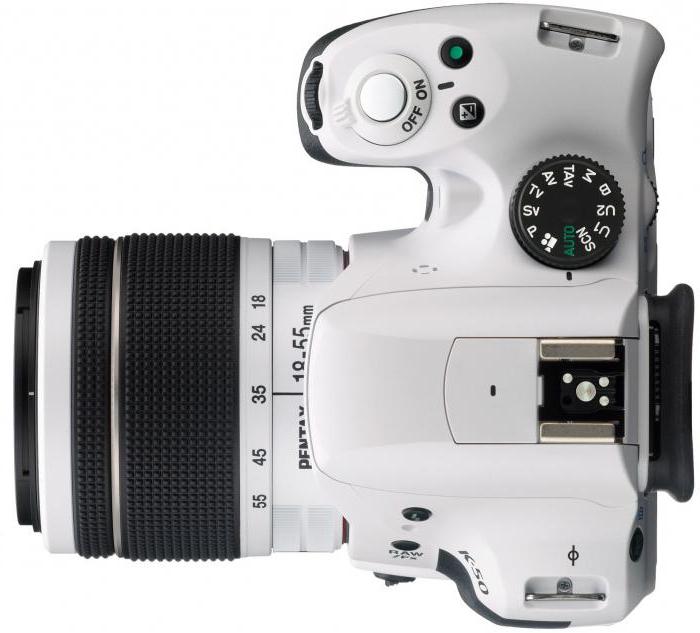
Сенсор изображения
Комбинация 16,3-Мп CMOS-датчика форм-фактора APS-C и графического процессора PRIME M позволяет захватывать кадры высокого качества и обеспечивает светочувствительность до ISO 51200. Производительность чипа позволяет производить серийную съемку с максимальным разрешением на скорости до 6 к/с и минимальной выдержкой 1/6000 с, а также поддерживает захват видео высокой четкости стандарта 1080p.
Автофокусировка
Система АФ SAFOX IXi + использует 11 точек фокусировки, в т. ч. 9 датчиков поперечного типа, для быстрого и точного наведения резкости фазным методом. С включением вспомогательной лампы АФ и дифракционной линзы возможна точная фокусировка в широком диапазоне условий освещения при однократной или непрерывной фокусировке. В случае выбора ручного режима можно вызвать помощника, который в пределах сцены выделит линии контраста, предлагая более объективные средства определения критического фокуса.
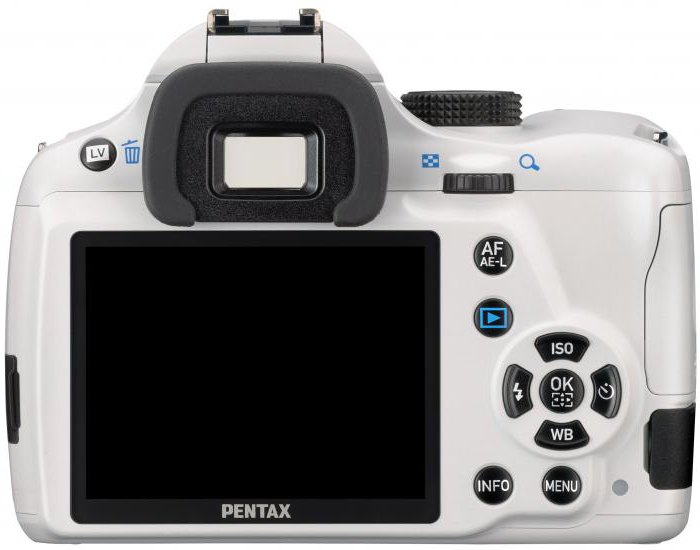
Защита
Корпус Pentax K-50 выполнен из поликарбоната и защищен от внешних воздействий, а рама из нержавеющей стали обеспечивает большую прочность камеры и позволяет использовать ее в самых разных условиях: от дождя и высокой влажности до снега и холодных температур. Герметизация рассчитана на защиту от влаги и пыли, а также широкий диапазон температур от -10 до +40 °C.
Видоискатель
В дополнение к этому корпус оснащен ярким оптическим видоискателем в виде пятигранной призмы, который обеспечивает 100 % поле зрения в различных ситуациях. Доступны 4 дополнительных фокусировочных экрана для дальнейшей настройки условий просмотра в видоискателе и для удовлетворения потребностей в визировании и фокусировке.
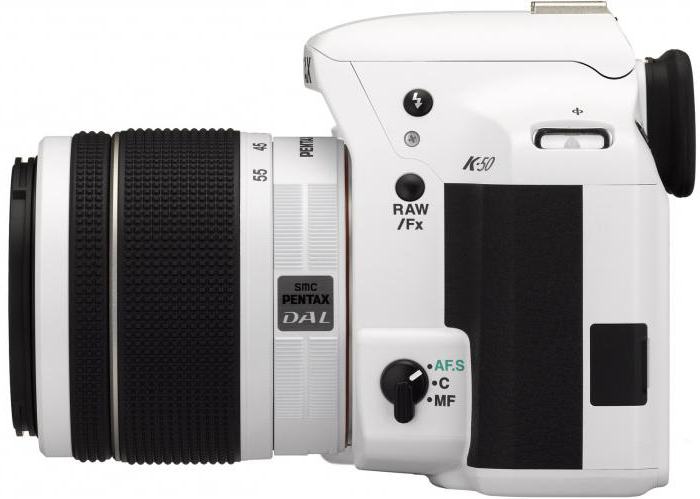
Стабилизация изображения
Выполняется с помощью сдвига сенсора изображения Pentax K-50. Позволяет минимизировать дрожание камеры при работе с длиннофокусными объективами в условиях недостаточной освещенности до 3–4 ступеней выдержки в эквиваленте. Это помогает делать более четкие снимки независимо от используемой оптики. Кроме того, сбалансировать кадр пользователю помогает двухосный электронный уровень, обеспечивающий правильные и ровные горизонтальные и вертикальные линии сетки.
Видео
В дополнение к фотосъемке в высоком разрешении, Pentax K-50 поддерживает запись 1080p-видео со скоростью 30 к/с. Другие доступные форматы включают 1080р с частотой 24 к/с; 720р при 60, 50, 30, 25 и 24 к/с; 480р при 30, 25 и 24 к/с. Видео записывается в MPEG-4/H.264 AVC и может быть сохранено в файле .MOV. Звук записывается вместе с видео с помощью встроенного монофонического микрофона.
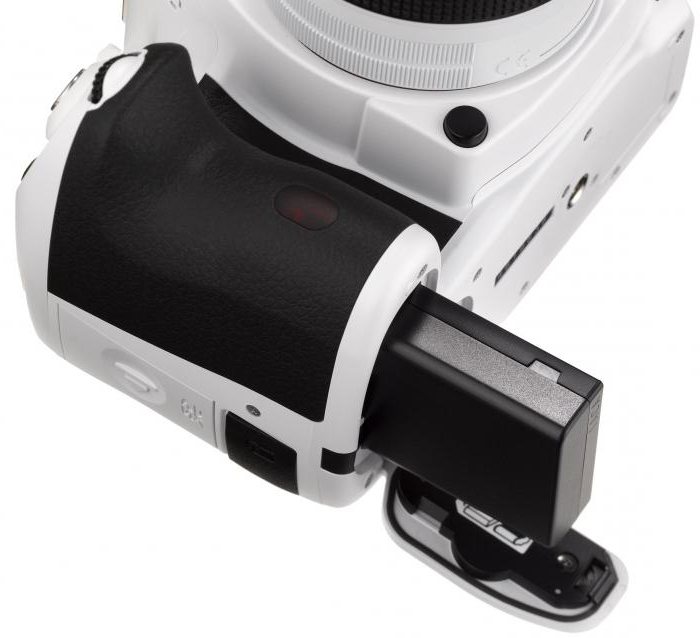
Оптика
Комплектный стандартный зум-объектив обеспечивает фокусный диапазон 27,0–82,5 мм для работы в самых разных сценариях съемки. Он имеет такой же класс защиты, что и корпус камеры, что позволяет снимать в неблагоприятных погодных условиях и имеет покрытие, которое предотвращает попадание пыли, воды и жира на элементы объектива. Его конструкция включает в себя асферические элементы со сверхнизкой дисперсией, которые сводят до минимума хроматические аберрации во всем диапазоне масштабирования, а также способствуют получению более четких и ясных изображений.
Pentax K-50: инструкция по началу работы
Сначала необходимо вставить прилагаемый аккумулятор, но можно использовать и батарейки AA, хотя надолго их не хватит. Остальное еще проще. Нужно установить SD-карту памяти и включить камеру. Выключатель окружает кнопку спуска затвора. При первом включении пользователю будет предложено установить время и дату. По умолчанию камера настроена на авто ISO, поэтому, если необходимо отдать предпочтение выдержке, то лучше это сделать сейчас. Фотоаппарат установлен на съемку в формате JPG. Если нужно изменить его на RAW или RAW+JPG, то следует зайти в меню и сделать это. А для того чтобы немедленно начать работу, необходимо установить диск режимов камеры в положение Auto.
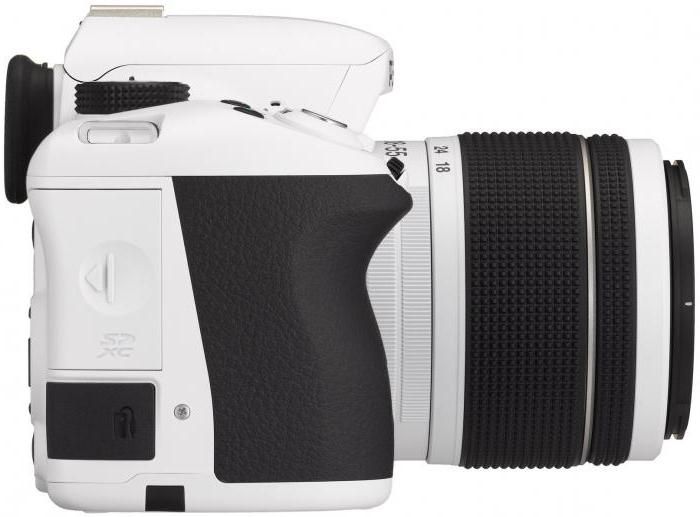
Достоинства и недостатки
Pentax K-50 отзывы хвалят за многие функциональные возможности, но больше всего владельцам нравится его герметичность. Приятно видеть камеру такого класса, которой можно пользоваться в любых погодных условиях, что делает ее привлекательной для тех, кто хочет иметь надежный повседневный аппарат для семейной и праздничной фотографии. Модель имеет интересный набор режимов съемки, поддерживает использование батареек АА, имеет встроенную стабилизацию изображения и оборудована относительно хорошим видоискателем.
По отзывам профессионалов, у Pentax K-50 качество снимков и производительность уступают моделям конкурентов, его экрану не хватает возможности изменения наклона, затвор и объектив работают очень шумно, при съемке видео не поддерживается длительный АФ, а комплектной оптике не хватает четкости при максимальной диафрагме.
Окончательный вердикт
Поскольку самой значительной маркетинговой особенностью фотоаппарата является его герметичность, чтобы получить максимальную отдачу от K-50, лучше инвестировать в объектив 18–135 mm ƒ/3.5-5.6 WR (устойчивый к погодным условиям), который будет больше соответствовать характеристикам корпуса, чем оптика, представленная в стандартном комплекте. К сожалению, это означает повышение стоимости камеры. Тем не менее, по отзывам пользователей, качество изображения очень хорошее, как и возможность работы с несжатыми RAW-файлами, хотя JPEG-файлы тоже неплохие. В целом модель будет хорошим приобретением для начинающих пользователей зеркальных камер, которым необходима прочность в самых разных условиях съемки. Если у фотолюбителя нет вынужденной привязки к стандартам Canon и Nikon, то K-50 будет достойным аппаратом, хотя бы по причине его герметичности.