
Руководства пользователя
Версия T4204
1.97 MB
Motherboard Installation Guide (Traditional Chinese)
Версия C4204
1.83 MB
Motherboard Installation Guide (Simplified Chinese)
Версия QJ4204
1.68 MB
Motherboard Installation Guide (Japanese)
Версия QG4204
1.6 MB
Motherboard Installation Guide (German)
Версия QF4204
1.59 MB
Motherboard Installation Guide (French)
Версия Q4204
43.39 MB
Motherboard Installation Guide (Multiple Languages)
Версия U3400
1.75 MB
M2N-SLI Quick Start Guide for Multiple Languages
Версия A3400
3.41 MB
M2N-SLI user’s manual(Multiple Languages)
Версия E3400
4.44 MB
M2N-SLI English Edition User’s Manual(E3400)
Версия T3400
2.95 MB
M2N-SLI user’s manual(Traditional Chinese)
Версия C3400
2.9 MB
M2N-SLI user’s manual(Simplified Chinese)
Версия T2437
2.57 MB
Motherboard DIY Troubleshooting Guide (Traditional Chinese version)
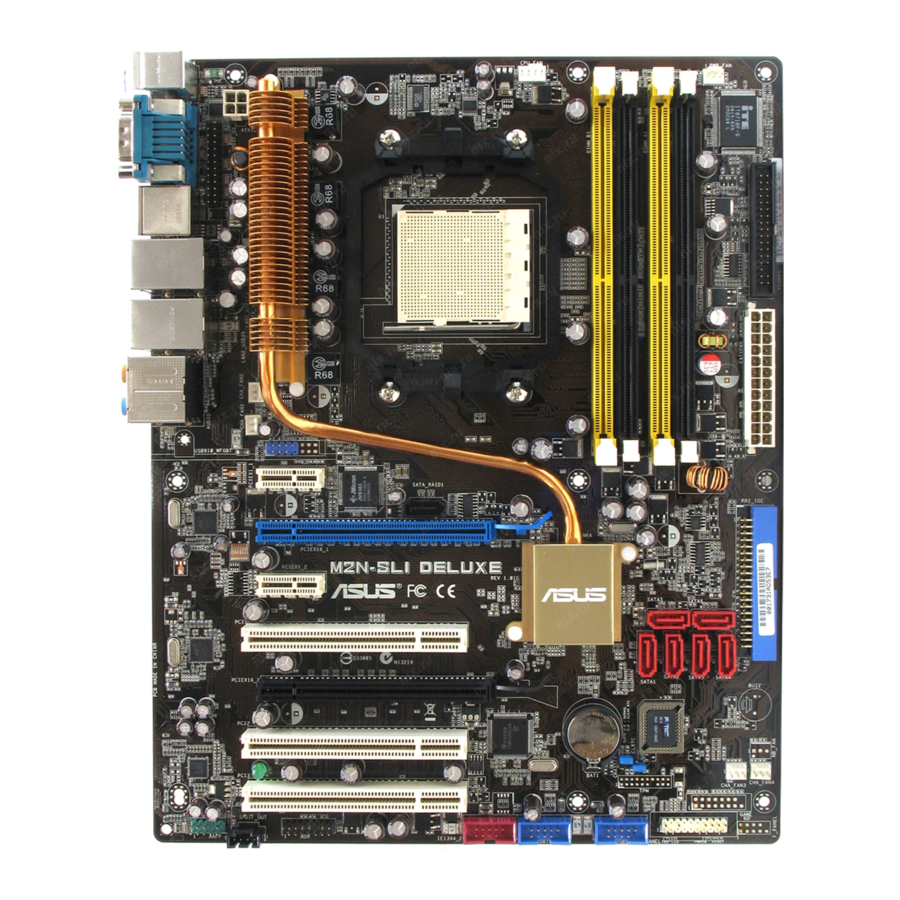
-
Contents
-
Table of Contents
-
Bookmarks
Quick Links
Related Manuals for Asus M2N-SLI
Summary of Contents for Asus M2N-SLI
-
Page 1
M2N-SLI Deluxe… -
Page 2
Product warranty or service will not be extended if: (1) the product is repaired, modified or altered, unless such repair, modification of alteration is authorized in writing by ASUS; or (2) the serial number of the product is defaced or missing. -
Page 3: Table Of Contents
Contents Notices … vii Safety information … viii About this guide … ix M2N-SLI Deluxe specifications summary … xi Chapter 1: Product introduction Welcome! … 1-1 Package contents … 1-1 Special features … 1-2 1.3.1 Product highlights … 1-2 1.3.2 ASUS AI Lifestyle features …
-
Page 4
Managing and updating your BIOS … 4-1 4.1.1 ASUS Update utility … 4-1 4.1.2 Creating a bootable floppy disk … 4-4 4.1.3 ASUS EZ Flash 2 utility … 4-5 4.1.4 Updating the BIOS … 4-6 4.1.5 Saving the current BIOS file … 4-8 4.1.6 ASUS CrashFree BIOS 3 utility … -
Page 5
Tools menu … 4-42 4.7.1 ASUS Music Alarm … 4-42 4.7.2 ASUS O.C. Profile … 4-44 4.7.4 ASUS EZ Flash 2 … 4-46 Exit menu … 4-47 Chapter 5: Software support Installing an operating system … 5-1 Support CD information … 5-1 5.2.1 Running the support CD … -
Page 6
5.2.7 Other information … 5-6 Software information … 5-8 5.3.1 Cool ‘n’ Quiet!™ Technology … 5-8 5.3.2 ASUS PC Probe II …5-11 5.3.3 ASUS Music Alarm … 5-17 5.3.4 ASUS AI Nap … 5-20 5.3.5 ASUS AI Gear … 5-21 5.3.6… -
Page 7: Notices
Notices Federal Communications Commission Statement This device complies with Part 15 of the FCC Rules. Operation is subject to the following two conditions: • This device may not cause harmful interference, and • This device must accept any interference received including interference that may cause undesired operation.
-
Page 8: Safety Information
Safety information Electrical safety • To prevent electrical shock hazard, disconnect the power cable from the electrical outlet before relocating the system. • When adding or removing devices to or from the system, ensure that the power cables for the devices are unplugged before the signal cables are connected.
-
Page 9: About This Guide
Refer to the following sources for additional information and for product and software updates. ASUS websites The ASUS website provides updated information on ASUS hardware and software products. Refer to the ASUS contact information. Optional documentation Your product package may include optional documentation, such as warranty flyers, that may have been added by your dealer.
-
Page 10: Conventions Used In This Guide
Conventions used in this guide To make sure that you perform certain tasks properly, take note of the following symbols used throughout this manual. DANGER/WARNING: Information to prevent injury to yourself when trying to complete a task. CAUTION: Information to prevent damage to the components when trying to complete a task.
-
Page 11: M2N-Sli Deluxe Specifications Summary
M2N-SLI Deluxe specifications summary Chipset System bus Memory Expansion slots Scalable Link Interface (SLI™) Storage Socket AM2 for AMD Athlon™ 64 X2 /AMD Athlon™ 64 /AMD Athlon™ 64 FX/AMD Sempron™ processors Supports AMD Cool ‘n’ Quiet™ Technology AMD64 architecture enables simultaneous 32-bit and 64-bit computing AMD Live!™…
-
Page 12
Supports up to 10 USB 2.0/1.1 ports (six at mid-board, — four on the rear panel) AI Nap AI Gear Advanced Thermal Design — ASUS Fanless Design: Heat-pipe Thermal solution ASUS Crystal Sound — Noise filter — ASUS Array Microphone Intelligent overclocking tools: — AI NOS™… -
Page 13
M2N-SLI Deluxe specifications summary Rear panel Internal connectors BIOS features Manageability Power requirements Support CD contents Form factor *Specifications are subject to change without notice. 1 x PS/2 keyboard port (purple) 1 x PS/2 mouse port (green) 1 x Serial (COM1) port… -
Page 15: Chapter 1: Product Introduction
This chapter describes the motherboard features and the new technologies it supports. Product introduction…
-
Page 16
Chapter summary Welcome! … 1-1 Package contents … 1-1 Special features … 1-2 ASUS M2N-SLI Deluxe… -
Page 17: Welcome
Thank you for buying an ASUS The motherboard delivers a host of new features and latest technologies, making it another standout in the long line of ASUS quality motherboards! Before you start installing the motherboard, and hardware devices on it, check the items in your package with the list below.
-
Page 18: Special Features
Special features 1.3.1 Product highlights Latest processor technology The motherboard comes with a 940-pin AM2 socket that supports AMD Athlon™ 64 X2/AMD Athlon™ 64/AMD Athlon™ 64 FX/AMD Sempron™ processors. With an integrated low-latency high-bandwidth memory controller and a highly scalable HyperTransport™…
-
Page 19
The motherboard comes with dual Gigabit LAN controllers to provide the total solution for your networking needs. These network controllers use the PCI Express segment to provide faster data bandwidth for your wired or wireless Internet, LAN, and file sharing requirements. See page 2-21 for details. ASUS M2N-SLI Deluxe… -
Page 20: Asus Ai Lifestyle Features
CPU voltage and frequency for a cool and quiet operating environment. See page 4-26 for details. 1.3.2 ASUS AI Lifestyle features AI Gear AI Gear provides four modes that adjust the CPU frequency and Vcore voltage minimizing system noise and power consumption.
-
Page 21: Asus Special Features
Wake up to the music of your choice instead of the irritating sound of an alarm clock. The ASUS Music Alarm gives you a personal wake-up call with your favorite CD music without having to enter the OS. See pages 4-42 and 5-17 for details.
-
Page 22: Asus Intelligent Overclocking Features
ASUS Intelligent Overclocking features ASUS BIOS Profile The motherboard features the ASUS BIOS Profile that allows users to conveniently store or load multiple BIOS settings. The BIOS settings can be stored in the CMOS or a separate file, giving users freedom to share and distribute their favorite settings.
-
Page 23: Chapter 2: Hardware Information
This chapter lists the hardware setup procedures that you have to perform when installing system components. It includes description of the jumpers and connectors on the motherboard. Hardware information…
-
Page 24
Chapter summary Before you proceed … 2-1 Motherboard overview … 2-2 Central Processing Unit (CPU) … 2-6 System memory … 2-11 Expansion slots … 2-16 Jumper … 2-20 Connectors … 2-21 ASUS M2N-SLI Deluxe… -
Page 25: Before You Proceed
The illustration below shows the location of the onboard LED. M2N-SLI DELUXE M2N-SLI DELUXE Onboard LED ASUS M2N-SLI Deluxe SB_PWR Standby…
-
Page 26: Motherboard Overview
Place nine (9) screws into the holes indicated by circles to secure the motherboard to the chassis. Do not overtighten the screws! Doing so can damage the motherboard. Place this side towards the rear of the chassis M2N-SLI DELUXE Chapter 2: Hardware information…
-
Page 27: Motherboard Layout
JMB363 Marvell PCIEX16_1 88E1116 M2N-SLI DELUXE PCIEX1_2 PCI1 Marvell 88E1116 PCIEX16_2 PCI2 SB_PWR 1988B PCI3 SPDIF_OUT AAFP ASUS M2N-SLI Deluxe 24.5cm (9.6in) CPU_FAN SATA_RAID1 nVIDIA NF570-SLI CR2032 3V Lithium Cell TSB43AB22A CMOS Power IE1394_2 USB56 USB78 PWR_FAN PRI_IDE SATA5 SATA6…
-
Page 28: Layout Contents
2.2.4 Layout contents Slots DDR2 DIMM slots PCI slots PCI Express x1 slots PCI Express x16 slots Jumper Clear RTC RAM (3-pin CLRTC) Rear panel connectors PS/2 mouse port (green) Serial (COM) port IEEE 1394a port LAN 1 (RJ-45) port. LAN 2 (RJ-45) port.
-
Page 29
System power LED (2-pin LED) • Hard disk drive activity LED (2-pin IDE_LED) • System warning speaker (4-pin SPEAKER) • ATX power button/soft-off button (2-pin PWR) • Reset button (2-pin RESET) ASUS M2N-SLI Deluxe Page 2-24 2-24 2-25 2-26 2-27 2-27 2-28… -
Page 30: Central Processing Unit (Cpu)
Installing the CPU To install a CPU: Locate the CPU socket on the motherboard. M2N-SLI DELUXE M2N-SLI DELUXE CPU Socket AM2 Unlock the socket by pressing the lever sideways, then lift it up to a 90º angle. Make sure that the socket lever is lifted up to a 90º angle; otherwise, the CPU will not fit in completely.
-
Page 31
CPU. The lever clicks on the side tab to indicate that it is locked. Install a CPU heatsink and fan following the instructions that came with the heatsink package. ASUS M2N-SLI Deluxe Gold triangle Small triangle… -
Page 32: Installing The Heatsink And Fan
2.3.2 Installing the heatsink and fan The AMD Athlon™ 64/AMD Athlon™ 64 FX/AMD Athlon™ 64 X2 and AMD Sempron™ processors require a specially designed heatsink and fan assembly to ensure optimum thermal condition and performance. Make sure that you use only AMD-certified heatsink and fan assembly. To install the CPU heatsink and fan: Place the heatsink on top of the installed CPU, making sure that the heatsink fits properly on the retention module base.
-
Page 33
Push down the retention bracket lock on the retention mechanism to secure the heatsink and fan to the module base. ASUS M2N-SLI Deluxe… -
Page 34
When the fan and heatsink assembly is in place, connect the CPU fan cable to the connector on the motherboard labeled CPU_FAN. M2N-SLI DELUXE M2N-SLI DELUXE CPU Fan Connector • Do not forget to connect the CPU fan connector! Hardware monitoring errors can occur if you fail to plug this connector. -
Page 35: System Memory
240-pin footprint compared to the 184-pin DDR DIMM. DDR2 DIMMs are notched differently to prevent installation on a DDR DIMM socket. The figure illustrates the location of the DDR2 DIMM sockets: M2N-SLI DELUXE M2N-SLI DELUXE 240-pin DDR2 DIMM Sockets Channel Channel A Channel B 2.4.2…
-
Page 36
(black sockets) Always use identical DDR2 DIMM pairs for dual-channel model. For optimum compatibility, we recommend that you obtain memory modules from the same vendor. Visit the ASUS website (www.asus.com) for the latest Qualified Vendors List. Important notice on installing Windows… -
Page 37: Qualified Vendors List
Heat-Sink Package 1024MB crucial Heat-Sink Package 512MB crucial Heat-Sink Package 1024MB crucial Heat-Sink Package 1024MB Apacer E5108AE-6E-E 512MB A-DATA E5108AE-6E-E ASUS M2N-SLI Deluxe Side(s) Model KVR667D2N5/512 KVR667D2N5/1G KVR667D2E5/512 KVR667D2N5/256 M378T3253FZ0-CE6 M378T3354CZ0-CE6 M378T6553CZ0-CE6 M378T2953CZ0-CE6 MT16HTF6464AY-667B4 HYS64T32000HU-3S-A HYS64T64000HU-3S-A HYS72T32000HU-3S-A HYS72T64000HU-3S-A HYS72T128020HU-3S-A…
-
Page 38
C — Supports two pairs of modules inserted into the yellow and black slots as two pairs of dual-channel memory configuration. Visit the ASUS website (www.asus.com) for the latest memory Qualified Vendor List (QVL). 2-… -
Page 39: Installing A Dimm
Support the DIMM lightly with your fingers when pressing the retaining clips. The DIMM might get damaged when it flips out with extra force. Remove the DIMM from the socket. ASUS M2N-SLI Deluxe DDR2 DIMM notch Unlocked retaining clip DDR2 DIMM notch 2-…
-
Page 40: Expansion Slots
Expansion slots In the future, you may need to install expansion cards. The following sub-sections describe the slots and the expansion cards that they support. Make sure to unplug the power cord before adding or removing expansion cards. Failure to do so may cause you physical injury and damage motherboard components.
-
Page 41: Interrupt Assignments
The PCI slots support cards such as a LAN card, SCSI card, USB card, and other cards that comply with PCI specifications. Refer to the figure below for the location of the slots. We recommend that you use PCI3 slot for long PCI cards. ASUS M2N-SLI Deluxe shared shared shared…
-
Page 42: Pci Express X1 Slot
2.5.5 PCI Express x1 slot This motherboard supports PCI Express x1 network cards, SCSI cards and other cards that comply with the PCI Express specifications. Refer to the figure below for the location of the slot. 2.5.6 PCI Express x16 slots This motherboard supports PCI Express x16 graphics cards that comply with the PCI Express specifications.
-
Page 43
PCIe x16 graphics card PCIe x16 graphics card PCIe x16 graphics card Dual graphics Two identical NVIDIA card in SLI Mode ASUS M2N-SLI Deluxe PCIE16_2 (Black) slot Speed Card type PCIe x16 graphics card Other PCIe devices SLI™ Edition graphics cards at x8, x8 speed ®… -
Page 44: Jumper
Except when clearing the RTC RAM, never remove the cap on CLRTC jumper default position. Removing the cap will cause system boot failure! M2N-SLI DELUXE M2N-SLI DELUXE Clear RTC RAM • Make sure to re-enter your previous BIOS settings after you clear the CMOS.
-
Page 45: Connectors
4-channel, 6-channel, or 8-channel audio configuration. Center/Subwoofer port (orange). This port connects the center/subwoofer speakers. Line In port (light blue). This port connects the tape, CD, DVD player, or other audio sources. ASUS M2N-SLI Deluxe 88E1116 Gigabit LAN controller, ® 88E1116 Gigabit LAN ®…
-
Page 46
Line Out port (lime). This port connects a headphone or a speaker. In 4-channel, 6-channel, and 8-channel configuration, the function of this port becomes Front Speaker Out. 10. Microphone port (pink). This port connects a microphone. 11. Side Speaker Out port (gray). This port connects the side speakers in an 8-channel audio configuration. -
Page 47
14. Optical S/PDIF Out port. This port connects an external audio output device via an optical S/PDIF cable. 15. Coaxial S/PDIF Out port. This port connects an external audio output device via an coaxial S/PDIF cable. 16. PS/2 keyboard port (purple). This port is for a PS/2 keyboard. ASUS M2N-SLI Deluxe 2-2… -
Page 48: Internal Connectors
Pin 5 on the connector is removed to prevent incorrect cable connection when using a FDD cable with a covered Pin 5. M2N-SLI DELUXE M2N-SLI DELUXE Floppy Disk Drive Connector IDE connector (40-1 pin PRI_IDE) The onboard IDE connector is for the Ultra DMA 133/100/66 signal cable.
-
Page 49
If any device jumper is set as “Cable-Select,” make sure all other device jumpers have the same setting. M2N-SLI DELUXE M2N-SLI DELUXE IDE Connector NVIDIA nForce 570 SLI MCP Serial ATA connectors ® ® (7-pin SATA1 [red], SATA2 [red], SATA3 [red], SATA4 [red], SATA5 [red], SATA6 [red]) These connectors are for the Serial ATA signal cables for Serial ATA 3.0… -
Page 50
[AHCI] to use the connectors to build a RAID set. See section “4.4.7 Onboard Device Configuration” for details. M2N-SLI DELUXE M2N-SLI DELUXE SATA RAID Connector Before creating a RAID set using Serial ATA hard disks, make sure that you have connected the Serial ATA signal cables and installed Serial ATA hard disk drives;… -
Page 51
Never connect a 1394 cable to the USB connectors. Doing so will damage the motherboard! Connect one end of the USB cable to the ASUS Q-Connector first before connecting to the USB connector onboard. IEEE 1394a port connector (10-1 pin IE1394_2) This connector is for a IEEE 1394a port. -
Page 52
M2N-SLI DELUXE Fan Connectors • Only the CPU_FAN, CHA_FAN1, CHA_FAN2, CHA_FAN3, and CHA_FAN4 connectors support the ASUS Q-Fan2 feature. • If you install two graphics cards, we recommend that you plug the rear chassis fan cable to the motherboard connector labeled CHA_FAN1 or CHA_FAN2 for better thermal environment. -
Page 53: Atx Power Connectors
Remove the jumper caps only when you intend to use the chassis intrusion detection feature. M2N-SLI DELUXE M2N-SLI DELUXE Chassis Intrusion Connector ATX power connectors (24-pin ATXPWR, 4-pin EATX12V) These connectors are for ATX power supply plugs. The power supply plugs are designed to fit these connectors in only one orientation.
-
Page 54
HD Audio or legacy AC`97 audio standard. Connect one end of the front panel audio I/O module cable to this connector. M2N-SLI DELUXE M2N-SLI DELUXE Azalia Front Panel Audio Connector • We recommend that you connect a high-definition front panel audio module to this connector to avail of the motherboard’s high-definition audio… -
Page 55
This connector allows you to receive stereo audio input from an optical drive such as DVD or CD-ROM.. M2N-SLI DELUXE M2N-SLI DELUXE Internal Audio Connector 12. Parallel port connector (26-1 pin LPT) This connector is for a parallel port. Connect the parallel port module cable to this connector, then install the module to a slot opening at the back of the system chassis. -
Page 56
Connect the S/PDIF In/Out module cable to this connector, then install the module to a slot opening at the back of the system chassis. M2N-SLI DELUXE SPDIF_OUT M2N-SLI DELUXE Digital Audio Connector The S/PDIF module is purchased separately. 2-2 Chapter 2: Hardware information… -
Page 57: System Panel Connector
14. System panel connector (20-8 pin PANEL) This connector supports several chassis-mounted functions. M2N-SLI DELUXE M2N-SLI DELUXE System Panel Connector • System power LED (2-pin PLED) This 2-pin connector is for the system power LED. Connect the chassis power LED cable to this connector. The system power LED lights up when you turn on the system power, and blinks when the system is in sleep mode.
-
Page 58
Q-Connector (System panel) ASUS Q-Connector allows you to easily to connect the chassis front panel cables to the motherboard. Perform these steps to install ASUS Q-Connector. Step 1 Connect the front panel cables to their respective connectors on the ASUS Q-Connector. -
Page 59: Chapter 3: Powering Up
This chapter describes the power up sequence and ways of shutting down the system. Powering up…
-
Page 60
Chapter summary Starting up for the first time … 3-1 Powering off the computer … 3-2 ASUS M2N-SLI Deluxe… -
Page 61: Starting Up For The First Time
Check the jumper settings and connections or call your retailer for assistance. At power on, hold down the <Del> key to enter the BIOS Setup. Follow the instructions in Chapter 4. ASUS M2N-SLI Deluxe…
-
Page 62: Powering Off The Computer
Powering off the computer 3.2.1 Using the OS shut down function If you are using Windows Click the Start button then click Shut Down… Make sure that the Shut Down option button is selected, then click the OK button to shut down the computer. The power supply should turn off after Windows If you are using Windows Click the Start button then select Turn Off Computer.
-
Page 63: Chapter 4: Bios Setup
This chapter tells how to change the system settings through the BIOS Setup menus. Detailed descriptions of the BIOS parameters are also provided. BIOS setup…
-
Page 64
Chapter summary Managing and updating your BIOS … 4-1 BIOS setup program … 4-10 Main menu … 4-14 Advanced menu … 4-19 Power menu … 4-32 Boot menu … 4-37 Tools menu … 4-42 Exit menu … 4-47 ASUS M2N-SLI Deluxe… -
Page 65: Managing And Updating Your Bios
Input/Output System (BIOS) setup. ASUS Update (Updates the BIOS in Windows ASUS EZ Flash 2 (Updates the BIOS in DOS using a floppy disk, USB flash disk, or the motherboard support CD.) Award BIOS Flash Utility (Updates the BIOS in DOS mode using a bootable floppy disk.)
-
Page 66
Updating the BIOS through the Internet To update the BIOS through the Internet: Launch the ASUS Update utility from the Windows > Programs > ASUS > ASUSUpdate > ASUSUpdate. The ASUS Update main window appears. Select Update BIOS from the Internet option from the drop-down menu, then click Next. -
Page 67
Updating the BIOS through a BIOS file To update the BIOS through a BIOS file: Launch the ASUS Update utility from the Windows > Programs > ASUS > ASUSUpdate > ASUSUpdate. The ASUS Update main window appears. Select Update BIOS from a file option from the drop-down menu, then click Next. -
Page 68: Creating A Bootable Floppy Disk
4.1.2 Creating a bootable floppy disk Do either one of the following to create a bootable floppy disk. DOS environment a. Insert a 1.44MB floppy disk into the drive. b. At the DOS prompt, type format A:/S then press <Enter>. Windows XP environment ®…
-
Page 69: Asus Ez Flash 2 Utility
4.1.3 ASUS EZ Flash 2 utility The ASUS EZ Flash 2 feature allows you to update the BIOS without having to go through the long process of booting from a floppy disk and using a DOS-based utility. The EZ Flash utility is built-in the BIOS chip so it is accessible by pressing <Alt>…
-
Page 70: Updating The Bios
Flash Utility. Follow these instructions to update the BIOS using this utility. Download the latest BIOS file from the ASUS web site. Rename the file to m2nsli.bin and save it to a floppy disk CD ROM or a USB flash disk in FAT 16/12 format.
-
Page 71
BIOS file. Remove the disk then press <F1> to restart the system. ASUS M2N-SLI Deluxe AwardBIOS Flash Utility for ASUS V1.14 (C) Phoenix Technologies Ltd. All Rights Reserved For NF570-SLI-M2N-SLI-DELUXE Flash Type — PMC Pm49FL004T LPC/FWH File Name to Program: m2nsli.bin… -
Page 72: Saving The Current Bios File
The utility saves the current BIOS file to the disk, then returns to the BIOS flashing process. AwardBIOS Flash Utility for ASUS V1.14 (C) Phoenix Technologies Ltd. All Rights Reserved For NF570-SLI-M2N-SLI-DELUXE Flash Type — PMC Pm49FL004T LPC/FWH File Name to Program: m2nsli.bin…
-
Page 73: Asus Crashfree Bios 3 Utility
4.1.6 ASUS CrashFree BIOS 3 utility The ASUS CrashFree BIOS 3 is an auto recovery tool that allows you to restore the BIOS file when it fails or gets corrupted during the updating process. You can update a corrupted BIOS file using the motherboard support CD, floppy, or USB flash disk that contains the updated BIOS file.
-
Page 74: Bios Setup Program
The BIOS setup screens shown in this section are for reference purposes only, and may not exactly match what you see on your screen. • Visit the ASUS website (www.asus.com) to download the latest BIOS file for this motherboard. 4-10…
-
Page 75: Bios Menu Screen
The BIOS setup screens shown in this chapter are for reference purposes only, and may not exactly match what you see on your screen. • Visit the ASUS website (www.asus.com) to download the latest BIOS information. ASUS M2N-SLI Deluxe Configuration fields…
-
Page 76: Legend Bar
4.2.3 Legend bar At the bottom of the Setup screen is a legend bar. The keys in the legend bar allow you to navigate through the various setup menus. The following table lists the keys found in the legend bar with their corresponding functions. Navigation Key Function <F1>…
-
Page 77: Pop-Up Window
→←: Select Menu ESC: Exit 4.2.8 General help At the top right corner of the menu screen is a brief description of the selected item. ASUS M2N-SLI Deluxe Boot Tools Exit 15 : 30 : 36 Thu, Apr 6 2006 [1.44M, 3.5 in.]…
-
Page 78: Main Menu
[1.44M, 3.5 in.] — Phoenix-Award BIOS CMOS Setup Utility Boot Tools Exit 15 : 30 : 36 Thu, Apr 6 2006 [1.44M, 3.5 in.] [ST321122A] [ASUS CDS520/A] [None] [None] [None] [None] [None] [None] [Disabled] 512MB 511MB -/+: Change Value Enter: Select SubMenu…
-
Page 79: Primary Ide Master/Slave
If the hard disk was already formatted on a previous system, the setup BIOS may detect incorrect parameters. Select [Manual] to manually enter the IDE hard disk drive parameters. If no drive is installed select [None]. Configuration options: [None] [Auto] [Manual] ASUS M2N-SLI Deluxe [Auto] Item Specific Help [Auto] Set a PIO mode for IDE device.
-
Page 80
Access Mode [Auto] The default [Auto] allows automatic detection of an IDE hard disk drive. Select [CHS] for this item if you set the IDE Primary Master/Slave to [Manual]. Configuration options: [CHS] [LBA] [Large] [Auto] Before attempting to configure a hard disk drive, make sure you have the correct configuration information supplied by the drive manufacturer. -
Page 81: Sata 1, 2, 3, 4, 5, 6
Capacity Displays the auto-detected hard disk capacity. This item is not configurable. Cylinder Shows the number of the hard disk cylinders. This item is not configurable. ASUS M2N-SLI Deluxe [Auto] Item Specific Help [Auto] Selects the type of fixed…
-
Page 82: Hdd Smart Monitoring
Head Shows the number of the hard disk read/write heads. This item is not configurable. Landing Zone Shows the number of landing zone per track. This item is not configurable. Sector Shows the number of sectors per track. This item is not configurable. After entering the IDE hard disk drive information into BIOS, use a disk utility, such as FDISK, to partition and format new IDE hard disk drives.
-
Page 83: Advanced Menu
Allows selection of CPU overclocking options to achieve desired CPU internal frequency. Selct either one of the preset overclocking configuration options: Manual Allows you to individually set overclocking parameters. Auto Loads the optimal settings for the system. ASUS M2N-SLI Deluxe Boot Tools Exit -/+: Change Value Enter: Select SubMenu…
-
Page 84
Loads the standard settings for the system. Loads overclocking profiles with optimal parameters for stability when overclocking. The ASUS Non-delay Overclocking System feature intelligently determines the system load and automatically boosts the performance for the most demanding tasks. Chapter : BIOS setup… -
Page 85
Allows you to set the chipset PCI Express voltage. Configuration options: [1.50V] [1.55V] [1.60V] [1.65V] [1.70V] CPU VCore Offset Voltage [Disabled] Allows you to disable or set the processor vCore offset voltage. Configuration options: [Disabled] [Offset 100.0mV] ASUS M2N-SLI Deluxe [1.20V] Item Specific Help [1.40V] [1.40V] Set NB Core/PCI-E Voltage. -
Page 86: Ai Net2
4.4.2 AI NET2 Advanced POST Check LAN Cable POST Check LAN2 Cable Pair LAN1(1-2) LAN1(3-4) LAN1(5-6) LAN1(7-8) LAN2(1-2) LAN2(3-4) LAN2(5-6) LAN2(7-8) ↑↓ : Select Item F1:Help →←: Select Menu ESC: Exit POST Check LAN Cable [Disabled] POST Check LAN2 Cable [Disabled] Enables or disables checking of the LAN/LAN2 cable during the Power-On Self-Test (POST).
-
Page 87: Cpu Configuration
Configuration options: [Auto] [3] [4] [5] [6] Tras [Auto] Configuration options: [Auto] [5] [6] [7] ~ [18] 1T/2T Memory Timing [Auto] Configuration options: [Auto] [1T] [2T] ASUS M2N-SLI Deluxe Item Specific Help DRAM timing and control. [Enabled] [Auto] Item Specific Help…
-
Page 88
DRAM ECC Enable [Disabled] Enables or disables the DRAM ECC function. This item appears only when you install DRAM modules that support ECC function. Configuration options: [Disabled] [Enabled] Advance Memory Settings CPU On-die Termination Configuration options: [Auto] [300ohm] [150ohm] [75ohm] Configuration options: [Auto] [11] [12] [13]…[25] [26] Configuration options: [Auto] [3] [4] [5] [6] Trrd… -
Page 89
CS/ODT Setup Time Configuration options: [Auto] [1/2 MEMCLK] [1 MEMCLK] Address/Command Fine Delay Configuration options: [Auto] [No delay] [1/64 MEMCLK delay] [2/64 MEMCLK delay] [3/64 MEMCLK delay] [4/64 MEMCLK delay] [5/64 MEMCLK delay]…[30/64 MEMCLK delay] [31/64 MEMCLK delay] ASUS M2N-SLI Deluxe -2… -
Page 90
Address/Command Setup Time Configuration options: [Auto] [1/2 MEMCLK] [1 MEMCLK] Read DQS Timing Control Configuration options: [Auto] [No delay] [1/64 MEMCLK delay] [2/64 MEMCLK delay] [3/64 MEMCLK delay] [4/64 MEMCLK delay] [5/64 MEMCLK delay]…[46/64 MEMCLK delay] [47/64 MEMCLK delay] Write Data Timing Control Configuration options: [Auto] [No delay] [1/64 MEMCLK delay] [2/64 MEMCLK delay] [3/64 MEMCLK delay] [4/64 MEMCLK delay] [5/64 MEMCLK delay]…[46/64 MEMCLK delay] [47/64 MEMCLK delay]… -
Page 91: Chipset
Sets the processor and MCP55 HyperTransport speed. Configuration options: [1x] [2x] [3x] [4x] [5x] CPU<->MCP55 HT Width [↓16 ↑16] Allows you to set processor and MCP55 HyperTransport speed. Configuration options: [↓8 ↑8] [↓16 ↑16] ASUS M2N-SLI Deluxe [5x] [↓16 ↑16] -/+: Change Value Enter: Select Sub-menu…
-
Page 92: Pcipnp
4.4.6 PCIPnP Advanced Plug & Play O/S Resources Controlled By IRQ Resources Plug & Play O/S [No] When set to [No], the BIOS configures all the devices in the system. When set to [Yes] and if you install a Plug and Play operating system, the operating system configures the Plug and Play devices not required for boot.
-
Page 93: Onboard Device Configuration
Allows you to enable or disable the IDE DMA transfer access. Configuration options: [Disabled] [Enabled] IDE Prefetch Mode [Enabled] Allows you to enable or disable the IDE PIO read prefetch mode. Configuration options: [Disabled] [Enabled] ASUS M2N-SLI Deluxe Item Specific Help Press [Enter] to set [Enabled] [Enabled]…
-
Page 94: Usb Configuration
Serial-ATA Configuration This sub-menu allows you to change Serial ATA settings. Select an item then press <Enter> to edit. Advanced Serial-ATA Configuration Serial-ATA Controller RAID Enabled SATA 1 SATA 2 SATA 3 SATA 4 SATA 5 SATA 6 Serial-ATA Controller [Enabled] Enables or disables the Serial ATA controller.
-
Page 95
The “ECP Mode Use DMA” item becomes user-configurable when the “ Parallel Port Mode” item is set to [ECP] or [Bi-Directional] ECP Mode Use DMA [3] Allows selection of ECP Mode. Configuration options: [1] [3] ASUS M2N-SLI Deluxe LAN controller. ® -… -
Page 96: Power Menu
Power menu The Power menu items allow you to change the settings for the Advanced Configuration and Power Interface (ACPI) and the Advanced Power Management (APM). Select an item then press <Enter> to display the configuration options. Main Advanced Power ACPI Suspend Type ACPI APIC support APM Configuration…
-
Page 97: Apm Configuration
Thus, connection cannot be made on the first try. Turning an external modem off and then back on while the computer is off causes an initialization string that turns the system power on. ASUS M2N-SLI Deluxe [Power-Off] Item Specific Help…
-
Page 98
Power On By RTC Alarm [Disabled] Allows you to enable or disable RTC to generate a wake event. When this item is set to Enabled, the items Date of Month Alarm and Time (hh:mm:ss) Alarm items become user-configurable with set values. Configuration options: [Disabled] [Enabled] Date of Month Alarm [Disabled] To set the date of alarm, highlight this item and press <Enter>… -
Page 99: Hardware Monitor
[Performance] to achieve maximum CPU fan speed. Configuration options: [Performance] [Optimal] [Silent] Chassis Q-Fan Control [Disabled] Allows you to enable or disable the chassis Q-Fan controller. Configuration options: [Disabled] [Enabled] ASUS M2N-SLI Deluxe [Disabled] Item Specific Help Performance [Disabled]…
-
Page 100
The Chassis Q-Fan Profile item becomes user-configurable when you set the Chassis Q-Fan Control item to [Enabled]. Chassis Q-Fan Profile [Performance] Allows you to set the appropriate performance level of the chassis Q-Fan. When set to [Optimal], the chassis fan automatically adjusts depending on the chassis temperature. -
Page 101: Boot Menu
These items specify the boot device priority sequence from the available devices. The number of device items that appears on the screen depends on the number of devices installed in the system. Configuration options: [Removable] [Hard Disk] [CDROM] [Disabled] ASUS M2N-SLI Deluxe Boot Tools Exit…
-
Page 102: Cdrom Drives
4.6.2 Removable Drives 1. Floppy Disks 1. Floppy Disks Allows you to assign a removable drive attached to the system. 4.6.3 Hard Disk Drives 1. 1st Master: XXXXXXXXX 1. 1st Master: XXXXXXXXX Allows you to assign hard disk drives attached to the system. 4.6.4 CDROM Drives 1.
-
Page 103: Boot Settings Configuration
Allows you to set the keystroke rate. Enable this item to configure the Typematic Rate (Chars/Sec) and the Typematic Delay (Msec). Configuration options: [Disabled] [Enabled] The items Typematic Rate (Chars/Sec) and Typematic Delay (Msec) become user-configurable only when the item Typematic Rate Setting is enabled. ASUS M2N-SLI Deluxe Boot [Enabled] [Enabled] [Disabled]…
-
Page 104: Security
Full Screen LOGO [Enabled] Allows you to enable or disable the full screen logo display feature. Configuration options: [Disabled] [Enabled] Make sure that the above item is set to [Enabled] if you want to use the ASUS MyLogo2™ feature. Halt On [All Errors] Allows you to error report type.
-
Page 105
This field requires you to enter the password before entering the BIOS setup or the system. Select [Setup] to require the password before entering the BIOS Setup. Select [System] to require the password before entering the system. Configuration options: [Setup] [System] ASUS M2N-SLI Deluxe -… -
Page 106: Tools Menu
↑↓ : Select Item F1:Help →←: Select Menu ESC: Exit ASUS Music Alarm [Disabled Allows you to enable or disable the ASUS Music Alarm function. Configuration options: [Disabled] [Enabled] The succeeding items become user-configurable when you enable the ASUS Music Alarm. -2…
-
Page 107
When Music Alarm is enabled, the system needs standby power. Make sure that the power cord is plugged to a power source. • You can also set the alarm time from the operating system using the ASUS Music Alarm utility. See section “5.3.6 ASUS Music Alarm” for details. •… -
Page 108: Asus O.c. Profile
4.7.2 ASUS O.C. Profile This item allows you to store or load multiple BIOS settings. Load BIOS Profile Save BIOS Profile Load BIOS Profile Load from Profile 1 Load from Profile 2 Load from File Load from Profile 1/2 Allows you to load the previous BIOS settings saved in the BIOS Flash. Press <Enter>…
-
Page 109
DOCUME»1 PROGRA»1 SYSTEM»1 M2NSLI RECYCLED TEST_REB BOOTFONT.BIN Note [Enter] Select [Y] Yes [N/Eec] No [Left/Right]: Switch The BIOS file will be saved as “xxx.CMO“. ASUS M2N-SLI Deluxe Tools Update CMOS BOARD: Unknown VER: Unknown DATE: Unknown <DIR> <DIR> <DIR> <DIR>… -
Page 110: Asus Ez Flash 2
4.7.4 ASUS EZ Flash 2 Allows you to run ASUS EZ Flash 2. Press <Enter> to start EZ Flash 2 then from the confirmation screen, use the left or right arrows to select [Yes] or [No] then press <Enter>. The following screen appears if you select [Yes]. Follow screen instructions to flash the BIOS.
-
Page 111: Exit Menu
This option allows you to discard the selections you made and restore the previously saved values. After selecting this option, a confirmation appears. Select YES to discard any changes and load the previously saved values. ASUS M2N-SLI Deluxe Boot Tools…
-
Page 112
— Chapter : BIOS setup… -
Page 113: Chapter 5: Software Support
This chapter describes the contents of the support CD that comes with the motherboard package. Software support…
-
Page 114
Chapter summary Installing an operating system … 5-1 Support CD information … 5-1 Software information … 5-8 RAID configurations … 5-28 Creating a RAID driver disk … 5-45 ASUS M2N-SLI Deluxe… -
Page 115: Installing An Operating System
The contents of the support CD are subject to change at any time without notice. Visit the ASUS website(www.asus.com) for updates. 5.2.1 Running the support CD Place the support CD to the optical drive. The CD automatically displays the Drivers menu if Autorun is enabled in your computer.
-
Page 116: Drivers Menu
5.2.2 Drivers menu The drivers menu shows the available device drivers if the system detects installed devices. Install the necessary drivers to activate the devices. Nvidia Chipset Driver Program Installs the NVIDIA Chipset drivers for the NVIDIA nForce™ 570 SLI chipset. ®…
-
Page 117: Utilities Menu
This utility helps you keep your computer in healthy operating condition. ASUS Update The ASUS Update utility allows you to update the motherboard BIOS in Windows ® environment. This utility requires an Internet connection either through a network or an Internet Service Provider (ISP).
-
Page 118: Make Disk Menu
ASUS AI Booster The ASUS AI Booster application allows you to overclock the CPU speed in Windows environment. ® ASUS AI Nap The ASUS AI Nap application allows you to minimize the power consumption of your computer whenever you are away.
-
Page 119: Manuals Menu
Most user manual files are in Portable Document Format (PDF). Install the Adobe Acrobat ® ® file. ASUS M2N-SLI Deluxe Serial ATA RAID driver disk for a 32-bit/64-bit ® JMB363 RAID driver disk. ® Reader from the Utilities menu before opening a user manual…
-
Page 120: Asus Contact Information
5.2.6 ASUS Contact information Click the Contact tab to display the ASUS contact information. You can also find this information on the inside front cover of this user guide. 5.2.7 Other information The icons on the top right corner of the screen give additional information on the motherboard and the contents of the support CD.
-
Page 121: Technical Support Form
Browse this CD Displays the support CD contents in graphical format. Technical support Form Displays the ASUS Technical Support Request Form that you have to fill out when requesting technical support. ASUS M2N-SLI Deluxe…
-
Page 122: Software Information
Software information Most of the applications in the support CD have wizards that will conveniently guide you through the installation. View the online help or readme file that came with the software application for more information. 5.3.1 Cool ‘n’ Quiet!™ Technology The motherboard supports the AMD Cool ‘n’…
-
Page 123
The AMD Cool ‘n’ Quiet!™ technology feature works only with the AMD heatsink and fan assembly with monitor chip • If you purchased a separate heatsink and fan package, use the ASUS Q-Fan technology feature to automatically adjust the CPU fan speed according to your system loading. -
Page 124
CD. Refer to section “5.2.3 Utilities menu” for details. To launch the Cool ‘n’ Quiet!™ program: If you are using Windows Programs-> ASUS -> Cool & Quiet -> Cool & Quiet. If you are using Windows ASUS -> Cool & Quiet -> Cool & Quiet. -
Page 125: Asus Pc Probe Ii
® To launch the PC Probe II from the Windows > ASUS > PC Probe II > PC Probe II v1.00.43. The PC Probe II main window appears. After launching the application, the PC Probe II icon appears in the Windows taskbar.
-
Page 126
Button Function Opens the Configuration window Opens the Report window Opens the Desktop Management Interface window Opens the Peripheral Component Interconnect window Opens the Windows Management Instrumentation window Opens the hard disk drive, memory, CPU usage window Shows/Hides the Preference section Minimizes the application Closes the application Sensor alert… -
Page 127
You can also adjust the threshold values using the Config window. You cannot adjust the sensor threshold values in a small monitoring panel. ASUS M2N-SLI Deluxe Small display C l i c k t o i n c r e a s e… -
Page 128
Monitoring sensor alert The monitor panel turns red when a component value exceeds or is lower than the threshold value. Refer to the illustrations below. Large display WMI browser C l i c k t o d i s p l a y t h e W M I ( W i n d o w s M a n a g e m e n t I n s t r u m e n t a t i o n ) b r o w s e r. -
Page 129
Click a hard disk drive to display the information on the right panel. The pie chart at the bottom of the window represents the used (blue) and the available HDD space. ASUS M2N-SLI Deluxe to display the Usage browser. -… -
Page 130
Memory usage The Memory tab shows both used and available physical memory. The pie chart at the bottom of the window represents the used (blue) and the available physical memory. Configuring PC Probe II Click to view and adjust the sensor threshold values. The Config window has two tabs: Sensor/Threshold and Preference. -
Page 131: Asus Music Alarm
This motherboard is equipped with an audio alarm clock called ASUS Music Alarm. The ASUS Music Alarm gives you a personal wake-up called with your favorite CD music when the system is off. The onboard audio CODEC supports this feature, which requires an optical drive (CD-ROM, CD-RW, or DVD-ROM).
-
Page 132
Click the Utilities tab and choose ASUS Music Alarm to install the utility. Insert an audio CD into the optical drive. Launch the ASUS Music Alarm application by going to Start > ASUS > ASUS Music Alarm. The main window appears. -
Page 133: Adjusting The Volume
CD, the ASUS Music Alarm is automatically disabled/turned off. • While the music alarm is playing, the optical drive front panel functions are automatically disabled. • The ASUS Music Alarm works only when the system is off. ASUS M2N-SLI Deluxe -…
-
Page 134: Asus Ai Nap
5.3.4 ASUS AI Nap This feature allows you to minimize the power consumption of your computer whenever you are away. Enable this feature for minimum power consumption and a more quiet system operation. After installing AI Nap from the bundled support CD, you can launch the utility by double-clicking the AI Nap icon on the Windows OS taskbar.
-
Page 135: Asus Ai Gear
5.3.5 ASUS AI Gear ASUS AI Gear provides four system performance options that allows you to select the best performance setting for your computing needs. This easy-to-use utility adjusts the processor frequency and vCore voltage to minimize system noise and power consumption.
-
Page 136
You can also set the AI Gear modes by clicking the AI Gear icon on the Windows taskbar. • When AI Gear is enabled, the system will automatically optimize the CPU and chassis fan speed according to the system loading. •… -
Page 137: Soundmax
Jack Retasking function works on High Definition front panel audio ports only. If the SoundMAX ® audio utility is correctly installed, you will find the SoundMAX ASUS M2N-SLI Deluxe High Definition Audio utility ® ® audio utility with AudioESP™ software to requires Microsoft Windows ®…
-
Page 138: Audio Setup Wizard
From the taskbar, double-click on the SoundMAX icon to display the SoundMAX ® ® Control Panel. Audio Setup Wizard By clicking the icon from the SoundMAX ® control panel, you can easily configure your audio settings. Simply follow succeeding screen instructions and begin enjoying High Definition Audio.
-
Page 139
This screen helps you adjust microphone volume. You will be asked to read pre-written text to allow the AudioWizard to adjust the volume as you speak. ASUS M2N-SLI Deluxe Adjust speaker volume This screen helps you adjust speaker volume. Click the Test button to hear the changes you have made. -
Page 140
Audio preferences Click the icon to go to the Preferences page. This page allows you to change various audio settings. General options Click the General tab to choose your playback and recording devices, enable/ disable the AudioESP™ feature, and enable/disable digital output. Microphone options Click the Listening Environment tab allows you to optimize your microphone input settings. -
Page 141
You can enable it when you have conference call to reduce echoes in the other side. The directional Array and Speaker Phone function only when working with the ASUS Array Nic. ASUS M2N-SLI Deluxe… -
Page 142: Raid Configurations
RAID configurations The motherboard comes with the NVIDIA nForce™ 570 SLI MultiShield™ and ® JMicro ® JMB363 RAID controllers that allow you to configure Serial ATA hard disk drives as RAID sets. The motherboard supports the following RAID configurations. RAID 0 ( Data striping ) optimizes two identical hard disk drives to read and write data in parallel, interleaved stacks.
-
Page 143: Installing Hard Disks
Connect the SATA signal cables. Connect a SATA power cable to the power connector on each drive. Refer to the RAID controllers user manual in the motherboard support CD for detailed information on RAID configurations. See section “5.2.4 Manuals menu.” ASUS M2N-SLI Deluxe -2…
-
Page 144: Nvidia ® Mediashield Raid Configurations
5.4.2 NVIDIA The motherboard includes a high performance SATA RAID controller integrated in the NVIDIA ® nForce™ 570 SLI southbridge chipset. It supports RAID 0, RAID 1, RAID 0+1, RAID 5 and JBOD for six independent Serial ATA channels. Setting the BIOS RAID items After installing the hard disk drives, make sure to set the necessary RAID items in the BIOS before setting your RAID configuration.
-
Page 145: Creating A Raid Volume
RAID utility Define a New Array menu, select RAID Mode then press <Enter>. The following submenu appears. Use the up or down arrow keys to select a RAID mode then press <Enter>. ASUS M2N-SLI Deluxe NVIDIA RAID Utility Oct 5 2004 — Define a New Array -…
-
Page 146
Press <TAB> select the Striping Block then press <Enter>. The following submenu appears: If you selected Striping or Stripe Mirroring, use the up or down arrow keys to select the stripe size for your RAID 0 array then press <Enter>.The available values range from 8 KB to 128 KB. -
Page 147: Rebuilding A Raid Array
From the Array List menu, use the up or down arrow keys to select a RAID array then press <Enter>. The RAID Array details appear. RAID Mode: Mirroring Striping Width: 1 Adapt Channel [R] Rebuild ASUS M2N-SLI Deluxe NVIDIA RAID Utility Oct 5 2004 — Array List — Status Vendor Array Model Name…
-
Page 148
A new set of navigation keys is displayed on the bottom of the screen. Press <R> to rebuild a RAID array. The following screen appears. RAID Mode: Mirroring Striping Width: 1 Adapt Channel Use the up or down arrow keys to select a RAID array to rebuild, then press <F7>. -
Page 149: Deleting A Raid Array
Press <Y> to delete array or press <N> to cancel. Take caution in using this option. All data on the RAID drives will be lost! If you selected Yes, the Define a New Array menu appears. ASUS M2N-SLI Deluxe Array 1 : NVIDIA MIRROR XXX.XXG…
-
Page 150
Clearing a disk data To clear disk data: From the Array List menu, use the up or down arrow keys to select a RAID array then press <Enter>. The RAID Array details appear. RAID Mode: Mirroring Striping Width: 1 Adapt Channel [R] Rebuild A new set of navigation keys is displayed on the bottom of the screen. -
Page 151: Jmicron
Enter the JMB363 RAID BIOS utility to set up your RAID configuration. Create a JMB363 RAID driver disk for Windows “5.5 Creating a RAID driver disk” for details. Install the JMB363 driver after the Windows ASUS M2N-SLI Deluxe OS installation disk (Windows 2000/XP/2003) ® [Enabled]…
-
Page 152
Entering the JMB363 RAID BIOS utility During POST, press <Ctrl-J> to enter the JBM363 RAID BIOS menu. The main JMB363 RAID BIOS menu appears. Use the arrow keys to move the color bar and navigate through the items. Creating a RAID set In the main JMB363 RAID BIOS menu, highlight Create RAID Disk Drive using the up/down arrow key then press <Enter>. -
Page 153
Repeat the process until the HDDs are selected. A selected HDD shows a Key in the RAID volume capacity. Use the up/down arrow to choose the block size. The default value indicates the maximum allowed capacity. ASUS M2N-SLI Deluxe sign before it. -… -
Page 154
When done, press <Enter> to confirm the creation of the RAID set. A dialogue box appears to confirm the action. Press <Y> to confirm; otherwise, press <N>. Pressing <Y> deletes all the data in the HDDs. The following screen appears, displaying the relevant information about the RAID set you created. -
Page 155
A selected set shows a set. A dialogue box appears to confirm the action. Press <Y> to confirm; otherwise, press <N>. Pressing <Y> deletes all the data in the HDDs. ASUS M2N-SLI Deluxe sign before it. Press the <Del> key to delete the -… -
Page 156
Resetting disks to non-RAID When you install an HDD that has been configured as part of another RAID set, you may convert this broken RAID HDD to non-RAID mode. All original data, however, will be lost. To prevent damage to your system, you cannot select the HDD when configuring a RAID set through the JMB363 utility. -
Page 157: Creating A Raid Driver Disk
Press <F6> then insert the floppy disk with RAID driver into the floppy disk drive. Follow the succeeding screen instructions to complete the installation. Due to chipset limitation, the Serial ATA ports supported by the NVIDIA chipset doesn’t support Serial Optical Disk Drives (Serial ODD) under DOS. ASUS M2N-SLI Deluxe 2000/XP ® -…
-
Page 158
— Chapter : Software support… -
Page 159: Nvidia Sli™ Technology Support
This chapter tells how to install SLI-ready PCI Express graphics cards. ® NVIDIA SLI™ technology support…
-
Page 160
Chapter summary Overview … — Dual graphics cards setup … -2 ASUS M2N-SLI Deluxe… -
Page 161: Overview
The NVIDIA SLI technology supports Windows operating system only. • Visit the NVIDIA zone website (http://www.nzone.com) for the latest certified graphics card and supported 3D application list. ASUS M2N-SLI Deluxe SLI™ (Scalable Link Interface) — Intel ® ® XP™ 2-bit/bit ®…
-
Page 162: Dual Graphics Card Setup
Dual graphics card setup 6.2.1 Installing SLI-ready graphics cards Install only identical SLI-ready graphics cards that are NVIDIA Different types of graphics cards will not work together properly. To install the graphics cards: Prepare two graphics cards. Each graphics card should have goldfingers for the SLI connector.
-
Page 163
Insert the second graphics card into the other slot. Make sure that the card is properly seated on the slot. If required, connect an auxiliary power source to the PCI Express graphics cards. ASUS M2N-SLI Deluxe… -
Page 164
Align and insert the SLI connector to the goldfingers on each graphics card. Make sure that the connector is firmly in place. When installing two VGA cards using a 20-pin ATX PSU with sufficient+12v capability, we recommend that you connect the auxillary power source from the power supply to the graphics card. -
Page 165: Installing The Device Drivers
D e s k t o p Management tab. Click Properties to display the Display Properties dialog box. ASUS M2N-SLI Deluxe ® NVIDIA Settings icon…
-
Page 166
From the Display Properties dialog box, select the Settings tab then click Advanced. Select the NVIDIA GeForce tab. Click the slider to display the following screen, then select the SLI multi-GPU item. Click the Enable SLI multi-GPU check box. Click OK when done. Slider ®…
Краткое содержание страницы № 1
M2N-SLI
Deluxe
Motherboard
Краткое содержание страницы № 2
E2590 First Edition May 2006 Copyright © 2006 ASUSTeK COMPUTER INC. All Rights Reserved. No part of this manual, including the products and software described in it, may be reproduced, transmitted, transcribed, stored in a retrieval system, or translated into any language in any form or by any means, except documentation kept by the purchaser for backup purposes, without the express written permission of ASUSTeK COMPUTER INC. (“ASUS”). Product warranty or service will not be extended if: (1)
Краткое содержание страницы № 3
Contents Notices ………………………………………………………………………………………….. vii Safety information ………………………………………………………………………… viii About this guide …………………………………………………………………………….. ix M2N-SLI Deluxe specifications summary …………………………………………. xi Chapter 1: Product introduction 1.1 Welcome! ………………
Краткое содержание страницы № 4
Contents 2.6 Jumper ……………………………………………………………………………. 2-20 2.7 Connectors ……………………………………………………………………… 2-21 2.7.1 Rear panel connectors ………………………………………….. 2-21 2.7.2 Internal connectors ………………………………………………. 2-24 Chapter 3: Powering up 3.1 Starting up for the first time ………………………………………………
Краткое содержание страницы № 5
Contents 4.3.8 Usable Memory ……………………………………………………. 4-18 4.4 Advanced menu ………………………………………………………………. 4-19 4.4.1 JumperFree Configuration …………………………………….. 4-19 4.4.2 AI NET2 ……………………………………………………………… 4-22 4.4.3 PEG Link Mode ……………………………………………………. 4-22 4.4.4 CPU Configuration …………………..
Краткое содержание страницы № 6
Contents 5.2.7 Other information …………………………………………………… 5-6 5.3 Software information …………………………………………………………. 5-8 5.3.1 Cool ‘n’ Quiet!™ Technology ……………………………………. 5-8 5.3.2 ASUS PC Probe II ………………………………………………….5-11 5.3.3 ASUS Music Alarm ……………………………………………….. 5-17 5.3.4 ASUS AI Nap …………………………….
Краткое содержание страницы № 7
Notices Federal Communications Commission Statement This device complies with Part 15 of the FCC Rules. Operation is subject to the following two conditions: • This device may not cause harmful interference, and • This device must accept any interference received including interference that may cause undesired operation. This equipment has been tested and found to comply with the limits for a Class B digital device, pursuant to Part 15 of the FCC Rules. These limits are designed to provide r
Краткое содержание страницы № 8
Safety information Electrical safety • To prevent electrical shock hazard, disconnect the power cable from the electrical outlet before relocating the system. • When adding or removing devices to or from the system, ensure that the power cables for the devices are unplugged before the signal cables are connected. If possible, disconnect all power cables from the existing system before you add a device. • Before connecting or removing signal cables from the motherboard, ensure that all power
Краткое содержание страницы № 9
About this guide This user guide contains the information you need when installing and configuring the motherboard. How this guide is organized This guide contains the following parts: • Chapter 1: Product introduction This chapter describes the features of the motherboard and the new technology it supports. • Chapter 2: Hardware information This chapter lists the hardware setup procedures that you have to perform when installing system components. It includes description of the switches, ju
Краткое содержание страницы № 10
Conventions used in this guide To make sure that you perform certain tasks properly, take note of the following symbols used throughout this manual. DANGER/WARNING: Information to prevent injury to yourself when trying to complete a task. CAUTION: Information to prevent damage to the components when trying to complete a task. IMPORTANT: Instructions that you MUST follow to complete a task. NOTE: Tips and additional information to help you complete a task. Typography Bold
Краткое содержание страницы № 11
M2N-SLI Deluxe specifications summary CPU Socket AM2 for AMD Athlon™ 64 X2 /AMD Athlon™ 64 /AMD Athlon™ 64 FX/AMD Sempron™ processors Supports AMD Cool ‘n’ Quiet™ Technology AMD64 architecture enables simultaneous 32-bit and 64-bit computing AMD Live!™ ready ® ® Chipset NVIDIA nForce 570 SLI™ MCP System bus 2000 / 1600 MT/s Memory Dual-channel memory architecture — 4 x 240-pin DIMM sockets support unbuffered ECC/non-ECC DDR2 800/667/533 MHz memory modules — Supports up to 8 GB
Краткое содержание страницы № 12
M2N-SLI Deluxe specifications summary ® High Definition Audio SoundMAX ADI AD1988B 8-channel CODEC Supports Jack-Sensing, Enumeration, Multi-Streaming, and Jack-Retasking Technology Optical and Coaxial S/PDIF Out interfaces IEEE 1394 T1 1394 controller supports: — 2 x IEEE 1394a connectors (one at mid-board, one at the rear panel) USB Supports up to 10 USB 2.0/1.1 ports (six at mid-board, — four on the rear panel) ASUS AI Lifestyle AI Nap features AI Gear Advanced Thermal Design
Краткое содержание страницы № 13
M2N-SLI Deluxe specifications summary Rear panel 1 x PS/2 keyboard port (purple) 1 x PS/2 mouse port (green) 1 x Serial (COM1) port 1 x IEEE 1394a port 1 x External Serial ATA port 1 x Optical S/PDIF Out port 1 x Coaxial S/PDIF Out port 2 x LAN (RJ-45) ports 4 x USB 2.0/1.1 ports 8-channel audio ports Internal connectors 3 x USB 2.0 connectors support six additional USB 2.0 ports 1 x Floppy disk drive connector 1 x IDE connector for two devices 7 x Serial ATA connectors 1 x
Краткое содержание страницы № 14
xiv
Краткое содержание страницы № 15
This chapter describes the motherboard features and the new technologies it supports. Product 1 introduction
Краткое содержание страницы № 16
Chapter summary 1 1.1 Welcome! ………………………………………………………………………….. 1-1 1.2 Package contents ………………………………………………………………. 1-1 1.3 Special features …………………………………………………………………. 1-2 ASUS M2N-SLI Deluxe
Краткое содержание страницы № 17
1.1 Welcome! ® Thank you for buying an ASUS M2N-SLI Deluxe motherboard! The motherboard delivers a host of new features and latest technologies, making it another standout in the long line of ASUS quality motherboards! Before you start installing the motherboard, and hardware devices on it, check the items in your package with the list below. 1.2 Package contents Check your motherboard package for the following items. Motherboard ASUS M2N-SLI Deluxe I/O modules IEEE 1394a module 1 x 2-port U
Краткое содержание страницы № 18
1.3 Special features 1.3.1 Product highlights Latest processor technology The motherboard comes with a 940-pin AM2 socket that supports AMD Athlon™ 64 X2/AMD Athlon™ 64/AMD Athlon™ 64 FX/AMD Sempron™ processors. With an integrated low-latency high-bandwidth memory controller and a highly scalable HyperTransport™ technology-based system bus, the motherboard provides a powerful platform for your diverse computing needs, increased office productivity, and enhanced digital media experienc
Краткое содержание страницы № 19
Serial ATA I/II technology and SATA-On-The-Go The motherboard fully supports the Serial ATA II 3.0 Gb/s technology through the ® ® Serial ATA interfaces and the NVIDIA nForce 570 SLI™ chipset. The Serial ATA 3 Gb/s specification provides twice the bandwidth of the current Serial ATA products with a host of new features, including Nativa Command Queueing (NCQ), and Power Management (PM) Implementation Algorithm. Serial ATA allows for thinner, more flexible cables with lower pin count a
Краткое содержание страницы № 20
AMD Cool ‘n’ Quiet Technology The motherboard supports the AMD Cool ‘n’ Quiet Technology, which monitors system operation and automatically adjusts CPU voltage and frequency for a cool and quiet operating environment. See page 4-26 for details. 1.3.2 ASUS AI Lifestyle features AI Gear AI Gear provides four modes that adjust the CPU frequency and Vcore voltage minimizing system noise and power consumption. You can choose the mode that best suits your computing needs. See page 5-21 for
-
Драйверы
16
-
Инструкции по эксплуатации
11
Языки:

ASUS M2N-SLI инструкция по эксплуатации
(146 страниц)
- Языки:Английский
-
Тип:
PDF -
Размер:
5.43 MB -
Описание:
M2N-SLI English Edition User’s Manual(E3400)
Просмотр

ASUS M2N-SLI инструкция по эксплуатации
(40 страниц)
- Языки:Молдавский, Немецкий
-
Тип:
PDF -
Размер:
1.65 MB -
Описание:
Motherboard Installation Guide (German)
Motherboard Installation Guide (German)
Просмотр

ASUS M2N-SLI инструкция по эксплуатации
(148 страниц)
- Языки:Китайский
-
Тип:
PDF -
Размер:
3.19 MB -
Описание:
M2N-SLI user’s manual(Simplified Chinese)
Просмотр

ASUS M2N-SLI инструкция по эксплуатации
(44 страницы)
- Языки:Китайский, Молдавский
-
Тип:
PDF -
Размер:
1.88 MB -
Описание:
Motherboard Installation Guide (Simplified Chinese)
Просмотр

ASUS M2N-SLI инструкция по эксплуатации
(44 страницы)
- Языки:Китайский, Молдавский
-
Тип:
PDF -
Размер:
2.02 MB -
Описание:
Motherboard Installation Guide (Traditional Chinese)
Просмотр

ASUS M2N-SLI инструкция по эксплуатации
(8 страниц)
- Языки:Китайский, Молдавский
-
Тип:
PDF -
Размер:
2.67 MB -
Описание:
Motherboard DIY Troubleshooting Guide (Traditional Chinese version)
Просмотр

ASUS M2N-SLI инструкция по эксплуатации
(40 страниц)
- Языки:Молдавский, Японский
-
Тип:
PDF -
Размер:
1.73 MB -
Описание:
Motherboard Installation Guide (Japanese)
Просмотр

ASUS M2N-SLI инструкция по эксплуатации
(40 страниц)
- Языки:Молдавский, Французский
-
Тип:
PDF -
Размер:
1.64 MB -
Описание:
Motherboard Installation Guide (French)
Просмотр

ASUS M2N-SLI инструкция по эксплуатации
(721 страница)
- Языки:Молдавский
-
Тип:
PDF -
Размер:
43.88 MB -
Описание:
Motherboard Installation Guide (Multiple Languages)
Просмотр

ASUS M2N-SLI инструкция по эксплуатации
(29 страниц)
-
Тип:
PDF -
Размер:
3.48 MB -
Описание:
M2N-SLI user’s manual(Multiple Languages)
Просмотр

ASUS M2N-SLI инструкция по эксплуатации
(38 страниц)
-
Тип:
PDF -
Размер:
1.81 MB -
Описание:
M2N-SLI Quick Start Guide for Multiple Languages
Просмотр
На NoDevice можно скачать инструкцию по эксплуатации для ASUS M2N-SLI. Руководство пользователя необходимо для ознакомления с правилами установки и эксплуатации ASUS M2N-SLI. Инструкции по использованию помогут правильно настроить ASUS M2N-SLI, исправить ошибки и выявить неполадки.
(скачивание инструкции бесплатно)
Формат файла: PDF
Доступность: Бесплатно как и все руководства на сайте. Без регистрации и SMS.
Дополнительно: Чтение инструкции онлайн

Quick Start Guide
Third Edition V3 Published August 2006
Copyright © 2006 ASUSTeK COMPUTER INC. All Rights Reserved.
15G0636700K2
U2781
M2N-SLI Deluxe
Français
Deutsch
Italiano
Español
Русский
Português
Polski
Česky
Magyar
Български
Română
Srpski
Страница:
(1 из 38)
навигация

1

2

3

4

5

6

7

8

9

10

11

12

13

14

15

16

17

18

19

20

21

22

23

24

25

26

27

28

29

30

31

32

33

34

35

36

37

38
Оглавление инструкции
- Страница 1 из 39
U2781 M2N-SLI Deluxe Quick Start Guide Français Deutsch Italiano Español Русский Português Polski Česky Magyar Български Română Srpski Third Edition V3 Published August 2006 Copyright © 2006 ASUSTeK COMPUTER INC. All Rights Reserved. 15G0636700K2 - Страница 2 из 39
1. Schéma de la Carte Mère 24.5cm (9.6in) PWR_FAN ATX12V CPU_FAN Super I/O SPDIF_O1 FLOPPY USB910 PCIEX1_1 Marvell 88E1116 JMicron JMB363 SATA_RAID1 PRI_IDE PCIEX16_1 M2N-SLI DELUXE nVIDIA NF570-SLI R SATA5 SATA6 PCI1 1 2 4Mb BIOS SB_PWR AAFP IE1394_2 SPDIF_OUT ADFP1 USB78 USB56 PANEL SPEAKER PANEL - Страница 3 из 39
3. Mémoire Système Français Vous pouvez installer des modules DIMM DDR2 ECC/non ECC non tamponnés de 256 Mo, 512 Mo, 1 Go et 2 Go dans les socles DIMM en utilisant les configurations de mémoire données dans cette section. • Installez toujours des DIMMs avec une latence CAS identique. Pour obtenir - Страница 4 из 39
4. Informations du BIOS Français La ROM Flash sur la carte mère contient un BIOS. Vous pouvez mettre à jour les informations du BIOS ou configurer ses paramètres en utilisant l ’utilitaire de Setup du BIOS. Les écrans BIOS comprennent les clés de navigation et une courte aide en ligne pour vous - Страница 5 из 39
1. Motherboard-Layout 24.5cm (9.6in) PWR_FAN ATX12V CPU_FAN Super I/O SPDIF_O1 Marvell 88E1116 JMicron JMB363 SATA_RAID1 PRI_IDE PCIEX16_1 M2N-SLI DELUXE nVIDIA NF570-SLI R SATA5 SATA6 PCI1 1 2 4Mb BIOS IE1394_2 SPDIF_OUT USB78 USB56 PANEL ADFP1 SPEAKER PANEL IDE_LED+ IDE_LED- PCI3 CD PLED PLED+ - Страница 6 из 39
3. Arbeitsspeicher Sie können 256MB, 512MB, 1GB und 2GB ungepufferte ECC/Nicht-ECC DDR2 DIMMs in den DIMM-Steckplätzen entsprechend den in diesem Abschnitt beschriebenen Arbeitsspeicherkonfigurationen installieren. • Installieren Sie immer DIMMs mit gleicher CAS-Latenzzeit. Für optimale - Страница 7 из 39
4. BIOS-Informationen Das BIOS ist in einem Flash-ROM auf dem Motherboard gespeichert. Sie können mit Hilfe des BIOS-Setupprogramms die BIOS-Informationen aktualisieren oder die Parameter konfigurieren. Auf den BIOS-Seiten finden Sie Navigationstasten und eine kurze Online-Hilfe. Laden Sie bitte - Страница 8 из 39
1. Diagramma disposizione scheda madre 24.5cm (9.6in) PWR_FAN ATX12V CPU_FAN Super I/O SPDIF_O1 FLOPPY USB910 PCIEX1_1 Marvell 88E1116 JMicron JMB363 SATA_RAID1 PRI_IDE PCIEX16_1 M2N-SLI DELUXE nVIDIA NF570-SLI R SATA5 SATA6 PCI1 1 2 AAFP IE1394_2 SPDIF_OUT USB78 USB56 PANEL ADFP1 SPEAKER PANEL - Страница 9 из 39
3. Memoria di sistema Si possono installare moduli DIMM DDR2 ECC/non ECC unbuffered 256 MB, 512 MB, 1GB e 2GB nelle prese DIMM utilizzando le configurazioni memoria di questa sezione. • Utilizzare e installare sempre moduli DIMM con la stessa latenza CAS. Per poter garantire la perfetta - Страница 10 из 39
4. Informazioni sul BIOS La Flash ROM sulla scheda madre contiene il BIOS. È possibile aggiornare le informazioni del BIOS, o configurare i parametri utilizzando l’utilità di configurazione BIOS Setup. La schermata BIOS include tasti di navigazione ed una concisa guida in linea. Se si riscontrano - Страница 11 из 39
1. Distribución de la placa base 24.5cm (9.6in) PWR_FAN ATX12V CPU_FAN Super I/O SPDIF_O1 FLOPPY USB910 PCIEX1_1 Marvell 88E1116 JMicron JMB363 SATA_RAID1 PRI_IDE PCIEX16_1 M2N-SLI DELUXE nVIDIA NF570-SLI R SATA5 SATA6 PCI1 1 2 4Mb BIOS AAFP IE1394_2 SPDIF_OUT USB78 USB56 PANEL ADFP1 SPEAKER PANEL - Страница 12 из 39
3. Memoria de sistema Puede instalar DIMM DDR2 ECC/no ECC de 256MB, 512MB, 1GB y 2GB sin memoria intermedia dentro de las ranuras DIMM utilizando las configuraciones de memoria que aparecen en esta sección. • Instale siempre DIMM con la misma latencia CAS. Para una compatibilidad óptima, se - Страница 13 из 39
4. Información de la BIOS La Flash ROM de la placa base contiene la BIOS. Puede actualizar la información de la BIOS o configurar los parámetros utilizando la utilidad Configuración de la BIOS. Las pantallas de la BIOS incluyen teclas de navegación y una breve ayuda en línea para guiarle. Si - Страница 14 из 39
1. Схема системной платы 24.5cm (9.6in) PWR_FAN PS/2KBMS T: Mouse B: Keyboard ATX12V Super I/O CPU_FAN SPDIF_O1 FLOPPY 30.5cm (12.0in) USB910 PCIEX1_1 Marvell 88E1116 JMicron JMB363 SATA_RAID1 PRI_IDE PCIEX16_1 M2N-SLI DELUXE nVIDIA NF570-SLI R SATA5 SATA6 PCI1 1 2 4Mb BIOS AAFP IE1394_2 SPDIF_OUT - Страница 15 из 39
3. Системная память Материнская плата поддерживает суммарные объемы оперативной памяти 256, 512 Мбайт, 1 Гбайт и 2 Гбайт при условии, что используются небуферируемые модули DIMM DDR2 (ECC/без ECC). Кроме того, установка модулей памяти в разъемы для модулей DIMM должна выполняться в соответствии с - Страница 16 из 39
4. Базовая система ввода/вывода (BIOS) BIOS записан в микросхеме энергонезависимой памяти, находящейся на системной плате. Используя утилиту настройки BIOS можно настроить или обновить BIOS. Экраны BIOS содержат кнопки навигации и краткую справку. Если после изменения настроек BIOS система стала - Страница 17 из 39
1. Disposição da placa-principal 24.5cm (9.6in) PWR_FAN ATX12V CPU_FAN Super I/O SPDIF_O1 FLOPPY USB910 PCIEX1_1 Marvell 88E1116 JMicron JMB363 SATA_RAID1 PRI_IDE PCIEX16_1 M2N-SLI DELUXE nVIDIA NF570-SLI R SATA5 SATA6 PCI1 1 2 4Mb BIOS SB_PWR AAFP IE1394_2 SPDIF_OUT USB78 USB56 PANEL ADFP1 SPEAKER - Страница 18 из 39
3. Memória do sistema Pode instalar DIMMs DDR2 sem entreposição e ECC/non-ECC de 256 MB, 512 MB, 1 GB e 2 GB nos sockets DIMM, utilizando as configurações descritas nesta secção e relativas à memória. • Instale sempre DIMMs com a mesma latência CAS. Para uma óptima compatibilidade, recomendamos-lhe - Страница 19 из 39
4. Informação da BIOS A memória ROM Flash existente na placa-principal contém a BIOS. Pode actualizar a informação da BIOS ou configurar os seus parâmetros utilizando o utilitário de configuração da BIOS. Os ecrãs da BIOS incluem teclas de navegação e uma breve ajuda online que lhe servirão de - Страница 20 из 39
1. Plan płyty głównej 24.5cm (9.6in) PWR_FAN ATX12V CPU_FAN SPDIF_O1 FLOPPY USB910 PCIEX1_1 Marvell 88E1116 JMicron JMB363 SATA_RAID1 PRI_IDE PCIEX16_1 M2N-SLI DELUXE nVIDIA NF570-SLI R SATA5 SATA6 PCI1 SATA4 1 2 PCIEX16_2 4Mb BIOS AAFP 2. IE1394_2 SPDIF_OUT USB78 USB56 PANEL ADFP1 PLED- SPEAKER - Страница 21 из 39
3. Pamięć systemowa. Polski Możesz zainstalować kości 256 MB, 512 MB, 1 GB i 2 GB pamięci unbuffered ECC/non-ECC DDR2 DIMMs do gniazda DIMM, używając konfiguracji pamięci podanych w tej sekcji. • Należy zawsze instalować moduły DIMM z tym samym czasem opóźnienia CAS (CAS latency). Dla uzyskania - Страница 22 из 39
4. Informacje BIOS Polski Moduł Flash ROM na płycie zawiera BIOS. Możesz uaktualnić informacje BIOS lub skonfigurować parametry używając narzędzia do konfiguracji BIOS. Ekran BIOS zawiera przyciski nawigacyjne i krótką pomoc online, aby Cię poprowadzić. Jeśli napotkasz problemy systemowe lub gdy - Страница 23 из 39
1. Rozvržení základní desky 24.5cm (9.6in) PWR_FAN ATX12V CPU_FAN Super I/O SPDIF_O1 Marvell 88E1116 JMicron JMB363 Česky FLOPPY USB910 PCIEX1_1 SATA_RAID1 PRI_IDE PCIEX16_1 M2N-SLI DELUXE nVIDIA NF570-SLI R SATA5 SATA6 PCI1 SATA4 1 2 4Mb BIOS SB_PWR AAFP IE1394_2 SPDIF_OUT USB78 PLED USB56 PANEL - Страница 24 из 39
3. Systémová pamět’ Do DIMM socketů můžete nainstalovat 256MB, 512MB, 1GB a 2GB DIMM ECC/non-ECC bez vyrovnávací paměti (unbuffered) při použití konfigurací v této sekci. • Vždy instalujte moduly DIMM se stejnou čekací dobou CAS. Pro zajištění optimální kompatibility doporučujeme zakoupit všechny - Страница 25 из 39
4. Informace o BIOSu Pamět’ Flash ROM na základní desce uchovává informace o možnostech nastavení (Setup utility). Můžete aktualizovat informace v BIOSu nebo konfigurovat parametry pomocí BIOS Setup utility. Obrazovky BIOS používjí k ovládání navigační klávesy a online pomoc. Pokud budete mít - Страница 26 из 39
1. Az alaplap felépítése 24.5cm (9.6in) PWR_FAN ATX12V CPU_FAN Super I/O SPDIF_O1 FLOPPY USB910 PCIEX1_1 Marvell 88E1116 JMicron JMB363 SATA_RAID1 PRI_IDE PCIEX16_1 M2N-SLI DELUXE nVIDIA NF570-SLI R SATA5 SATA6 PCI1 1 2 PCIEX16_2 4Mb BIOS AAFP USB78 USB56 IDE_LED PANEL ADFP1 SPEAKER Reset Ground - Страница 27 из 39
3. Rendszermemória Az alaplapba 256 MB, 512 MB, 1 GB és 2 GB méretű unbuffered ECC/non-ECC DDR2 RAM modulokat szerelhet az alábbi útmutatónak megfelelően. • Mindig azonos CAS késleltetésű modulokat használjon. Az optimális teljesítmény érdekében javasoljuk, hogy azonos gyártótól szerezze be az - Страница 28 из 39
4. BIOS információk Az alaplap BIOS-át az alaplapon található Flash ROM chip tartalmazza. A BIOSjellemzőket a BIOS Setup segédprogramon keresztül állíthatja. A BIOS Setup beépített súgóval (Help) is rendelkezik. Amennyiben a rendszer instabillá válna, vagy más rendszerproblémákat észlel a BIOS - Страница 29 из 39
Схема на дънната платка 1. 24.5cm (9.6in) PWR_FAN ATX12V CPU_FAN Super I/O SPDIF_O1 FLOPPY USB910 PCIEX1_1 Marvell 88E1116 JMicron JMB363 SATA_RAID1 PRI_IDE PCIEX16_1 M2N-SLI DELUXE nVIDIA NF570-SLI R SATA5 SATA6 PCI1 1 2 PCIEX16_2 4Mb BIOS IE1394_2 USB78 USB56 PANEL ADFP1 SPEAKER IDE_LED Български - Страница 30 из 39
3. Системна памет Можете да монтирате 256МВ, 512МВ, 1GB и 2GВ /небуферирани, ECC/без ЕСС/DDR2 модули в DIMM сокетите като използвате конфигурациите за памет в този раздел. • Винаги инсталирайте DIMM модули с еднаква CAS задръжка. За оптимална съвместимост се препоръчва закупуваните модули памет да - Страница 31 из 39
4. BIOS информация Можете да обновявате информацията на BIOS или да настройвате параметрите чрез използването на BIOS Setup. BIOS екраните съдържат навигационни клавиши и кратка онлайн помощ. В случай, че установите проблеми със системата или същата стане нестабилна след промяната на настройките, - Страница 32 из 39
1. Schema plăcii de bază 24.5cm (9.6in) PWR_FAN PS/2KBMS T: Mouse B: Keyboard ATX12V Super I/O CPU_FAN SPDIF_O1 FLOPPY 30.5cm (12.0in) USB910 PCIEX1_1 Marvell 88E1116 JMicron JMB363 SATA_RAID1 PRI_IDE PCIEX16_1 M2N-SLI DELUXE nVIDIA NF570-SLI R SATA5 SATA6 PCI1 1 2 4Mb BIOS SB_PWR AAFP IE1394_2 - Страница 33 из 39
3. Memoria sistemului În DIMM-uri puteţi instala 256MB, 512MB, 1GB sau 2GB memorie unbuffered ECC/non-ECC DDR2 utilizând configuraţiile din această secţiune. • ������������������������������������������������������������������ Instalaţi întotdeauna modulele de memorie DIMM cu acelaşi timp de - Страница 34 из 39
4. Informaţii despre BIOS Memoria Flash ROM de pe placa de bază conţine BIOS-ul. Puteţi actualiza informaţia sau parametrii din BIOS folosind funcţia de instalare BIOS (BIOS Setup). Ecranele BIOS includ taste de navigaţie şi scurt ajutor on-line pentru a vă ghida. Dacă întâlniţi probleme de sistem, - Страница 35 из 39
1. Izgled matične ploče 24.5cm (9.6in) PWR_FAN ATX12V CPU_FAN Super I/O SPDIF_O1 FLOPPY USB910 PCIEX1_1 Marvell 88E1116 JMicron JMB363 SATA_RAID1 PRI_IDE PCIEX16_1 M2N-SLI DELUXE nVIDIA NF570-SLI R SATA5 SATA6 PCI1 1 2 4Mb BIOS SB_PWR AAFP IE1394_2 SPDIF_OUT USB78 USB56 PANEL ADFP1 PLED SPEAKER - Страница 36 из 39
3. Sistemska memorija Možete postaviti 256MB, 512MB, 1GB i 2GB unbuffered ECC/non-ECC DDR2 DIMM module u memorijska podnožja prateći uputstva za postavljanje u ovoj sekciji. • Uvek koristite memorije sa jednakim CAS vrednostima, za maksimalnu kompatibilnost, preporučujemo da meorijski moduli budu - Страница 37 из 39
4. BIOS Flash ROM na matičnoj ploči sadrži BIOS. Parametre BIOS-a možete promeniti pomoću uslužnog programa. Ekrani BIOS-a podržavaju navigaciju putem tastature i kratka objašnjenja svakog od parametara. Ukoliko vaš sistem ima probleme, ili je posta nestabilan posle promena parametara, odaberite - Страница 38 из 39
www.asus.com - Страница 39 из 39