
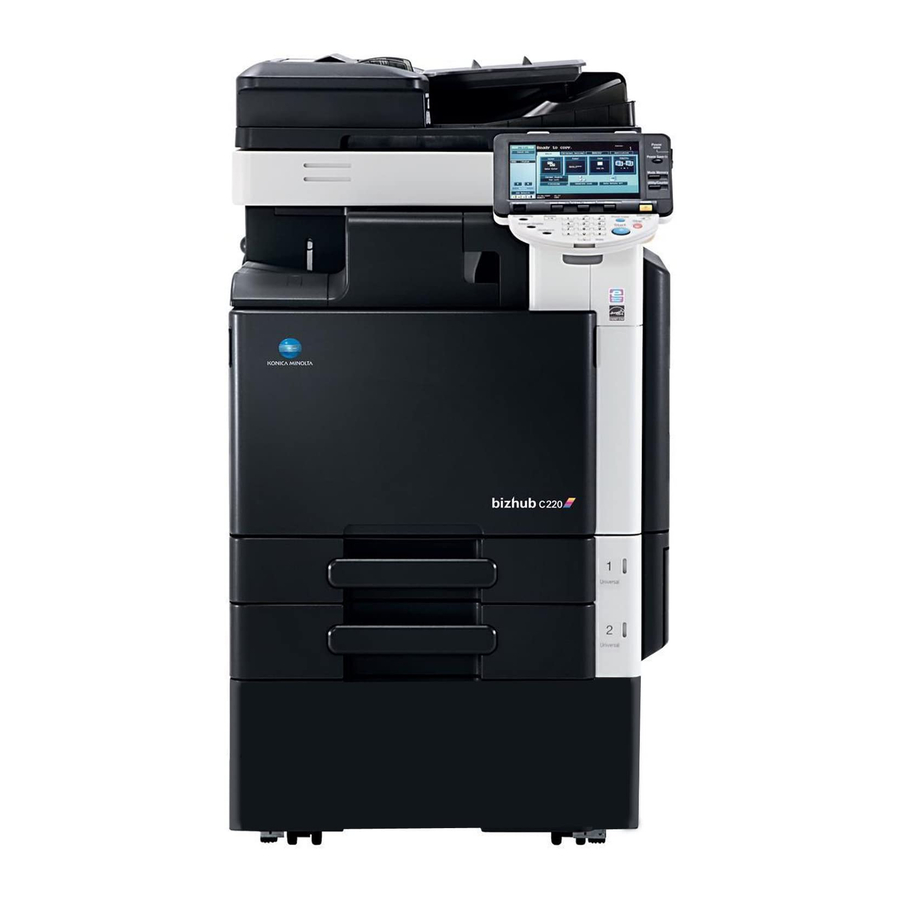
-
Contents
-
Table of Contents
-
Bookmarks
Quick Links
User’s Guide [Box Operations]
Related Manuals for Konica Minolta bizhub C220
Summary of Contents for Konica Minolta bizhub C220
-
Page 1
User’s Guide [Box Operations]… -
Page 2: Table Of Contents
Table of contents Introduction Welcome ……………………….1-2 1.1.1 User’s guides ……………………….. 1-2 1.1.2 User’s Guide ……………………….1-3 Conventions used in this manual ………………..1-4 1.2.1 Symbols used in this manual ………………….1-4 To use this machine safely……………………. 1-4 Procedural instruction……………………1-4 Key symbols……………………….
-
Page 3
Job List — Delete……………………..3-6 Job List — Job Details ……………………. 3-7 User Box information ……………………3-12 Use/File — Detail……………………..3-12 Use/File — Check Job Settings ………………….3-12 Use/File — Check Job Settings — Destination Settings …………..3-13 Use/File — Check Job Settings — Document Setting Contents …………3-13 Use/File — Check Job Settings — Communication Settings ………….. -
Page 4
Encryption ……………………….6-8 Encryption — Detail Settings ………………….. 6-8 Outline PDF……………………….6-10 Scan Setting……………………….. 6-10 6.2.5 Basic — Density……………………..6-11 6.2.6 Basic — Color ………………………. 6-11 6.2.7 Scan Size ……………………….6-12 Standard size ……………………… 6-12 Custom Size……………………….. 6-12 Photo Size……………………….6-12 6.2.8 Image Adjustment …………………….. -
Page 5
Print — Application (Public, Personal, or Group User Box) …………7-13 7.4.1 Page Margin……………………….. 7-13 Page Margin……………………….. 7-13 Image Shift ……………………….7-13 Image Shift — Change Back Shift ………………… 7-14 7.4.2 Sheet/Cover/Chapter Insert ………………….7-14 7.4.3 Sheet/Cover/Chapter Insert — Cover Sheet………………7-15 7.4.4 Sheet/Cover/Chapter Insert — Insert Sheet ……………… -
Page 6
File Path ……………………….7-39 User Name ……………………….7-39 Password ……………………….7-39 Reference……………………….7-39 Next Destination……………………..7-39 7.6.8 Direct Input — FTP……………………..7-40 Host Name ……………………….7-40 File Path ……………………….7-40 User Name ……………………….7-40 Password ……………………….7-40 Detail Settings……………………..7-40 Next Destination…………………….. -
Page 7
Password transmission (Password TX)……………….. 7-56 F-Code transmission (F-Code TX) ………………..7-56 7.6.23 Communication Settings — E-mail Encryption……………… 7-57 7.6.24 Communication Settings — Digital Signature………………7-57 7.6.25 Communication Settings — Fax Header Settings …………….7-57 7.6.26 Overview of the Application settings ………………..7-58 7.6.27 Application — Stamp/Composition — Date/Time ……………. -
Page 8
Page Margin……………………….. 7-80 Sheet/Cover/Chapter Insert ………………….7-80 Stamp/Composition ……………………. 7-80 7.11.5 Filing Settings ……………………..7-81 7.12 Memory RX User Box (System User Box)………………. 7-82 7.12.1 Overview of the Memory RX User Box ……………….. 7-82 7.12.2 Print…………………………7-82 7.12.3 Filing Settings ……………………..7-82 7.13 Annotation User Box (System User Box) ……………… -
Page 9
7.15.1 Overview of the Password Encrypted PDF User Box…………..7-91 Print/Save −Print/Save ……………………7-91 7.15.2 7.15.3 Filing Settings — Delete……………………7-91 7.16 ID & Print User Box (System User Box)………………7-92 7.16.1 Overview of the ID & Print User Box ………………..7-92 Viewing documents…………………….. -
Page 10
8.2.5 Cellular Phone/PDA Setting — Print Settings ………………8-11 Basic — Print ……………………….. 8-11 Basic — Color ………………………. 8-11 Basic — Paper ……………………… 8-11 Basic — Finishing……………………..8-12 Application — Margin……………………. 8-12 Application — Stamp/Composition — Date/Time …………….8-12 Application — Stamp/Composition — Page Number…………….8-12 Application — Stamp/Composition — Stamp ……………… -
Page 11
For Netscape Navigator ……………………9-3 For Mozilla Firefox……………………..9-3 9.1.4 Online help function ……………………… 9-3 Login and logout ……………………..9-4 9.2.1 Login and logout flows……………………9-4 When User Authentication or Account Track is not enabled …………. 9-4 When User Authentication or Account Track is enabled …………..9-6 9.2.2 Logout………………………… -
Page 12: Introduction
Introduction…
-
Page 13: Welcome
Welcome Introduction Welcome Thank you for purchasing this machine. This User’s Guide describes the functions, operating instructions, precautions for correct operation, and sim- ple troubleshooting guidelines of this machine. In order to obtain maximum performance from this product and use it effectively, please read this User’s Guide as necessary. 1.1.1 User’s guides Printed manual…
-
Page 14: User’s Guide
Welcome User’s guide CD manuals Overview [User’s Guide Advanced Function Operations] This manual describes details on functions that become available by registering the optional license kit and by connecting to an application. • Web browser function • Image panel • PDF Processing Function •…
-
Page 15: Conventions Used In This Manual
Conventions used in this manual Conventions used in this manual 1.2.1 Symbols used in this manual Symbols are used in this manual to express various types of information. The following describes each symbol related to correct and safe usage of this machine. To use this machine safely 7 WARNING This symbol indicates that a failure to heed the instructions may lead to death or serious injury.
-
Page 16: Key Symbols
Conventions used in this manual Reference This symbol indicates a reference. View the reference as required. Key symbols Key names on the touch panel or computer screen, or a name of a user’s guide are indicated by these brack- ets. Bold text Key names, part names, product names and option names on the control panel are indicated in bold text.
-
Page 17: To Check The Function You Want To Use
To check the function you want to use To check the function you want to use This manual contains details on setting up the functions. Understanding Operation Flow This manual provides a chapter «User Box Operation Flow» that describes how to use the major functions of this machine.
-
Page 18: User Box Function Overview
User Box Function Overview…
-
Page 19: User Box Functions
User Box functions User Box Function Overview User Box functions The User Box functions allow you to save document data to the machine’s internal hard disk and later print them. Documents that can be saved are data scanned for copying and saved scan data. To save data to a box, create the box, and then save the data to the specified box.
-
Page 20: Using Documents
User Box functions Mobile/PDA Computer FTP server, etc. Original External Memory Using documents Use the document data saved in boxes. Depending on the box, you can use the data as follows: User Box Description Reference Public/Personal/Group Print and send saved documents. You can also select mul- p.
-
Page 21
User Box functions User Box Description Reference Cellular Phone or PDA Print a document saved in a cellular phone or PDA. You p. 7-100 can save a document stored in a cellular phone or PDA in the Public, Personal, or Group User Box. *1 For details on how to send documents for print job from a computer and save them in the User Box, refer to the [User’s Guide Print Operations]. -
Page 22: Organizing Documents
User Box functions Organizing documents Organize documents by renaming the saved document, changing the boxes where they are saved, or dupli- cating or deleting them. User Box Delete Edit Move Copy Save Save Docu- Name in USB ment User mem- tails (when exter-…
-
Page 23: Configuring Settings For Using The User Box Functions
User Box functions 2.1.2 Configuring settings for using the User Box functions Before using the User Box functions, the following settings should be configured. Registering a User Box Save the User Box where documents will be registered. Configure boxes by using the machine’s touch panel or by using PageScope Web Connection from a Web browser on a computer on the network.
-
Page 24: Information
Information Information This section describes information you should know before using the User Box functions. 2.2.1 User authentication To use this machine, some devices have been preset so that you must enter an account or user name and a password. For details on the account or user name available for using the devices, contact your administra- tor.
-
Page 25: Account Track Authentication
Information Account track authentication Enter the account name and password, and then press either [Login] in the touch panel or the Access key on the control panel. Reference When user authentication is enabled, the only the boxes accessible by the logged in users are dis- played.
-
Page 26: Relay User Box
Information Relay User Box Reference Up to 5 Relay User Boxes can be created. Only one document can be saved in a single Relay User Box. 2.2.3 Restriction of file name Name document data to be saved. Reference The names can contain up to 30 characters. You can edit the names after the documents have been saved.
-
Page 27: Authentication And Accessible User Boxes
Authentication and accessible User Boxes Authentication and accessible User Boxes When you apply user authentication and account track settings, the accessible User Boxes and the permis- sions change as shown in the following. Configure the user authentication and account track settings accord- ing to the desired functions.
-
Page 28: When Only Account Track Is Enabled
Authentication and accessible User Boxes 2.3.3 When only account track is enabled Account A Public User Box Group User Box of account A Account B Group User Box of account B Access allowed Reference Users can access all Public User Boxes and only Group User Boxes of accounts that the user belongs If you delete authentication data by canceling account track settings or changing authentication meth- ods, all Group User Boxes become Public User Boxes.
-
Page 29: When User Authentication And Account Track Are Enabled But Not Synchronized
Authentication and accessible User Boxes Public User Box Account A Personal User Box of user 1 User 1 Group User Box of account A Account B User Box administrator Personal User Box of user 2 User 2 Group User Box of account B Access allowed Reference…
-
Page 30
Authentication and accessible User Boxes Public User Box Personal User Box of user 1 User 1 User Box Group User Box administrator of account A Group User Box of account B Access allowed Access permitted through entry of account name and password Reference Users can access all Public User Boxes and only Personal User Boxes that the user has created. -
Page 31: Control Panel/Liquid Crystal Display
Control Panel/Liquid Crystal Display…
-
Page 32: Control Panel
Control panel Control Panel/Liquid Crystal Display Control panel Use the control panel for User Box mode operation. The following describes the buttons and switches in the control panel. 14 13 Name Description Touch Panel Various screens and messages are displayed. Configure the various set- tings by directly touching the panel.
-
Page 33
Control panel Name Description Press this key to print a single proof copy to be checked before printing Proof Copy a large number of copies. You can check the finishing state on the touch panel by pressing this key before scanning or copying. •… -
Page 34: Touch Panel
Touch panel Touch panel 3.2.1 Screen component Name Description Message display area Displays the status of the machine and details on operation proce- dures. Functions/settings display Displays tabs and buttons for displaying screens containing vari- area ous functions. Use this area to configure various functions. Press a tab or button to display the corresponding screen for configuring the settings.
-
Page 35: Display And Operation Of Left Panel
Touch panel Icon Description Appears when there is a message indicating that consumables must be replaced or the machine requires maintenance. Press this icon to display the message, and then perform the replacement or maintenance procedure. Appears when an error occurs with the connection to the POP server. Indicates that there is no paper in the paper tray.
-
Page 36: Job List
Touch panel Job List A command to perform an operation such as saving data to a User Box, or printing or sending saved docu- ments is called a job. Select [Job List] to display the job currently being performed. Job List — Delete Press this button to delete the job in process to cancel the operation.
-
Page 37: Job List — Job Details
Touch panel Job List — Job Details Press this button to view the list of jobs being performed and the job log for confirmation. There are the fol- lowing four types of jobs: Item Description [Print] Lists print jobs for copying, computer printing, and received faxes. [Send] Lists scanner and fax transmission jobs.
-
Page 38
Touch panel Reference When user authentication settings are applied, the names of documents that have not been saved by logged in users cannot be viewed. The names of confidential documents are not displayed. <Job History of [Print]> Item Description List items No.: Job identification number assigned when the job is queued. -
Page 39
Touch panel Item Description [Detail] Press this button to check the registration source/user name, file name, destination type, destination, stored time, communication, number of orig- inal pages and external server information for the selected job. To delete a job, press [Delete]. •… -
Page 40
Touch panel <Current Jobs of [Receive]> Item Description List items No.: Job identification number assigned when the job is queued. User Name: Displays the user name or user name/account name of the user who stored the document. Status: Displays the status of the job (receiving/dialing (Polling RX)/queued/printing/printing stopped/print error/saving to memory/delet- ing). -
Page 41
Touch panel Reference When user authentication settings are applied, the names of documents that have not been saved by logged in users cannot be viewed. The names of confidential documents are not displayed. To view received images, you must set «Job History Thumbnail Display» to «ON» in Administrator Set- tings in advance. -
Page 42: User Box Information
Touch panel User Box information Displays the User Box information when you select a User Box. Use/File — Detail Press [Detail] on the lower left of the Use Document screen to check the time stored, user name, document name, the number of pages, and job number of the selected document. Reference When you select multiple documents, use [ ] to switch pages.
-
Page 43: Use/File — Check Job Settings — Destination Settings
Touch panel Use/File — Check Job Settings — Destination Settings Displays the list of destinations that are registered in the machine. Reference To add a directly entered destination to the address book, select the destination, and press [Store Ad- dress]. To check the detailed information of the destination, select a destination, and press [Details].
-
Page 44: Use/File — Check Job Settings — Communication Settings
Touch panel Use/File — Check Job Settings — Communication Settings You can check the line settings and transmission method settings. Press either [ Back] or [Forward ] to check the settings. Use/File — Check Job Settings — Check E-Mail Settings Check the document name, subject, From address and message body to send E-mail messages.
-
Page 45: Preview (Print/Combine)
Touch panel Preview Press [Detail] to enlarge the preview image. Enlarge the image of the document to check details. The image can be magnified 2 times, 4 times or 8 times. To view the desired portion of the enlarged image, use the scroll bars located in the right and the bottom of the image.
-
Page 46: Preview (Send/Bind Tx)
Touch panel Preview (Send/Bind TX) Preview the page image of sending result by pressing the [Preview] — [Detail] in the left panel when you have selected [Send] or [Bind TX]. Item Description [Scan] Displays the preview for E-mail TX/PC (FTP)/File TX (SMB)/File TX (WebDAV) oper- ations.
-
Page 47
Touch panel Reference If you select [Bind TX], the Delete Page function becomes unavailable. If you select [Send] for multiple documents, the rotate page and delete page functions become unavail- able. bizhub C360/C280/C220 3-17… -
Page 48: User Box Operation Flow
User Box Operation Flow…
-
Page 49: Saving Documents In User Boxes
Saving documents in User Boxes User Box Operation Flow Saving documents in User Boxes This section describes the steps for saving documents in Public User Boxes. Press the User Box key in the control panel Select the desired User Box, and then press [Save Document] Configure the document name (p.
-
Page 50
Saving documents in User Boxes Load the original Press [Start] or the Start key in the control panel Reference When saving an original with an embedded password, the password entry screen appears. Enter the password and press [OK] to start saving. You cannot save an original with copy guard embedded. -
Page 51: Printing Documents From A User Box
Printing documents from a User Box Printing documents from a User Box This section describes the steps for printing documents saved in Public User Boxes. Press the User Box key in the control panel Select the desired User Box, and then press [Use/File] Select the [Print] tab Select documents…
-
Page 52
Printing documents from a User Box If you have selected a single document, press When selecting multiple documents and printing [Print] (p. 7-4) them using added functions, press [Combine] (p. 7-5) Configure the printing order (bind order) (p. 7-6) Configure basic and application settings (p. 7-7, Configure basic and application settings (p. -
Page 53
Printing documents from a User Box Press [Start] or the Start key in the control panel bizhub C360/C280/C220… -
Page 54: Sending Documents From A User Box
Sending documents from a User Box Sending documents from a User Box This section describes the steps for sending documents saved in Public User Boxes. Press the User Box key in the control panel Select the desired User Box, and then press [Use/File] Select the [Send] tab Select documents…
-
Page 55
Sending documents from a User Box If you have selected a single document, press When selecting multiple documents and specifying [Send]. (p. 7-30) the file type or stamp, press [Bind TX] (p. 7-30) Configure the sending order (bind order) (p. 7-6) Specify the destination Address Book Direct Input… -
Page 56
Sending documents from a User Box Configure document, communication, and appli- Configure document, communication, and appli- cation settings (p. 7-44) cation settings (p. 7-44) To confirm the contents, display the preview (p. 3-16) Press [Start] or the Start key in the control panel bizhub C360/C280/C220… -
Page 57: Saving A Document In An External Memory
Saving a document in an external memory Saving a document in an external memory This section describes the steps for saving scanned images in the external memory. Press User Box in the control panel while the exter- Connect the external memory to this machine, and nal memory is connected to this machine then press [Save a document to External Memory.] Press [Save Document]…
-
Page 58
Saving a document in an external memory Configure the document name (p. 6-4), scan set- tings (p. 6-5) and original settings (p. 6-18) Load the original Press [Start] or the Start key in the control panel Reference When saving an original with an embedded password, the password entry screen appears. Enter the password and press [OK] to start saving. -
Page 59: Saving A Document From The External Memory Into A User Box
Saving a Document from the External Memory into a User Box Saving a Document from the External Memory into a User Box This section describes the steps for saving a document stored in the external memory to a User Box. Press User Box in the control panel while the exter- Connect the external memory to this machine, and nal memory is connected to this machine…
-
Page 60
Saving a Document from the External Memory into a User Box Specify the User Box and document name (p. 7-98) Press [Start] or the Start key in the control panel Reference A function to save documents in an external memory is set to OFF (cannot be saved) by factory default. In addition, it is set to OFF (cannot be saved) by the user function settings when user authentication is enabled. -
Page 61: Printing A Document From An External Memory
Printing a document from an external memory Printing a document from an external memory This section describes the steps for printing documents saved in the external memory. Press User Box in the control panel while the ex- Connect the external memory to this machine, and ternal memory is connected to this machine then press [Print a document from External Memo- ry.]…
-
Page 62
Printing a document from an external memory Configure print settings (p. 7-96) Press [Start] or the Start key in the control panel Reference A function to save documents in an external memory is set to OFF (cannot be saved) by factory default. In addition, it is set to OFF (cannot be saved) by the user function settings when user authentication is enabled. -
Page 63: Filing Documents In A User Box
Filing documents in a User Box Filing documents in a User Box This section describes the steps for filing documents saved in Public User Boxes. Press the User Box key in the control panel Select the desired User Box, and then press [Use/File] Select the [Filing Settings] tab Select documents, and then select a function…
-
Page 64
Filing documents in a User Box Reference To delete the documents, refer to page 7-61. To rename the documents, refer to page 7-61. To move the documents to other User Boxes, refer to page 7-61. To copy the documents to other User Boxes, refer to page 7-62. To save a document in the external memory, refer to page 7-62. -
Page 65: Printing A Document Saved In A Cellular Phone Or Pda
Printing a Document Saved in a Cellular Phone or PDA Printing a Document Saved in a Cellular Phone or PDA This section describes the steps to print a document saved in a cellular phone or PDA. Press the User Box key in the control panel Select the [System User Box] tab.
-
Page 66
Printing a Document Saved in a Cellular Phone or PDA Enter the PIN code displayed in the control panel to the cellular phone or PDA (p. 7-99) Reference To configure print settings from a cellular phone or PDA, refer to page 8-11. bizhub C360/C280/C220 4-19… -
Page 67: Saving A Document Stored In A Cellular Phone Or Pda To A User Box
Saving a Document Stored in a Cellular Phone or PDA to a User Box Saving a Document Stored in a Cellular Phone or PDA to a User This section describes the steps to save a document stored in a cellular phone or PDA to a User Box. Press the User Box key in the control panel Select the [System User Box] tab.
-
Page 68
Saving a Document Stored in a Cellular Phone or PDA to a User Box Enter the PIN code displayed in the control panel to the cellular phone or PDA (p. 7-100) bizhub C360/C280/C220 4-21… -
Page 69: Menu Tree Of The User Box Mode
4.10 Menu tree of the User Box mode 4.10 Menu tree of the User Box mode This section describes the configuration and settings for the functions available in the User Box mode. 4.10.1 Save Document Public, Personal, or Group User Box The following shows the menu tree for saving documents in Public, Personal, or Group User Boxes.
-
Page 70: System User Box
4.10 Menu tree of the User Box mode System User Box The following shows the menu tree for saving documents in System User Boxes. First level Second level Third level Fourth level [Annotation User [User Box] (p. 6-4) Box] [Document Name] (p. 6-4) [Scan Settings] [Original Type] (p.
-
Page 71
4.10 Menu tree of the User Box mode First level Second level Third level Fourth level [External Memory] [User Box] (p. 6-4) [Document Name] (p. 6-4) [Scan Settings] [Original Type] (p. 6-5) [Simplex/Duplex] (p. 6-6) [Resolution] (p. 6-6) [File Type] [File Type] (p. -
Page 72: Use/File
4.10 Menu tree of the User Box mode 4.10.2 Use/File Print (for Public/Personal/Group User Boxes) The following shows the menu tree for using or filing documents in Public, Personal, or Group User Boxes, and configuring print settings. The following describes items available using the framed buttons. First level Second level Third level…
-
Page 73
4.10 Menu tree of the User Box mode First level Second level Third level Fourth level [Sheet/Cov- [Cover Sheet] [Front Cover] er/Chapter Insert] (p. 7-15) [Back Cover] [Insert Sheet] [Insert Paper] (p. 7-16) [Insert Type] [Chapters] [Chapter Paper] (p. 7-17) [Stamp/Composi- [Date/Time] [Date Format]… -
Page 74
4.10 Menu tree of the User Box mode First level Second level Third level Fourth level [Combine] [Copies:] (p. 7-7) [Print] (p. 7-7) [1-Sided] [2-Sided] [Color] (p. 7-8) [Full Color] [Black] [Use Existing Color Setting] [Finishing] (p. 7-8) [Offset] (p. 7-9) [Staple] (p. -
Page 75: Send (For Public/Personal/Group User Boxes)
4.10 Menu tree of the User Box mode First level Second level Third level Fourth level [Stamp Repeat] [Stamp Repeat (p. 7-25) Type] (p. 7-26) [Detail Settings] (p. 7-26) [Position] (p. 7-26) [Header/Footer] [Recall Head- (p. 7-27) er/Footer] [Mode Check] [Registered Over- [Recall Overlay lay] (p.
-
Page 76
4.10 Menu tree of the User Box mode First level Second level Third level Fourth level [FTP] (p. 7-40) [Host Name] [File Path] [User Name] [Password] [Detailed Settings] [WebDAV] [Host Name] (p. 7-41) [File Path] [User Name] [Password] [Detailed Settings] [Job History] (p. -
Page 77
4.10 Menu tree of the User Box mode First level Second level Third level Fourth level [Communication [Timer TX] Method Settings] (p. 7-55) (p. 7-55) [Password TX] (p. 7-56) [F-Code TX] (p. 7-56) [E-Mail Encryption] (p. 7-57) [Digital Signature] (p. 7-57) [Fax Header Settings] (p. -
Page 78: Filing Settings (For Public/Personal/Group User Boxes)
4.10 Menu tree of the User Box mode First level Second level Third level Fourth level [Document Set- [File Type] [File Type] tings] (p. 7-45) (p. 7-45) [Encryption] (p. 7-46) [Stamp Composi- tion] (p. 7-48) [Outline PDF] (p. 7-48) [Scan Setting] (p.
-
Page 79: Application (For Public/Personal/Group User Boxes)
4.10 Menu tree of the User Box mode First level Second level Third level Fourth level [Delete] (p. 7-61) [Edit Name] (p. 7-61) [Move] (p. 7-61) [Copy] (p. 7-62) [Save to External Memory.] (p. 7-62) [Document De- [Preview] (p. 7-65) tails] Application (for Public/Personal/Group User Boxes) The following shows the File/Use — Application menu tree for Public, Personal, or Group User Boxes.
-
Page 80: System User Box
4.10 Menu tree of the User Box mode System User Box The following shows the Use/File menu tree for System User Boxes. First level Second level Third level Fourth level [Bulletin Board User Box] (p. 7-77) [Polling TX User Box] (p. 7-78) [Secure Docu- [Print] [Copies:] (p.
-
Page 81
4.10 Menu tree of the User Box mode First level Second level Third level Fourth level [Stamp/Composi- [Date/Time] tion] (p. 7-18) [Page Number] [Stamp] [Copy Security] [Stamp Repeat] [Header/Footer] [Registered Over- lay] [Filing Settings] [Delete] (p. 7-81) [Edit Name] [Document De- [Preview] (p. -
Page 82
4.10 Menu tree of the User Box mode First level Second level Third level Fourth level [Sheet/Cov- [Cover Sheet] er/Chapter Insert] (p. 7-15) [Insert Sheet] (p. 7-16) [Chapters] (p. 7-17) [Stamp/Composi- [Date/Time] tion] (p. 7-18) (p. 7-18) [Page Number] (p. 7-19) [Stamp] (p. -
Page 83
4.10 Menu tree of the User Box mode First level Second level Third level Fourth level [Fax Retransmit [Print] [Proof Print] (p. 7-89) User Box] [Send] [Fax] (p. 7-89) [Filing Settings] [Delete] (p. 7-90) [Document De- [Preview] tails] [Password En- [Print/Save] [Print/Save] (p. -
Page 84: Accessing The User Box Mode
Accessing the User Box mode…
-
Page 85
Accessing the User Box mode Accessing the User Box mode Accessing the User Box mode Before starting this procedure, turn this machine on. When this machine is ready to copy data, the basic set- tings screen appears. To access the User Box mode, press the User Box key in the control panel. The User Box mode window appears. -
Page 86: User Box Operation Menu
User Box Operation Menu User Box Operation Menu Accessing the User Box mode enables you to select the operation menus below. 5.2.1 Save Document Scan the original loaded on this machine and save it in a User Box. You can specify the name or image quality of an original when saving it.
-
Page 87: Save Document
Save Document…
-
Page 88: Save Document
Save Document Overview Save Document Save Document Overview 6.1.1 Functions Save Document enables you to directly specify a destination User Box when saving a document in the User Box mode. Using Save Document, document are saved in the same way as when scanned data is saved. Public/Personal/Group User Boxes You can save a document copied or scanned using this machine.
-
Page 89: Initial Window Of Save Document
Save Document Overview 6.1.2 Initial Window of Save Document Public/Personal/Group User Boxes Select the [Public], [Personal], or [Group] tab to display a list of User Boxes you can save a document in. Specify the desired User Box. System User Box Select the [System User Box] tab to display a list of User Boxes you can save a document in.
-
Page 90: Save Document Window
Save Document Overview 6.1.3 Save Document window The available setting items in the Save Document screen are as follows. Reference For the external memory, you cannot change the destination User Box. To save a document in external memory, change the setting to enable you to save a document in Ad- ministrator Settings.
-
Page 91: Scan Settings
Scan Settings Scan Settings Press [Scan Settings] in the Save Document tab to configure the detailed scan settings. 6.2.1 Basic — Original Type Select the original type based on the original contents. The available original types are as follows. Item Description [Text] Original that consists of only text.
-
Page 92: Basic — Simplex/Duplex
Scan Settings 6.2.2 Basic — Simplex/Duplex Select whether to scan one or both sides of the original. Item Description [1-Sided] Scans one side of the original. [2-Sided] Scans both sides of the original. [Cover + 2-Sided] Scans the first page of the original as a cover in the single-sided mode, and also scans the remaining pages in the double-sided mode.
-
Page 93: Basic — File Type
Scan Settings 6.2.4 Basic — File Type Select the file type to save scanned data. File Type The available file types are as follows. Item Description [PDF] Saves data in PDF format. [Compact PDF] Further compressed PDF file. This format is useful when saving a scanned full color data.
-
Page 94: Encryption
Scan Settings Encryption If the [PDF] or [Compact PDF] is selected for the file format, the encryption level can be specified. Reference You cannot check the contents of an encrypted document in the preview screen. Item Description Encryption Level Select the encryption level. [Password] Enter the password necessary to open encrypted data (up to 32 characters).
-
Page 95
Scan Settings <When [High level] is selected> Item Description [Printing Allowed] Select whether to allow or restrict printing data. [Low Resolution] appears when the Encryption Level is set to [High level]. [Enable copying Select whether to allow or restrict extracting text images. of text, images and other con- tent]… -
Page 96: Outline Pdf
Scan Settings Item Description [Changes Al- Select the permission level about changes to the document, including signing, en- lowed] tering, or commenting data. Outline PDF Configure this item when [Compact PDF] is selected for the file type. This function performs outline process- ing for characters, ensuring a smooth display image.
-
Page 97: Basic — Density
Scan Settings 6.2.5 Basic — Density Adjust the density for the scanned document. 6.2.6 Basic — Color Specify whether to scan original in color or black-and-white. Item Description [Auto Color] Automatically detects the color of the original and scans it to fit the original setting. [Full Color] Scans the original in full color.
-
Page 98: Scan Size
Scan Settings 6.2.7 Scan Size Select the paper size of the original to be scanned. Standard size Press [Auto] to automatically detect the size of the first page in the original when scanning. To scan the orig- inal with a predetermined paper size, select that size. Custom Size Enter the dimensions of a custom size other than the standard sizes.
-
Page 99: Image Adjustment
Scan Settings 6.2.8 Image Adjustment Adjust the background density or sharpness for the scanned document. Background Removal Adjust the background density of the scanned original. When scanning a colored-paper original, the back- ground color may be scanned resulting in the entire image becoming dark. To avoid this, you can adjust the background density.
-
Page 100: Sharpness
Scan Settings Sharpness This settings allows you to sharpen character edges or other borders for the scanned document. 6.2.9 Application — Frame Erase Configure the setting for erasing frames on a two-page spread. Reference If you have specified the frame width to be erased in the Frame Erase setting of the Book Copy function, the same value is automatically configured for this [Frame Erase] function.
-
Page 101: Application — Book Copy
Scan Settings 6.2.10 Application — Book Copy Configure settings to scan a two-page spread. Settings include scanning method, binding positions and erasing unwanted areas. For paper size of the original, select the size of the spread. Book copy method Select the scanning method. Item Description [Book Spread]…
-
Page 102: Book Erase — Center Erase
Scan Settings Book Erase — Center Erase Configure settings to erase the shaded part around the binding position in the center of the original. Reference Use the keypad or press [-] or [+] to enter a numeric value between 1/16 and 1-3/16 inches (0.1 and 30.0 mm).
-
Page 103: Separate Scan
Scan Settings 6.2.11 Separate Scan The scan operation can be divided into several sessions by types of originals, for example, when all pages of originals cannot be loaded into the ADF, when the originals are placed on the original glass, or when single- sided originals and double-sided originals are mixed.
-
Page 104: Original Settings
Original Settings Original Settings Specify the type of original that is loaded, for example, if it contains mixed page sizes or Z-folded originals. Under Original Settings, you can select two or more items at the same time. 6.3.1 Special Original The available setting items are as follows.
-
Page 105: Direction Settings — Binding Position
Original Settings 6.3.3 Direction Settings — Binding Position Select the binding position of the original when it has punched holes or is stapled. When a double-sized orig- inal is scanned, the binding position is corrected on the back side. Item Description [Auto] Sets the binding position to the long side if the size is 11-11/16 inches (297 mm) or…
-
Page 106: Use/File
Use/File…
-
Page 107: Overview Of The Use/File Operations
Overview of the Use/File operations Use/File Overview of the Use/File operations 7.1.1 Functions of Use/File Printing a document You can print a document that was saved in a User Box in the Copy, Fax/Scan, print instruction, or Fax re- ception mode. You can add finishing settings such as the number of copies or 2-sided print settings when printing the document.
-
Page 108: If A Password Is Specified For A User Box
Overview of the Use/File operations Name Description [Send] Configure the destination and other settings to send the selected docu- ments. (p. 7-30) [Filing Settings] Rename, move, or copy the selected documents. (p. 7-60) [Application] Edit the selected document on a page-basis or register overlay images. (p.
-
Page 109: Print
Print Print 7.2.1 Overview of the Print tab Description of the Print tab Select the [Print] tab to display the following screen. The available setting items for [Print] are as follows. Name Description [Print] Configure settings to print the selected documents. If you have selected multiple documents, the document print setting function is not available.
-
Page 110: Combine
Print Name Description [Application] Configure the more complicated settings such as the page margin and stamp. Combine Press [Combine], and then configure Combine settings to display the following screen. In the Combine screen, two categories of the configurable items are provided: [Basic] and [Application]. Name Description [Basic]…
-
Page 111: Combine
Print 7.2.3 Combine Document Order After selecting documents, press [Combine] to display the document order selection screen. Documents will be printed in the order they are displayed in this screen. When this screen appears, the documents are dis- played in the order they were selected. Reference To change the order, select a reorder source document, then a reorder destination document.
-
Page 112: Print — Basic (Public, Personal, Or Group User Box)
Print — Basic (Public, Personal, or Group User Box) Print — Basic (Public, Personal, or Group User Box) 7.3.1 Copies Use the keypad to enter the number of copies. The allowable range is 1 to 9999. Reference To reset the setting to 1, press the [C] key on the control panel. 7.3.2 1-Sided/2-Sided Select whether to print one side or both sides of sheets of paper.
-
Page 113: Color
Print — Basic (Public, Personal, or Group User Box) 7.3.3 Color Configure color settings to print documents. Reference [Full Color]: Prints a document in full color. – You can print documents saved in this machine in full color even if they are saved in black and white. [Black]: Prints a document in black and white.
-
Page 114: Sort/Group
Print — Basic (Public, Personal, or Group User Box) <When [Combine] is selected> Sort/Group Selecting Sort feeds copies by set. Selecting Group feeds copies by page. Offset Select Yes to sort sheets by set or page so that the user knows where the document is separated. When the finisher is installed, the printed sheets are fed while shifting them for each separation.
-
Page 115: Punch — Position Setting
Print — Basic (Public, Personal, or Group User Box) Punch — Position Setting Specify hole positions. Fold/Bind Configure the following settings when a finisher is installed. Item Description [Half-Fold] Folds printed sheets of paper before being fed. [Center Staple & Staples printed sheets of paper at two center points and folds them in two before Fold] being fed.
-
Page 116: Combine
Print — Basic (Public, Personal, or Group User Box) 7.3.5 Combine A multi-page original is combined and printed on one page. Item Description [2in1] Combines a 2-page original into one page. [4in1] Combines a 4-page original into one page. You can select the combining order of original pages.
-
Page 117: Continuous Print
Print — Basic (Public, Personal, or Group User Box) Item Description [Existing Setting] Prints A document with the magnification that was specified when it was saved. [Manual] Specify the magnification between 25.0% and 400.0% on a 0.1% basis. Use the keypad to directly enter the magnification.
-
Page 118: Print — Application (Public, Personal, Or Group User Box)
Print — Application (Public, Personal, or Group User Box) Print — Application (Public, Personal, or Group User Box) 7.4.1 Page Margin The page margin is set to the left, right, or top of paper. It can assure a punching or stapling space. Page Margin Item Description…
-
Page 119: Image Shift — Change Back Shift
Print — Application (Public, Personal, or Group User Box) Image Shift — Change Back Shift To create a page margin in 2-Sided printing mode, press [Change Back Shift] to specify the image shift length on the back side. You can specify the shift length to move the image to the left, right, top, or bottom within 1/16 to 10 inches (0.1 to 250.0 mm) to fit the page margin position.
-
Page 120: Sheet/Cover/Chapter Insert — Cover Sheet
Print — Application (Public, Personal, or Group User Box) 7.4.3 Sheet/Cover/Chapter Insert — Cover Sheet Documents are printed with front and back covers. COVER The available setting items are as follows. Item Description [Front Cover]/ Configure settings for front and back covers. For details, refer to the table below. [Back Cover] [Paper] Select a paper tray in the following cases.
-
Page 121: Sheet/Cover/Chapter Insert — Insert Sheet
Print — Application (Public, Personal, or Group User Box) Reference Load the front and back cover sheets in the tray in advance. To add cover sheet setting when printing the document that you copied and saved in a User Box, either one of the following conditions must have been satisfied when you saved the document.
-
Page 122: Sheet/Cover/Chapter Insert — Chapters
Print — Application (Public, Personal, or Group User Box) Item Description [Blank] (when 1- A specified sheet is inserted after the sixth page. Sided is selected) [Blank] (when 2- A specified sheet is inserted as the fourth sheet. When you specify an odd pages, Sided is selected) the back side of the inserted sheet is left blank.
-
Page 123: Stamp/Composition
Print — Application (Public, Personal, or Group User Box) 7.4.6 Stamp/Composition In Stamp/Composition screen, you can configure the following functions. Item Description [Date/Time] The date and time of printing are printed on the pages. [Page Number] A page number is printed on all pages of a document. [Stamp] A preset character string such as «URGENT»…
-
Page 124: Stamp/Composition — Page Number
Print — Application (Public, Personal, or Group User Box) 7.4.8 Stamp/Composition — Page Number The page number is printed on all pages of the document. Settings Item Description [Starting Page Specify the starting page number. Number] [Starting Chapter Specify the starting chapter number. Number] [Page Number Select the format to display a page number.
-
Page 125: Insert Sheet Setting
Print — Application (Public, Personal, or Group User Box) Insert Sheet Setting Specify whether to print a page number on inserted sheets. Item Description [Cover [Print on Front and A page number is printed on the front and back covers. Sheet] Back Cover] [Print on Back Cover…
-
Page 126: Stamp/Composition -Copy Security -Copy Protect
Print — Application (Public, Personal, or Group User Box) Item Description [Text Size] Select the printing text size from Minimal or Standard. [Text Color] Select the printing color from black, red, blue, green, yellow, cyan, or magenta. [Print Position] Specify the print position. To fine-adjust the print position, press [Adjust Position]. Specify the shift length of the print position to the left, right, top or bottom using a value between 1/16 and 1-15/16 inches (0.1 and 50.0 mm).
-
Page 127: Copy Protect Type
Print — Application (Public, Personal, or Group User Box) Copy Protect Type Item Description [Registered Press this button to apply the stamp images that were pre-registered with the utility Stamp] software. • Use Copy Protection Utility to register stamps. For details, refer to the relevant utility software manual.
-
Page 128: Stamp/Composition — Copy Security — Copy Guard
Print — Application (Public, Personal, or Group User Box) 7.4.11 Stamp/Composition — Copy Security — Copy Guard To prevent unauthorized copying, this function prints a text such as «Invalid Copy» or «Private» or information such as Date/Time on all pages of paper as a copy guard (copy inhibit information) when printing. A page with a copy guard printed on it cannot be copied or saved in a User Box.
-
Page 129: Detail Settings
Print — Application (Public, Personal, or Group User Box) Detail Settings Press [Detail Settings] to specify the text color, contrast, background pattern, and other items. Item Description [Text/Back- Select the text and background colors from black, magenta, or cyan. ground Color] [Copy Guard Pat- Specify the contrast of a copy guard.
-
Page 130: Stamp Type
Print — Application (Public, Personal, or Group User Box) Stamp Type Item Description [Preset Stamp] Press this button to apply a standard string such as Invalid Copy, Copy, or Private as a preset stamp. One stamp requires one area. [Date/Time] Press this button to apply the date and time the document was registered.
-
Page 131: Stamp Repeat Type
Print — Application (Public, Personal, or Group User Box) Item Description [Detail Settings] Specify the color, density, and text size of stamp repeat to be printed. [Position] Select the angle or printing order of stamp repeat to be printed. Stamp Repeat Type Item Description [Registered…
-
Page 132: Stamp/Composition — Header/Footer
Print — Application (Public, Personal, or Group User Box) 7.4.14 Stamp/Composition — Header/Footer Configure settings to insert the header or footer. To insert the header or footer, you must register their con- tents in Administrator Settings in advance. Press Check/Change Temporarily to temporarily change and print the contents of the registered header and footer.
-
Page 133: Stamp/Composition — Registered Overlay
Print — Application (Public, Personal, or Group User Box) Item Description [Header Settings], Specify whether to print the header and footer. Press [Print] to configure the follow- [Footer Settings] ing setting. • [Text]: Specify a header or footer text in the touch panel. •…
-
Page 134: Overlay Setting
Print — Application (Public, Personal, or Group User Box) Overlay Setting Select an overlay image and configure it settings. You can also preview the image. Item Description [Thumbnail In the thumb-nail view, you can check overlay images. In the Display Name mode, View]/[Display you can check overlay images using their file names.
-
Page 135: Send
Send Send 7.5.1 Overview of the Transmission Settings You can use the following functions to send a document saved in a User Box. Using these functions enables you to easily send data by only registering destinations in this machine without transferring data via comput- ers.
-
Page 136: Bind Tx
Send Send Press [Send] to display the following screen. You can configure transmission destination and additional func- tions. Item Description Configure the desti- Configure the destinations. (p. 7-34) nations Configure the func- Configure the functions that can be added when transmitting docu- tions ments.
-
Page 137: Transmission Settings
Send 7.5.2 Transmission Settings Press [Send] to specify destinations and functions that can be added when transmitting documents. Reference [Direct Input] is not displayed when Manual Destination Input is set to Restrict in [Security Settings] in Administrator Settings. Item Description [Address Book] Press this button to select the recipient from the pre-registered destina- tions.
-
Page 138: Combine
Send 7.5.3 Combine Document Order After selecting documents, press [Bind TX] to display the binding order selection screen. Documents will be printed in the order they are displayed in this screen. When this screen appears, the documents are displayed in the order they were selected. Reference To change the order, select a reorder source document, then a reorder destination document.
-
Page 139: Send (Public, Personal, Or Group User Box)
Send (Public, Personal, or Group User Box) Send (Public, Personal, or Group User Box) 7.6.1 Address Book — Search Search for transmission destinations. The following methods are available to search for the registered desti- nations. Address Type Press this button to search for the destination by address type that was specified when the destination is registered.
-
Page 140: Index
Send (Public, Personal, or Group User Box) Index The Index screen appears by index that was specified when they were registered. The [Index] screen is displayed when you press [Search] if [Default Address Book] is set to [Address Type] in [User Settings] — [Custom Display Settings] — [Scan/Fax Settings] in the Utility menu.
-
Page 141: Detail Search — Search Options
Send (Public, Personal, or Group User Box) Detail Search — Search options In the Detail Search screen, select a condition to display search options. Select the additional search condi- tions, and press [OK]. Reference To configure whether to display the search option screen and options displayed on that screen, use [Search Option Settings] in the setting menu.
-
Page 142: Direct Input — Fax
Send (Public, Personal, or Group User Box) 7.6.3 Direct Input — Fax Enter the fax number in the touch panel. Next Destination Press this button to continuously specify another destination. When the Confirm Address (TX) function is specified: You are prompted to enter the fax number again after pressing [OK]. Enter the fax number, and press [Start]. Reference [Next Destination] can be selected on the second input screen.
-
Page 143: Direct Input — Internet Fax
Send (Public, Personal, or Group User Box) 7.6.5 Direct Input — Internet Fax Enter the E-mail address in the touch panel. Reference You can register the frequently used user names or domain names and call them when sending E-mail messages. Before you use this function, you must register the prefix and suffix in Administrator Set- tings.
-
Page 144: Direct Input — Pc (Smb)
Send (Public, Personal, or Group User Box) Item Description [Port Number] Use the keypad to enter the sending port number (using a value from 1 to 65535). [Destination Ma- Select [Color] when the destination machine supports color printing. chine Type] [Next Destination] Press this button to continuously specify another destination.
-
Page 145: Direct Input — Ftp
Send (Public, Personal, or Group User Box) 7.6.8 Direct Input — FTP Directly enter the FTP address. Host Name Specify the host name or IP address of the destination in the touch panel. File Path Enter the path of the destination folder in the touch panel. User Name Enter the login user name in the touch panel.
-
Page 146: Direct Input — Webdav
Send (Public, Personal, or Group User Box) 7.6.9 Direct Input — WebDAV Directly enter the WebDAV destination. Host Name Specify the host name or IP address of the destination in the touch panel. File Path Enter the path of the destination folder in the touch panel. User Name Enter the login user name in the touch panel.
-
Page 147: Job History
Send (Public, Personal, or Group User Box) 7.6.10 Job History Job History displays the latest five fax destinations that this machine have sent faxes to. You can select des- tinations from this history. 7.6.11 Address Search The [Address Search] tab is displayed when the LDAP server is configured in Administrator Settings. Reference For details on the LDAP server setting, refer to the [User’s Guide Network Administrator] — Enabling LDAP.
-
Page 148: Ldap Search — Search
Send (Public, Personal, or Group User Box) 7.6.12 LDAP Search — Search Enter a search keyword and press [Start Search] to search for the destination address in the specified LDAP server. 7.6.13 LDAP Search — Advanced Search Specify multiple search conditions to search for the target address. Name Enter the name in the touch panel.
-
Page 149: Company Name
Send (Public, Personal, or Group User Box) Company Name Enter the company name in the touch panel. Department Enter the department in the touch panel. OR/AND/STARTS WITH/ENDS WITH Select the search condition from OR, AND, STARTS WITH, or ENDS WITH. When not specifying any condi- tions, press [No].
-
Page 150: Document Settings — File Type
Send (Public, Personal, or Group User Box) 7.6.16 Document Settings — File Type Specify the file type of data being transmitted. File Type The available file types are as follows. Item Description [PDF] Saves data in PDF format. [Compact PDF] Further compressed PDF file.
-
Page 151: Encryption
Send (Public, Personal, or Group User Box) Encryption If the [PDF] or [Compact PDF] is selected for the file format, the encryption level can be specified. Item Description [Encryption Level] Select the encryption level. [Password] Configure this item when you select the password for the encryption type. Enter the password necessary to open encrypted data (up to 32 characters).
-
Page 152
Send (Public, Personal, or Group User Box) <When [High level] is selected> Item Description [Printing Allowed] Select whether to allow or restrict printing data. [Low Resolution] appears when the Encryption Level is set to [High level]. [Enable copying Select whether to allow or restrict extracting text images. of text, images and other con- tent]… -
Page 153: Stamp Composition
Send (Public, Personal, or Group User Box) Item Description [Changes Al- Select the permission level about changes to the document, including signing, en- lowed] tering, or commenting data. Stamp Composition Press this button to select how to compose the contents to be added in Stamp/Composition. Item Description [Image]…
-
Page 154: Scan Setting
Send (Public, Personal, or Group User Box) Scan Setting Specify a collection of data. Item Description [Multi Page] Creates all the scanned originals as one file. This item cannot be specified together with the JPEG file type. [Page Separation] Separates the scanned data to save every specified number of pages to one file. Use the keypad to enter the number of pages to be saved in one file.
-
Page 155: Overview Of The Communication Settings
Send (Public, Personal, or Group User Box) 7.6.18 Overview of the Communication Settings Configure communication lines, digital signature, and other communication settings. 7.6.19 Communication Settings — Line Setting Description of Line Settings Configure line settings for fax transmission. Overseas TX Faxes are sent to locations with poor communication conditions at a lower baud rate.
-
Page 156: Ecm Off
Send (Public, Personal, or Group User Box) ECM OFF The Error Correction Mode (ECM) is turned off when sending data. ECM is an error correction mode defined by ITU-T (International Telecommunication Union — Telecommunication Standardization Sector). Fax ma- chines equipped with the ECM feature communicate with each other, confirming that the data sent is free of errors.
-
Page 157: Communication Settings — E-Mail Settings
Send (Public, Personal, or Group User Box) 7.6.20 Communication Settings — E-Mail Settings E-mail Settings Specify the document name, subject, From address and message body for sending e-mail messages. Document Name The name of the file to be saved is displayed. This document name can also be specified in the [File Docu- ment] screen.
-
Page 158: From
Send (Public, Personal, or Group User Box) From Displays the E-mail address of the administrator specified in the Utility menu. Reference The E-mail address of this machine is used for Internet faxing. You cannot directly enter the address when [Change the «From» Address] is set to Restrict in Adminis- trator Settings — [System Settings] — [Restrict User Access] — [Restrict Access to Job Settings].
-
Page 159: Communication Settings — Url Notification Setting
Send (Public, Personal, or Group User Box) 7.6.21 Communication Settings — URL Notification Setting URL Notification Use the URL Notification function to specify the E-mail address to be notified about the completion of a job and data location. The URL contains information for linking to a User Box. Click the link in the text to directly move to the User Box screen.
-
Page 160: Communication Settings — Communication Method Settings
Send (Public, Personal, or Group User Box) 7.6.22 Communication Settings — Communication Method Settings Specify how to send or receive data. Timer transmission (Timer TX) Specify the sending time. Transmitting faxes in discount telephone rate hours such as late at night or early in the morning will reduce the cost.
-
Page 161: Password Transmission (Password Tx)
Send (Public, Personal, or Group User Box) Password transmission (Password TX) Use this function to send a document by attaching a password. If the recipient’s fax machine is set to closed network reception, the sender’s fax machine should transmit the same password as used for the closed net- work reception.
-
Page 162: Communication Settings — E-Mail Encryption
Send (Public, Personal, or Group User Box) 7.6.23 Communication Settings — E-mail Encryption This item is displayed when [S/MIME Communication Settings] is set to [ON] in Administrator Settings — [Net- work Settings] — [E-Mail Settings]. Specify whether to encrypt E-mails to be sent from this machine. Reference For details on the S/MIME Communication Settings, refer to the [User’s Guide Network Administrator].
-
Page 163: Overview Of The Application Settings
Send (Public, Personal, or Group User Box) 7.6.26 Overview of the Application settings Configure the other settings (Stamp/Composition, and Send & Print) that are available for sending docu- ments. 7.6.27 Application — Stamp/Composition — Date/Time For the setting procedure, refer to page 7-18. 7.6.28 Application — Stamp/Composition — Page Number For the setting procedure, refer to page 7-19.
-
Page 164: Application — Send & Print
Send (Public, Personal, or Group User Box) 7.6.31 Application — Send & Print Specify whether to print documents while being sent. Also configure print settings. Item Description [Copies:] Use the keypad to enter the number of copies. A number between 1 and 9999 can be specified.
-
Page 165: Filing Settings (Public, Personal, Or Group User Boxes)
Filing Settings (Public, Personal, or Group User Boxes) Filing Settings (Public, Personal, or Group User Boxes) 7.7.1 Overview of the Filing Settings You can rename or delete documents saved in a Public, Personal, or Group User Box so that the documents in the box are organized.
-
Page 166: Deleting Documents
Filing Settings (Public, Personal, or Group User Boxes) 7.7.2 Deleting documents You can delete unnecessary files, for example the files you have already printed. You can select multiple files and delete them at the same time. After checking document details, press [Delete]. 7.7.3 Edit Name Renames a saved document.
-
Page 167: Copy
Filing Settings (Public, Personal, or Group User Boxes) 7.7.5 Copy Copy the data of a saved document to another User Box. For the destination User Box, a Public , Personal, or Group User Box can be selected. Select the destination User Box, check document data, and then press Start on the control panel or [Start] in the touch panel.
-
Page 168: Document Settings
Filing Settings (Public, Personal, or Group User Boxes) Document Settings You can specify the resolution, file type, and color of the document to be saved. If you select multiple docu- ments, settings are reflected in all documents. Document Settings — Resolution Select the resolution of the document to be saved.
-
Page 169: Document Settings — Color
Filing Settings (Public, Personal, or Group User Boxes) Item Description [Encryption] If the PDF or Compact PDF is selected for the file format, the encryption level can be specified. For details, refer to page 7-46. [Outline PDF] Configure this item when you select Compact PDF for the file type. For details, refer to page 7-48.
-
Page 170: Preview
Filing Settings (Public, Personal, or Group User Boxes) Preview In the Document Details screen, press [Preview] to check the preview image of the saved document. You can view the image at full size or at a size of 2, 4 or 8 times the normal size. After you have changed the display size, use the scroll bars located in the right and the bottom of the image to view to the desired portion.
-
Page 171: Application
Application Application 7.8.1 Overview of the Application settings You can edit a document saved in a Public, Personal, or Group User Box by changing the order of or delete pages in the document. You can also register the image of a saved document to be overlaid on the printed data.
-
Page 172: Edit Document
Application 7.8.2 Edit Document Select a document and press [Edit Document]. The Edit Document screen is displayed. To view the image of a document page before editing it, press the [Preview /Set Range]. For details, refer to page 7-71. Edit Document — Delete Page You can delete a specific page from a saved document.
-
Page 173: Edit Document — Rotate Page
Application Check the information of the displayed screen. To delete the pages, select [Save]. % To cancel the deletion, press [Do Not Save] to return to the Edit Document screen. The selected pages are deleted and the document is saved. Edit Document — Rotate Page You can rotate the specified pages in a saved document.
-
Page 174
Application While checking the preview image, select the rotation angle. % You can select a rotation angle from left 90 degrees, right 90 degrees, and 180 degrees. % In this example, [Left 90°] is selected. Press [OK]. If you are sure to rotate the selected pages, press [Start] or the Start key on the control panel. % In the example, the specified pages (pages 1 and 2) have been rotated. -
Page 175: Edit Document — Move Page
Application Edit Document — Move Page You can change the order of the pages within a saved document by moving the specified pages. You cannot rotate the only page of a document. You will be unable to restore the pages because they are overwritten when they are moved. If you will need the unchanged version of the document, make a backup copy of the document in advance.
-
Page 176: Preview/Set Range
Application If you are sure to move the selected page, press [Start] or the Start key on the control panel. % At this time, the document data is not changed. Check the information of the displayed screen. To move the page, select [Save]. % To cancel the movement, press [Do Not Save] to return to the Edit Document screen.
-
Page 177: Preview/Specify By Input
Application Item Description [Next Page Press this button to move to the next page. [Zoom] You can view the image at full size or at a size of 2, 4 or 8 times the normal size. After you have changed the display size, use the scroll bars located in the right and the bottom of the image to view to the desired portion.
-
Page 178: Register Overlay
Application Specify the insertion position. % To move before the displayed page, press [Before]. % To move after the displayed page, press [After]. Press [OK]. 7.8.3 Register Overlay Register a document saved in a User Box as an overlay image. You can overlay the selected image to a print- ed document using [Stamp/Composition] in the Print tab.
-
Page 179: Register Overlay — New
Application Register Overlay — New Register a new overlay image. Select a document and press [Register Overlay]. Press an unregistered image button and press [New]. Enter the name of the overlay image to be registered, and press [OK]. % You can enter up to 16 characters. Press [Start].
-
Page 180: Register Overlay — Overwrite
Application Register Overlay — Overwrite You can overwrite the registered overlay image with new one. Select a document and press [Register Overlay]. Press the image button to be overwritten, and press [Overwrite]. Check the displayed message, and press [Overwrite]. Press [Start]. The overlay image is overwritten.
-
Page 181: Detail Settings
Application Detail Settings Configure the density or color of the newly registered or overwritten overlay image. Select the button of a target overlay image, and press [Detail Settings]. After configuring settings, press [OK]. Item Description [Density] Specify the density of the image. Use the keypad to enter the density using a value between 20 and 100%.
-
Page 182: Bulletin Board User Box (System User Box)
Bulletin Board User Box (System User Box) Bulletin Board User Box (System User Box) 7.9.1 Overview of the Bulletin Board User Boxes The Bulletin Board User Box is used to register a browsing document. A document registered in the Bulletin Board User Box is sent by the polling transmission function when a polling request is issued from the remote machine.
-
Page 183: Polling Tx User Box (System User Box)
7.10 Polling TX User Box (System User Box) 7.10 Polling TX User Box (System User Box) 7.10.1 Overview of the Polling Transmission User Boxes The Polling TX User Box is used to save a document to be sent in response to a request from a receiver. The process of saving a specific document in the Polling TX User Box is called polling transmission.
-
Page 184: Secure Document User Box (System User Box)
7.11 Secure Document User Box (System User Box) 7.11 Secure Document User Box (System User Box) 7.11.1 Overview of the Secure Document User Box The Secure Document User Box is used to save a document that was printed with the specified ID and pass- word.
-
Page 185: Print — Printing
7.11 Secure Document User Box (System User Box) 7.11.4 Print — Printing You can add some functions to a document saved in the Secure Document User Box when printing the doc- ument. Copies Use the keypad to enter the number of copies. A number between 1 and 9999 can be specified. Print Select 1-Sided or 2-Sided.
-
Page 186: Filing Settings
7.11 Secure Document User Box (System User Box) 7.11.5 Filing Settings You can handle a document saved in the Secure Document User Box. Reference To delete all documents in the Secure Document User Box at a time, select [User Box Settings] — [Delete Secure Print Documents] in Administrator Settings.
-
Page 187: Memory Rx User Box (System User Box)
7.12 Memory RX User Box (System User Box) 7.12 Memory RX User Box (System User Box) 7.12.1 Overview of the Memory RX User Box The Memory RX User Box is used to save a received document in the memory and print it as required. When memory reception is enabled, a received document is automatically saved in the Memory RX User Box.
-
Page 188: Annotation User Box (System User Box)
7.13 Annotation User Box (System User Box) 7.13 Annotation User Box (System User Box) 7.13.1 Overview of the Annotation User Box Annotation User Boxes are used to automatically assign a number to a saved documents and add the number when printing or sending the document. You can pre-register the number to be assigned when creating the User Box and change it when printing or sending documents.
-
Page 189: Print — Sheet/Cover/Chapter Insert — Cover Sheet
7.13 Annotation User Box (System User Box) 7.13.4 Print — Sheet/Cover/Chapter Insert — Cover Sheet For the setting procedure, refer to page 7-15. 7.13.5 Print — Sheet/Cover/Chapter Insert — Insert Sheet For the setting procedure, refer to page 7-16. 7.13.6 Print — Sheet/Cover/Chapter Insert — Chapters For the setting procedure, refer to page 7-17.
-
Page 190: Send — Direct Input — Ftp
7.13 Annotation User Box (System User Box) 7.13.18 Send — Direct Input — FTP For the setting procedure, refer to page 7-40. 7.13.19 Send — Direct Input — WebDAV For the setting procedure, refer to page 7-41. 7.13.20 Send — Job History For the setting procedure, refer to page 7-42.
-
Page 191: Send — Application — Stamp/Composition — Stamp
7.13 Annotation User Box (System User Box) 7.13.32 Send — Application — Stamp/Composition — Stamp For the setting procedure, refer to page 7-58. 7.13.33 Send — Application — Send & Print For the setting procedure, refer to page 7-59. 7.13.34 Send — Application — Stamp Element Secondary Field Add text to a number to be printed.
-
Page 192: Number Type
7.13 Annotation User Box (System User Box) Number Type Select the output format (number of digits) for the annotation numbers to be printed. Print Position Select the printing position. bizhub C360/C280/C220 7-87…
-
Page 193: Application — Register Overlay
7.13 Annotation User Box (System User Box) 7.13.35 Filing Settings You can handle a document saved in an Annotation User Box. The available setting items are as follows. Item Description [Delete] Deletes an unnecessary document such as a document that you have printed. [Edit Name] Renames a saved document.
-
Page 194: Fax Retransmit User Box (System User Box)
7.14 Fax Retransmit User Box (System User Box) 7.14 Fax Retransmit User Box (System User Box) 7.14.1 Overview of the Fax Retransmit User Box The Fax Retransmit User Box is used to save a document, which was unable to be sent after the number of redials reached the value specified in Line Parameter Settings because the remote machine was busy when sending the fax for a predetermined time period.
-
Page 195: Filing Settings — Delete
7.14 Fax Retransmit User Box (System User Box) 7.14.4 Filing Settings — Delete Stop retransmission and delete the target document. Select a document, select the [Filing Settings] tab, and press [Delete]. bizhub C360/C280/C220 7-90…
-
Page 196: Password Encrypted Pdf User Box (System User Box)
7.15 Password Encrypted PDF User Box (System User Box) 7.15 Password Encrypted PDF User Box (System User Box) 7.15.1 Overview of the Password Encrypted PDF User Box When you use PageScope Web Connection or PageScope Direct Print to print a PDF file that has been saved with a password configured, or you print an encrypt PDF data that has been saved in the external memory, the data is automatically saved in the Password Encrypted PDF User Box.
-
Page 197: Id & Print User Box (System User Box)
7.16 ID & Print User Box (System User Box) 7.16 ID & Print User Box (System User Box) 7.16.1 Overview of the ID & Print User Box Viewing documents This item appears when user authentication settings are configured. A document saved in this User Box can be printed by the user of the document when the user is logged in to the machine.
-
Page 198: Print — Print
7.16 ID & Print User Box (System User Box) 7.16.2 Print — Print Select a document to be printed, and press [Print]. Select whether to delete the document after printing. 7.16.3 Filing Settings — Delete Select a document to be deleted, and press [Delete]. bizhub C360/C280/C220 7-93…
-
Page 199: External Memory (System User Box)
7.17 External Memory (System User Box) 7.17 External Memory (System User Box) 7.17.1 External memory device Supported external memory devices Requirements for external memory devices of this machine are as follows. USB flash memory device that supports the USB (1.1/2.0) interface FAT32-formatted memory device Connecting the external memory device Use the USB connector on the side that is near the control panel.
-
Page 200: External Memory Screen
7.17 External Memory (System User Box) 7.17.2 External memory screen When the external memory device is connected, select [External Memory] to display the folder structure. Entering a file path In the touch panel, you can specify the file path to the folder containing the document to be printed. Press [File Path], and enter the file path.
-
Page 201: Document Details
7.17 External Memory (System User Box) Document Details You can check the modification date, file name, and other properties of the selected document. 7.17.3 Print — Basic Press [Print] to display the following screen. Copies Use the keypad to enter the number of copies. A number between 1 and 9999 can be specified. Color Specify whether to print the document in color or black and white.
-
Page 202: Paper
7.17 External Memory (System User Box) Paper Select a tray to load printing paper. 7.17.4 Print- Application Stamp/Composition — Date/Time For the setting procedure, refer to page 7-18. Stamp/Composition — Page Number For the setting procedure, refer to page 7-19. Stamp/Composition — Stamp For the setting procedure, refer to page 7-20.
-
Page 203: Filing Settings−Save In User Box
7.17 External Memory (System User Box) 7.17.5 Filing Settings−Save in User Box This function saves a document stored in the external memory in a User Box. Specify the User Box and doc- ument name, and press [Start] or the Start key on the control panel. Item Description [User Box]…
-
Page 204: Mobile/Pda (System User Box)
7.18 Mobile/PDA (System User Box) 7.18 Mobile/PDA (System User Box) This function enables you to print a document stored in a cellular phone or PDA via a Bluetooth communica- tion or to save such a document in a User Box. 7.18.1 Operating environment The cellular phones and PDAs that can be connected to this machine and the printable file must satisfy the…
-
Page 205: Mobile/Pda — Print
7.18 Mobile/PDA (System User Box) 7.18.2 Mobile/PDA — Print Reference To save a file stored in a cellular phone or PDA in a User Box, or to print such a file, configure the ap- propriate setting in Administrator Settings in advance. For details, refer to page 8-24. To use a Blue- tooth communication, the Bluetooth setting must be enabled in this machine.
-
Page 206: Mobile/Pda — Save
7.18 Mobile/PDA (System User Box) 7.18.3 Mobile/PDA — Save Entering the PIN code If you enter the 4-digit PIN code from a cellular phone or PDA, a connection is established, and data is sent to this machine to be saved in a User Box. Reference Check the PIN code in the instruction manual or in the setting instructions of the cellular phone or PDA.
-
Page 207
User Box Settings… -
Page 208: Menu Tree Of User Box Settings
Menu tree of User Box Settings User Box Settings Menu tree of User Box Settings The following shows the menus and items used to configure User Box settings in the Utility menu. 8.1.1 User mode First level Second level Third level Fourth level 1 [One-Touch/Us- 2 [Create User…
-
Page 209: Administrator Settings
Menu tree of User Box Settings 8.1.2 Administrator Settings First level Second level Third level Fourth level 1 [System Set- 0 [User Box Set- 1 [Delete Unused User Box] (p. 8-18) tings] tings] (p. 8-18) 2 [Delete Secure Print Documents] (p.
-
Page 210
Menu tree of User Box Settings First level Second level Third level Fourth level 3 [One-Touch/Us- 2 [Create User 1 [Public/Personal [New] er Box Registra- Box] (p. 8-14) User Box] (p. 8-5) [Edit] tion] [Delete] [Delete Empty User Box(es)] (p. 8-6) 2 [Bulletin Board [New] User Box] (p. -
Page 211: User Mode Settings
User mode settings User mode settings 8.2.1 Creating a User Box Public, Personal, or Group User Box Create a Public, Personal, or Group User Box. You can configure the following items when create a User Box. Reference To change the setting of a created User Box, select the target User Box and press [Edit]. If [Edit] is selected, you cannot change the User Box number.
-
Page 212: Bulletin Board User Box
User mode settings Page (2/2) Item Description [Auto Document Delete Specify the period from the date/time when a document was saved in or Time] last retrieved form a User Box to the date/time when it is to be deleted au- tomatically.
-
Page 213
User mode settings Page (1/2) Item Description [User Box No.] Automatically displays an unassigned number. To specify a User Box number, press [User Box No.], and use the keypad to enter the User Box number between 1 and 999999999. [User Box Name] Press [User Box Name], and enter the User Box name in the control panel (up to 20 characters). -
Page 214: Relay User Box
User mode settings Relay User Box You can create up to five Relay User Boxes. The creation and editing setting items are as follows. Reference To change the setting of a created User Box, select the target User Box and press [Edit]. If [Edit] is selected, you cannot change the User Box number.
-
Page 215: Custom Display Settings — User Box Setting
User mode settings 8.2.2 Custom Display Settings — User Box Setting You can customize the User Box screen to fit your operating environment. Default Tab Specify the User Box page to be displayed after pressing [User Box] key on the control panel. Reference [Public]: Displays the Public User Box page.
-
Page 216: Cellular Phone/Pda Setting — Link File Error Notification
User mode settings 8.2.3 Cellular Phone/PDA Setting — Link File Error Notification This function enables you to specify processing to be performed if you cannot access a link file when at- tempting to print an XHTML file from a cellular phone or PDA. (Default: [ON]) [ON]: Prints a link file in a black frame.
-
Page 217: Cellular Phone/Pda Setting — Print Settings
User mode settings 8.2.5 Cellular Phone/PDA Setting — Print Settings When using a cellular phone or PDA to print a document through this machine, configure print settings. Basic — Print Select 1-Sided or 2-Sided. Basic — Color Select Full Color or Black. Basic — Paper Select the printing paper size if the sent data does not contain paper size information.
-
Page 218: Basic — Finishing
User mode settings Basic — Finishing Specify Fold/Bind, Staple, or Punch. Application — Margin Select the margin position. Application — Stamp/Composition — Date/Time For the setting procedure, refer to page 7-18. Application — Stamp/Composition — Page Number For the setting procedure, refer to page 7-19. Application — Stamp/Composition — Stamp For the setting procedure, refer to page 7-20.
-
Page 219: Application — Stamp/Composition — Stamp Repeat
User mode settings Application — Stamp/Composition — Stamp Repeat For the setting procedure, refer to page 7-25. bizhub C360/C280/C220 8-13…
-
Page 220: User Box Permissions
Administrator Settings Administrator Settings 8.3.1 User Box permissions User types This machine is intended for users of various positions. The User Box function therefore provides [User Box Administrator] in addition to the administrator of this machine. The following shows the users and their avail- able User Box types.
-
Page 221: Creating Public, Personal, Or Group User Box
Administrator Settings When the optional Fax Kit is installed, you can configure confidential RX (F-Code TX) settings as the Public, Personal, or Group User Box extension function. For details on the confidential RX function, re- fer to the [User’s Guide Network Scan/Fax/Network Fax Operations]. When the setting for User Authentication is configured, you can specify a User Box administrator.
-
Page 222
Administrator Settings Page (1/3) Item Description [User Box No.] Automatically displays an unassigned number. To specify a User Box number, press [User Box No.], and use the keypad to enter the User Box number between 1 and 999999999. [User Box Name] Press [User Box Name], and enter the User Box name in the control panel (up to 20 characters). -
Page 223: Maximum Number Of User Boxes
Administrator Settings Item Description [Primary Field] Add any text (up to 40 characters). Page (3/3) Item Description [Auto Document Delete Specify the period from the date/time when a document was saved in or Time] last retrieved form a User Box to the date/time when it is to be deleted au- tomatically.
-
Page 224: User Box Setting
Administrator Settings Maximum Number of User Boxes The allowable range of the maximum number of User Boxes is 0 to 1000. Use the keypad to enter the max- imum number of User Boxes, and press [Apply] to determine it. Reference If the maximum number of User Boxes is set to «0», you cannot create new ones.
-
Page 225: Delete Secure Print Documents
Administrator Settings Delete Secure Print Documents This function deletes all documents saved in the Secure Document User Box. To delete the User Box, confirm the message and select [Yes]. Auto Delete Secure Document Specify the period from the date/time when a secure document was saved or last retrieved to the date/time when it is to be deleted automatically.
-
Page 226: Encrypted Pdf Delete Time
Administrator Settings Encrypted PDF Delete Time Specify the period from the date/time when an encrypted PDF document was saved or last retrieved to the date/time when it is to be deleted automatically. Reference In Delete Time, specify 5 minutes to 12 hours (on a 1-minute basis), 1 day, 2 days, 3 days, 7 days, or 30 days.
-
Page 227: Document Hold Setting
Administrator Settings Document Hold Setting Specify whether to save a document in a User Box when sending or printing it. Reference When deleting a document after printing or sending, select [Yes]. To display a deletion confirmation screen when printing or sending, select [ON] on the deletion selection screen. To delete a document after printing or sending the document, select [No].
-
Page 228: Allow/Restrict User Box
Administrator Settings Allow/Restrict User Box Specify whether to release functions so that the user can create, edit, or delete a User Box. Reference To enable the user to handle those functions, select [Allow]. When not enabling the user to handle those functions, select [Prohibit]. Only the administrator can then create, edit, or delete a User Box.
-
Page 229: Document Delete Time Setting
Administrator Settings Document Delete Time Setting This function enables the administrator to specify the period from the date/time when a document was saved in or retrieved from a User Box to the date/time when it is to be deleted automatically when the user cannot specify the document deletion time.
-
Page 230: Cellular Phone/Pda Setting
Administrator Settings For details on printing by public users and Print without Authentication, refer to the [User’s Guide Print Operations]. 8.3.9 Cellular Phone/PDA Setting Select whether to allow or restrict the function for using a cellular phone or PDA. 8.3.10 User Box Administrator Setting The User Box administrator is available when User Authentication is enabled.
-
Page 231: Administrator’s Available Functions
Administrator Settings Administrator’s available functions The following functions are available when you log in as the User Box administrator. Creating Public, Personal, or Group User Box Checking, downloading, or deleting documents saved in all User Boxes Changing all User Box settings Deleting all User Boxes 8.3.11 Security Details…
-
Page 232: Overwrite Hdd Data
Administrator Settings Overwrite HDD Data You can specify how to overwrite and delete HDD data. When image data saved in the HDD becomes unnecessary, this function overwrites meaningless data in all areas that contain the image data to destroy the original data. This function also destroys the non-image data structure to prevent a data leak when the installed HDD has been stolen.
-
Page 233: Overwrite All Data
Administrator Settings Overwrite All Data This function overwrites and deletes all data in the total capacity of the HDD. This function is available when disposing of this machine. Before performing this function, be sure to consult your service representative. While overwriting and deleting data, do not turn the main power switch off and on. To overwrite and delete data, select the HDD overwrite method, and press [Delete].
-
Page 234: Hdd Lock Password
Administrator Settings HDD Lock Password You can specify the password to lock the HDD. Be sure to keep the specified password carefully so that you will never forget it. Forgetting the pass- word will require a large amount of recovery work. Specify the password, and reboot this machine.
-
Page 235: Format Hdd
Administrator Settings Format HDD This function formats the HDD. To turn the main power switch off and on, first turn the main power off, and then turn it on after 10 or more seconds have elapsed. Not doing so may result in an operation failure. To format the HDD, select [Yes] to follow the displayed messages.
-
Page 236: Stamp Settings
Administrator Settings 8.3.13 Stamp Settings Apply Stamps This function applies the predetermined stamp to all documents to be output from this machine, ensuring security. Specify whether to apply a stamp when printing or sending. To apply stamps, select [Apply], and then configure settings for the stamp to be added continuously.
-
Page 237
PageScope Web Connection… -
Page 238: Using Pagescope Web Connection
Using PageScope Web Connection PageScope Web Connection Using PageScope Web Connection PageScope Web Connection is a device control utility provided by the HTTP server built in the printer con- troller. Using a Web browser on a computer connected to the network, you can change machine settings and check the status of the machine.
-
Page 239: Web Browser Cache
Using PageScope Web Connection 9.1.3 Web browser cache The Web browser has the cache function; therefore, the latest information may not be shown in the page dis- played using PageScope Web Connection. Using the cache function may result in an operation failure. When using PageScope Web Connection, disable the cache function on the Web browser.
-
Page 240: Login And Logout
Login and logout Login and logout 9.2.1 Login and logout flows Accessing with PageScope Web Connection displays the login page when User Authentication or Account Track is enabled, and displays the login page in the public user mode when User Authentication or Account Track is not enabled.
-
Page 241
Login and logout Login as an administrator again. bizhub C360/C280/C220… -
Page 242: When User Authentication Or Account Track Is Enabled
Login and logout When User Authentication or Account Track is enabled If PageScope Authentication Manager is used for authentication, ask your server administrator about the login procedure. The User Authentication or Account Track page appears. Enter the required items to log in. To log in as a different user or as an administrator, log out once.
-
Page 243: Logout
Login and logout Log in again. 9.2.2 Logout Click [Logout] or [To Login Screen] at the upper right of the window. A logout confirmation page appears. Click [OK] to return to the login page. Reference The login page that appears differs depending on whether Authentication is enabled in this machine. When logged in as a public user, [To Login Screen] appears.
-
Page 244: Login
Login and logout 9.2.3 Login PageScope Web Connection provides the user or administrator mode depending on how to log in. If nec- essary, you can log in to the user mode as an administrator or User Box administrator depending on user authentication or User Box administrator setting.
-
Page 245: Logging In As A Public User
Login and logout Logging in as a public user If user authentication is not enabled on the machine, you will be logging in as a public user. In the login page, select [Public User], and click [Login]. bizhub C360/C280/C220…
-
Page 246: Logging In As A Registered User
Login and logout Logging in as a registered user Specify the registered user name and password to log in when User Authentication is enabled in this ma- chine. In the login page, enter the user name and the password, and click [Login]. Reference If Account Track is enabled, also enter the account name and password.
-
Page 247: Logging In To Administrator Mode
Login and logout Logging in to administrator mode To configure the system or network setting, log in to the administrator mode. Select [Administrator], and click [Login]. Enter the administrator password, and click [OK]. % To log in to the user mode as an administrator, select [Administrator (User Mode) ], and enter the administrator password.
-
Page 248: Display Mode In Administrator Mode
Login and logout Display mode in administrator mode In [System Settings] — [Display Setting], the display mode in the administrator mode can be selected from [Tab Function Display] or [List Function Display]. This manual shows an example where the [List Function Display] is set as the display mode.
-
Page 249: Logging In As A User Box Administrator
Login and logout Logging in as a User Box administrator You can log in to the user mode as an administrator to delete a job when User Authentication is enabled in this machine. If necessary, you can log in to the user mode as a User Box administrator when the User Box administrator is enabled using the control panel.
-
Page 250: Page Configuration
Item Description KONICA MINOLTA logo Click this logo to jump to the Konica Minolta Web site at the follow- ing URL. http://www.konicaminolta.com/ PageScope Web Con- Click this logo to display the version information of PageScope nection logo Web Connection.
-
Page 251
Page Configuration Item Description [To Login Screen]/ [Logout] Click this button to log out the current mode and log in again. When logged in as a public user, [To Login Screen] appears. When logged in as a registered user or an administrator, [Logout] ap- pears. -
Page 252: User Mode Overview
User Mode Overview User Mode Overview Logging in to the user mode enables you to configure the following functions. 9.4.1 Information Reference You can also check the explanation of the user mode in the PageScope Web Connection online help or PageScope Web Connection manual included in the application CD-ROM.
-
Page 253: User Boxes
User Mode Overview 9.4.2 Item Description [Current Jobs] Enables you to check the currently executed job or queued jobs. [Job History] Enables you to check the executed jobs. [Communication List] Enables you to check the completed transmission and reception jobs. 9.4.3 User Boxes Reference…
-
Page 254: Direct Print
User Mode Overview Item Description [Open System User Box] Displayed when the optional Fax Kit is installed. This function opens the System User Box (Bulletin Board, Polling TX, Memory RX, or Relay User Box) to enable you to handle a document saved in the User Box or change the User Box setting.
-
Page 255: Store Address
User Mode Overview 9.4.5 Store Address [Store Address] may not be displayed depending on settings in the administrator mode. Item Description [Address Book] Enables you to check the address book registered in this machine or to register and change an address. [Group] Enables you to check the group address book registered in this machine or to register and change an address.
-
Page 256
User Mode Overview Item Description [Option] Enables you to configure the settings displayed in the initial page after log- ging in to this machine. bizhub C360/C280/C220 9-20… -
Page 257: Handling A Document In A User Box
Handling a document in a User Box Handling a document in a User Box The [Open User Box] menu supports the following functions. Listing the documents saved in a User Box Printing a document Sending a document to another machine Downloading and saving document data in your computer Moving or copying a document to another User Box Deleting a document…
-
Page 258: File List
Handling a document in a User Box Item Description [Page (Display by 50 cas- When this machine contains 50 or more User Boxes, specify the desired es)] page to change the display. [User Box List] Displays the User Box number, User Box name, User Box type, and crea- tion date and time.
-
Page 259: Printing A Document
Handling a document in a User Box Item Description [Edit Name] Click this button to rename a document. Reference If 11 or more documents are saved, [Page (Display by 10 cases)] is displayed. 9.5.2 Printing a document Select [Specify operation] — [Print], and click [Changes the display]. The select check box is displayed for printable documents.
-
Page 260
Handling a document in a User Box Select the check box of the target document, and click [Print Setting]. Configure print settings. bizhub C360/C280/C220 9-24… -
Page 261
Handling a document in a User Box Item Description [Change order] Displayed when multiple documents are selected. This function enables you to change the printing order. Click the target document, and select [Top], [Up], [Down], [Bottom], or [Undo]. When checking a thumbnail image for each document, click [Thumbnail View]. -
Page 262: Sending A Document To Another Machine
Handling a document in a User Box 9.5.3 Sending a document to another machine Select [Specify operation] — [Send to other device], and click [Changes the display]. The select check box is displayed for documents that can be sent. bizhub C360/C280/C220 9-26…
-
Page 263
Handling a document in a User Box Select the check box of the target document, and click [TX Setting]. bizhub C360/C280/C220 9-27… -
Page 264
Handling a document in a User Box Configure send settings. Item Description [Specify destination] Click [Search from List] to select the destination in the address book. When checking the destination list, click [Check Destination]. bizhub C360/C280/C220 9-28… -
Page 265: Downloading Document Data To Your Computer
Handling a document in a User Box Item Description [Change order] Displayed when multiple documents are selected. This function enables you to change the sending order. Click the target document, and select [Top], [Up], [Down], [Bottom], or [Undo]. When checking a thumbnail image for each document, click [Thumbnail View].
-
Page 266
Handling a document in a User Box Select the check box of the target document, and click [Download Setting]. Configure settings. bizhub C360/C280/C220 9-30… -
Page 267
Handling a document in a User Box Item Description [Change order] Displayed when multiple documents are selected. This function collects pages in the order in which they are displayed, and prints them as one doc- ument. If necessary, you can change that order. Click the target document, and select [Top], [Up], [Down], [Bottom], or [Undo]. -
Page 268: Moving Or Copying A Document To Another User Box
Handling a document in a User Box 9.5.5 Moving or copying a document to another User Box Select [Specify operation] — [Move/Copy], and click [Changes the display]. The check box for selecting an available document is displayed. Select the check box of the target document, and click [Move/Copy Setting]. % You cannot select multiple documents.
-
Page 269: Deleting A Document
Handling a document in a User Box Configure settings. Item Description [User Box Number] Select the User Box to move or copy a document from the User Box List. [Copy] Select this check box to copy a document to the target User Box. Click [OK].
-
Page 270
Handling a document in a User Box Select the check box of the target document, and click [Delete]. % To select or unselect all documents, select the [Check/Uncheck] check box. Check the document name to be deleted, and click [OK]. % When checking a thumbnail image for each document, click [Thumbnail View]. -
Page 271: Administrator Mode Overview
Administrator Mode Overview Administrator Mode Overview Logging in to the administrator mode enables you to use the following functions. Reference For details on the administrator mode, refer to the [User’s Guide Network Administrator]. The administrator modes are classified into two display modes: [Tab Function Display] and [List Func- tion Display].
-
Page 272: System Settings
Reference To use this machine as a scanner with the application software under TWAIN, install the dedicated driv- er software KONICA MINOLTA TWAIN. For details, refer to the TWAIN driver manual in the CD sup- plied together with this machine.
-
Page 273: Security
Administrator Mode Overview 9.6.3 Security Item Description [PKI Settings] Register device certificates and configure the SSL, protocol, or external certificate settings. [Certificate Verification Specify the items to validate a certificate. Settings] [Address Reference Set- When giving destination access permission, specify a reference allowed ting] group name or access allowed level.
-
Page 274: Network
Administrator Mode Overview Item Description [General Settings] Configure the User Authentication or Account Track setting in this ma- chine. To enable authentication, configure the number of assigned counters or the When Number of Jobs Reach Maximum setting. [User Authentication Set- When enabling User Authentication, register the target user or configure ting] user setting.
-
Page 275: User Boxes
Administrator Mode Overview Item Description [SNMP Setting] Configure SNMP settings. [SMB Setting] Configure the SMB client, WINS, or SMB print setting. [Web Service Settings] Configure the settings to perform scanning or printing using Web services. [Bonjour Setting] Configure Bonjour settings. [NetWare Setting] Configure NetWare settings.
-
Page 276: Printer Settings
Administrator Mode Overview Item Description [Open System User Box] Open the System User Box (Bulletin Board, Relay, or Annotation User Box) to enable you to handle a document saved in the User Box or change the User Box setting. • The Bulletin Board and Relay User Boxes are available when the op- tional Fax Kit is installed.
-
Page 277: Store Address
Administrator Mode Overview 9.6.8 Store Address Item Description [Address Book] Enables you to check the address book registered in this machine or to register and change an address. [Group] Enables you to check the group address book registered in this machine or to register and change an address.
-
Page 278: Fax Settings
Administrator Mode Overview 9.6.9 Fax Settings Item Description [Header/Footer Position] Configure the setting to print the sender or receiving information. [Line Parameter Setting] Specify the fax line such as Dialing Method. [TX/RX Settings] Configure the paper, User Box, and other settings for sending or receiving data.
-
Page 279: Setting For Each Purpose
Administrator Mode Overview 9.6.10 Setting for each purpose Configure the settings according to the instructions shown in the window for items requiring multiple settings. The available setting items are as follows. Configure the settings for sending a scanned document Configure the network print settings Restrict users using this machine Reference As the setting procedure proceeds, its progress flow is displayed on the left.
-
Page 280
Appendix… -
Page 281: Error Message List
10.1 Error message list Appendix 10.1 Error message list If an error message appears, perform the corresponding operation described below. Message Cause and remedy Unable to connect to the net- Make sure that the network cable is correctly connected. In addition, work.
-
Page 282: Glossary
10.2 Glossary 10.2 Glossary Term Description 10Base-T/100Base- A set of specifications under the Ethernet standards. TX/1000Base-T Those cables that consist of twisted copper wire pairs are used. The transmission speed of 10Base-T is 10 Mbps, of 100Base-TX is 100 Mbps, and of 1000Base-T is 1000 Mbps.
-
Page 283
10.2 Glossary Term Description DPI (dpi) The acronym for Dots Per Inch. A unit of resolution used for printers and scan- ners. This indicates the number of dots used to represent an inch. The higher this value, the higher the resolution. Driver Software that works as a bridge between a computer and a peripheral device. -
Page 284
10.2 Glossary Term Description Plug and play A mechanism used to immediately detect a peripheral device when it is plugged into a computer, and search for an appropriate driver automatically, so that the device becomes operable. Port Number A number used to identify the transmission port assigned to each process run- ning on a computer on the network. -
Page 285
Index… -
Page 286: Index By Item
11.1 Index by item Index 11.1 Index by item Copy guard type …………7-23 Numerics Copy protect …………. 7-21 1-sided/2-sided …………7-7 Cover sheet …………… 7-15 Creating a user box ……….. 8-5 8-14 Accessing …………..9-2 Custom display settings ……….8-9 Address book — search ……….7-34 Custom size …………..
-
Page 287
11.1 Index by item External memory ……4-10 4-14 7-94 LDAP search — advanced search ……7-43 External memory function settings ……8-21 LDAP search — search ……….7-43 Left panel …………..3-5 Line setting …………..7-50 Fax …………….7-37 Link file error notification ……….. 8-10 Fax header settings ………..7-57 Fax number ……………7-43 Fax retransmit user box ……….7-89… -
Page 288
11.1 Index by item Print/save …………..7-91 Printer settings …………9-40 Timer transmission ………… 7-55 Printing …………..4-4 4-14 Touch panel …………..3-4 Proxy server use …………8-10 Punch …………….7-9 URL notification setting ……….7-54 Punch — position setting ……….7-10 Use/file ……………. 7-2 Use/file — check job settings ……..3-12 Receiver RX ability …………7-38 Use/file — check job settings — check e-mail settings Reference …………..7-39… -
Page 289: Index By Button
11.2 Index by button 11.2 Index by button Numerics Copied Paper ………….. 6-5 Copy …………7-16 7-60 7-62 1-Sided …………….6-6 Copy Guard Pattern ……….7-24 2in1 …………….7-11 Copy Protect ……….. 7-18 7-21 2-Sided …………….6-6 Copy Protect Pattern ……….7-22 4in1 …………….7-11 Cover + 2-Sided …………
-
Page 290
11.2 Index by button External Memory Function Settings ……8-21 JPEG …………..6-7 7-45 Fax …………3-16 7-37 7-89 L1 …………….3-8 Fax Header Settings ……….7-57 L2 …………….3-8 Fax Number ……………7-43 Last Name …………..7-43 F-Code transmission ……….7-56 Left …………….6-19 File Path ……….7-39 7-40 7-41… -
Page 291
11.2 Index by button Prev. Page ……….3-15 3-16 7-71 Text Details ………..7-18 7-19 7-28 Preview ……… 3-5 3-14 7-64 7-65 Text Size ……7-21 7-22 7-24 7-25 7-26 Preview/Set Range …………7-71 Text/Background Color ……7-22 7-24 7-25 Preview/Specify by Input ……….7-72 Text/Photo …………..6-5 Primary Field ………….8-17 Thumbnail View ………. -
Page 292
http://konicaminolta.com Copyright A0ED-9565BO-11 2009.10 2009…
- Manuals
- Brands
- Konica Minolta Manuals
- Fax Machine
- bizhub C220 Series
Manuals and User Guides for Konica Minolta bizhub C220 Series. We have 35 Konica Minolta bizhub C220 Series manuals available for free PDF download: Service Manual, User Manual, Product Manual, Manual, Scanning Manual, Operation Manual, System Administrator Manual, Shortcut Manual, Installation Manual, Instructions Manual, Disassembly Instructions Manual, Pocket Manual, Installation Instructions
Konica Minolta BIZHUB C220: Available Instructions
Note for Owners:
Guidesimo.com webproject is not a service center of Konica Minolta trademark and does not carries out works for diagnosis and repair of faulty Konica Minolta BIZHUB C220 equipment. For quality services, please contact an official service center of Konica Minolta company. On our website you can read and download documentation for your Konica Minolta BIZHUB C220 device for free and familiarize yourself with the technical specifications of device.
-
Panasonic KX-FL323HK
Please read these operating instructions before using the unit and save for future reference.This unit is compatible with Caller ID. You must subscribe to the appropriate service of your service provider/telephone company.Operating Instructions Compact Laser FaxModel No. KX-FL323HKFL323HK-PNQX2241ZA-OI-en.PDF Page 1 Thursday, August 6, 2009 10:12 AM …
KX-FL323HK Fax Machine, 76
-
Sharp UX-A255U
UX-A255UNo. 00ZUXA255USMECHAPTER 1. GENERAL DESCRIPTION[1] Specifications …………………………………….. 1-1[2] Operation panel………………………………….. 1-2[3] Refer to the service manual of UX-P100U.[4] Refer to the service manual of UX-P100U.[5] Quick setup guide ………………………………. 1-3[6] Quick reference guide …………………………. 1-4[7 …
UX-A255U Fax Machine, 74
-
Panasonic KX-FLB803EX
Please read these operating instructions before using the unit and save for future reference.These units are compatible with Caller ID. To use this feature, you must subscribe to the appropriate service of your service provider.These models are designed to be used in Czech, Hungary and Slovakia. To use in Hungary and Slovakia, change the location setting (feature #114 on page 62). The language sel …
KX-FLB803EX Fax Machine, 102
-
Brother DCP-120c
STEP 1STEP 2Setup is Complete!Quick Setup GuideSetting Up the MachineInstalling the Driver & SoftwareDCP-120C Before you can use the machine, you must set up the hardware and install the software. Please read this ‘Quick Setup Guide’ for the correct setup procedure and installation instructions.Keep this ‘Quick Setup Guide’, the User’s Guide and the supplied CD-ROM in a convenient pl …
DCP-120c All in One Printer, 24
-
Konica Minolta Bizhub C3850
E-1INSTALLATION MANUAL/A3GN-9581-00<Important>Be sure to correctly follow the procedures in order as explained in this Installation Manual.If you do not follow the procedure in order, the image trouble may occur.I. Outline of installation proceduresWhen installing the machine and associated options as a system, follow the order shown on the upper.Note: • For the detailed installation pr …
Bizhub C3850 All in One Printer, 10
-
Minolta Di 152f
Minolta Europe GmbHMinoltaring 11D-30855 LangenhagenPhone +49 (0)5 11 74 04-0Fax +49 (0)5 11 74 04-509961 0184 00Printed in GermanyUser ManualenglischUser Manual Di 152f/Di 183fFax Unit (FX-1) for Di 152/Di 183Di 152f/Di 183fwww.minoltaeurope.com The essentials of imaging …
Di 152f Fax Machine, 333
-
Samsung SF-531P
P/N. JC68-00648G Rev.1.00HomeVisite nuestra página Web en: http://www.samsungelectronics.com/mfphttp://www.samsungelectronics.com/faxSF-530 Series Manual del usuarioFax Láser samsungManual del usuario …
SF-531P All in One Printer, 167
-
Panasonic KX-FP145C
Please read these Operating Instructions before using the unit and save for future reference.This model is designed to be used only in Canada.For assistance, please call1-800-300-4644 or visit us at www.panasonic.caCompact Fax with Digital Answering SystemOperating InstructionsModel No. KX-FP145CFP145C_en.PDF Page 1 Thursday, March 11, 2004 11:00 AM …
KX-FP145C Fax Machine, 82
-
Kyocera FS-C5100DN
Installation GuideClearance• Temperature: 10 to 32.5 °C (50 to 90.5 °F) The humidity should be 70 % or less when the temperature is 32.5 °C (90.5 °F)• Humidity: 15 to 80 %RH The temperature should be 30 °C (86 °F) or less when the humidity is 80 %• Power Supply: 120 V AC, 60 Hz, 9.2 A / 220 to 240 V AC, 50/60 Hz, 4.7 AFS-C5100DN/FS-C5200DN/FS-C5300DNEnvironmentCAUTION: Be sure to pro …
FS-C5100DN Printer, 2
-
Muratec F-520
Canceling the transmission ………………………………………….1Sending a Fax using the Address Book ………………………….2Sending to an e-mail address using the Address Book ……4Basic copy …………………………………………………………………..6Scan to an e-mail address …………………………………………….7Scan to a network folder .. …
F-520 Fax Machine, 28
-
Panasonic KX-FT33 Series
© 2000 Kyushu Matsushita Electric Co., Ltd. Allrights reserved. Unauthorized copying anddistribution is a violation of law.KX-FT33 SeriesKX-FT35 SeriesKX-FT37 SeriesKX-FT42BXKX-FT46BXPersonal Facsimile/Telephone Answering System With FacsimileSubject : Parts ChangePlease file and use this supplement manual together with the original and simplified service manuals forthe following models.ORDER NO. …
KX-FT33 Series Fax Machine, 7
-
Sharp FO-6600
1 — 1FO-6600UNo. 00ZFO6600USMEFACSIMILEMODEL FO-6600Parts marked with » » is important for maintaining the safety of the set. Be sure to replace these parts with specified ones for maintain-ing the safety and performance of the set.This document has been published to be usedfor after sales service only.The contents are subject to change without notice.SHARP CORPORATIONLaser Wave Length …
FO-6600 Fax Machine, 12
-
Sharp MX-FXX1
SERVICE MANUALParts marked with » » are important for maintaining the safety of the set. Be sure to replace these parts withspecified ones for maintaining the safety and performance of the set.SHARP CORPORATIONThis document has been published to be usedfor after sales service only.The contents are subject to change without notice.[1] PRODUCT OUTLINE . . . . . . . . . . . . . . . . . . . …
MX-FXX1 Fax Machine, 80
-
Panasonic KX-PW100CL
Facsimile with Cordless PhoneQuick Reference GuideKX-PW100CLModel No.Table of Contents Finding the controls ……………………………………………………………2Installations and connections …………………………………………………4Setting the date and time ………………………………………………………8Setting your facsimile telephone number …� …
KX-PW100CL Fax Machine, 24
-
Kyocera Mita KM-P4845w
Operation Guide <Functions Edition>Printing from Windows(Windows 95/98/Me/NT 4.0/2000)Page 1-1Printing from a MacintoshPage 2-1Included UtilitiesPage 3-1Printing from AutoCAD(Other Printing Methods)Page 4-1Things You Can Do! …
KM-P4845w Printer, 127
-
Muratec F-520D
MURATEC MultifunctionThink of it as GPS FORDOCUMENT WORKFLOW.The new F-520 series from Muratec features a large,back-lit touchscreen to easily and accurately steerdocuments through a wilderness of corporatenetworks, e-mail servers and digital communicationlines. No matter the destination – e-mail inboxes, FTP sites, fax terminals or network folders – these multifunctionals consistently deliver …
F-520D Printer, 2
-
Canon FAX EB10
COPYRIGHT © 2001 CANON INC. CANON FAX-EB15/EB10 APR. 2001 PRINTED IN JAPAN (IMPRIME AU JAPON)REVISION 0FAX-EB15 H12-2063 230V ECFAX-EB15 H12-2073 230V ECFAX-EB10 H12-2083 230V ECFAX-EB10 H12-2093 230V ECTELEPHONE 7 H12-3784 230V UKTELEPHONE 7 H12-3786 230VHUN/POLTELEPHONE 7 H12-3787 230VCZO/LATTELEPHONE 7 H12-3796 230V SLOTELEPHONE 7 H12-3797 230V S.A.APR. 2001HY8-30AN-000 …
FAX EB10 Fax Machine, 65
Popular Fax Machine User Guides:
 Loading…
User’s Guide [Network Scan/Fax/Network Fax Operations]

Table of contents
|
1 |
Introduction |
||
|
1.1 |
Welcome ………………………………………………………………………………………………………………………… |
1-2 |
|
|
1.1.1 |
User’s guides ……………………………………………………………………………………………………………………. |
1-2 |
|
|
1.1.2 |
User’s Guide …………………………………………………………………………………………………………………….. |
1-3 |
|
|
1.2 |
Conventions used in this manual …………………………………………………………………………………….. |
1-4 |
|
|
1.2.1 |
Symbols used in this manual ………………………………………………………………………………………………. |
1-4 |
|
|
To use this machine safely………………………………………………………………………………………………….. |
1-4 |
||
|
Procedural instruction………………………………………………………………………………………………………… |
1-4 |
||
|
Key symbols……………………………………………………………………………………………………………………… |
1-5 |
||
|
1.2.2 |
Original and paper indications …………………………………………………………………………………………….. |
1-5 |
|
|
Original and paper sizes …………………………………………………………………………………………………….. |
1-5 |
||
|
Original and paper indications …………………………………………………………………………………………….. |
1-5 |
|
2 |
Before using the Network Scan/Fax/Network Fax functions |
||
|
2.1 |
Information …………………………………………………………………………………………………………………….. |
2-2 |
|
|
2.1.1 |
Transmission function………………………………………………………………………………………………………… |
2-2 |
|
|
Function type ……………………………………………………………………………………………………………………. |
2-2 |
||
|
Notes on using fax functions (G3)………………………………………………………………………………………… |
2-2 |
||
|
Notes on using Network Fax……………………………………………………………………………………………….. |
2-3 |
||
|
Notes on using Internet Fax………………………………………………………………………………………………… |
2-3 |
||
|
Notes on using IP Address Fax …………………………………………………………………………………………… |
2-3 |
||
|
2.1.2 |
User authentication……………………………………………………………………………………………………………. |
2-3 |
|
|
MFP authentication……………………………………………………………………………………………………………. |
2-4 |
||
|
External server authentication …………………………………………………………………………………………….. |
2-4 |
||
|
Account Track…………………………………………………………………………………………………………………… |
2-4 |
||
|
2.1.3 |
Restriction on file name ……………………………………………………………………………………………………… |
2-5 |
|
|
2.2 |
Overview ………………………………………………………………………………………………………………………… |
2-6 |
|
|
2.2.1 |
Available operations with Network scan function…………………………………………………………………… |
2-6 |
|
|
E-Mail transmission……………………………………………………………………………………………………………. |
2-6 |
||
|
FTP transmission ………………………………………………………………………………………………………………. |
2-7 |
||
|
SMB transmission……………………………………………………………………………………………………………… |
2-7 |
||
|
User Box filing…………………………………………………………………………………………………………………… |
2-8 |
||
|
WebDAV transmission ……………………………………………………………………………………………………….. |
2-8 |
||
|
Web Service……………………………………………………………………………………………………………………… |
2-9 |
||
|
2.2.2 |
Available operations with fax function ………………………………………………………………………………….. |
2-9 |
|
|
Sending/receiving G3 fax……………………………………………………………………………………………………. |
2-9 |
||
|
Polling ……………………………………………………………………………………………………………………………. |
2-10 |
||
|
2.2.3 |
Available operations with Network function ………………………………………………………………………… |
2-11 |
|
|
Internet Fax …………………………………………………………………………………………………………………….. |
2-11 |
||
|
IP Address Fax………………………………………………………………………………………………………………… |
2-12 |
|
3 |
Control Panel/Liquid Crystal Display |
||
|
3.1 |
Control panel ………………………………………………………………………………………………………………….. |
3-2 |
|
|
3.2 |
Touch panel ……………………………………………………………………………………………………………………. |
3-5 |
|
|
3.2.1 |
Screen component…………………………………………………………………………………………………………….. |
3-5 |
|
|
Icons that appear in the touch panel ……………………………………………………………………………………. |
3-5 |
||
|
3.2.2 |
Difference of screen display with/without optional devices……………………………………………………… |
3-6 |
|
|
If the Fax Kit FK-502 is not installed …………………………………………………………………………………….. |
3-6 |
||
|
If the Fax Kit FK-502 is installed ………………………………………………………………………………………….. |
3-7 |
||
|
3.2.3 |
Display and operation of Left panel ……………………………………………………………………………………… |
3-7 |
|
|
Job List ……………………………………………………………………………………………………………………………. |
3-8 |
||
|
Job List — Delete………………………………………………………………………………………………………………… |
3-8 |
||
|
Job List — Job Details …………………………………………………………………………………………………………. |
3-8 |
|
bizhub C360/C280/C220 |
Contents-1 |

|
………………………………………………………………………………………..Check Job — Check Job Settings |
3-15 |
||
|
Check Job — Check Job Settings — Destination Settings ……………………………………………………….. |
3-15 |
||
|
Check Job — Check Job Settings — Scan Settings ………………………………………………………………… |
3-15 |
||
|
Check Job — Check Job Settings — Original Settings…………………………………………………………….. |
3-16 |
||
|
Check Job — Check Job Settings — Communication Settings…………………………………………………. |
3-16 |
||
|
Check Job — Check Job Settings — Check E-Mail Settings…………………………………………………….. |
3-16 |
||
|
4 |
Registering the basic information |
||
|
4.1 |
To begin operation………………………………………………………………………………………………………….. |
4-2 |
|
|
4.1.1 |
Environment and device requirements …………………………………………………………………………………. |
4-2 |
|
|
4.1.2 |
Network connection and settings ………………………………………………………………………………………… |
4-2 |
|
|
Connection to network……………………………………………………………………………………………………….. |
4-2 |
||
|
Network settings ……………………………………………………………………………………………………………….. |
4-3 |
||
|
Specifying an E-mail address for this machine………………………………………………………………………. |
4-3 |
||
|
4.1.3 |
Connection of modular cable………………………………………………………………………………………………. |
4-3 |
|
|
4.2 |
Store Address…………………………………………………………………………………………………………………. |
4-4 |
|
|
4.2.1 |
Address Book …………………………………………………………………………………………………………………… |
4-4 |
|
|
4.2.2 |
Group ………………………………………………………………………………………………………………………………. |
4-4 |
|
|
4.3 |
Optional settings…………………………………………………………………………………………………………….. |
4-5 |
|
|
Fax/Scan programs …………………………………………………………………………………………………………… |
4-5 |
||
|
Custom display settings …………………………………………………………………………………………………….. |
4-5 |
||
|
4.4 |
Using the Web service…………………………………………………………………………………………………….. |
4-6 |
|
|
4.4.1 |
Settings required to use the Web service……………………………………………………………………………… |
4-6 |
|
|
4.4.2 |
Installing the driver program of this machine to a computer ……………………………………………………. |
4-6 |
|
|
Check before installation ……………………………………………………………………………………………………. |
4-6 |
||
|
Installation procedure ………………………………………………………………………………………………………… |
4-7 |
||
|
5 |
Sending |
||
|
5.1 |
Operation flow………………………………………………………………………………………………………………… |
5-2 |
|
|
5.1.1 |
Scan/Network Fax …………………………………………………………………………………………………………….. |
5-2 |
|
|
5.1.2 |
G3 fax………………………………………………………………………………………………………………………………. |
5-4 |
|
|
5.1.3 |
Recalling a program…………………………………………………………………………………………………………… |
5-5 |
|
|
5.1.4 |
Broadcasting…………………………………………………………………………………………………………………….. |
5-7 |
|
|
5.2 |
Using the advanced preview……………………………………………………………………………………………. |
5-9 |
|
|
5.2.1 |
Preview screen………………………………………………………………………………………………………………….. |
5-9 |
|
|
Preview — View Pages ………………………………………………………………………………………………………… |
5-9 |
||
|
Preview — View Pages — Change Setting ……………………………………………………………………………… |
5-11 |
||
|
Preview — View Status ………………………………………………………………………………………………………. |
5-11 |
||
|
5.2.2 |
Sending with the advanced preview…………………………………………………………………………………… |
5-12 |
|
|
Sending with Advanced Preview ……………………………………………………………………………………….. |
5-12 |
||
|
5.3 |
Fax/scan mode menu tree …………………………………………………………………………………………….. |
5-14 |
|
|
[Address Book] tab ………………………………………………………………………………………………………….. |
5-14 |
||
|
[Direct Input] tab ……………………………………………………………………………………………………………… |
5-14 |
||
|
[Job History] tab………………………………………………………………………………………………………………. |
5-15 |
||
|
[Address Search] tab ……………………………………………………………………………………………………….. |
5-15 |
||
|
[Off-Hook] ………………………………………………………………………………………………………………………. |
5-16 |
||
|
[Scan Settings]………………………………………………………………………………………………………………… |
5-16 |
||
|
[Original Settings]…………………………………………………………………………………………………………….. |
5-17 |
||
|
[Communication Settings]…………………………………………………………………………………………………. |
5-18 |
||
|
5.4 |
Fax/Scan initial screen ………………………………………………………………………………………………….. |
5-19 |
|
|
5.4.1 |
Description of screen components…………………………………………………………………………………….. |
5-19 |
|
|
5.5 |
Address Book ……………………………………………………………………………………………………………….. |
5-20 |
|
|
Me (Scan to Me)………………………………………………………………………………………………………………. |
5-20 |
||
|
Home (Scan to Home)………………………………………………………………………………………………………. |
5-21 |
||
|
5.5.1 |
Group …………………………………………………………………………………………………………………………….. |
5-21 |
|
|
5.5.2 |
Search……………………………………………………………………………………………………………………………. |
5-21 |
|
|
Address Type………………………………………………………………………………………………………………….. |
5-21 |
||
|
Index ……………………………………………………………………………………………………………………………… |
5-22 |
|
bizhub C360/C280/C220 |
Contents-2 |

|
……………………………………………………………………………………………………………………Detail Search |
5-23 |
|
|
Search Option …………………………………………………………………………………………………………………. |
5-23 |
|
|
5.6 |
Direct Input …………………………………………………………………………………………………………………… |
5-25 |
|
5.6.1 |
Fax ………………………………………………………………………………………………………………………………… |
5-25 |
|
5.6.2 |
E-mail …………………………………………………………………………………………………………………………….. |
5-25 |
|
5.6.3 |
User Box ………………………………………………………………………………………………………………………… |
5-26 |
|
5.6.4 |
Internet Fax …………………………………………………………………………………………………………………….. |
5-26 |
|
Next Destination………………………………………………………………………………………………………………. |
5-26 |
|
|
Receiver RX Ability…………………………………………………………………………………………………………… |
5-26 |
|
|
5.6.5 |
IP Address Fax………………………………………………………………………………………………………………… |
5-27 |
|
[Address] ………………………………………………………………………………………………………………………… |
5-27 |
|
|
[Port Number]………………………………………………………………………………………………………………….. |
5-27 |
|
|
[Destination Machine Type]……………………………………………………………………………………………….. |
5-27 |
|
|
[Next Destination]…………………………………………………………………………………………………………….. |
5-27 |
|
|
5.6.6 |
PC (SMB) ……………………………………………………………………………………………………………………….. |
5-28 |
|
[Host Name] ……………………………………………………………………………………………………………………. |
5-28 |
|
|
[File Path] ……………………………………………………………………………………………………………………….. |
5-28 |
|
|
[User Name] ……………………………………………………………………………………………………………………. |
5-28 |
|
|
[Password] ……………………………………………………………………………………………………………………… |
5-28 |
|
|
[Reference]……………………………………………………………………………………………………………………… |
5-28 |
|
|
[Next Destination]…………………………………………………………………………………………………………….. |
5-28 |
|
|
5.6.7 |
FTP………………………………………………………………………………………………………………………………… |
5-28 |
|
[Host Name] ……………………………………………………………………………………………………………………. |
5-29 |
|
|
[File Path] ……………………………………………………………………………………………………………………….. |
5-29 |
|
|
[User Name] ……………………………………………………………………………………………………………………. |
5-29 |
|
|
[Password] ……………………………………………………………………………………………………………………… |
5-29 |
|
|
[Detailed Settings] ……………………………………………………………………………………………………………. |
5-29 |
|
|
[Next Destination]…………………………………………………………………………………………………………….. |
5-29 |
|
|
5.6.8 |
WebDAV…………………………………………………………………………………………………………………………. |
5-29 |
|
[Host Name] ……………………………………………………………………………………………………………………. |
5-29 |
|
|
[File Path] ……………………………………………………………………………………………………………………….. |
5-29 |
|
|
[User Name] ……………………………………………………………………………………………………………………. |
5-29 |
|
|
[Password] ……………………………………………………………………………………………………………………… |
5-30 |
|
|
[Detailed Settings] ……………………………………………………………………………………………………………. |
5-30 |
|
|
[Next Destination]…………………………………………………………………………………………………………….. |
5-30 |
|
|
5.6.9 |
Web Service……………………………………………………………………………………………………………………. |
5-31 |
|
[Details] ………………………………………………………………………………………………………………………….. |
5-31 |
|
|
[Search] ………………………………………………………………………………………………………………………….. |
5-31 |
|
|
5.7 |
Job History……………………………………………………………………………………………………………………. |
5-32 |
|
[Name]……………………………………………………………………………………………………………………………. |
5-32 |
|
|
5.8 |
Address Search…………………………………………………………………………………………………………….. |
5-33 |
|
5.8.1 |
Search……………………………………………………………………………………………………………………………. |
5-33 |
|
5.8.2 |
Advanced Search…………………………………………………………………………………………………………….. |
5-33 |
|
[Name]……………………………………………………………………………………………………………………………. |
5-33 |
|
|
[E-Mail Addr.] ………………………………………………………………………………………………………………….. |
5-33 |
|
|
[Fax Number]…………………………………………………………………………………………………………………… |
5-33 |
|
|
[Last Name]…………………………………………………………………………………………………………………….. |
5-33 |
|
|
[First Name]…………………………………………………………………………………………………………………….. |
5-33 |
|
|
[City] ………………………………………………………………………………………………………………………………. |
5-34 |
|
|
[Company Name] …………………………………………………………………………………………………………….. |
5-34 |
|
|
[Department] …………………………………………………………………………………………………………………… |
5-34 |
|
|
[OR]/[AND]/[STARTS WITH]/[ENDS WITH] ………………………………………………………………………….. |
5-34 |
|
|
5.9 |
Off-Hook (G3)………………………………………………………………………………………………………………… |
5-35 |
|
Manual transmission ………………………………………………………………………………………………………… |
5-35 |
|
|
5.10 |
Scan Settings ……………………………………………………………………………………………………………….. |
5-36 |
|
5.10.1 |
Original Type…………………………………………………………………………………………………………………… |
5-36 |
|
[Text] ……………………………………………………………………………………………………………………………… |
5-36 |
|
|
[Text/Photo]…………………………………………………………………………………………………………………….. |
5-36 |
|
|
[Photo]……………………………………………………………………………………………………………………………. |
5-36 |
|
|
[Dot Matrix Original] …………………………………………………………………………………………………………. |
5-36 |
|
|
[Copied Paper] ………………………………………………………………………………………………………………… |
5-36 |
|
bizhub C360/C280/C220 |
Contents-3 |

|
5.10.2 |
………………………………………………………………………………………………………………..Simplex/Duplex |
5-37 |
|
[1-Sided]…………………………………………………………………………………………………………………………. |
5-37 |
|
|
[2-Sided]…………………………………………………………………………………………………………………………. |
5-37 |
|
|
[Cover + 2-Sided]…………………………………………………………………………………………………………….. |
5-37 |
|
|
5.10.3 |
Resolution ………………………………………………………………………………………………………………………. |
5-37 |
|
5.10.4 |
File Type…………………………………………………………………………………………………………………………. |
5-38 |
|
File Type…………………………………………………………………………………………………………………………. |
5-38 |
|
|
Scan Setting……………………………………………………………………………………………………………………. |
5-39 |
|
|
Encryption………………………………………………………………………………………………………………………. |
5-40 |
|
|
Stamp Composition …………………………………………………………………………………………………………. |
5-42 |
|
|
Outline PDF…………………………………………………………………………………………………………………….. |
5-42 |
|
|
5.10.5 |
Density …………………………………………………………………………………………………………………………… |
5-43 |
|
5.10.6 |
Color (E-mail/BOX/SMB/FTP/WebDAV/IP/I-FAX)…………………………………………………………………. |
5-43 |
|
[Auto Zoom] ……………………………………………………………………………………………………………………. |
5-44 |
|
|
[Full Color] ………………………………………………………………………………………………………………………. |
5-44 |
|
|
[Gray Scale]…………………………………………………………………………………………………………………….. |
5-44 |
|
|
[Black] ……………………………………………………………………………………………………………………………. |
5-44 |
|
|
5.10.7 |
Scan Size ……………………………………………………………………………………………………………………….. |
5-44 |
|
Standard ………………………………………………………………………………………………………………………… |
5-44 |
|
|
[Custom Size]………………………………………………………………………………………………………………….. |
5-44 |
|
|
[Photo Size] …………………………………………………………………………………………………………………….. |
5-45 |
|
|
5.10.8 |
Image Adjustment — Background Removal………………………………………………………………………….. |
5-45 |
|
5.10.9 |
Image Adjustment — Sharpness …………………………………………………………………………………………. |
5-46 |
|
5.10.10 |
Application — Frame Erase ………………………………………………………………………………………………… |
5-46 |
|
5.10.11 |
Application — Book Copy…………………………………………………………………………………………………… |
5-47 |
|
[Book Spread] …………………………………………………………………………………………………………………. |
5-47 |
|
|
[Separation]…………………………………………………………………………………………………………………….. |
5-47 |
|
|
[Front Cover] …………………………………………………………………………………………………………………… |
5-47 |
|
|
[Front + Back Covers] ………………………………………………………………………………………………………. |
5-47 |
|
|
[Book Erase-Frame Erase] ………………………………………………………………………………………………… |
5-47 |
|
|
[Book Erase] — [Center Erase]…………………………………………………………………………………………….. |
5-48 |
|
|
[Binding Position] …………………………………………………………………………………………………………….. |
5-48 |
|
|
5.10.12 |
Application — Annotation …………………………………………………………………………………………………… |
5-49 |
|
Selecting the Annotation User Box…………………………………………………………………………………….. |
5-49 |
|
|
5.10.13 |
Application — Stamp/Composition ……………………………………………………………………………………… |
5-49 |
|
Date/Time……………………………………………………………………………………………………………………….. |
5-49 |
|
|
Page Number ………………………………………………………………………………………………………………….. |
5-50 |
|
|
Stamp…………………………………………………………………………………………………………………………….. |
5-51 |
|
|
Header/Footer…………………………………………………………………………………………………………………. |
5-51 |
|
|
5.10.14 |
Application — Send & Print…………………………………………………………………………………………………. |
5-52 |
|
[Copies:] …………………………………………………………………………………………………………………………. |
5-52 |
|
|
[Simplex/Duplex]……………………………………………………………………………………………………………… |
5-52 |
|
|
[Staple] …………………………………………………………………………………………………………………………… |
5-52 |
|
|
5.10.15 |
Application — TX Stamp (G3/IP/I-FAX)…………………………………………………………………………………. |
5-53 |
|
TX Stamp ……………………………………………………………………………………………………………………….. |
5-53 |
|
|
Stamping TX Stamp…………………………………………………………………………………………………………. |
5-53 |
|
|
5.10.16 |
Document Name (E-mail/BOX/SMB/FTP/WebDAV/I-FAX)…………………………………………………….. |
5-53 |
|
5.10.17 |
Separate Scan ………………………………………………………………………………………………………………… |
5-54 |
|
5.11 |
Original Settings……………………………………………………………………………………………………………. |
5-55 |
|
5.11.1 |
Special Original — Mixed Original ……………………………………………………………………………………….. |
5-55 |
|
5.11.2 |
Special Original — Z-Folded Original……………………………………………………………………………………. |
5-55 |
|
5.11.3 |
Special Original — Long Original …………………………………………………………………………………………. |
5-55 |
|
5.11.4 |
Direction Settings — Original Direction ………………………………………………………………………………… |
5-55 |
|
5.11.5 |
Direction Settings — Binding Position ………………………………………………………………………………….. |
5-56 |
|
5.11.6 |
Total # of Pages (Quick Memory TX) (G3)……………………………………………………………………………. |
5-56 |
|
5.11.7 |
Despeckle ………………………………………………………………………………………………………………………. |
5-57 |
|
5.12 |
Communication Settings……………………………………………………………………………………………….. |
5-58 |
|
5.12.1 |
Line Settings (G3)…………………………………………………………………………………………………………….. |
5-58 |
|
Overseas TX……………………………………………………………………………………………………………………. |
5-58 |
|
|
ECM OFF ……………………………………………………………………………………………………………………….. |
5-58 |
|
bizhub C360/C280/C220 |
Contents-4 |

|
…………………………………………………………………………………………………………………………V.34 OFF |
5-58 |
||
|
Check Dest. & Send…………………………………………………………………………………………………………. |
5-59 |
||
|
Select Line ……………………………………………………………………………………………………………………… |
5-59 |
||
|
5.12.2 |
E-Mail Settings (E-mail/I-FAX)……………………………………………………………………………………………. |
5-59 |
|
|
E-mail Settings………………………………………………………………………………………………………………… |
5-59 |
||
|
[Document Name] ……………………………………………………………………………………………………………. |
5-59 |
||
|
[Subject] …………………………………………………………………………………………………………………………. |
5-60 |
||
|
[From]…………………………………………………………………………………………………………………………….. |
5-60 |
||
|
[Body]…………………………………………………………………………………………………………………………….. |
5-60 |
||
|
5.12.3 |
URL Notification Setting (FTP/SMB/WebDAV) …………………………………………………………………….. |
5-61 |
|
|
URL Notification………………………………………………………………………………………………………………. |
5-61 |
||
|
[Detail Search]…………………………………………………………………………………………………………………. |
5-61 |
||
|
[Direct Input]……………………………………………………………………………………………………………………. |
5-61 |
||
|
5.12.4 |
Communication Method Settings (G3)………………………………………………………………………………… |
5-62 |
|
|
Quick Memory TX ……………………………………………………………………………………………………………. |
5-62 |
||
|
Polling RX — Normal………………………………………………………………………………………………………….. |
5-63 |
||
|
Polling RX — Bulletin …………………………………………………………………………………………………………. |
5-63 |
||
|
Timer transmission (Timer TX)……………………………………………………………………………………………. |
5-64 |
||
|
Password transmission (Password TX)……………………………………………………………………………….. |
5-64 |
||
|
Polling TX — Normal ………………………………………………………………………………………………………….. |
5-65 |
||
|
Polling TX — Bulletin………………………………………………………………………………………………………….. |
5-65 |
||
|
F-Code transmission (F-Code TX) ……………………………………………………………………………………… |
5-66 |
||
|
5.12.5 |
E-Mail Encryption (E-mail)…………………………………………………………………………………………………. |
5-66 |
|
|
5.12.6 |
Digital Signature (E-mail)…………………………………………………………………………………………………… |
5-66 |
|
|
5.12.7 |
Fax Header Settings (G3/IP/I-FAX) …………………………………………………………………………………….. |
5-67 |
|
|
5.13 |
Redialing (G3/IP) …………………………………………………………………………………………………………… |
5-68 |
|
|
5.13.1 |
Auto redialing ………………………………………………………………………………………………………………….. |
5-68 |
|
|
5.13.2 |
Manual redialing………………………………………………………………………………………………………………. |
5-68 |
|
|
5.13.3 |
Fax Retransmit (G3) …………………………………………………………………………………………………………. |
5-68 |
|
|
6 |
Receiving (G3/IP/I-FAX) |
||
|
6.1 |
Receiving (G3: Without external telephone connected) …………………………………………………….. |
6-2 |
|
|
6.1.1 |
Auto RX (Dedicated for fax line) …………………………………………………………………………………………… |
6-2 |
|
|
6.2 |
Receiving (G3: With external telephone connected)………………………………………………………….. |
6-3 |
|
|
6.2.1 |
Manual RX (Dedicated telephone line) ………………………………………………………………………………….. |
6-3 |
|
|
6.3 |
Receiving (I-FAX)…………………………………………………………………………………………………………….. |
6-4 |
|
|
Receiving E-mails automatically ………………………………………………………………………………………….. |
6-4 |
||
|
Receiving E-mails manually ………………………………………………………………………………………………… |
6-4 |
||
|
6.4 |
Receiving (IP)………………………………………………………………………………………………………………….. |
6-5 |
|
|
6.5 |
In-memory proxy reception……………………………………………………………………………………………… |
6-6 |
|
|
6.5.1 |
In-memory proxy reception…………………………………………………………………………………………………. |
6-6 |
|
|
6.5.2 |
Forwarding of job after in-memory proxy reception (G3) ………………………………………………………… |
6-6 |
|
|
6.6 |
Printing upon data reception …………………………………………………………………………………………… |
6-7 |
|
|
6.6.1 |
Printing at reduced size ……………………………………………………………………………………………………… |
6-7 |
|
|
6.6.2 |
Printing at reduced size to fit the paper size to be printed………………………………………………………. |
6-8 |
|
|
Step 1: Select optimal paper size ………………………………………………………………………………………… |
6-8 |
||
|
Step 2: Select actual print paper size …………………………………………………………………………………. |
6-10 |
||
|
Restrictions for printing…………………………………………………………………………………………………….. |
6-12 |
||
|
6.6.3 |
Printing at full size……………………………………………………………………………………………………………. |
6-13 |
|
|
6.6.4 |
Printing method upon data reception …………………………………………………………………………………. |
6-13 |
|
|
6.7 |
Footer Position……………………………………………………………………………………………………………… |
6-15 |
|
|
Inside Body Text ……………………………………………………………………………………………………………… |
6-15 |
||
|
Outside Body Text …………………………………………………………………………………………………………… |
6-15 |
||
|
Not Printed……………………………………………………………………………………………………………………… |
6-15 |
||
|
7 |
Convenient functions (G3/IP/I-FAX) |
||
|
7.1 |
Memory RX (G3/IP/I-FAX)………………………………………………………………………………………………… |
7-2 |
|
|
7.2 |
PC-Fax RX (G3)……………………………………………………………………………………………………………….. |
7-3 |
|
bizhub C360/C280/C220 |
Contents-5 |

|
7.3 |
…………………………………………………………………………………………………………TSI Distribution (G3) |
7-4 |
|
7.4 |
Confidential RX (G3)………………………………………………………………………………………………………… |
7-5 |
|
Settings required for confidential reception…………………………………………………………………………… |
7-5 |
|
|
Receiving by confidential reception……………………………………………………………………………………… |
7-5 |
|
|
Sending by confidential transmission …………………………………………………………………………………… |
7-5 |
|
7.5 |
Relay distribution (G3) …………………………………………………………………………………………………….. |
7-6 |
|
7.5.1 |
Description of relay distribution …………………………………………………………………………………………… |
7-6 |
|
7.5.2 |
To perform relay distribution……………………………………………………………………………………………….. |
7-6 |
|
7.5.3 |
Sending fax to the relay distribution station ………………………………………………………………………….. |
7-7 |
|
7.6 |
Polling TX/RX (G3)…………………………………………………………………………………………………………… |
7-8 |
|
|
7.6.1 |
Polling TX …………………………………………………………………………………………………………………………. |
7-8 |
|
|
7.6.2 |
Polling RX…………………………………………………………………………………………………………………………. |
7-8 |
|
|
7.7 |
Bulletin (G3) ……………………………………………………………………………………………………………………. |
7-9 |
|
|
7.8 |
Fax transmission using extension lines (G3) …………………………………………………………………… |
7-10 |
|
|
7.9 |
Fax forwarding (G3)……………………………………………………………………………………………………….. |
7-11 |
|
|
8 |
Description of reports and lists |
||
|
8.1 |
Types of reports and lists………………………………………………………………………………………………… |
8-2 |
|
|
8.1.1 |
Reports ……………………………………………………………………………………………………………………………. |
8-2 |
|
|
8.1.2 |
Lists…………………………………………………………………………………………………………………………………. |
8-3 |
|
|
8.2 |
Common lists …………………………………………………………………………………………………………………. |
8-4 |
|
|
8.2.1 |
[Address Book List]……………………………………………………………………………………………………………. |
8-4 |
|
|
How to print ……………………………………………………………………………………………………………………… |
8-4 |
||
|
Print sample ……………………………………………………………………………………………………………………… |
8-4 |
||
|
Information included in the list…………………………………………………………………………………………….. |
8-5 |
||
|
8.2.2 |
[Group List] ………………………………………………………………………………………………………………………. |
8-7 |
|
|
How to print ……………………………………………………………………………………………………………………… |
8-7 |
||
|
Print sample ……………………………………………………………………………………………………………………… |
8-8 |
||
|
Information included in the list…………………………………………………………………………………………….. |
8-8 |
||
|
8.2.3 |
[Program List]……………………………………………………………………………………………………………………. |
8-8 |
|
|
How to print ……………………………………………………………………………………………………………………… |
8-8 |
||
|
Print sample ……………………………………………………………………………………………………………………… |
8-9 |
||
|
Information included in the list…………………………………………………………………………………………….. |
8-9 |
||
|
8.3 |
Reports/lists commonly used among G3/IP/I-FAX………………………………………………………….. |
8-10 |
|
|
8.3.1 |
[Activity Report]……………………………………………………………………………………………………………….. |
8-10 |
|
|
Print sample ……………………………………………………………………………………………………………………. |
8-10 |
||
|
Information included in the list…………………………………………………………………………………………… |
8-10 |
||
|
8.3.2 |
[TX Result Report] ……………………………………………………………………………………………………………. |
8-12 |
|
|
8.3.3 |
[Broadcast Report]…………………………………………………………………………………………………………… |
8-12 |
|
|
8.3.4 |
[Job Settings List] ……………………………………………………………………………………………………………. |
8-12 |
|
|
How to print ……………………………………………………………………………………………………………………. |
8-12 |
||
|
[Fax Setting List] ……………………………………………………………………………………………………………… |
8-13 |
||
|
[Relay List]………………………………………………………………………………………………………………………. |
8-14 |
||
|
[Sender (TSI) RX User Box] ……………………………………………………………………………………………….. |
8-15 |
||
|
[Confidential/Bulletin List] …………………………………………………………………………………………………. |
8-15 |
||
|
8.4 |
Report printed for G3 fax……………………………………………………………………………………………….. |
8-16 |
|
|
8.4.1 |
[Polling TX Report] …………………………………………………………………………………………………………… |
8-16 |
|
|
8.4.2 |
[Polling RX Report]…………………………………………………………………………………………………………… |
8-16 |
|
|
8.4.3 |
[Sequential Polling RX Report]…………………………………………………………………………………………… |
8-16 |
|
|
8.4.4 |
[Reservation Communication Report]…………………………………………………………………………………. |
8-17 |
|
|
8.4.5 |
[Reservation Polling TX Report] …………………………………………………………………………………………. |
8-17 |
|
|
8.4.6 |
[Broadcast Reserved Report]…………………………………………………………………………………………….. |
8-17 |
|
|
8.4.7 |
[An address Polling Rx Reserved Report]……………………………………………………………………………. |
8-18 |
|
|
8.4.8 |
[Sequence Polling Rx Reserved Report]……………………………………………………………………………… |
8-18 |
|
|
8.4.9 |
[Confidential Rx Report]……………………………………………………………………………………………………. |
8-18 |
|
|
8.4.10 |
[Bulletin TX Report](Polling TX Report) ……………………………………………………………………………….. |
8-19 |
|
|
8.4.11 |
[Relay TX Result Report] …………………………………………………………………………………………………… |
8-19 |
|
bizhub C360/C280/C220 |
Contents-6 |

|
8.4.12 |
……………………………………………………………………………………………………..[Relay Request Report] |
8-19 |
|
|
8.4.13 |
[PC-Fax TX Error Report] ………………………………………………………………………………………………….. |
8-20 |
|
|
8.5 |
Report printed for Internet Fax………………………………………………………………………………………. |
8-21 |
|
|
8.5.1 |
[Internet Fax Rx Error Report] ……………………………………………………………………………………………. |
8-21 |
|
|
8.5.2 |
[Print MDN Message] ……………………………………………………………………………………………………….. |
8-21 |
|
|
8.5.3 |
[Print DSN Message]………………………………………………………………………………………………………… |
8-21 |
|
|
8.5.4 |
[Print E-mail Message Body]……………………………………………………………………………………………… |
8-22 |
|
|
8.5.5 |
[Title/Text List]…………………………………………………………………………………………………………………. |
8-22 |
|
|
How to print ……………………………………………………………………………………………………………………. |
8-22 |
||
|
Print sample ……………………………………………………………………………………………………………………. |
8-23 |
||
|
8.6 |
Report printed for IP ……………………………………………………………………………………………………… |
8-24 |
|
|
8.6.1 |
[Network Fax RX Error Report] ………………………………………………………………………………………….. |
8-24 |
|
|
9 |
User Mode Settings |
||
|
9.1 |
Menu trees in User mode ………………………………………………………………………………………………… |
9-2 |
|
|
9.1.1 |
[One-Touch/User Box Registration]……………………………………………………………………………………… |
9-2 |
|
|
9.1.2 |
[User Settings]…………………………………………………………………………………………………………………… |
9-5 |
|
|
9.1.3 |
Mode Memory…………………………………………………………………………………………………………………… |
9-6 |
|
|
9.2 |
One-Touch/User Box Registration…………………………………………………………………………………… |
9-7 |
|
|
9.2.1 |
Displaying the One-Touch/User Box Registration screen ……………………………………………………….. |
9-7 |
|
|
9.2.2 |
Address Book — E-Mail……………………………………………………………………………………………………….. |
9-7 |
|
|
9.2.3 |
Address Book — User Box …………………………………………………………………………………………………… |
9-8 |
|
|
9.2.4 |
Address Book — Fax …………………………………………………………………………………………………………… |
9-9 |
|
|
9.2.5 |
Address Book — PC (SMB) ………………………………………………………………………………………………… |
9-11 |
|
|
9.2.6 |
Address Book — FTP…………………………………………………………………………………………………………. |
9-13 |
|
|
9.2.7 |
Address Book — WebDAV………………………………………………………………………………………………….. |
9-14 |
|
|
9.2.8 |
Address Book — IP Address Fax…………………………………………………………………………………………. |
9-16 |
|
|
9.2.9 |
Address Book — Internet Fax……………………………………………………………………………………………… |
9-17 |
|
|
9.2.10 |
Registering groups…………………………………………………………………………………………………………… |
9-18 |
|
|
9.2.11 |
Registering E-mail setting subjects (E-mail/I-FAX) ……………………………………………………………….. |
9-19 |
|
|
9.2.12 |
Registering an E-mail setting text (E-mail/I-FAX)………………………………………………………………….. |
9-19 |
|
|
9.2.13 |
Registering a scan/fax program…………………………………………………………………………………………. |
9-20 |
|
|
Registering programs……………………………………………………………………………………………………….. |
9-20 |
||
|
Check Program Settings…………………………………………………………………………………………………… |
9-21 |
||
|
Delete…………………………………………………………………………………………………………………………….. |
9-21 |
||
|
9.2.14 |
Create User Box — Confidential User Box (G3) …………………………………………………………………….. |
9-21 |
|
|
9.2.15 |
Create User Box — Bulletin Board User Box (G3)………………………………………………………………….. |
9-22 |
|
|
9.2.16 |
Create User Box — Relay User Box (G3)………………………………………………………………………………. |
9-22 |
|
|
9.2.17 |
Limiting Access to Destinations — Apply Levels/Groups to Destinations………………………………….. |
9-22 |
|
|
Address Book …………………………………………………………………………………………………………………. |
9-22 |
||
|
Group …………………………………………………………………………………………………………………………….. |
9-22 |
||
|
Program …………………………………………………………………………………………………………………………. |
9-23 |
||
|
9.3 |
User Settings ………………………………………………………………………………………………………………… |
9-24 |
|
|
9.3.1 |
Displaying the User Settings screen …………………………………………………………………………………… |
9-24 |
|
|
9.3.2 |
Custom Display Settings — Scan/Fax Settings……………………………………………………………………… |
9-24 |
|
|
9.3.3 |
Custom Display Settings — Fax Active Screen (G3/IP/I-FAX)………………………………………………….. |
9-25 |
|
|
9.3.4 |
Custom Display Settings — Search Option Settings………………………………………………………………. |
9-26 |
|
|
9.3.5 |
Scan/Fax Settings……………………………………………………………………………………………………………. |
9-26 |
|
|
10 |
Administrator Mode Settings |
||
|
10.1 |
Configuration before use ………………………………………………………………………………………………. |
10-2 |
|
|
10.1.1 |
E-mail …………………………………………………………………………………………………………………………….. |
10-2 |
|
|
10.1.2 |
User Box ………………………………………………………………………………………………………………………… |
10-2 |
|
|
10.1.3 |
SMB ………………………………………………………………………………………………………………………………. |
10-2 |
|
|
10.1.4 |
FTP………………………………………………………………………………………………………………………………… |
10-2 |
|
bizhub C360/C280/C220 |
Contents-7 |

|
10.1.5 |
…………………………………………………………………………………………………………………………….G3 Fax |
10-2 |
|
|
10.1.6 |
Internet Fax …………………………………………………………………………………………………………………….. |
10-3 |
|
|
10.1.7 |
IP Address Fax………………………………………………………………………………………………………………… |
10-3 |
|
|
10.2 |
Menu tree in Administrator mode…………………………………………………………………………………… |
10-4 |
|
|
10.2.1 |
[System Settings] …………………………………………………………………………………………………………….. |
10-4 |
|
|
10.2.2 |
[Fax Settings] ………………………………………………………………………………………………………………….. |
10-5 |
|
|
10.2.3 |
[Security Settings] ……………………………………………………………………………………………………………. |
10-7 |
|
|
10.3 |
Administrator Settings (E-mail/Box/SMB/FTP/WebDAV)…………………………………………………. |
10-8 |
|
|
10.3.1 |
Displaying the Administrator Settings screen………………………………………………………………………. |
10-8 |
|
|
10.3.2 |
System Settings — Restrict User Access……………………………………………………………………………… |
10-8 |
|
|
Restrict Access to Job Settings…………………………………………………………………………………………. |
10-8 |
||
|
Restrict Operation……………………………………………………………………………………………………………. |
10-9 |
||
|
10.3.3 |
System Settings — Reset Setting — Job Reset — Next Job — Reset Data After Job ……………………… |
10-9 |
|
|
10.3.4 |
System Settings — Stamp Settings — Header/Footer Settings……………………………………………….. |
10-10 |
|
|
10.3.5 |
System Settings — Advanced Preview Setting − Original direction setting display…………………… |
10-11 |
|
|
10.3.6 |
Security Settings — Security Details ………………………………………………………………………………….. |
10-11 |
|
|
10.4 |
Administrator Settings (G3)………………………………………………………………………………………….. |
10-13 |
|
|
10.4.1 |
System Settings — Power Save Settings — Enter Power Save Mode………………………………………. |
10-13 |
|
|
10.4.2 |
System Settings — Output Settings — Print/Fax Output Settings — Fax……………………………………. |
10-13 |
|
|
10.4.3 |
System Settings — Restrict User Access……………………………………………………………………………. |
10-14 |
|
|
Restrict Access to Job Settings — Registering and Changing Addresses ………………………………. |
10-14 |
||
|
Restrict Operation — Restrict Broadcasting………………………………………………………………………… |
10-14 |
||
|
10.4.4 |
System Settings — Stamp Settings — Fax TX Settings ………………………………………………………….. |
10-14 |
|
|
10.4.5 |
System Settings — Advanced Preview Setting − Original direction setting display…………………… |
10-14 |
|
|
10.4.6 |
Fax Settings — Header Information……………………………………………………………………………………. |
10-14 |
|
|
10.4.7 |
Fax Settings — Header/Footer Position ……………………………………………………………………………… |
10-15 |
|
|
10.4.8 |
Fax Settings — Line Parameter Setting ………………………………………………………………………………. |
10-17 |
|
|
10.4.9 |
Fax Settings — TX/RX Setting …………………………………………………………………………………………… |
10-19 |
|
|
10.4.10 |
Fax Settings — Function Settings………………………………………………………………………………………. |
10-21 |
|
|
Function ON/OFF Settings………………………………………………………………………………………………. |
10-21 |
||
|
Memory RX Setting………………………………………………………………………………………………………… |
10-22 |
||
|
Closed Network RX………………………………………………………………………………………………………… |
10-23 |
||
|
Forward TX Setting ………………………………………………………………………………………………………… |
10-23 |
||
|
Incomplete TX Hold ……………………………………………………………………………………………………….. |
10-24 |
||
|
PC-Fax RX Settings ……………………………………………………………………………………………………….. |
10-25 |
||
|
TSI User Box Setting………………………………………………………………………………………………………. |
10-25 |
||
|
10.4.11 |
Fax Settings — PBX Connection Setting…………………………………………………………………………….. |
10-26 |
|
|
10.4.12 |
Fax Settings — Report Settings…………………………………………………………………………………………. |
10-27 |
|
|
10.4.13 |
Fax Settings — Job Settings List……………………………………………………………………………………….. |
10-29 |
|
|
10.4.14 |
Fax Settings — Multi Line Settings…………………………………………………………………………………….. |
10-29 |
|
|
Line Parameter Setting …………………………………………………………………………………………………… |
10-29 |
||
|
Function Settings …………………………………………………………………………………………………………… |
10-30 |
||
|
Multi Line Settings …………………………………………………………………………………………………………. |
10-30 |
||
|
Sender Fax No. ……………………………………………………………………………………………………………… |
10-31 |
||
|
10.4.15 |
Security Settings — Security Details ………………………………………………………………………………….. |
10-31 |
|
|
Manual Destination Input ………………………………………………………………………………………………… |
10-31 |
||
|
Restrict Fax TX………………………………………………………………………………………………………………. |
10-31 |
||
|
Hide Personal Information ………………………………………………………………………………………………. |
10-31 |
||
|
Display Activity Log………………………………………………………………………………………………………… |
10-31 |
||
|
Initialize ………………………………………………………………………………………………………………………… |
10-32 |
||
|
Job History Thumbnail Display ………………………………………………………………………………………… |
10-32 |
||
|
Copy Guard…………………………………………………………………………………………………………………… |
10-32 |
||
|
Password Copy……………………………………………………………………………………………………………… |
10-32 |
||
|
10.5 |
Administrator Settings (IP/I-FAX) …………………………………………………………………………………. |
10-33 |
|
|
10.5.1 |
System Settings — Power Save Setting — Enter Power Save Mode………………………………………… |
10-33 |
|
|
10.5.2 |
System Settings — Output Setting — Print/Fax Output Setting — Fax ………………………………………. |
10-33 |
|
|
10.5.3 |
System Settings — Restrict User Access……………………………………………………………………………. |
10-33 |
|
|
Restrict Access to Job Settings — Registering and Changing Addresses ………………………………. |
10-33 |
||
|
Restrict Access to Job Settings — Change the «From» Address……………………………………………. |
10-33 |
|
bizhub C360/C280/C220 |
Contents-8 |

|
…………………………………………………………………………Restrict Operation — Restrict Broadcasting |
10-33 |
||
|
10.5.4 |
System Settings — Stamp Settings — Fax TX Settings ………………………………………………………….. |
10-33 |
|
|
10.5.5 |
System Settings — Advanced Preview Setting — Original direction setting display …………………… |
10-33 |
|
|
10.5.6 |
Fax Settings — Header Information……………………………………………………………………………………. |
10-33 |
|
|
10.5.7 |
Fax Settings — Header/Footer Position ……………………………………………………………………………… |
10-34 |
|
|
10.5.8 |
Fax Settings — Line Parameter Setting (IP)…………………………………………………………………………. |
10-34 |
|
|
Number of Redials …………………………………………………………………………………………………………. |
10-34 |
||
|
Redial Interval ……………………………………………………………………………………………………………….. |
10-34 |
||
|
10.5.9 |
Fax Settings — TX/RX Settings …………………………………………………………………………………………. |
10-34 |
|
|
10.5.10 |
Fax Settings — Function Settings………………………………………………………………………………………. |
10-34 |
|
|
Function ON/OFF Setting — Destination Check Display Function………………………………………….. |
10-34 |
||
|
Memory RX Setting………………………………………………………………………………………………………… |
10-34 |
||
|
10.5.11 |
Fax Settings — Report Settings…………………………………………………………………………………………. |
10-34 |
|
|
Activity Report……………………………………………………………………………………………………………….. |
10-34 |
||
|
TX Result Report……………………………………………………………………………………………………………. |
10-35 |
||
|
Sequential TX Report ……………………………………………………………………………………………………… |
10-35 |
||
|
Broadcast Result Report…………………………………………………………………………………………………. |
10-35 |
||
|
TX Result Report Check………………………………………………………………………………………………….. |
10-35 |
||
|
Network Fax RX Error Report ………………………………………………………………………………………….. |
10-35 |
||
|
MDN Message (I-FAX)…………………………………………………………………………………………………….. |
10-35 |
||
|
DSN Message (I-FAX) …………………………………………………………………………………………………….. |
10-36 |
||
|
Print E-mail Message Body (I-FAX)…………………………………………………………………………………… |
10-36 |
||
|
10.5.12 |
Fax Settings — Job Settings List……………………………………………………………………………………….. |
10-36 |
|
|
10.5.13 |
Fax Settings — Network Fax Settings ………………………………………………………………………………… |
10-37 |
|
|
Black Compression Level ……………………………………………………………………………………………….. |
10-37 |
||
|
Color/Grayscale Multi-Value Compression Method ……………………………………………………………. |
10-37 |
||
|
Internet Fax Self RX Ability (I-FAX)……………………………………………………………………………………. |
10-38 |
||
|
Internet Fax Advanced Settings (I-FAX)…………………………………………………………………………….. |
10-39 |
||
|
IP Address Fax Setting …………………………………………………………………………………………………… |
10-40 |
||
|
10.5.14 |
Security Settings — Security Details ………………………………………………………………………………….. |
10-40 |
|
|
Manual Destination Input ………………………………………………………………………………………………… |
10-40 |
||
|
Restrict Fax TX………………………………………………………………………………………………………………. |
10-40 |
||
|
Hide Personal Information ………………………………………………………………………………………………. |
10-40 |
||
|
Display Activity Log………………………………………………………………………………………………………… |
10-41 |
||
|
Initialize ………………………………………………………………………………………………………………………… |
10-41 |
||
|
Job History Thumbnail Display ………………………………………………………………………………………… |
10-41 |
||
|
Copy Guard…………………………………………………………………………………………………………………… |
10-41 |
||
|
Password Copy……………………………………………………………………………………………………………… |
10-41 |
11 PageScope Web Connection
|
11.1 |
Using PageScope Web Connection ……………………………………………………………………………….. |
11-2 |
|
11.1.1 |
Operating environment …………………………………………………………………………………………………….. |
11-2 |
|
11.1.2 |
How to access ………………………………………………………………………………………………………………… |
11-2 |
|
11.1.3 |
Cache function of Web browser ………………………………………………………………………………………… |
11-3 |
|
For Internet Explorer ………………………………………………………………………………………………………… |
11-3 |
|
|
For Netscape Navigator ……………………………………………………………………………………………………. |
11-3 |
|
|
For Mozilla Firefox……………………………………………………………………………………………………………. |
11-3 |
|
|
11.1.4 |
Online help function …………………………………………………………………………………………………………. |
11-3 |
|
11.2 |
Logging in and logging out ……………………………………………………………………………………………. |
11-4 |
|
11.2.1 |
Login and logout flows……………………………………………………………………………………………………… |
11-4 |
|
When user authentication or account track is not enabled ……………………………………………………. |
11-4 |
|
|
When User Authentication or Account Track is enabled ……………………………………………………….. |
11-6 |
|
|
11.2.2 |
Logout……………………………………………………………………………………………………………………………. |
11-7 |
|
11.2.3 |
Login ……………………………………………………………………………………………………………………………… |
11-8 |
|
Login options ………………………………………………………………………………………………………………….. |
11-8 |
|
|
Logging in as a public user……………………………………………………………………………………………….. |
11-9 |
|
|
Logging in as a registered user………………………………………………………………………………………… |
11-10 |
|
|
Logging in to administrator mode…………………………………………………………………………………….. |
11-11 |
|
|
Display mode in administrator mode ………………………………………………………………………………… |
11-13 |
|
|
Logging in as a User Box administrator…………………………………………………………………………….. |
11-15 |
|
bizhub C360/C280/C220 |
Contents-9 |

|
11.3 |
………………………………………………………………………………………………………Page Configuration |
11-16 |
|
|
11.4 |
User Mode Overview …………………………………………………………………………………………………… |
11-18 |
|
|
11.4.1 |
Information……………………………………………………………………………………………………………………. |
11-18 |
|
|
11.4.2 |
Job ………………………………………………………………………………………………………………………………. |
11-19 |
|
|
11.4.3 |
User Boxes……………………………………………………………………………………………………………………. |
11-19 |
|
|
11.4.4 |
Direct Print ……………………………………………………………………………………………………………………. |
11-20 |
|
|
11.4.5 |
Store Address ……………………………………………………………………………………………………………….. |
11-21 |
|
|
11.4.6 |
Customize …………………………………………………………………………………………………………………….. |
11-21 |
|
|
11.5 |
Administrator Mode Overview ……………………………………………………………………………………… |
11-22 |
|
|
11.5.1 |
Maintenance …………………………………………………………………………………………………………………. |
11-22 |
|
|
11.5.2 |
System Settings…………………………………………………………………………………………………………….. |
11-23 |
|
|
11.5.3 |
Security ………………………………………………………………………………………………………………………… |
11-24 |
|
|
11.5.4 |
User Authentication/Account Track………………………………………………………………………………….. |
11-25 |
|
|
11.5.5 |
Network………………………………………………………………………………………………………………………… |
11-26 |
|
|
11.5.6 |
User Boxes……………………………………………………………………………………………………………………. |
11-27 |
|
|
11.5.7 |
Printer Settings ……………………………………………………………………………………………………………… |
11-28 |
|
|
11.5.8 |
Store Address ……………………………………………………………………………………………………………….. |
11-29 |
|
|
11.5.9 |
Fax Settings ………………………………………………………………………………………………………………….. |
11-29 |
|
|
11.5.10 |
Setting for each purpose ………………………………………………………………………………………………… |
11-30 |
12 Troubleshooting for fax and scanning problems
|
12.1 |
Cannot send faxes ………………………………………………………………………………………………………… |
12-2 |
|
|
12.1.1 |
G3 Fax……………………………………………………………………………………………………………………………. |
12-2 |
|
|
12.1.2 |
Network fax or network scan sending ………………………………………………………………………………… |
12-3 |
|
|
12.2 |
Cannot receive faxes …………………………………………………………………………………………………….. |
12-4 |
|
|
12.2.1 |
G3 Fax……………………………………………………………………………………………………………………………. |
12-4 |
|
|
12.2.2 |
Network Fax……………………………………………………………………………………………………………………. |
12-5 |
|
|
12.3 |
Error messages displayed……………………………………………………………………………………………… |
12-6 |
|
|
12.3.1 |
G3 Fax……………………………………………………………………………………………………………………………. |
12-6 |
|
|
12.3.2 |
If the HDD Ready indicator indicates an HDD malfunction ……………………………………………………. |
12-7 |
|
|
12.3.3 |
Network Fax Error Code …………………………………………………………………………………………………… |
12-7 |
|
|
Transmission system error code………………………………………………………………………………………… |
12-7 |
||
|
Reception system error code…………………………………………………………………………………………….. |
12-8 |
||
|
12.4 |
If [Contact your service representative.] is displayed (Service Call)…………………………………. |
12-9 |
|
|
13 |
Appendix |
||
|
13.1 |
Product specifications…………………………………………………………………………………………………… |
13-2 |
|
|
13.1.1 |
Scanner functions ……………………………………………………………………………………………………………. |
13-2 |
|
|
13.1.2 |
Fax function ……………………………………………………………………………………………………………………. |
13-2 |
|
|
13.2 |
Tips………………………………………………………………………………………………………………………………. |
13-3 |
|
|
13.2.1 |
Number of pages saved in memory……………………………………………………………………………………. |
13-3 |
|
|
13.2.2 |
Telling the machine to make a scan through a computer (Web service)………………………………….. |
13-3 |
|
|
Telling the machine to make a scan through a computer………………………………………………………. |
13-3 |
||
|
13.3 |
Scanner Glossary………………………………………………………………………………………………………….. |
13-5 |
|
|
13.4 |
Internet Fax Glossary…………………………………………………………………………………………………… |
13-10 |
|
|
13.5 |
Fax Glossary ……………………………………………………………………………………………………………….. |
13-11 |
|
|
14 |
Index |
||
|
14.1 |
Index by item ………………………………………………………………………………………………………………… |
14-2 |
|
|
14.2 |
Index by button……………………………………………………………………………………………………………… |
14-5 |
|
bizhub C360/C280/C220 |
Contents-10 |


|
1.1 |
Welcome |
1 |
||||||||||||||||||||||||||||||||||||||||||||||||||||||||||||||||||||||||||||||||||||||||||||||||||||
1 Introduction
1.1Welcome
Thank you for purchasing this machine.
This User’s Guide describes the functions, operating instructions, precautions for correct operation, and simple troubleshooting guidelines of this machine. In order to obtain maximum performance from this product and use it effectively, please read this User’s Guide as necessary.
1.1.1User’s guides
[Quick Guide Copy/Print/Fax/Scan/Box OperaThis manual describes operating procedures and the tions] functions that are most frequently used in order to en-
able you to begin using this machine immediately. This manual contains notes and precautions that should be followed to ensure safe usage of this machine.
Please be sure to read this manual before using this machine.
|
User’s guide CD manuals |
Overview |
|
|
[User’s Guide Copy Operations] |
This manual describes details on copy mode opera- |
|
|
tions and the settings of this machine. |
||
|
• Specifications of originals and copy paper |
||
|
• |
Copy function |
|
|
• |
Maintaining this machine |
|
|
• |
Troubleshooting |
|
|
[User’s Guide Enlarge Display Operations] |
This manual describes details on operating proce- |
|
|
dures of the enlarge display mode. |
||
|
• |
Copy function |
|
|
• |
Scanning function |
|
|
• |
G3 fax function |
|
|
• |
Network fax function |
|
|
[User’s Guide Print Operations] |
This manual describes details on printer functions. |
|
|
• |
Printer function |
|
|
• Setting the printer driver |
||
|
[User’s Guide Box Operations] |
This manual describes details on the boxed functions |
|
|
using the hard disk. |
||
|
• Saving data in user boxes |
||
|
• Retrieving data from user boxes |
||
|
• Transferring and printing data from user boxes |
||
|
[User’s Guide Network Scan/Fax/Network Fax |
This manual describes details on transmitting |
|
|
Operations] |
scanned data. |
|
|
• E-mail TX, FTP TX, SMB TX, Save in User Box, |
||
|
WebDAV TX, Web Services |
||
|
• |
G3 fax |
|
|
• IP Address Fax, Internet Fax |
||
|
[User’s Guide Fax Driver Operations] |
This manual describes details on the fax driver func- |
|
|
tion that transmits faxes directly from a computer. |
||
|
• |
PC-FAX |
|
|
[User’s Guide Network Administrator] |
This manual describes details on setting methods for |
|
|
each function using the network connection. |
||
|
• |
Network settings |
|
|
• Settings using PageScope Web Connection |
||
|
bizhub C360/C280/C220 |
1-2 |

|
1.1 |
Welcome |
1 |
||||
|
User’s guide CD manuals |
Overview |
|||||
|
[User’s Guide Advanced Function Operations] |
This manual describes details on functions that be- |
|||||
|
come available by registering the optional license kit |
||||||
|
and by connecting to an application. |
||||||
|
• |
Web browser function |
|||||
|
• |
Image panel |
|||||
|
• |
PDF Processing Function |
|||||
|
• |
Searchable PDF |
|||||
|
• My panel and My address functions |
||||||
|
[Trademarks/Copyrights] |
This manual describes details on trademarks and |
|||||
|
copyrights. |
||||||
|
• |
Trademarks and copyrights |
|||||
1.1.2User’s Guide
This User’s Guide is intended for users ranging from those using this machine for the first time to administrators.
It describes basic operations, functions that enable more convenient operations, simple troubleshooting operations, and various setting methods of this machine.
Note that basic technical knowledge about the product is required to enable users to perform troubleshooting operation. Limit your troubleshooting operations to the areas explained in this manual.
Should you experience any problems, please contact our service representative.
|
bizhub C360/C280/C220 |
1-3 |
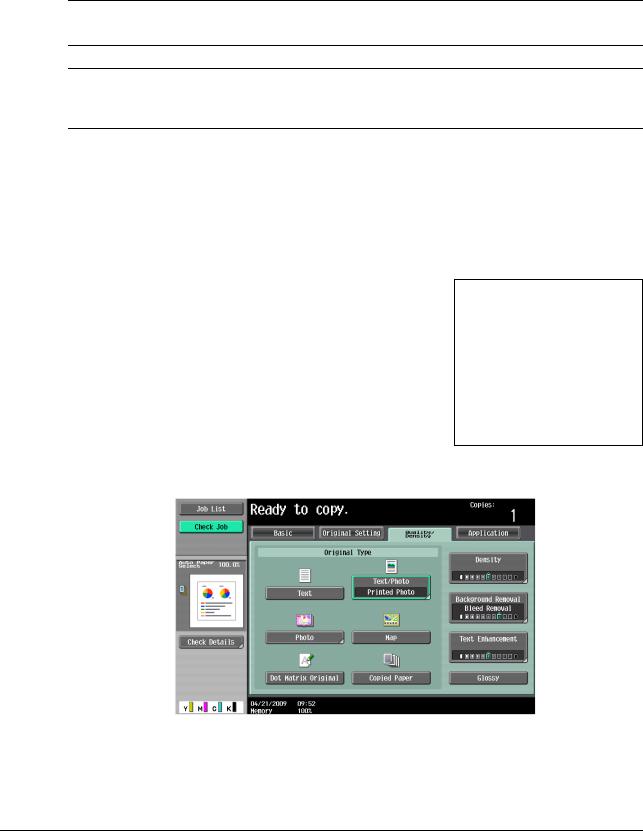
|
1.2 |
Conventions used in this manual |
1 |
1.2Conventions used in this manual
1.2.1Symbols used in this manual
Symbols are used in this manual to express various types of information.
The following describes each symbol related to correct and safe usage of this machine.
To use this machine safely
7 WARNING
—This symbol indicates that a failure to heed the instructions may lead to death or serious injury.
7 CAUTION
—This symbol indicates that negligence of the instructions may lead to mishandling that may cause injury or property damage.
NOTICE
This symbol indicates a risk that may result in damage to this machine or documents.
Follow the instructions to avoid property damage.
Procedural instruction
0This check mark indicates an option that is required in order to use conditions or functions that are prerequisite for a procedure.
1This format number «1» represents the first step.
2This format number represents the order of serial steps.
|
% This symbol indicates a supplementary explanation of a pro- |
The operation |
|
cedural instruction. |
procedures are |
|
described using |
|
|
illustrations. |
%This symbol indicates transition of the control panel to access a desired menu item.
This symbol indicates a desired page.
|
bizhub C360/C280/C220 |
1-4 |
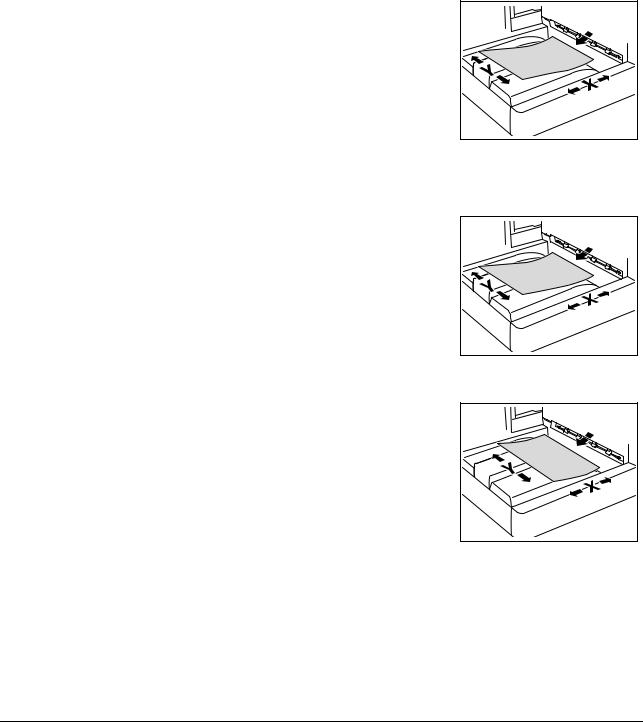
|
1.2 |
Conventions used in this manual |
1 |
dReference
This symbol indicates a reference.
View the reference as required.
Key symbols
[ ]
Key names on the touch panel or computer screen, or a name of user’s guide are indicated by these brackets.
Bold text
This presents a key name, part name, product name or option name on the control panel.
1.2.2Original and paper indications
Original and paper sizes
The following explains the indication for originals and paper described in this manual.
When indicating the original or paper size, the Y side represents the width and the X side the length.
Original and paper indications
w indicates the paper size with the length (X) being longer than the width (Y).
v indicates the paper size with the length (X) being shorter than the width (Y).
|
bizhub C360/C280/C220 |
1-5 |

2 Before using the Network Scan/Fax/Network Fax functions

|
2.1 |
Information |
2 |
||||||||||||||||||||||||||||||||||||||||||||||||||||||||||||||||||||||||||||||||||||||||||||||||||||
2Before using the Network Scan/Fax/Network Fax functions
This section describes necessary information you should be aware of before using the fax and scan functions of this machine.
2.1Information
7 CAUTION
—To turn the Main Power Switch off and on, first turn the main power off, and then on again after 10 or more seconds has elapsed. Not doing so may result in an operation failure.
2.1.1Transmission function Function type
Using this machine, scanned images can be sent or received via network or telephone line. This User’s Guide introduces the following functions.
|
Functions |
Transmission Options |
|
|
Network scan function |
• |
|
|
• |
FTP |
|
|
• |
SMB |
|
|
• |
User Box |
|
|
• |
WebDAV |
|
|
• |
Web Service |
|
|
Fax function |
• |
Sending and receiving G3 fax |
|
• |
Polling |
|
|
Network fax function |
• |
Internet Fax (I-FAX) |
|
• |
IP Address Fax |
|
Notes on using fax functions (G3)
Reference
— To use the fax function, the optional Fax Kit FK-502 is required.
Fax data cannot be sent/received in color with this machine.
This machine can connect to the following telephone lines.
—Subscribed telephone lines (including facsimile communication networks)
—PBX (Private Branch exchange, 2-wire)
Check the following for the telephone line to be used.
—You cannot connect a business phone as an external telephone.
—If a digital dedicated line is multiplexed in an enterprise network, fax transmission speed may be limited, or the Super G3 fax may not be available.
Communication error may occur on rare occasions due to the factory default setting. This is because the multiplex device limits the frequency band of the line to the utmost limit based on the assumption that the line is intended for voice communication. Also, these restrictions differ depending on the device that make up the network. For details, contact your network administrator.
|
bizhub C360/C280/C220 |
2-2 |

Notes on using Network Fax
The following conditions are required to exist in order to use the Network Fax function.
—The machine is connected to the network. (required)
The machine can be used over a TCP/IP network. First, connect the cable for connecting to the network.
For details, refer to page 4-2. In order to use this machine on a network, settings such as the IP address of the machine must be specified. For details, refer to the [User’s Guide Network Administrator].
Notes on using Internet Fax
The following describes the precautions for using the Internet Fax.
—To use the Internet fax function, ask your service representative to configure settings. For details, contact your service representative.
—The following environment is required to use the Internet Fax function.
–The machine is connected to the network, capable of E-mail communications.
–The Internet FAX function is set to [ON] in [Network Fax Function Settings] of Administrator Settings.
—When an E-mail message is sent, the attachment file may be broken depending on the network status. Make sure the attachment file of the document is not broken after being sent.
—Even if the transmission result screen or the result area of an activity report indicates «—-«, due to a problem in an Internet pathway, the E-Mail message may not be delivered to the recipient. «—-» indicates that the E-mail message was successfully delivered to the server. If the machine receives a message disposition notification (MDN), [OK] appears in the transmission result screen or the result column of an activity report. To send or receive important data, use the G3 fax function.
dReference
For details on [Network Fax Function Settings], refer to the [User’s Guide Network Administrator].
Notes on using IP Address Fax
The following describes the precautions for using the IP Address Fax.
—To use the IP Address Fax function, ask your service representative to configure settings. For details, contact your service representative.
—To use the IP Address Fax function, the optional Fax Kit FK-502 is required.
—An extension line cannot be used for the IP Address Fax function.
2.1.2User authentication
To use this machine, some devices have been preset so that you must enter an account or user name and a password. For details on the account or user name available for using the devices, contact your administrator.
Reference
—If [Prohibited Functions When Authentication Error] in Administrator Settings is set to Mode 2 and a user enters an incorrect password the specified number of times, that user will be locked out and will no longer be able to use the machine. For details on unlocking restricted operations, contact your administrator.
—If PageScope Authentication Manager is used for authentication, ask your server administrator about the login procedure.
|
bizhub C360/C280/C220 |
2-3 |
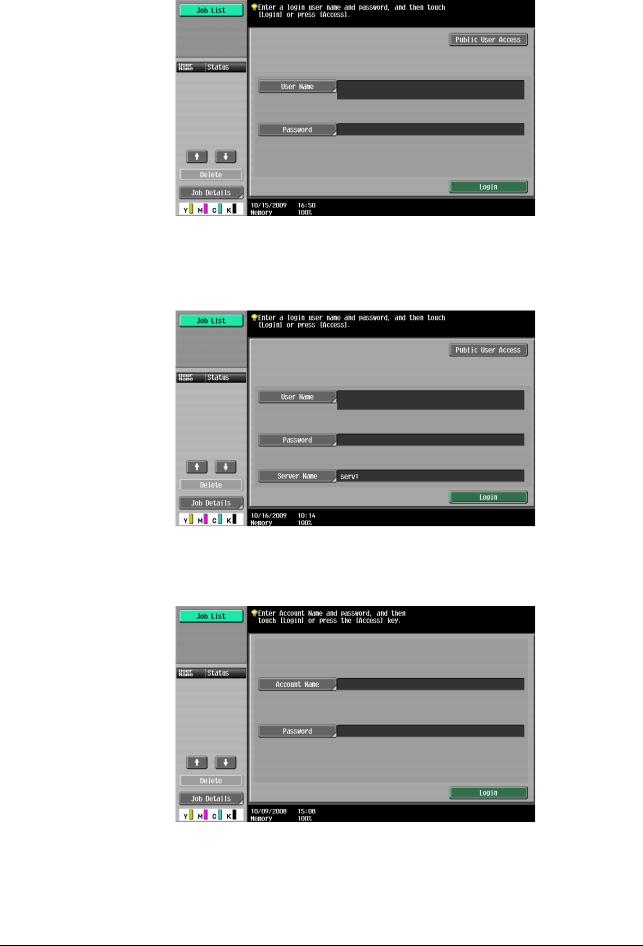
MFP authentication
Enter the user name and password, and then press either [Login] or the Access key on the control panel.
External server authentication
Enter the user name, password and server name, and then press either [Login] or the Access key on the control panel.
Account Track
Enter the account name and password, and then press either [Login] or the Access key on the control panel.
|
bizhub C360/C280/C220 |
2-4 |

2.1.3Restriction on file name
There are following restrictions on file name.
—Document data that is saved can be given a name.
—The names can contain up to 30 characters.
—You can edit the names after the documents have been saved.
—You can specify the name when saving data. Otherwise, a predefined name is applied to the data.
—If the data is saved without a name specified, names are created by combining the following elements. As an example, the document name «SKMBT_C36009102315230» is described.
|
Item |
Description |
|
S |
This character indicates the mode when the docu- |
|
ment is saved. |
|
|
C: Copy |
|
|
S: Fax/Scan, User Box |
|
|
P: Print |
|
|
KMBT_C360 |
This represents the name of the device that |
|
scanned the data. The factory default is |
|
|
«KMBT_(product name)». You can change this |
|
|
name in [Device Name] in [Administrator/Machine |
|
|
Settings] in Administrator Settings. Use up to 10 |
|
|
characters. |
|
|
09102315230 |
This indicates the year (last two digits), month, day, |
|
hour and minutes when the data was scanned. The |
|
|
last digit is a serial number if the document is part |
|
|
of a series of scans. |
|
|
_0001 |
This indicates the page when multi-page data is |
|
scanned. This numeral does not appear in «File |
|
|
Name» screen; however, it is added automatically |
|
|
as part of the name when the file is transmitted. |
|
|
Consider this part for FTP or other transmission |
|
|
when a server has restriction regarding file names. |
|
|
.TIF |
This is the extension for the specified data format. |
|
The characters do not appear beside «File Name», |
|
|
but is added automatically as part of the name |
|
|
when the file is transmitted. |
|
Reference
—«S» appears for documents saved in the Fax/Scan mode screen or the User Box screen.
|
bizhub C360/C280/C220 |
2-5 |
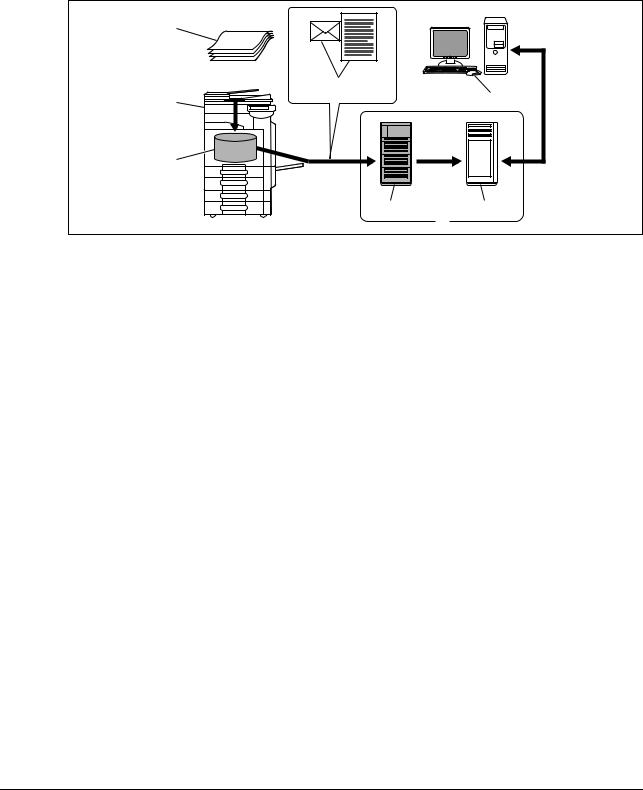
2.2Overview
2.2.1Available operations with Network scan function
«Scanning» refers to the operation of reading the image of an original fed through the ADF or placed on the original glass. The scanning functions can be used to temporarily store the scan data on the internal memory of the machine and transmit the data over the network.
E-Mail transmission
Scanned data can be sent to the specified E-mail address. Select destinations from the touch panel of this machine, and send scanned data as an E-mail attachment.
|
1 |
|
|
4 |
8 |
|
2 |
|
|
3 |
|
|
5 |
6 |
|
7 |
1.Original
2.Main unit
3.Memory
4.E-mail + scanned data
5.SMTP server
6.POP server
7.Intranet/Internet
8.Receive E-mail message
|
bizhub C360/C280/C220 |
2-6 |
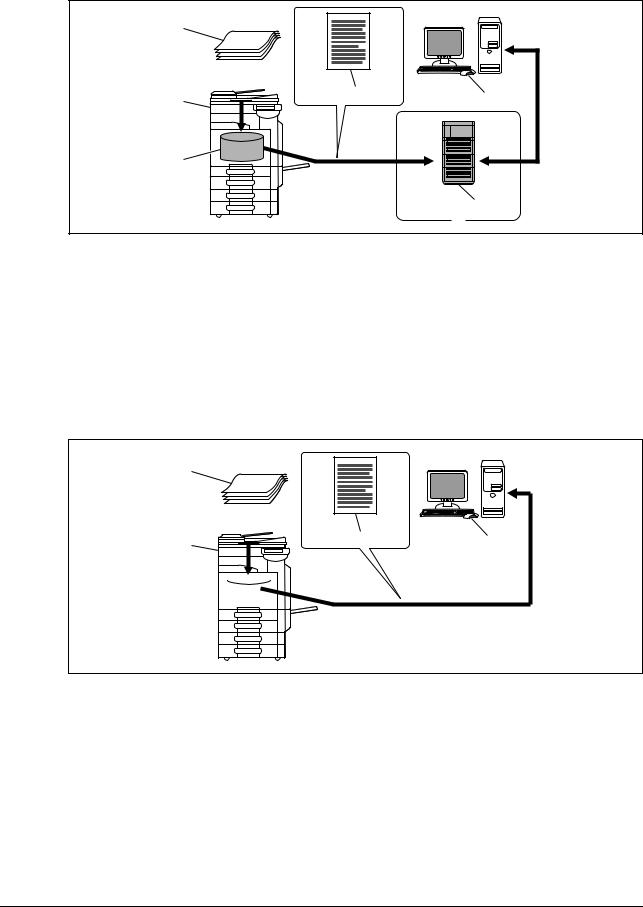
FTP transmission
Upload scanned data to the specified FTP server. Enter the FTP server address and login password from the touch panel of this machine.
Data uploaded to the FTP server can be downloaded from a computer on the network.
|
1 |
||
|
2 |
4 |
7 |
|
3 |
||
|
5 |
||
|
6 |
1.Original
2.Main unit
3.Memory
4.Scanned data
5.FTP server
6.Intranet/Internet
7.Download
SMB transmission
Scanned data can be sent to a shared folder on a specified computer. Enter the intended host name, file path and other information from the touch panel of this machine.
1
3 

1.Original
2.Main unit
3.Memory
4.Scanned data
5.Save to shared folder
|
bizhub C360/C280/C220 |
2-7 |

User Box filing
The scan data can be saved in a User Box created on the hard disk of this machine, allowing the data to be reused. The file name can be entered from the touch panel of this machine when the data is saved.
In addition, received fax data can be saved in the User Box. For details, refer to the [User’s Guide Box Operations].
1 

2 


1.Main unit
2.Hard disk
WebDAV transmission
Upload scanned data to the specified server. Enter the server address and login password from the touch panel of this machine.
The data uploaded to the server can be downloaded from a computer on the network.
|
1 |
||
|
2 |
4 |
7 |
|
3 |
||
|
5 |
||
|
6 |
1.Original
2.Main unit
3.Memory
4.Scanned data
5.Server
6.Intranet/Internet
7.Download
|
bizhub C360/C280/C220 |
2-8 |

Web Service
If the driver is installed to a computer (Windows Vista) on the network while the computer recognizes this machine, scan operation can be commanded from the computer, and data can be scanned using this machine depending on the purpose and sent to the computer.
4
3
1.Windows Vista
2.Command scan operation
3.Scanned data
4.Original
Reference
— This function is not available if the optional Image Controller IC-412 v1.1 is installed.
2.2.2Available operations with fax function Sending/receiving G3 fax
G3 fax can be sent or received. Destinations can be selected from the touch panel of this machine for broadcast transmission. Also, some of the edit functions that are available for Scan can be added when sending a fax.
1
2
1.Send
2.Receive
|
bizhub C360/C280/C220 |
2-9 |
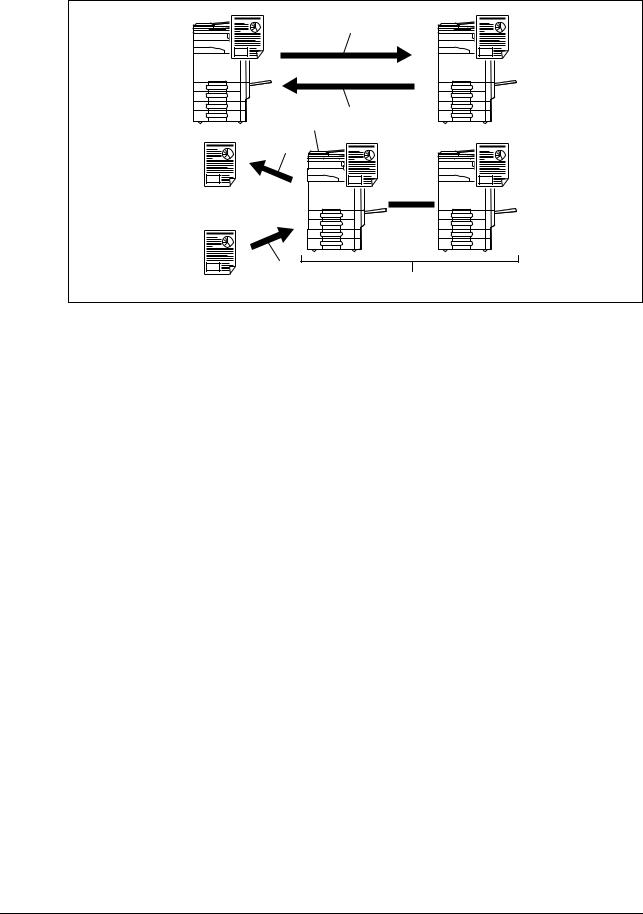
Polling
By sending a polling command, original data can be received from the sender’s fax machine (Polling RX), and also, original data to be sent with sender’s command can be registered beforehand (Polling TX). For polling TX, data can be saved either in the Polling Transmission User Box or Bulletin Board User Box.
1
3 2
4
5
6
1.Receive
2.Send
3.Bulletin board
4.View
5.Register
6.Polling
|
bizhub C360/C280/C220 |
2-10 |
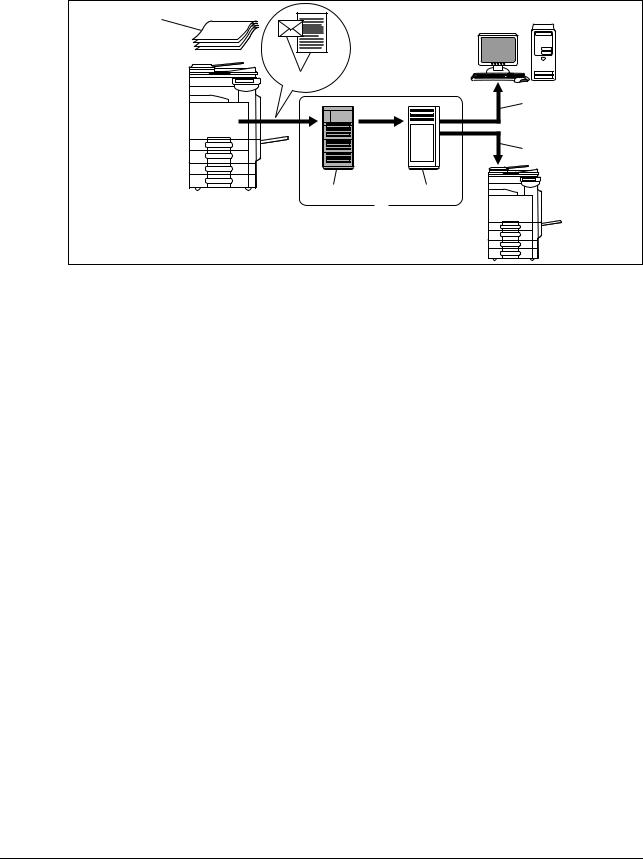
2.2.3Available operations with Network function
Internet Fax
Scanned data will be sent and received as an E-mail attachment (TIFF format) via intranet (in-house network) or Internet. Because a communication is performed over an intranet or the Internet, related costs can be much lower than those required for sending a typical fax. Specify the E-mail address of the destination in order to send data.
1
2
6
7
1.Original
2.E-mail + Attachment (TIFF format)
3.Intranet/Internet
4.SMTP server
5.POP server
6.Receive E-mail
7.Receive Internet Fax
|
bizhub C360/C280/C220 |
2-11 |
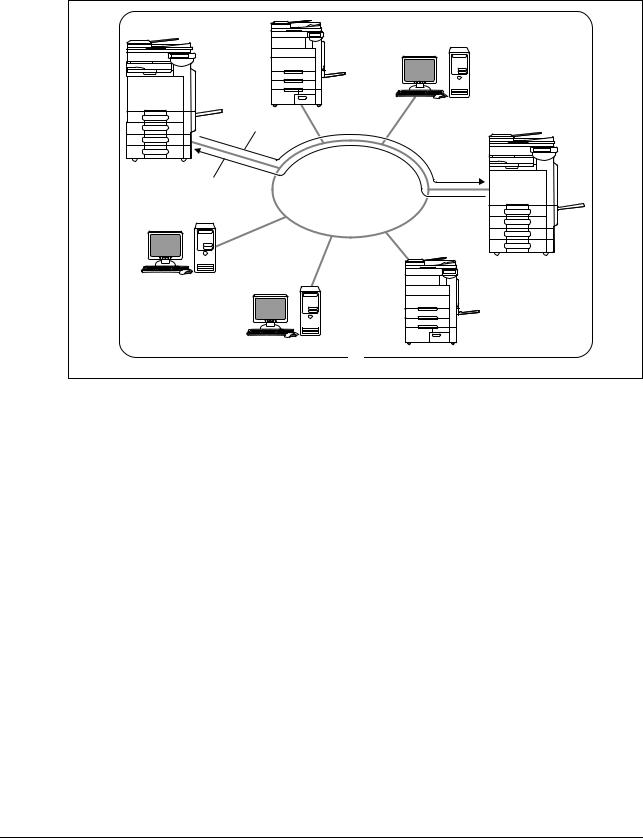
IP Address Fax
IP Address Fax means FAX that is available on the IP network. To send scanned data, specify any of the IP address, host name or E-mail address of the recipient.
IP Address Fax is different from G3 fax or Internet Fax in the following aspects.
—To send and receive image data, use the SMTP protocol.
—This function is available via the intranet (in-house network) only.
—It does not require a mail server as is required by Internet Fax.
—Fax can be sent or received in color. (Only the differences from G3 fax)
1.Intranet
2.Send
3.Receive
|
bizhub C360/C280/C220 |
2-12 |

3 Control Panel/Liquid Crystal
Display
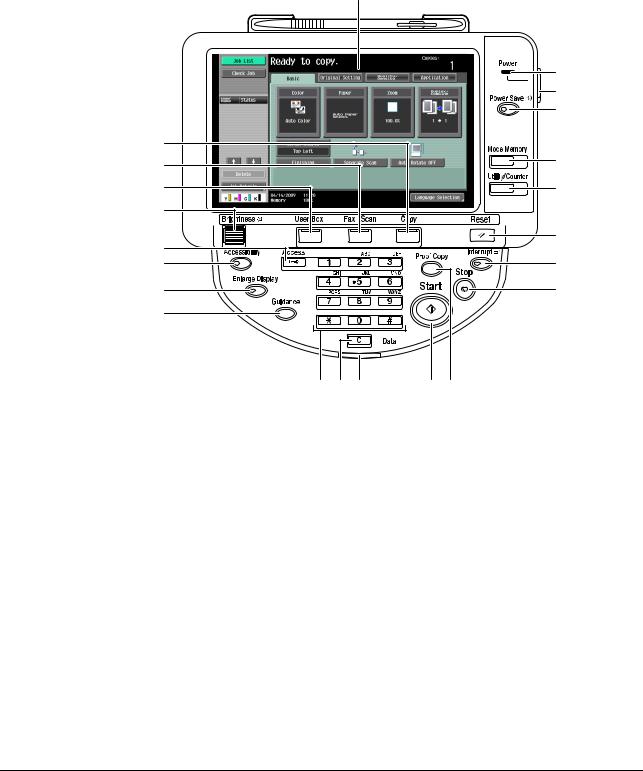
|
3.1 |
Control panel |
3 |
||||||||||||||||||||||||||||||||||||||||||||||||||||||||||||||||||||||||||||||||||||||||||||||||||||
3 Control Panel/Liquid Crystal Display
This section explains the functions of the control panel and liquid crystal display (touch panel) used to operate this machine.
3.1Control panel
Use the control panel for the fax/scan operation. The following describes the buttons and switches of the control panel.
1
|
2 |
||
|
3 |
||
|
4 |
||
|
22 |
5 |
|
|
21 |
||
|
20 |
6 |
|
|
19 |
||
|
18 |
7 |
|
|
8 |
||
|
17 |
15
|
14 13 12 |
1110 |
|||
|
No. |
Name |
Description |
||
|
1 |
Touch Panel |
Various screens and messages are displayed. |
||
|
Configure the various settings by directly touch- |
||||
|
ing the panel. |
||||
|
2 |
Power Indicator |
Lights up in blue when the machine is turned on |
||
|
with the main power switch. |
||||
|
3 |
Sub Power Switch |
Press this switch to turn on/off machine opera- |
||
|
tions, including copying, printing and scanning. |
||||
|
When turned off, the machine enters an energy |
||||
|
conservation state. |
||||
|
4 |
Power Save |
Press this key to enter Power Save mode. While |
||
|
the machine is in Power Save mode, the indicator |
||||
|
on the Power Save key lights up in green and the |
||||
|
touch panel goes off. To exit from Power Save |
||||
|
mode, press the Power Save key again. |
||||
|
5 |
Mode Memory |
Press to register (store) the desired copy/scan |
||
|
settings as a program or to recall a registered |
||||
|
copy/scan program. |
||||
|
bizhub C360/C280/C220 |
3-2 |

|
3.1 |
Control panel |
3 |
|||||
|
No. |
Name |
Description |
|||||
|
6 |
Utility/Counter |
Press to display the Utility screen and the Meter |
|||||
|
Count screen. |
|||||||
|
7 |
Reset |
Press to clear all settings (except programmed |
|||||
|
settings) entered using the control panel and |
|||||||
|
touch panel. |
|||||||
|
8 |
Interrupt |
Press this key to enter Interrupt mode. While the |
|||||
|
machine is in Interrupt mode, the indicator on the |
|||||||
|
Interrupt key lights up in green and the message |
|||||||
|
[Now in Interrupt mode.] appears on the touch |
|||||||
|
panel. To cancel Interrupt mode, press the Inter- |
|||||||
|
rupt key again. |
|||||||
|
9 |
Stop |
Pressing the Stop key during scanning temporar- |
|||||
|
ily stops the scan operation. |
|||||||
|
10 |
Proof Copy |
Press this key to print a single proof copy to be |
|||||
|
checked before printing a large number of copies. |
|||||||
|
You can check the finishing state on the touch |
|||||||
|
panel by pressing this key before scanning or |
|||||||
|
copying. |
|||||||
|
11 |
Start |
Press this key to start scanning. When this ma- |
|||||
|
chine is ready to begin a scan operation, the indi- |
|||||||
|
cator on the Start key lights up in blue. If the |
|||||||
|
indicator on the Start key lights up in orange, |
|||||||
|
scan operation cannot be started. |
|||||||
|
Press this key to restart a stopped job. |
|||||||
|
12 |
Data Indicator |
Flashes in blue while a print job is being received. |
|||||
|
Lights up in blue when data is being printed. |
|||||||
|
13 |
C (Clear) |
Press to erase a value (such as the number of |
|||||
|
copies, a zoom ratio, or a size) entered using the |
|||||||
|
keypad. |
|||||||
|
14 |
Keypad |
Press this key to enter the number of copies, |
|||||
|
zoom ratio, and various other settings. |
|||||||
|
15 |
Guidance |
Press this key to display the Guidance screen. |
|||||
|
From this screen, you can view descriptions of |
|||||||
|
the various functions and details of operations. |
|||||||
|
16 |
Enlarge Display |
Press to enter Enlarge Display mode. If you use |
|||||
|
PageScope Authentication Manager for authenti- |
|||||||
|
cation, the Enlarge Display screen is not availa- |
|||||||
|
ble. |
|||||||
|
17 |
Accessibility |
Press this key to display the screen for configur- |
|||||
|
ing settings for user accessibility functions. |
|||||||
|
18 |
Access |
If user authentication or account track settings |
|||||
|
have been applied, press this key after entering |
|||||||
|
the user name and password (for user authentica- |
|||||||
|
tion) or the account name and password (for ac- |
|||||||
|
count track) in order to use this machine. Press |
|||||||
|
this key to log off from the machine as well. |
|||||||
|
19 |
Brightness dial |
Use this dial to adjust the brightness of the touch |
|||||
|
panel. |
|||||||
|
20 |
User Box |
Press this key to enter User Box mode. |
|||||
|
While the machine is in User Box mode, the indi- |
|||||||
|
cator on the User Box key lights up in green. For |
|||||||
|
details, refer to the [User’s Guide Box Opera- |
|||||||
|
tions]. |
|||||||
|
21 |
Fax/Scan |
Press this key to enter Fax/Scan mode. |
|||||
|
While the machine is in Fax/Scan mode, the indi- |
|||||||
|
cator on the Fax/Scan key lights up in green. |
|||||||
|
bizhub C360/C280/C220 |
3-3 |

|
3.1 |
Control panel |
3 |
|||||
|
No. |
Name |
Description |
|||||
|
22 |
Copy |
Press this key to enter Copy mode. (The machine |
|||||
|
is in Copy mode in default.) |
|||||||
|
While the machine is in Copy mode, the indicator |
|||||||
|
on the Copy key lights up in green. For details, re- |
|||||||
|
fer to the [User’s Guide Copy Operations]. |
|||||||
7 CAUTION
—Do not apply extreme pressure to the touch panel, otherwise the touch panel may be scratched or damaged. Never push down on the touch panel with force, and never use a hard or pointed object to make a selection in the touch panel.
|
bizhub C360/C280/C220 |
3-4 |

3.2Touch panel
3.2.1Screen component
1
4
2
|
5 |
3 |
||||||||||
|
No. |
Name |
Description |
|||||||||
|
1 |
Message display area |
Displays the status of the machine and details on |
|||||||||
|
operation procedures. |
|||||||||||
|
2 |
Functions/settings display area |
Displays tabs and buttons for displaying screens |
|||||||||
|
containing various functions. Use this area to |
|||||||||||
|
configure various functions. Press a tab or button |
|||||||||||
|
to display the corresponding screen for configur- |
|||||||||||
|
ing the settings. |
|||||||||||
|
3 |
Icon display area |
Displays icons indicating the status of jobs and |
|||||||||
|
the machines. |
|||||||||||
|
4 |
Left panel |
Displays various buttons, such as [Job List] to |
|||||||||
|
display the jobs that are currently being per- |
|||||||||||
|
formed/queued (waiting) to be performed, and |
|||||||||||
|
[Check Job] to display the result of the specified |
|||||||||||
|
settings. |
|||||||||||
|
For details on the display and description of the |
|||||||||||
|
left panel, refer to page 3-7. |
|||||||||||
|
5 |
Toner supply indicators |
Show the amount of toner remaining for yellow |
|||||||||
|
(Y), magenta (M), cyan (C), and black (K). |
|||||||||||
Icons that appear in the touch panel
Icons indicating the status of this machine may appear in the icon display area. The following icons may be displayed.
|
Icon |
Description |
|
Indicates that data is being sent from the machine, regardless of the current |
|
|
mode. |
|
|
Indicates that the machine is receiving data, regardless of the current mode. |
|
|
Indicates that an error occurred during an image stabilization operation, a |
|
|
print operation or a scan operation. |
|
|
Press this icon to view a screen containing a warning code. |
|
|
If the warning screen has been closed while a warning occurs, press this but- |
|
|
ton to display the warning screen again. |
|
|
Appears when there is a message indicating that consumables must be re- |
|
|
placed or the machine requires maintenance. Press this icon to display the |
|
|
message, and then perform the replacement or maintenance procedure. |
|
|
bizhub C360/C280/C220 |
3-5 |
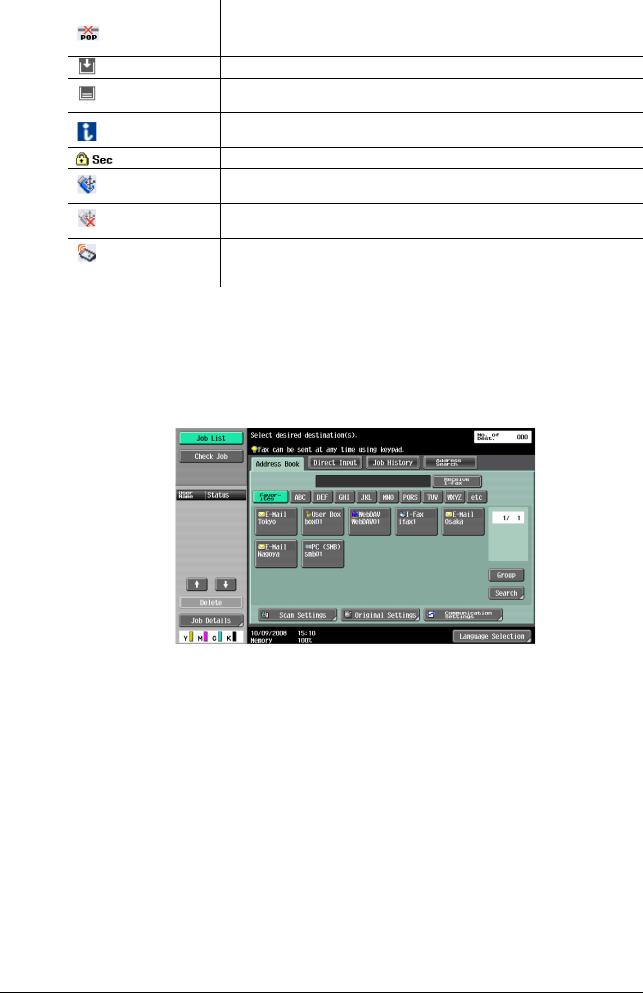
|
3.2 |
Touch panel |
3 |
|
|
Icon |
Description |
||
|
Appears when an error occurs with the connection to the POP server. |
Indicates that there is no paper in the paper tray.
Indicates that very little paper remains in the paper tray.
If the optional Image Controller IC-412 v1.1 is installed, press this icon to display the setting screen for the Image Controller IC-412 v1.1.
Indicates that the enhanced security mode is enabled.
Indicates that an external memory device is connected to the machine.
Indicates that a nonstandard external memory has been connected to this machine, therefore, USB connection is not enabled.
Indicates that the job is in the waiting-for-redial status because, for example, the recipient’s line is busy when sending with the G3 Fax or IP Address Fax function.
3.2.2Difference of screen display with/without optional devices
The information displayed on the screen varies depending on whether the optional Fax Kit FK-502 is installed or not.
If the Fax Kit FK-502 is not installed
Fax destinations or functions related to fax operation are not displayed.
|
bizhub C360/C280/C220 |
3-6 |

If the Fax Kit FK-502 is installed
[Off-Hook] is displayed to enable you to dial in the off-hook mode. In addition, the [Direct Input] tab and the Communication Settings screen allow you to configure settings related to fax transmission.
3.2.3Display and operation of Left panel
In the left panel of the touch panel, there are buttons for checking the status of jobs and the configuration of the machine. The following buttons are available in the left panel in Scan/Fax mode.
1
2
|
No. |
Name |
Description |
|
1 |
[Job List] |
Press this button to check the job currently being |
|
performed and the job log. |
||
|
2 |
[Check Job] |
Allows you to check information of the selected |
|
User Box, and various settings of the scan, print |
||
|
and transmission functions. |
||
|
bizhub C360/C280/C220 |
3-7 |

Job List
A command to perform an operation such as saving data to a User Box, or printing or sending saved documents is called a job. Press [Job List] to display the job currently being performed.
Job List — Delete
Press this button to delete the job in process to cancel the operation. Select the job from the job list, and then press [Delete]. Check the message that appears, and delete the job.
Job List — Job Details
Press [Job Details] to view the list of the Current Jobs and Job History in the right side area. There are the following four types of jobs.
|
bizhub C360/C280/C220 |
3-8 |

|
3.2 |
Touch panel |
3 |
|||
|
Item |
Description |
||||
|
[Print] |
Lists print jobs for copying, computer printout, and |
||||
|
received faxes. |
|||||
|
[Send] |
Lists scanner and fax transmission jobs. |
||||
|
[Receive] |
Lists fax reception jobs. |
||||
|
[Save] |
Lists jobs with documents being saved in User |
||||
|
Boxes. |
|||||
|
<Current Jobs of [Print]> |
|||||
|
Item |
Description |
||||
|
List items |
[No.]: Job identification number assigned when the |
||||
|
job is queued. |
|||||
|
[User Name]: The user name or user name/account |
|||||
|
name of the user who stored the document. |
|||||
|
[Status]: The status of the job (receiv- |
|||||
|
ing/queued/printing/printing stopped/print er- |
|||||
|
ror/saving to memory) is displayed. |
|||||
|
[Document Name]: File name being printed. |
|||||
|
• If user authentication settings have been ap- |
|||||
|
plied, the names of documents are not dis- |
|||||
|
played for other users. |
|||||
|
• The names of confidential documents are not |
|||||
|
displayed. |
|||||
|
[Time Stored]: The time that the job was queued. |
|||||
|
[Org.]: Displays the number of pages in the original. |
|||||
|
[Copies]: Displays the number of copies to be |
|||||
|
printed. |
|||||
|
[ ][ ] |
When there are more than the upper limit of seven |
||||
|
jobs to be displayed at one time, press these but- |
|||||
|
tons to display other jobs. |
|||||
|
[Delete] |
Press this button to delete the selected job. |
||||
|
[Increase Priority] |
Press this button to change the priority of the job. |
||||
|
• If you set Changing Job Priority in Administrator |
|||||
|
Settings to [Restrict], you cannot specify the |
|||||
|
output priority of the jobs. |
|||||
|
• If the setting is specified so that the current |
|||||
|
print job can be interrupted, printing is inter- |
|||||
|
rupted and printing of the job given priority be- |
|||||
|
gins. Printing of the interrupted job restarts |
|||||
|
automatically once printing for the job given pri- |
|||||
|
ority is finished. |
|||||
|
[Release Held Job] |
Press this button to change the settings of a stored |
||||
|
job, or print or delete the job. |
|||||
|
[Check Job Set.] |
Press this button to check the settings of the se- |
||||
|
lected job. Press either [ Back] or [Forward ] |
|||||
|
to check the settings. |
|||||
|
[Detail] |
Press this button to check the registration |
||||
|
source/user name, file name, output tray, stored |
|||||
|
time, number of original pages and number of cop- |
|||||
|
ies for the selected job. To delete a job, press [De- |
|||||
|
lete]. |
|||||
|
bizhub C360/C280/C220 |
3-9 |

|
3.2 |
Touch panel |
3 |
|||
|
<Job History of [Print]> |
|||||
|
Displays the history of printed jobs. |
|||||
|
Item |
Description |
||||
|
List items |
[No.]: Job identification number assigned when the |
||||
|
job is queued. |
|||||
|
[User Name]: The user name or user name/account |
|||||
|
name of the user who stored the document. |
|||||
|
[Document Name]: File name being printed. |
|||||
|
• If user authentication settings have been ap- |
|||||
|
plied, the names of documents are not dis- |
|||||
|
played for other users. |
|||||
|
• The names of confidential documents are not |
|||||
|
displayed. |
|||||
|
[Time Stored]: The time that the job was queued. |
|||||
|
[Org.]: Displays the number of pages in the original. |
|||||
|
[Copies]: Displays the number of copies to be |
|||||
|
printed. |
|||||
|
[Result]: Displays the result of the operation (com- |
|||||
|
pleted successfully/deleted due to error/deleted by |
|||||
|
user/part of mode cancelled). |
|||||
|
[ ][ ] |
When there are more than the upper limit of seven |
||||
|
jobs to be displayed at one time, press these but- |
|||||
|
tons to display other jobs. |
|||||
|
[Deleted Jobs]/[Finished Jobs]/[All Jobs] |
Switch to display each job type. |
||||
|
[Detail] |
Allows you to check the job result, error details, |
||||
|
registration source/user name, document name, |
|||||
|
output tray, stored time, number of document pag- |
|||||
|
es and number of copies for the selected job. |
|||||
Reference
—When [Job History Thumbnail Display] is set to [ON] in the setting menu, if a history is selected from the list, the image in the first page is displayed in the area on the left.
dReference
For details on [Job History Thumbnail Display], refer to page 10-11.
<Current Jobs of [Send]>
|
Item |
Description |
|
List items |
[No.]: Job identification number assigned when the |
|
job is queued. |
|
|
[Address Type]: Destination type (including fax, E- |
|
|
Mail, FTP, PC (SMB), WebDAV, and TWAIN). |
|
|
[Status]: Displays the status of the job (send- |
|
|
ing/queued/dialing/pending for redial). |
|
|
[Address]: Displays the fax number, E-mail ad- |
|
|
dress, User Box name, etc. of the recipient’s ma- |
|
|
chine. |
|
|
[Time Stored]: The time that the job was queued. |
|
|
[Org.]: Displays the number of pages in the original. |
|
|
[ ][ ] |
When there are more than the upper limit of seven |
|
jobs to be displayed at one time, press these but- |
|
|
tons to display other jobs. |
|
|
[Timer TX Job] |
Displays the status of the reserved transmission in |
|
the memory. To delete a job, press [Delete]. |
|
|
[L1][L2] |
Displays if 2 units of the Fax Kit FK-502 are in- |
|
stalled. Press one of these buttons. The job list of |
|
|
the selected line appears. |
|
|
[Delete] |
Press this button to delete the selected job. |
|
bizhub C360/C280/C220 |
3-10 |

|
3.2 |
Touch panel |
3 |
|||
|
Item |
Description |
||||
|
[Redial] |
Select a job of which the status is set to [Waiting To |
||||
|
Redial], to perform redialing. |
|||||
|
[Check Job Set.] |
Press this button to check the settings of the se- |
||||
|
lected job. Press either [ Back] or [Forward ] |
|||||
|
to check the settings. |
|||||
|
[Detail] |
Press this button to check the registration |
||||
|
source/user name, file name, destination type, |
|||||
|
destination, stored time, transmission, number of |
|||||
|
original pages and external server information for |
|||||
|
the selected job. To delete a job, press [Delete]. |
|||||
|
• If user authentication settings have been ap- |
|||||
|
plied, the names of documents are not dis- |
|||||
|
played for other users. |
|||||
|
• The names of confidential documents are not |
|||||
|
displayed. |
|||||
|
• The external server information that is available |
|||||
|
by pressing [Detail] appears only when using |
|||||
|
external server authentication. |
|||||
|
• [TWAIN] appears for the job that is sent via Web |
|||||
|
service. |
|||||
|
• [Type] is displayed only when the destination is |
|||||
|
a fax, Internet fax, or IP address fax. |
|||||
|
<Job History of [Send]> |
|||||
|
Displays the history of the jobs sent by fax or scan. |
The job that is transferred or relayed to another device upon reception of fax data, also appears in the Job History of [Send].
|
Item |
Description |
|
List items |
[No.]: Job identification number assigned when the |
|
job is queued. |
|
|
[Address Type]: Destination type (including fax, E- |
|
|
Mail, FTP, PC (SMB), WebDAV, and TWAIN). |
|
|
[Address]: Displays the fax number, E-mail ad- |
|
|
dress, User Box name, etc. of the recipient’s ma- |
|
|
chine. |
|
|
[Time Stored]: The time that the job was queued. |
|
|
[Org.]: Displays the number of pages in the original. |
|
|
[Result]: Displays the result of the operation (com- |
|
|
pleted successfully/deleted due to error/deleted by |
|
|
user). |
|
|
[ ][ ] |
When there are more than the upper limit of seven |
|
jobs to be displayed at one time, press these but- |
|
|
tons to display other jobs. |
|
|
[Deleted Jobs]/[Finished Jobs]/[All Jobs] |
Switch to display each job type. |
|
[Comm. List] |
Displays the list of scanner and fax transmission |
|
(sent/received) jobs. You can print Activity Report, |
|
|
TX Report and RX Report in respective list screens. |
|
|
bizhub C360/C280/C220 |
3-11 |

|
3.2 |
Touch panel |
3 |
|||
|
Item |
Description |
||||
|
[Detail] |
Press this button to check the result, error details, |
||||
|
registration source/user name, file name, destina- |
|||||
|
tion type, stored time, transmission, number of |
|||||
|
original pages and external server information for |
|||||
|
the selected job. |
|||||
|
• If user authentication settings have been ap- |
|||||
|
plied, the names of documents are not dis- |
|||||
|
played for other users. |
|||||
|
• The names of confidential documents are not |
|||||
|
displayed. |
|||||
|
• The external server information that is available |
|||||
|
by pressing [Detail] appears only when using |
|||||
|
external server authentication. |
|||||
|
• [TWAIN] appears for the job that is sent via Web |
|||||
|
service. |
|||||
|
• [Communication] is displayed only when the |
|||||
|
destination is a fax, Internet fax, or IP address |
|||||
|
fax. |
|||||
Reference
—When [Job History Thumbnail Display] is set to [ON] in the setting menu, if a history is selected from the list, the image in the first page is displayed in the area on the left.
|
<Current Jobs of [Receive]> |
||
|
Item |
Description |
|
|
List items |
[No.]: Job identification number assigned when the |
|
|
job is queued. |
||
|
[User Name]: The user name or user name/account |
||
|
name of the user who stored the document. |
||
|
[Status]: The status of the job (receiving/dialing |
||
|
(Polling RX)/queued/printing/printing stopped/print |
||
|
error/saving to memory). |
||
|
[Document Name]: The name of the received or |
||
|
saved document. |
||
|
[Time Stored]: The time that the job was queued. |
||
|
[Org.]: The number of original pages that were re- |
||
|
ceived. |
||
|
[ ][ ] |
When there are more than the upper limit of seven |
|
|
jobs to be displayed at one time, press these but- |
||
|
tons to display other jobs. |
||
|
[Delete] |
Press this button to delete the selected job. |
|
|
[Redial] |
Select a job of which the status is set to [Waiting To |
|
|
Redial], to perform redialing. |
||
|
[Forward] |
Forwards the fax received and stored in the mem- |
|
|
ory (in-memory proxy reception). Specify the recip- |
||
|
ients either by selecting destinations registered in |
||
|
the address book or by entering directly. |
||
|
[Detail] |
Press this button to check the registration |
|
|
source/user name, file name, output tray, stored |
||
|
time, transmission time, and number of original |
||
|
pages for the selected job. To delete a job, press |
||
|
[Delete]. |
||
|
• If user authentication settings have been ap- |
||
|
plied, the names of documents are not dis- |
||
|
played for other users. |
||
|
• The names of confidential documents are not |
||
|
displayed. |
||
|
bizhub C360/C280/C220 |
3-12 |

|
3.2 |
Touch panel |
3 |
|||
|
<Job History of [Receive]> |
|||||
|
Displays the history of fax transmission (received/transferred/relayed) jobs. |
|||||
|
Item |
Description |
||||
|
List items |
[No.]: Job identification number assigned when the |
||||
|
job is queued. |
|||||
|
[User Name]: The user name or user name/account |
|||||
|
name of the user who stored the document. |
|||||
|
[Document Name]: The name of the received or |
|||||
|
saved document. |
|||||
|
• If user authentication settings have been ap- |
|||||
|
plied, the names of documents are not dis- |
|||||
|
played for other users. |
|||||
|
• The names of confidential documents are not |
|||||
|
displayed. |
|||||
|
[Time Stored]: The time that the job was queued. |
|||||
|
[Org.]: Displays the number of pages in the original. |
|||||
|
[Result]: Displays the result of the operation (Job |
|||||
|
Complete/Deleted Due To Error/Deleted by Us- |
|||||
|
er/Reset Modes). |
|||||
|
[ ][ ] |
When there are more than the upper limit of seven |
||||
|
jobs to be displayed at one time, press these but- |
|||||
|
tons to display other jobs. |
|||||
|
[Deleted Jobs]/[Finished Jobs]/[All Jobs] |
Switch to display each job type. |
||||
|
[Comm. List] |
Displays the list of scanner and fax transmission |
||||
|
(sent/received) jobs. You can print Activity Report, |
|||||
|
TX Report and RX Report in respective list screens. |
|||||
|
[Detail] |
Press this button to check the job result, error de- |
||||
|
tails, registration source/user name, file name, out- |
|||||
|
put tray, stored time and number of original pages |
|||||
|
for the selected job. |
|||||
Reference
—When [Job History Thumbnail Display] is set to [ON] in the setting menu, if a history is selected from the list, the image in the first page is displayed in the area on the left.
|
<Current Jobs of [Save]> |
||
|
Item |
Description |
|
|
List items |
[No.]: Job identification number assigned when the |
|
|
job is queued. |
||
|
[User Name]: The user name or user name/account |
||
|
name of the user who stored the document. |
||
|
[Status]: The status of the job (receiving, saving to |
||
|
memory, deleting). |
||
|
[Document Name]: The name of the saved docu- |
||
|
ment. |
||
|
• If user authentication settings have been ap- |
||
|
plied, the names of documents are not dis- |
||
|
played for other users. |
||
|
• The names of confidential documents are not |
||
|
displayed. |
||
|
[Time Stored]: The time that the job was queued. |
||
|
[Org.]: Displays the number of pages in the original. |
||
|
[ ][ ] |
When there are more than the upper limit of seven |
|
|
jobs to be displayed at one time, press these but- |
||
|
tons to display other jobs. |
||
|
[Delete] |
Press this button to delete the selected job. |
|
|
[Detail] |
Press this button to check the registration |
|
|
source/user name, file name, User Box, stored |
||
|
time, and number of original pages for the selected |
||
|
job. To delete a job, press [Delete]. |
||
|
bizhub C360/C280/C220 |
3-13 |

<Job History of [Save]>
A list of the documents saved in the User Box.
The job that is received with the memory reception or confidential reception functions also appears in the Job History of [Save].
|
Item |
Description |
|
List items |
[No.]: Job identification number assigned when the |
|
job is queued. |
|
|
[User Name]: The user name or user name/account |
|
|
name of the user who stored the document. |
|
|
[Document Name]: The name of the saved docu- |
|
|
ment. |
|
|
• If user authentication settings have been ap- |
|
|
plied, the names of documents are not dis- |
|
|
played for other users. |
|
|
• The names of confidential documents are not |
|
|
displayed. |
|
|
[Time Stored]: The time that the job was queued. |
|
|
[Org.]: Displays the number of pages in the original. |
|
|
[Result]: Displays the result of the operation (Job |
|
|
Complete/Deleted Due To Error/Deleted by Us- |
|
|
er/Reset Modes). |
|
|
[ ][ ] |
When there are more than the upper limit of seven |
|
jobs to be displayed at one time, press these but- |
|
|
tons to display other jobs. |
|
|
[Deleted Jobs]/[Finished Jobs]/[All Jobs] |
Switch to display each job type. |
|
[Comm. List] |
Displays the list of scanner and fax transmission |
|
(sent/received) jobs. You can print Activity Report, |
|
|
TX Report and RX Report in respective list screens. |
|
|
[Detail] |
Press this button to check the result, error details, |
|
registration source/user name, file name, destina- |
|
|
tion User Box, stored time and number of original |
|
|
pages for the selected job. |
|
Reference
—When [Job History Thumbnail Display] is set to [ON] in the setting menu, if a history is selected from the list, the image in the first page is displayed in the area on the left.
|
bizhub C360/C280/C220 |
3-14 |

Check Job — Check Job Settings
Press [Check Job Set.]. The [Check Job Settings] is displayed.
Press [Check Job Settings] to check the following settings.
—Destination Settings
—Check Scan Settings
—Check Original Settings
—Communication Settings
—Check E-Mail Settings
Check Job — Check Job Settings — Destination Settings
Displays the list of destinations that are registered in the machine.
—To add the directly entered address to the address book, select the destination, and press [Store Address].
—To check the detailed information of the destination, select a destination, and press [Details].
—To delete a destination, select one you want to delete, and then press [Delete].
Check Job — Check Job Settings — Scan Settings
You can check the details of scan settings (basic setting, scan setting and application setting). Press either [ Back] or [Forward
  ] to check.
|
bizhub C360/C280/C220 |
3-15 |

Check Job — Check Job Settings — Original Settings
You can check the original settings
Check Job — Check Job Settings — Communication Settings
You can check the line settings and transmission method settings. Press either [ Back] or [Forward
  ] to check.
Check Job — Check Job Settings — Check E-Mail Settings
You can check the document name, subject, From address and message body to send E-mail messages.
|
bizhub C360/C280/C220 |
3-16 |

4 Registering the basic information
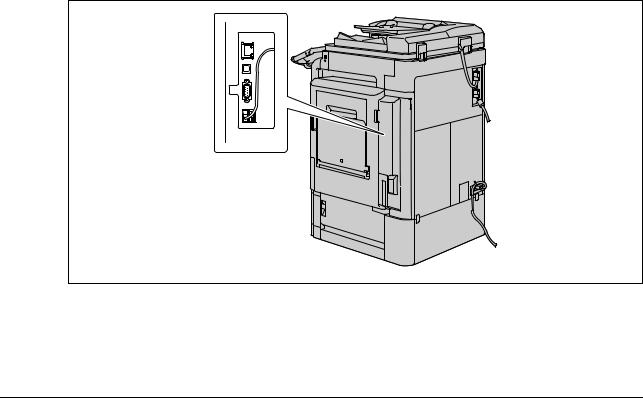
|
4.1 |
To begin operation |
4 |
||||||||||||||||||||||||||||||||||||||||||||||||||||||||||||||||||||||||||||||||||||||||||||||||||||
4 Registering the basic information
This section explains the necessary settings and registrations before using the fax and scan functions of this machine.
4.1To begin operation
The following registrations are required in order to use this machine.
4.1.1Environment and device requirements
The following environment and devices must be prepared to use various functions of this machine.
|
Functions |
Environment and device |
||
|
Network scan function |
• |
Connection to network |
|
|
• |
Network settings |
||
|
G3 fax function |
• |
Optional Fax Kit FK-502 installed |
|
|
• Connection of modular cable |
|||
|
Network fax function |
Internet Fax |
• |
Connection to network |
|
• |
Network settings |
||
|
IP Address Fax |
• |
Optional Fax Kit FK-502 installed |
|
|
• |
Connection to network |
||
|
• |
Network settings |
||
4.1.2Network connection and settings
Connection to the network and the network settings are required to use the function of this machine that sends image data over the network, such as the Network Scan and Network Fax functions.
Connection to network
Connect a UTP cable (category 5 or later recommended) connected to the network to the Ethernet connector on the machine.
|
bizhub C360/C280/C220 |
4-2 |

Network settings
An IP address must be assigned to the machine and settings, such as the SMTP server, must be specified in order to use the machine on the network. For the detailed procedure, refer to the [User’s Guide Network Administrator].
Specifying an E-mail address for this machine
An E-mail address must be registered to this machine to send scanned data via E-mail or to use the Internet Fax function. This E-mail address is used for sending/receiving data. It is recommended that the E-mail address registered for the administrator be used.
If the E-mail address registered for the administrator is not specified, the sender’s E-mail address must be entered for each Scan to E-mail operation. Note that Scan to E-mail operations are not possible if a From address is not entered.
Reference
—If User Authentication is enabled, the E-mail address specified for each user will be From address.
dReference
For details on setting the E-mail address for this machine, refer to the [User’s Guide Network Administrator].
4.1.3Connection of modular cable
To send/receive G3 fax that use the telephone line, connect the modular cable to this machine. To use the G3 fax function, the optional Fax Kit FK-502 must be installed onto the machine. To use two telephone lines, one more optional Fax Kit FK-502 must be installed onto the machine. In this case, two modular cables must be connected.
Connect one end of the modular cable to the telephone adapter, and the other end to the predetermined connector of this machine. For details on the connector location, refer to the [User’s Guide Copy Operations].
|
bizhub C360/C280/C220 |
4-3 |

4.2Store Address
The destinations (recipients) for fax or scan data can be registered. It can be registered in either of the following ways.
—Using the touch panel of the machine
—Using PageScope Web Connection from a computer on the network
4.2.1Address Book
The following types of one-touch destinations can be registered. For details on address book registration, refer to page 9-2.
—User Box
—Fax
—PC (SMB)
—FTP
—WebDAV
—IP Address Fax
—Internet fax transmission
Reference
—Web service destinations cannot be registered with an address book. Enter directly the Web service destination instead.
4.2.2Group
Multiple destination addresses can be grouped, and registered as a Group. This is convenient for sending data to multiple destinations simultaneously.
|
bizhub C360/C280/C220 |
4-4 |

4.3Optional settings
The following settings can be configured as necessary.
Fax/Scan programs
The destination and scan settings can be registered together as a single program. This is convenient for frequently scanning documents and sending data under the same conditions. Use the touch panel of the machine to configure the settings.
dReference
For details, refer to page 9-20.
Custom display settings
Configure the settings of the screen that appears when Fax/Scan in the control panel is pressed.
dReference
For details, refer to page 9-24.
|
bizhub C360/C280/C220 |
4-5 |

|
4.4 |
Using the Web service |
4 |
4.4Using the Web service
Allows you to command scan operations from the computer (Windows Vista) on the network, and scan data for a purpose and send it to the computer. The following explains the presetting required for the computer.
4.4.1Settings required to use the Web service
The following settings are required to use the Web service.
—Installing the driver program of this machine to a computer
—Configuring settings to use the Web service on this machine
Reference
—The Web service settings on this machine are configured in Administrator Settings. For details, refer to the [User’s Guide Network Administrator].
4.4.2Installing the driver program of this machine to a computer Check before installation
Before installing the driver program, make sure [Network discovery] is turned on in [Control Panel] — [Network and Sharing Center].
|
bizhub C360/C280/C220 |
4-6 |