
 01:46
01:46
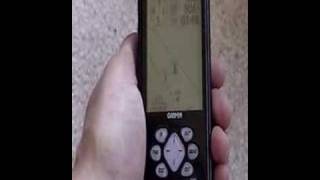
GARMIN eMap SATELLITE NAVIGATION GPS RECEIVER, HIKING & BIKING,FISHING,WALKING
 01:35
01:35
Using a Garmin Emap to capture tracks and geocode photos
 02:30
02:30
Garmin Emap Trakback
 05:00
05:00
Garmin GPS Gets Destroyed!
 03:21
03:21
RAM Garmin eMap Mount Cradle (RAM-HOL-GA4U) @ gpscity.com
 01:31
01:31
MEMORIA EMAP GARMIN 17 GIU 2000
 00:15
00:15
Garmin eMap GPS CAD Solid 3D Model
 00:13
00:13
Garmin eMap GPS CAD 3D Model
www.badger.ru
Компания БАДЖЕР Тел. (812) 320 5565
Руководство
пользователя
eMap
Персональный навигатор

www.badger.ru WWW.BADGER.RU Все авторские права зарегистриро…
Страница 2
- Изображение
- Текст
www.badger.ru
WWW.BADGER.RU
Все авторские права зарегистрированы. Без особого на то разрешения корпорации GARMIN, ни часть
из этого Руководства, ни Руководство в целом не могут быть размножены, скопированы, переданы или
записаны на любой носитель для любых целей. Корпорация GARMIN не возражает против однократного
копирования настоящего Руководства на Ваш винчестер для Вашего индивидуального использования,
причём предполагается, что Вы просто скопируете текст и не будете его модифицировать. Строжайше
запрещено продавать копии руководства пользователя.
Сведения, содержащиеся в Руководстве пользователя, могут быть изменены без особого о том
уведомления пользователя. Корпорация GARMIN оставляет за собой право улучшать и изменять
конструкцию своих изделий без обязательств сообщать об этом конечным индивидуальным или
корпоративным пользователям. На сайте корпорации GARMIN: (www.garmin.com) в Интернете можно
получить сведения об обновлениях различных изделий GARMIN.
GARMIN, eTrex, MapSource, AutoLocate, TrackBack и Personal Navigator – торговые марки,
принадлежащие корпорации GARMIN. Их нельзя использовать без разрешения корпорации GARMIN.
январь 2001 года

www.badger.ru
Компания БАДЖЕР Тел. (812) 320 5565
iii
GPS 12
Персональный
навигатор
ВВЕДЕНИЕ
О «Руководстве
Пользователя»
Раздел 1 «ВВЕДЕНИЕ»
О настоящем Руководстве
Вы сделали разумный выбор, остановившись на приборе «eMap». Чтобы
наилучшим образом использовать его обширные возможности, выберите
время и внимательно разберитесь с предлагаемым Руководством
пользователя. Состоит это Руководство из четырех разделов.
Раздел «Введение» содержит общую информацию о электромагнитных
помехах и безопасности пользования прибором. Здесь же имеется
Оглавление.
Раздел «Начнём!» излагает основные возможности «Электронной
карты» и принципы управления ею.
В разделе «Описание» даны подробные инструкции по использованию
безграничных возможностей «Электронной Карты».
Раздел «Приложения» содержит информацию технического и
специального характера вроде спецификаций, перечней аксессуаров и
советы по разрешению возможных затруднений, а также предметный
указатель (на английском языке).
Комплектность поставки «Электронной Карты»:
·
Прибор «Электронная Карта eMap»
·
Шнур
·
Руководство пользователя
·
Карточка подсказок

www.badger.ru WWW.BADGER.RU iv ВВЕДЕНИЕ Соответствие требова…
Страница 4
- Изображение
- Текст
www.badger.ru
WWW.BADGER.RU
iv
ВВЕДЕНИЕ
Соответствие
требованиям FCC
Меры
предосторожности
Параметры прибора удовлетворяют требованиям параграфа 15
требований Федеральной комиссии по радиосвязи США (FCC) для
изделий класса B непромышленного типа. Устройства подобного типа
могут излучать, использовать и принимать электромагнитные волны, в
том числе и на радиочастотах. В случае неправильной установки и
подключения, прибор способен причинить серьезные помехи
радиовещанию.
Нет гарантии, что помехи радиосвязи не возникнут и при соблюдении
правил монтажа оборудования. Поэтому, в случае возникновения
подобного рода помех, пользователю предлагается переместить
излучающее оборудование таким образом, чтобы максимально снизить
уровень помех.
Если проблему с помехами не удается разрешить, обратитесь к
авторизованному дилеру изделий «Garmin» или к другому технически
грамотному специалисту. При этом следует иметь ввиду, что на подобного
рода изделия распространяются такие дополнительные условия: 1) эти
приборы не должны специальным образом создавать помех и 2) не
защищены от помех и не устойчивы к помехам, создаваемым другими
приборами.
Навигатор «eMap» не содержит ремонтопригодных деталей. Ремонт
прибора может выполняться только в авторизованном корпорацией
«Garmin» сервис центре. Попытка самостоятельного ремонта навигатора
влечет за собой немедленное прекращение гарантийных обязательств.
ОСТОРОЖНО:
Глобальная навигационная спутниковая система
(GPS) создана и управляется правительством США, которое ни
перед кем не несёт ответственности за точность и надежность
этой системы. Система GPS неустойчива в части точности и
достоверности данных навигации. Хотя сам по себе навигатор
«eMap» исключительно точный и надежный электронный прибор,
особенности системы навигации GPS делают эксплуатацию его
небезопасной.
!ОСТОРОЖНО:
ОТВЕТСТВЕННОСТЬ – ВАШЕ ПРАВО. МЫ ЛИШЬ
ИЗВЕЩАЕМ ВАС, ЧТО ЭТОТ ПРИБОР – ВСПОМОГАТЕЛЬНОЕ
НАВИГАЦИОННОЕ УСТРОЙСТВО, КОТОРОЕ НЕ ПРЕДНАЗНАЧЕНО
ДЛЯ ТОЧНОГО ОПРЕДЕЛЕНИЯ КООРДИНАТ В ПРОСТРАНСТВЕ,
ИЗМЕРЕНИЯ УГЛОВ, РАССТОЯНИЙ, ВЫСОТ И Т.П.

www.badger.ru
Компания БАДЖЕР Тел. (812) 320 5565
v
Предостережения
И Н Ф О Р М А Ц И Я Н А Э Л Е К Т Р О Н Н О Й К А Р Т Е :
Одной из целей
корпорации «Garmin» является предоставление пользователям наиболее
полной и достоверной картографической информации, которую можно
получить за приемлемую цену. При создании электронной карты
использованы государственные и частные источники картографической
информации, о каковых источниках мы извещаем пользователя в
экранных сообщениях. Нет сомнения, что любые данные содержат
неточности прежде всего в отображении углов сферической поверхности
Земли. Точность данных картографии за пределами США зависит от
политики конкретной страны в области предоставления правдивой
информации, которая может быть просто недоступной или запредельно
дорогой.
ПРЕДУПРЕЖДЕНИЕ:
Во время вождения автомобиля владелец
навигатора должен сам озаботиться, чтобы так установить
навигатор «eMap», чтобы он не мешал управлению машиной, не
закрывал поле зрения и не стал причиной травм пассажиров в случае
дорожного происшествия. Не следует устанавливать навигатор
«eMap» поверх крышки предохранительной воздушной подушки.
Воздушная подушка раскрывается с большой скоростью и силой.
Поэтому если на крышке отсека будет что нибудь установлено,
водитель или пассажиры могут быть травмированы. Просмотрите
еще раз правила пользования автомобильной предохранительной
воздушной подушкой, изложенные в ее инструкции. Не следует
устанавливать навигатор «eMap» в любом ином месте автомобиля,
где водитель или пассажиры могут повредить его в случае
дорожного происшествия. Крепеж, входящий в комплект поставки
навигатора «eMap», не является гарантией против возможных
перемещений и повреждений прибора в экстремальных условиях.
ПРЕДУПРЕЖДЕНИЕ:
Во время вождения автомобиля владелец
навигатора должен сам озаботиться, чтобы вести автомобиль
аккуратно, непрерывно отслеживая все разнообразие дорожной
обстановки, не отвлекаясь на работу с навигатором. Если водитель
на дороге за рулем отвлечется на управление навигатором, может
случиться авария или столкновение и даже с серьезными
последствиями.

www.badger.ru
WWW.BADGER.RU
vi
Раздел 1: Введение
О настоящем Руководстве ………………………………………………………… i
Соответствие стандартам …………………………………………………………. ii
Осторожность и внимательность ……………………………………………….. Ii iii
Раздел 2: Начнем!
Назначение управляющих кнопок ………………………………………………. 1
Установка батареек …………………………………………………………………. 2
Включение ……………………………………………………………………………… 2
Определение своих координат ………………………………………………….. 3
Использование Страницы Карты ………………………………………………… 3 5
Управление Страницей Карты ……………………………………………………. 6
Основное Меню ………………………………………………………………………. 7
Меню Поиска ………………………………………………………………………….. 8
Регулировка контрастности ………………………………………………………. 9
Подсветка ………………………………………………………………………………. 9
Установка времени ………………………………………………………………….. 9
Звуковые сигналы ……………………………………………………………………. 9
Установка магнитной карты данных ……………………………………………. 10
Пересылка данных карты …………………………………………………………. 10
Раздел 3: Описание …………………………………………………….
11
Меню настроек ……………………………………………………………………….. 11
Экранные кнопки …………………………………………………………………….. 11
Ввод информации ……………………………………………………………………. 12
Информационное окно …………………………………………………………….. 12
Страница Карты ………………………………………………………………………. 13 14
Настройки страницы Карты ………………………………………………………. 15 17
Точки …………………………………………………………………………………….. 18
Создание Точки ………………………………………………………………………. 19
Редактирование Точки ……………………………………………………………… 20
Усреднение координат …………………………………………………………….. 20
Сохранить как Точку ……………………………………………………………….. 20
Пользование меню «FIND» (Поиск) ……………………………………………. 21 25
Простейший маршрут ………………………………………………………………. 26
Основное меню ………………………………………………………………………. 27
Протокол пути ………………………………………………………………………… 27
Страница Записи путей …………………………………………………………….. 28
Страница «Маршрут» ………………………………………………………………. 29
Информационная страница спутниковой системы ………………………… 30
Страница «Солнце и Луна» ……………………………………………………….. 31
Информационная страница базы данных «MapSource» …………………. 31
Информационная страница системы ………………………………………….. 31
Системные настройки ………………………………………………………………. 32 34
Раздел 4: Приложения
Приложение А: Принадлежности ………………………………………………. 35
Приложение В: Характеристики ………………………………………………… 36
Приложение С: Сообщения ………………………………………………………. 37
Приложение D: Обслуживание ………………………………………………….. 38
Приложение Е: Соединения Кабели ………………………………………….. 39
Приложение F: таблица часовых поясов ……………………………………… 40
Приложение G: Картографические данные …………………………………. 41
Приложение H: Гарантийные обязательства ………………………………… 42
Приложение I: Предметный указатель ………………………………………… 43 44
ВВЕДЕНИЕ
Содержание

Раздел 2: начнем! назначение управляющих кнопок, Кнопка menu
Страница 7
- Изображение
- Текст
www.badger.ru
Компания БАДЖЕР Тел. (812) 320 5565
1
РАЗДЕЛ 2: НАЧНЕМ!
Назначение управляющих
кнопок
Внутренняя спутниковая антенна
Кнопка OUT
Применяется
для
просмотра
увеличенных участков карты с
меньшим разрешением.
·Нажать и отпустить для ступенчатого
изменения масштаба изображения
·Нажать и удерживать для быстрой
смены масштаба
Кнопка MENU
·Нажать и отпустить для вызова на
экран списка настроек текущей
экранной страницы
·Двойное нажатие вызывает на
экран Главное экранное меню
Кнопка ENTER
·Нажать
и
отпустить
для
выделения выбранного пункта
меню, запустить его, принять
выбранное
значение
или
подтвердить принятие сообщения.
·Нажать и удерживать (в любой
ситуации) для записи координат
текущего положения
П о в о р о т н а я
Кнопка со
стрелками
·Нажать и отпустить для выделения пункта
меню, ввода численной информации,
перелистывания экранных страниц,
перемещения по полям данных
·Нажать и удерживать для перемещения
курсора по экранной карте и для перебора
пунктов меню
Кнопка ESCAPE
·Нажать и отпустить, чтобы вернуться к
предыдущей экранной странице, чтобы
вернуть предыдущее значение величины,
или чтобы переключиться от режима
перемещения курсора к перемещения
экранной карты.
·Нажать и удерживать, чтобы в любое
время вызвать на экран Страницу Карты.
Кнопка FIND
·Нажать и отпустить, чтобы вызвать меню
Точек,
городов
(местные
достопримечательности, улицы и
развязки дорог можно найти на компакт
диске «Map Source»)
·Нажать и удерживать, чтобы вызвать на
экран страницу режима GOTO, Track или
Route, активную в данный момент
Кнопка IN
Увеличивает изображение карты для
просмотра более мелких деталей
·Нажать и отпустить для уменьшения
масштаба
·Нажать и удерживать для быстрого
переключения уменьшающихся масштабов
Жидкокристаллический экран
Кнопка
B A C K L I T E /
CONTRAST
·Нажать и отпустить для включения
выключения подсветки
·Нажать и удерживать для регулировки
контрастности
Кнопка POWER
·Нажать и отпустить для включения
навигатора
·Нажать и удерживать яркость подсветки
или контрастность

www.badger.ru
WWW.BADGER.RU
2
Установка батареек
Питают навигатор «eMap» 2 батарейки типа «АА», которые
устанавливаются в отсеке под крышкой на тыльной стороне корпуса
прибора. Навигатор может непрерывно проработать от комплекта новых
батареек до 12 часов. Также можно использовать никель кадмиевые или
литиевые аккумуляторы. При извлечении батареек из батарейного отсека
данные из памяти навигатора не пропадут. Подробности можно найти на
стр.33.
Чтобы установить батарейки:
1.
Открыть батарейный отсек на тыльной стороне корпуса прибора
нажатием на две стрелочки. Сдвинуть ползунок вниз и поднять
крышку.
2.
Соблюдая полярность, установить батарейки в отсек. Устанавливать
только новые батарейки. Нельзя смешивать разные типы батареек
(алкалиновые с никель кадмиевыми или литиевыми и т.п.).
3.
Закрыть крышку отсека и задвинуть защелку на место.
ЗАМЕЧАНИЕ: Если прибор использует данные с компакт диска
«MapSource» или с карты «DataCard», на стр.10 руководства можно
найти указания по установке карты «DataCard» и по перекачке
данных с компакт диска. В приложении G содержится справочная
информация о компакт диске «MapSource».
Включение навигатора
Для включения прибора его следует вынести на открытый воздух и на
такое открытое место, где встроенная антенна навигатора сможет
свободно принимать сигналы от спутников в любой части неба.
Удерживайте навигатор в руке на удобной высоте антенной вверх и
наблюдайте за экраном.
Для включения навигатора «eMap» нажать и отпустить кнопку
POWER.
На экране появится Титульная Страница, которая вскоре сменится
Информационной Страницей и Страницей Карты.
Начнем!
Установка батареек
Включение
Титульная
страница
появляется на экране
навигатора сразу после
включения и сменяется
информационной страницей

www.badger.ru
Компания БАДЖЕР Тел. (812) 320 5565
3
При любом включении, навигатор «eMap» должен определить
координаты своего положения в пространстве. При самом первом его
включении может потребоваться от 5 до 15 минут для начального
определения координат. При последующих включениях навигатор будет
определять свои координаты быстрее 1 минуты.
После определения координат, компас в левом верхнем углу экранной
Страницы Карты сориентируется относительного сторон света (N – север,
E – восток, S юг, W запад) , ниже – появится ваше текущее положение
на фоне соответствующей карты.
Если антенна навигатора принимает сигналы от малого количества
спутников, на экране появится надпись «Poor Satellite Reception» («мало
сигналов от спутников») с меню из четырех пунктов. При выделении
курсором каждого пункта меню появится краткое пояснение значения
этого пункта меню.
Нажатиями поворотной кнопки можно перемещаться по строкам меню.
Выберите подходящее и нажмите кнопку ENTER.
Если в поле времени отображается неверное значение текущего времени,
следует проверить правильность установки часового пояса для Вашего
текущего положения. Процедура установки часового пояса подробно
описана на стр.32 и 40 настоящего Руководства.
Страница Карты
Экранная Страница Карты – основная функциональная экранная
страница навигатора «eMap».
На этой экранной странице можно видеть подробности карты местности,
Ваше текущее положение, намечать свой путь к заданной цели и оставляя
пунктирный пройденный маршрут.
На этой странице можно узнать, в каком направлении следует двигаться
или направление, в котором в данный момент Вы двигаетесь.
Здесь же указывается скорость Вашего движения, пройденное
расстояние и оставшаяся длительность пути, текущее время или время
оставшегося движения.
Окно «Направление»
Страница «Карта»
Окно «Скорость»
Окно «Расстояние»
Окно «Время»
Подробности карты
Масштаб карты
Текущее положение
Начнем!
Определение своих
координат
И с п о л ь з о в а н и е
Страницы Карты

www.badger.ru
WWW.BADGER.RU
4
Навигация при помощи Страницы Карты
При помощи Страницы Карты можно вести навигацию четырьмя
способами:
Goto
(Пройти) – прямая линия к точке на карте (Точка, город, адрес и
т.п.)
Track
(Путь) – Запись ранее пройденного маршрута, сохраняемая в
памяти навигатора. Запись «Путь» позволяет пройти к начальной Точке в
точности по пройденному маршруту, если запустить режим навигатора
«TracBack» («Возврат»).
Route
(Маршрут) – Маршрут к цели, состоящий из отдельных пунктов
(Точки, города, съезды автострады, примечательные места, развилки и
т.п.).
Travel
( Поход) Запись маршрута, если не активны режимы Маршрут,
Движение или Путь; режим движения без заранее намеченной цели. На
Странице Карты будет отображаться Ваш путь, если навигатор включен
и принимает сигналы от спутников. Такая запись будет сохранена в памяти
навигатора как «Поход» (Travel).
Поля «Данные»
На странице Карты имеются несколько окон информационных данных:
Окно «Направление»
Имеются три вида окна «Направление», которые отображают
направление движения по разному в зависимости от того, остановились
ли Вы во время навигации (режим отслеживания заданного маршрута
включен), двигаетесь ли по заранее проложенному и отслеживаемому
маршруту или перемещаетесь без заранее намеченной цели.
Direction To Go
(«Куда идти») – Заглавная буква в окне «Направление»
указывает сторону света (Север – N, Юг – S, Запад – W, Восток E), в
которую следует идти, чтобы продолжить прерванное движение по
заранее проложенному и отслеживаемому маршруту. Буквы могут быть
заменены градусами компаса (подробности – на стр.33).
Стрелка
(«Куда идем») – Острие стрелки в окне указывает направление,
в котором следует продолжать движение в режиме отслеживания ранее
проложенного маршрута.
Компас
– Изображение компаса в окне, верх которого показывает
направление Вашего движения, если режим отслеживания маршрута не
включен.
Начнем!
И с п о л ь з о в а н и е
Страницы Карты

Комментарии
-
Contents
-
Table of Contents
-
Bookmarks
Quick Links
eMap
!
electronic map
owner’s
manual
and
reference
guide
Related Manuals for Garmin eMap
Summary of Contents for Garmin eMap
-
Page 1
guide… -
Page 2
Visit the GARMIN website for current updates and supplemental information concerning the use and operation of this and other GARMIN products. -
Page 3: About This Manual
About This Manual Thank you for choosing the GARMIN eMap. To get the most from your new eMap, take time to read through this owner’s manual in order to understand all of the operating features. This manual is organized into four sections.
-
Page 4: Fcc Compliance Statement
The eMap does not contain any user-serviceable parts. Repairs should only be made by an authorized GARMIN service center. Unauthorized repairs or modifications could result in permanent damage to the equipment, and can void your warranty and your authority to operate this device under Part 15 regulations.
-
Page 5
Do not mount the eMap over air bag panels or in the field of air bag deployment. AIr bags expand with a rapid force that can propel objects in their path toward !»#$»%#&»‘(%… -
Page 6: Table Of Contents
Warnings and Precautions……ii-iii Using the Find Menu……21-25 Using Goto………26 The Main Menu………..27 The Trip Computer……..27 Section Two — Getting Started Tracks Page……..28 eMap Key Function……..1 Route Page……..29 BatteryInstallation……..2 The GPS Info Page……..30 Start-Up………….2 Sun and Moon Page……..31 Determining Your Location……3 MapSource Info……..31…
-
Page 7: Emap Key Function
SECTION 2 eMap !»#$%»&’ Key Function ()*+,»#$»»& /012’&3 2);CD+4$3 Press and release to turn the eMap On. Press and hold to turn the eMap Off. /-EFGHIJBK )AB+4$3 E)$BD-LB Displays increasingly larger map areas with less Press and release to detail.
-
Page 8: Batteryinstallation
Start Up Start Up The eMap To Start Up the eMap, take the unit outside and find an open area where the built-in antenna has a clear view of the sky. Hold the receiver at a comfortable height with the front of the eMap pointing up.
-
Page 9: Determining Your Location
Getting Started Determining Your Each time you turn on the eMap it must determine its Location location. The first time you use your eMap, this may take from five to fifteen minutes. After first use, the eMap should determine your location in less than one minute.
-
Page 10: Data Fields
A Goto Track — A previous path of travel that has been stored (logged) in the eMap. A Track allows you to repeat a path or to return to your starting point on the same path using the GARMIN TracBack ®…
-
Page 11
In many instances the map will display an ‘Accuracy Position Icon Circle’ surrounding the ‘Position Icon’. The eMap uses both map resolution and GPS accuracy in defining your location to a point within the circle. The smaller the circle, the more accurate your location. -
Page 12: The Map Page Options Menu
Map Page Options The Map Page Options Map Page options allow a variety of operating and customizing features for the eMap. Pressing the MENU key from the Map Page will display the Map Page Options Menu. Not all of the Map Page options are available at the same time.
-
Page 13: The Main Menu
Getting Started The Main Menu The Main Menu The Main Menu provides access to additional eMap feature pages. The pages listed below provide either enhancements to eMap operation or display data about operating information. Press the MENU key twice to display the Main Menu.
-
Page 14: The Find Menu
Getting Started The Find Menu The Find Menu The Find Menu allows you to find stored locations (waypoints) and map items (cities, exits, etc.). They can be found by name or those nearest to your Current Location (Position Icon) or to the Map Pointer (Panning Arrow). Press the FIND key to access the Find Menu.
-
Page 15: Contrast Settings
Refer to ‘Time Settings’ on page 32. Beeper Tones What Beeper Tones Mean The eMap Beeper produces three types of signals. Single Beep — Indicates that a key has been pressed. Two Beeps — Indicate that a message has been displayed with information about unit operation.
-
Page 16: Map Data Card Installation
Map Data Transfer Map Data After you have installed a data card in the eMap, it must be loaded with map data from a MapSource CD-ROM. In order to transfer map data you will need to install MapSource on your PC and connect the eMap PC Interface Cable to your PC and the eMap unit.
-
Page 17: Option Menus
SECTION 3 Reference How To Use Option Menus Option Menus Option Menus are lists of options that are specific for each page. To select and use an option: 1. With any page displayed, press the MENU key to display the option menu for that page. 2.
-
Page 18: Entering Data
Reference Entering Data How To Enter Data Some pages contain Data Fields that allow you to define the Data entered using the information that will be placed in that field. Data can be entered ROCKER keypad. in two ways; by entering each letter or number, or by selecting from lists of pre-defined information.
-
Page 19: Zooming In And Out
With certain types of MapSource data, such as MetroGuide data, the eMap may match your location to roads on the map. In these instances, the ‘Accuracy Circle’ (discussed on page 5) will not be shown.
-
Page 20
Reference Using the Panning Arrow The Map Page The Map Page pan function allows you to display an arrow to point at and identify items on the map, and to move the map in order to view areas beyond the current viewing area on the display. -
Page 21: Map Page Options
Reference More About Map Page Options Map Page Here is a more detailed description about the Map Page Options options discussed on page 6 with instructions for activation. Use Indoors The ‘Use Indoors’ option stops satellite reception, conserves power usage, and speeds Map Page drawing. The ‘Use Outdoors’…
-
Page 22: Stop Navigation
‘Show Next Street’ option The next street name will be displayed only if the eMap is “matching” your position to roads on the map and there is a nearby street. The next interstate exit will be displayed only if you are traveling on an interstate highway.
-
Page 23: Map
Reference Map Page Setup Map Options The Setup Map Option displays the Map Setup Pages. Map Setup pages determine how the map is displayed, allowing you Map Options to custom tailor the map display. Common Settings Text — Specifies the text size for a displayed map item. Selecting ‘None’…
-
Page 24: Waypoints
Waypoints Waypoints A waypoint is a location you have identified and stored in the eMap. The eMap can store 500 waypoints in memory. Waypoints can be used to build Routes and as destinations to ‘Goto’. Marking your current location as a waypoint: 1.
-
Page 25: Creating A Waypoint
Reference To create a waypoint using the panning Creating a arrow when a map item is not highlighted: Waypoint 1. Press and release the ENTER key with the panning arrow positioned where you want to mark the waypoint (off of roads, streets or other map items). 2.
-
Page 26: Editing A Waypoint
Reference Editing a Waypoint Editing a A waypoint can be edited to change the map symbol, name, Waypoint coordinates, or elevation. It can also be deleted. To edit a waypoint: 1. Use the Find feature as described on page 21 or use the panning arrow to highlight a waypoint on the map and press ENTER to display the Waypoint Page.
-
Page 27
Using the You can locate Waypoints, Cities, and Interstate Exits Find Menu included in the eMap basemap. You can also locate Cities, Exits, Points of Interest, Addresses and Intersections when using MapSource data. Cities and Points of Interest are also available in other selected MapSource maps. -
Page 28: Using The Find Menu
Reference Finding a Waypoint Using the Waypoints that you have created and stored in the eMap Find Menu can be found by selecting the ‘Waypoint’ option of the Find Menu. You can find a waypoint from a list of waypoints ‘By Name’…
-
Page 29: Finding An Exit
Reference Finding an Exit Using the You can use the Find Exit option to locate a nearby exit on Find Menu an interstate highway. Exits are listed only by ‘Nearest’. To find an Exit: 1. Press the FIND key to display the Find Menu. 2.
-
Page 30: Finding A Point Of Interest
Reference Finding a Point of Interest Using the You must be using MapSource MetroGuide which Find Menu provides this type of map data, otherwise this option will appear gray and will not be available. To locate a point of interest: 1.
-
Page 31
Reference Using the Finding an Address or an Intersection Find Menu You must be using MapSource MetroGuide which provides this type of map data, otherwise these options will appear gray and will not be available. To locate an address: 1. Press the FIND key to display the Find Feature Menu. -
Page 32: Using Goto
Using Goto To Goto to a map item or Find Menu item You can use the eMap to guide you to a map or Find Menu item using the Goto feature. A Goto is a straight-line from your current location to one you’ve selected.
-
Page 33: The Main Menu
Reference Using the Main Menu The Main Menu provides access to additional eMap Main Menu features that are explained on following pages. For an introduction to the Main Menu, refer to page 7. To display the Main Menu, press the MENU key twice.
-
Page 34: Tracks Page
Reference Tracks Page Saving and Using a Track The eMap automatically records a history of your locations in the ‘Track Log’, creating an electronic ‘breadcrumb’ trail of the path you have traveled. You may save all or part of the track log to create a ‘Track’.
-
Page 35: Route Page
Route navigation allows you to create a sequence of intermediate waypoints which lead you to your final destination. The eMap will store fifty routes, each with up to fifty waypoints. A Route can be created and modified from the Route Page or complex routes can be created on a PC and transferred into the eMap.
-
Page 36: The Gps Info Page
Solid bars indicate Elevation and Location — You can set a new elevation acquired satellites and are and new location to help the eMap obtain a position fix. identified by the highlighted These two options will not be available if your location numbers in the skyview.
-
Page 37: Sun And Moon Page
Current Time’ from the Sun and Moon Page option menu. The Rise and Set times are displayed using the time zone that the eMap is set to, not the time zone of the location selected. Sun & Moon Option Menu…
-
Page 38: System Setup Options
‘Battery Saver’ with a less frequent satellite signal updating process to save on battery power, and ‘GPS Off’ which allows you to operate the eMap with GPS receiver turned Off to save even more on battery power. ‘General’ Settings Page The ‘Use Indoors’…
-
Page 39: Advanced Settings
Choose the ‘User’ datum for custom designed grids. Map Datum Options Menu North Reference — Allows control of what the eMap considers ‘North’. True — Uses True North. Magnetic — Uses Magnetic North, which is continually updated based on your current location.
-
Page 40: Interface Settings
The ‘Interface’ Settings Page allows you to choose from seven different input/output serial data formats, or none at all. This feature is used when connecting your eMap unit to external NMEA devices, DGPS beacon receiver, a personal computer, etc. It is necessary to have a working knowledge of these applica- tions.
-
Page 41: Appendix A: Accessories
Vehicle Suction Mount PC Interface Cable w/Vehicle Power Adapter — Allows transfer of map data from a PC to an eMap data cartridge and provides unit operation from an automobile cigarette lighter. (3-VDC output) Data Cable — Wiring harness.
-
Page 42: Appendix B: Specifications
Selective Availability Program. 2. With optional GARMIN GBR 21 Beacon Receiver input. 3. The temperature rating for the eMap may exceed the usable range of some batteries. Alkaline batteries can rupture at high temperatures. Alkaline batteries lose a significant amount of their capacity as temperature decreases. If using the eMap in below freezing temperatures, use lithium batteries for longer battery life.
-
Page 43: Appendix C: Messages
None Found — There is no such address, intersection, point of interest, or city in the map information database. Check spelling or number entry and try again. RAM Failed — The eMap has detected a failure in its internal memory. If the message persists, service is required.
-
Page 44: Appendix D: Maintenance
Customer Service at then turns OFF. exhausted. 800-800-1020. Can’t highlight MapSource MetroGuide Install a map data card Find Features. map data required. and transfer MetroGuide. The eMap is programmed to provide “pop-up” messages concerning operational characteristics and conditions. Refer to Appendix C.
-
Page 45: Appendix E: Wiring/Interfaces
/or a second GPS receiver. The NMEA 0183 version 2.3 interface format is supported by the eMap and enables the unit to drive up to three NMEA devices. NMEA 0183 Version 2.3 Approved Sentences: GPGGA, GPGLL, GPGSA, GPGSV, GPRMB, GPRMC,…
-
Page 46: Appendix F: Utc Time Offset Chart
Appendix F UTC Time This chart is provided to help you determine the time Offset Chart offset settings for your current location if it is not in one of the time zones listed on the Time Setup Page. To change the UTC Offset, if necessary, press the MENU key twice to access the Main Menu.
-
Page 47: Appendix G: Mapsource Data
MapSource MapSource CD-ROM data transferred to the map data Data card can dramatically increase the mapping capability of the eMap in both the amount of map detail and available maps. ® MetroGuide maps contain detailed information and are MapSource PC system…
-
Page 48: Appendix H: Limited Warranty
GARMIN warranty service station. A copy of the original sales receipt is required as the proof of purchase for warranty repairs. GARMIN retains the exclusive right to repair or replace the unit or software or offer a full refund of the purchase price at its sole discretion.
-
Page 49: Appendix I: Index
Appendix I Index Addresses, Finding………25 Goto Function……..4, 26 Altitude Entry……..30 GPS Info Page……..30 Antenna……….1, 2 Grids(Map)……….33 Arrow, Panning……..5, 14 AutoZoom…………17 Averaging Location……..20 Highlighting……..11-12 Accessories……….35 In Key……….1, 13 Backlighting/Contrast Key……1 Interface Formats……34, 39 Backlighting……..1, 9, 32 Intersections, Finding……25 Battery Installation/Replacement….2 Battery Level Indicator……27 Battery Type………..2 Key Usage……….1 Bearing (Direction)……..4…
-
Page 50: Appendix I: Index
Appendix I Index Starting Up………2-3 Stop Navigation……..16 Submenus……….12-13 Sun and Moon Page (Celestial)….31 Navigation on the Map Page……4 System INfoo Page……..31 Nearest Cities List……..22 Nearest Exits List……..23 Nearest Points of Interest……24 Time format………..32 Nearest Waypoints List……21 Time Settings……..32, 40 North Reference………33 Time Setup……..32, 40 North Up……….17, 30 Track……….4, 28…
-
Page 51: Serial Number
Product Registration Help us to better support you by completing our on-line registration today! Have the serial number of your eMap handy and connect to our website (www.garmin.com). Look for the Product Registration link on the Home Page. Why should you register your eMap unit? •…
-
Page 52
© 1999-2001 GARMIN Corporation GARMIN International, Inc. 1200 E 151 Street, Olathe, KS 66062 U.S.A. GARMIN (Europe) Ltd. Unit 5, The Quadrangle, Abbey Park Industrial Estate, Romsey, SO51, 9AQ U.K. GARMIN (Asia) Corporation No. 68, Jangshu 2 Road, Shijr, Taipei County, Taiwan www.garmin.com…
- Инструкции и руководства
- Бренды
- Garmin
- emap
- Инструкции Пользователя

owner’s
manual
and
reference
guide
electronic map
eMap
!
Краткое содержание страницы № 1
!
eMap
electronic map
owner’s
manual
and
reference
guide
Краткое содержание страницы № 2
© 1999-2001` GARMIN Corporation GARMIN International, Inc. st 1200 E 151 Street, Olathe, Kansas 66062 U.S.A. Tel. 913/397.8200 or 800/800.1020 Fax. 913/397.8282 GARMIN (Europe) Ltd. Unit 5, The Quadrangle, Abbey Park Industrial Estate, Romsey, SO51 9AQ U.K. Tel. 44/1794.519944 Fax. 44/1794.519222 GARMIN (Asia) Corporation nd No. 68, Jangshu 2 Road, Shijr, Taipei County, Taiwan Tel. 886/2.2642.9199 Fax. 886/2.2642.9099 All rights reserved. Except as expressly provided herein, no part of this ma
Краткое содержание страницы № 3
SECTION 1 Introduction About This Manual Thank you for choosing the GARMIN eMap. To get the most from your new eMap, take time to read through this owner’s manual in order to understand all of the operating features. This manual is organized into four sections. The Introduction section provides FCC and safety information and the Table of Contents. The Getting Started section introduces you to basic features and methods for operating the eMap. The Reference section provides details abou
Краткое содержание страницы № 4
Introduction FCC Compliance NOTE: This device complies with Part 15 of the FCC limits Statement for Class B digital devices FOR HOME OR OFFICE USE (“home” or “office” interference requirements are more stringent than “outdoor” requirements). Operation of this device is subject to the following conditions: (1) This device may not cause harmful interference, and (2) this device must accept any interference received, including interference that may cause undesired operation. The eMap does not cont
Краткое содержание страницы № 5
Introduction Warnings MAP DATA INFORMATION: One of the goals of GARMIN is to provide customers with the most complete and and accurate cartography that is available to us at a Precautions reasonable cost. We use a combination of governmental and private data sources, which we identify as required in product literature and copyright messages displayed to the consumer. Virtually all data sources contain inaccurate or incomplete data to some degree. This is particularly true outside the United Stat
Краткое содержание страницы № 6
Introduction Table of Contents Section One – Introduction About This Manual…………………………..i Location Averaging……………………………….20 FCC Compliance Statement……………….ii Saving as a Waypoint………………………..20 Warnings and Precautions……………………ii-iii Using the Find Menu……………………….21-25 Using Goto…………………………………..26 The Main Menu…………………………………….27 The Trip Comp
Краткое содержание страницы № 7
SECTION 2 Getting Started eMap -./ !»#$%»&’ Key Function /012’&3 ()*+,»#$»»& 2);CD+4$3 Press and release to turn the eMap On. Press and hold to turn the eMap Off. /-EFGHIJBK )AB+4$3 E)$BD-LB Displays increasingly 4$3 larger map areas with less Press and release to detail. turn backlighting On Press and release to or Off. zoom out by Press and hold to increments. adjust backlight/ Press and hold to contrast. zoom out rapidly. H$+4$3 &C$A+4$3 Displays increasingly Press and release
Краткое содержание страницы № 8
Getting Started Installing the Batteries Battery Installation The eMap operates on two AA batteries, which are installed by removing the cover on the back of the unit. These >?@+,,++,’8&’0″$ ++++++6&##$%0$1 batteries will provide up to 12 hours of continuous use. Rechargeable NiCad, NiMH, or Lithium batteries may be also used. Stored data will not be lost when the batteries are removed. Refer to battery care information on page 38. To install the batteries: 6&78+9: $;&2 1. Open the battery compa
Краткое содержание страницы № 9
Getting Started Each time you turn on the eMap it must determine its Determining Your location. The first time you use your eMap, this may take Location from five to fifteen minutes. After first use, the eMap should determine your location in less than one minute. When your location has been determined, the Compass in the upper left corner of the Map Page will display Cardinal letters (North, South, East, West) and your current location will be shown on the map beneath it. If there are not enoug
Краткое содержание страницы № 10
Getting Started Using the Map Page to Navigate Using the Map Page The Map Page provides graphic display for the four methods of eMap navigation: Goto — A direct path to a map location, (waypoint, city, address, etc.) A Goto Track — A previous path of travel that has been stored (logged) in the eMap. A Track allows you to repeat a path or to return to your starting point on the same path ® using the GARMIN TracBack feature. Route — A path to a destination consisting of landmarks along the
Краткое содержание страницы № 11
Getting Started Speed, Distance and Time Fields Using the Speed — Your rate of travel can be displayed in miles Map Page per hour, kilometers per hour, or nautical miles per hour. Speed Data Field Distance — When traveling on a Goto, Track or Route the distance remaining to go to a destination will be displayed. When not on a Goto, Track or Route, the ‘Distance’ Data Fields accumulated Trip Distance will be displayed. Time — When on a Goto, Track or Route, the time to go before reaching a destin
Краткое содержание страницы № 12
Getting Started The Map Page Options Map Page Options Map Page options allow a variety of operating and customizing features for the eMap. Pressing the MENU key from the Map Page will display the Map Page Options Menu. Not all of the Map Page options are available at the same time. Many are replaced by another option when they are Map Page Options Menu selected, while others are methods of canceling an option when you no longer want to use it. You can choose an option by highlighting and pressin
Краткое содержание страницы № 13
Getting Started The Main Menu The Main Menu The Main Menu provides access to additional eMap feature pages. The pages listed below provide either enhancements to eMap operation or display data about operating information. Press the MENU key twice to display the Main Menu. Trip Computer Page — This page provides information such as distance traveled, average speed, and elapsed time. Tracks Page — Provides access to the track log and saved tracks. Route Page — Allows you to create and store route
Краткое содержание страницы № 14
Getting Started The Find Menu The Find Menu The Find Menu allows you to find stored locations (waypoints) and map items (cities, exits, etc.). They can be found by name or those nearest to your Current Location (Position Icon) or to the Map Pointer (Panning Arrow). Press the FIND key to access the Find Menu. When you select a category from the menu, you will also The Find Menu referencing be able to choose from two methods of listing. The ‘By Name’ items from your current location list contains
Краткое содержание страницы № 15
Getting Started Setting the Screen Contrast Contrast You may adjust the contrast setting for best viewing of the Settings display screen. To Set the Screen Contrast: 1. Press and hold the BACKLIGHT/CONTRAST key on the side of the unit until the Backlight/Contrast page appears. 2. Press the LEFT or RIGHT side of the ROCKER To adjust the screen contrast, keypad to adjust the level of contrast, (Left to use the LEFT or RIGHT lighten and Right to darken). Press the ENTER key ROCKER keys to move the
Краткое содержание страницы № 16
Getting Started Installing an Optional Map Data Card Map Data Card GARMIN map data cards allow your unit to display detailed mapping data. Data can be transferred to a map data Installation TM card from a GARMIN MapSource CD-ROM (a collection of /&#&+.&%5+*’9# ® data for a specific area, MetroGuide U.S.A., World Map, etc.) using a PC and interface cable. If you have already purchased MapSource and a data card, you will want to install the data card before continuing. If you would like to order M
Краткое содержание страницы № 17
SECTION 3 Reference How To Use Option Menus Option Option Menus are lists of options that are specific for each Menus page. To select and use an option: 1. With any page displayed, press the MENU key to display the option menu for that page. 2. Use the ROCKER keypad to move up and down within the menu to highlight the desired option. Options Menu with ‘Use Indoors’ highlighted 3. Press the ENTER key to activate the highlighted option. 4. Press the ESCAPE key before pressing the ENTER key to pre
Краткое содержание страницы № 18
Reference How To Enter Data Entering Data Some pages contain Data Fields that allow you to define the Data entered using the information that will be placed in that field. Data can be entered ROCKER keypad. in two ways; by entering each letter or number, or by selecting from lists of pre-defined information. Entering each letter or number: 1. With the entire field highlighted, press the ENTER key to highlight the first character or number to begin entering data. 2. Press the ROCKER keypad Up or
Краткое содержание страницы № 19
Reference Zooming In and Out The Map Page Use the Zoom keys (IN and OUT) to adjust the map scale, which is displayed at the bottom of the Map Page. Accuracy Circle To change the map scale: 1. Press the IN Zoom key to select a scale that shows more detail for a smaller map area. 2. Press the OUT Zoom key to select a scale that displays a larger map area, but with less detail. The map scale is shown in the lower left corner of the map display area. The scale is shown in the unit of measure select
Краткое содержание страницы № 20
Reference Using the Panning Arrow The Map Page The Map Page pan function allows you to display an arrow to point at and identify items on the map, and to move the map in order to view areas beyond the current viewing area on the display. The pan function is activated by the ROCKER keypad which moves the arrow in the desired direction. As the arrow moves to the edge of the display screen, the map will also move to reveal more map area. When moving to the edge of the display, the map will take
Вы здесь
Каталог инструкций » G » Garmin » GPS-навигаторы Garmin » Garmin eMap » Страница инструкции 1
-

1
-
2
-
3
-
4
-
5
-
6
-
7
-
8
-
9
-
10
-
11
-
12
-
13
-
14
-
15
-
16
-
17
-
18
-
19
-
20
-
21
-
22
-
23
-
24
-
25
-
26
-
27
-
28
-
29
-
30
-
31
-
32
-
33
-
34
-
35
-
36
-
37
-
38
-
39
-
40
-
41
-
42
-
43
-
44
-
45
-
46
-
47
-
48


Распечатать
Страница 1 из
- << Предыдущая
- Следующая >>

Emap в инструкции по эксплуатации Garmin eMap
www.badger.ru
Компания БАДЖЕР Тел (812) 320 5565
Руководство пользователя eMap
Персональный навигатор
- << Предыдущая
- Следующая >>