
 04:10
04:10
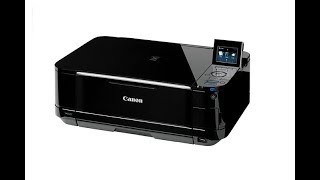
Canon MG-5220 How To Clean Printhead — Use Cleaning Kit In Description
 04:24
04:24
How To Set Up Wireless Printing on PIXMA MG6220, MG8220, and MG5320 Printers
 01:35
01:35
Canon PIXMA MG5220 Instructional Video
 01:47
01:47
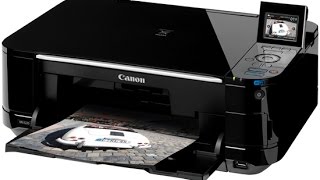
CANON MG5220 REPLACE INK
 14:24
14:24
Canon MG5220 Printer Error Code B200 Troubleshooting
 04:24
04:24
Canon G3411 самостоятельное обслуживание и ремонт
 05:26
05:26
Reset Canon Pixma MG5200 Waste Ink Pad Counter
 06:16
06:16
МФУ Canon PIXMA G3411: первая заправка, тестируем печать
Использование
руководства
Печать
руководства
MC-4946-V1.00
Основное
руководство
Содержит
общие сведения
о
продукте.
Расширенное
руководство
Описывает
конкретные
функции
продукта.
Устранение
неполадок
Стр. 1 из 1103 стр.
Canon MG5200 series Электронное руководство

Использование руководства Печать руководства О печати эти…
Страница 2
- Изображение
- Текст
Использование
руководства
Печать
руководства
О
печати этикеток дисков
MP-4811-V1.00
Расширенное
руководство
Содержание
Обзор
устройства
Основные
компоненты
Как
перемещаться по экранным меню
Печать
фотографий
Печать
фотографий с карты памяти или флэш
-диска USB
Использование
различных режимов
Вставка
карты памяти
Подключение
флэш-диска USB
Копирование
Создание
копий
Использование
различных режимов
копирования
Повторная
печать с напечатанных
фотографий
Повторная
печать напечатанных фотографий
Использование
различных режимов
Сканирование
Сохранение
данных сканирования на
компьютере
Использование
различных функций
сканирования
Печать
с компьютера
Печать
фотографий (Easy-PhotoPrint EX)
Печать
документов
Печать
веб-страниц (Easy-WebPrint EX)
Запуск
различных прикладных программ
Другое
использование
Печать
PDF-файлов с карты памяти или
флэш
-диска USB
Печать
шаблонов, например линованной
бумаги
Печать
фотографий напрямую с цифрового
фотоаппарата
или мобильного телефона
Параметры
устройства
Загрузка
бумаги и оригинальных
документов
Загрузка
бумаги
Загрузка
оригиналов
Регулярное
обслуживание
Замена
чернильного контейнера
Если
печать стала бледной или цвета
печатаются
некорректно
Чистка
ролика подачи бумаги
Очистка
прокладки в кассете
Приложение
Законодательные
ограничения на
использование
продукта и изображений
Советы
по использованию устройства
Стр. 2 из 1103 стр.
MG5200 series Основное руководство

Расширенное
руководство
Устранение
неполадок
Содержание
> Обзор устройства
Обзор
устройства
В
данном разделе содержатся названия компонентов устройства и основные команды, которые
необходимо
знать перед началом использования.
Основные
компоненты
Вид
спереди
Вид
сзади
Вид
внутренних частей
Панель
управления
Как
перемещаться по экранным меню
Выбор
меню на экране НАЧАЛО (HOME)
Выбор
меню или элемента настройки
Другие
операции
Наверх
Стр. 3 из 1103 стр.
Обзор устройства
Расширенное
руководство
Устранение
неполадок
Содержание
>
Обзор
устройства
> Основные компоненты
C001
Основные
компоненты
Вид
спереди
Вид
сзади
Вид
внутренних частей
Панель
управления
Вид спереди
(1)
Крышка сканера
Откройте
для загрузки оригинала на стекло рабочей поверхности.
(2)
Упор для бумаги
Приподнимите
и наклоните назад, чтобы вставить бумагу в задний лоток.
(3)
Задний лоток
Загрузите
фотобумагу или конверты, которые можно использовать в данном устройстве. Два или
более
листов бумаги одного типа и размера можно загрузить одновременно и автоматически
подавать
на печать по одному листку.
См
. раздел
Загрузка
бумаги
.
(4)
Направляющие бумаги
Сдвиньте
, чтобы совместить с обеими сторонами стопки бумаги.
(5)
ЖК-дисплей (жидкокристаллический дисплей)
Служит
для вывода сообщений, элементов меню и состояния выполнения операций. На ЖК-
дисплее
также можно предварительно просматривать фотографии перед печатью.
Примечание.
Если устройство не используется в течение 5 минут, ЖК-дисплей автоматически
выключается
. Чтобы включить дисплей, нажмите любую кнопку, кроме кнопки
ВКЛ
., или выполните операцию печати.
Стр. 4 из 1103 стр.
Основные компоненты

6) панель управления, 7) лоток приема бумаги,  дополнительный лоток приема бумаги
9) индикатор «аварийный сигнал, 10) индикатор wi-fi, 11) кнопка «вкл, Внимание, 12) индикатор питание (power), 13) порт печати напрямую
- Изображение
- Текст
(6)
Панель управления
Используйте
для изменения настроек устройства или управления им.
См
.
Панель
управления
.
(7)
Лоток приема бумаги
Открывается
автоматически при начале вывода на печать или копирования и выталкивает
напечатанный
лист.
(8)
Дополнительный лоток приема бумаги
Откройте
для обеспечения поддержки напечатанных листов. Откройте лоток при печати или
копировании
.
(9)
Индикатор «Аварийный сигнал»
Горит
или мигает оранжевым, если произошла ошибка, например в устройстве закончилась бумага
или
чернила.
(10)
Индикатор Wi-Fi
Указывает
состояние LAN (светится синим или мигает).
Светится
, если выбрано значение Беспров. сеть включена (Wireless LAN active).
Мигает
, если выполняется печать или сканирование по беспроводной LAN. Мигает также во время
поиска
точки доступа беспроводной LAN при настройке и во время подключения к точке доступа.
(11)
Кнопка «ВКЛ.»
Отключает
питание устройства. Перед отключением питания убедитесь, что крышка документа
закрыта
.
Внимание!
Отсоедините
шнур питания
При отсоединении шнура питания после выключения питания убедитесь, что
индикатор
ПИТАНИЕ
(POWER)
погашен. Если шнур питания отсоединяется от
розетки
питания при горящем или мигающем индикаторе
ПИТАНИЯ
(POWER)
,
устройство
может быть повреждено, поскольку печатающая головка не защищена.
(12)
Индикатор ПИТАНИЕ (POWER)
Мигает
, затем загорается зеленым, когда включено питание.
(13)
Порт печати напрямую
Для
печати напрямую подключите устройство, совместимое с PictBridge, например цифровую
камеру
, или дополнительное устройство Bluetooth BU-30*.
См
. раздел
Печать
фотографий напрямую с цифрового фотоаппарата или мобильного телефона
.
К
этому порту также можно подключить флеш-диск USB.
См
. раздел
Подключение
флэш-диска USB
.
* Устройства Bluetooth недоступны для использования в некоторых странах и регионах согласно
местным
законам и постановлениям. Для получения подробной информации обратитесь в центр
технического
обслуживания.
Стр. 5 из 1103 стр.
Основные компоненты

Предупреждение
Нельзя подключать к порту печати напрямую данного устройства никакое
оборудование
, кроме устройств с поддержкой PictBridge, дополнительного
устройства
Bluetooth BU-30 и флэш-дисков USB. Это может послужить причиной
возгорания
, удара током или повреждения устройства.
Внимание!
Не прикасайтесь к металлическому корпусу.
Не используйте для подключения совместимых устройств PictBridge USB-кабели
длиннее
3 м / 10 футов. Это может повлиять на работу других периферийных
устройств
.
(14)
Кассета
Поместите
в нее обычную бумагу формата A4, B5, A5 или Letter и вставьте ее в устройство.
Одновременно
можно загрузить два или более листов простой бумаги одного размера и
автоматически
подавать их на печать по одному листу.
См
. раздел
Загрузка
бумаги
.
(15)
Стекло рабочей поверхности
Загрузите
оригинал для копирования или сканирования.
Вид сзади
(16)
USB-порт
Подсоедините
USB-кабель, чтобы подключить устройство к компьютеру.
Внимание!
Не прикасайтесь к металлическому корпусу.
Не вставляйте и не извлекайте кабель USB, пока устройство печатает с
компьютера
или сканирует оригиналы на компьютер.
(17)
Задняя крышка
Снимите
для удаления замятой бумаги.
(18)
Разъем кабеля питания
Подсоедините
кабель питания, поставляемый в комплекте с устройством.
Вид внутренних частей
Стр. 6 из 1103 стр.
Основные компоненты

(19)
Индикаторы чернильницы
Сигнализирует
о состоянии чернильницы (горит красным или мигает).
См
. раздел
Проверка
состояния чернил
.
(20)
Держатель печатающей головки
Установите
печатающую головку.
(21)
Фиксирующий рычаг печатающей головки
Предназначен
для фиксации печатающей головки на месте.
Внимание!
Не поднимайте этот рычажок после установки печатающей головки.
(22)
Модуль сканирования (крышка)
Сканирует
оригинальные документы. Откройте для замены чернильниц, проверки индикаторов или
извлечения
бумаги, застрявшей в устройстве. При открытии крышки сканирующего устройства
крышка
документа должна быть закрыта.
(23)
Индикатор
доступности
Горит
или мигает, указывая состояние карты памяти.
См
. раздел
Вставка
карты памяти
.
(24)
Гнездо карты памяти
Вставьте
карту памяти.
См
. раздел
Вставка
карты памяти
.
(25)
Крышка гнезда для карты памяти
Откройте
, чтобы подключить карту памяти.
См
. раздел
Вставка
карты памяти
.
(26)
Внутренняя крышка
Закройте
её при печати на бумаге.
Примечание.
Дополнительную информацию по установке печатающей головки и чернильниц см. в
печатном
руководстве по эксплуатации принтера: Руководство по началу работы.
Панель управления
Стр. 7 из 1103 стр.
Основные компоненты

1) кнопки «функция» (function buttons), 2) кнопка «начало» (home), 3) кнопки , , и (колесико прокрутки)
4) кнопка ok, 5) кнопки, 6) кнопка «стоп, 7) кнопка «цветной,  кнопка «черный, 9) кнопка «назад
- Изображение
- Текст
(1)
Кнопки «Функция» (Function buttons)
Используется
для выбора меню на экране НАЧАЛО (HOME) или меню функций, отображаемого в
нижней
части ЖК-дисплея.
См
. раздел
Выбор
меню или элемента настройки
.
(2)
Кнопка «НАЧАЛО» (HOME)
Используется
для отображения экрана НАЧАЛО (HOME).
См
. раздел
Выбор
меню на экране НАЧАЛО (HOME)
.
(3)
Кнопки , , и (колесико прокрутки)
Используются
для выбора меню или элемента настройки.
См
. раздел
Выбор
меню или элемента настройки
.
(4)
Кнопка OK
Завершает
выбор меню или элемента настройки.
Корректирует
ошибку, возникшую в процессе печати, или возобновляет нормальную работу
устройства
после извлечения застрявшей бумаги.
(5)
Кнопки [+] [-]
Используются
для указания количества копий при копировании или печати.
(6)
Кнопка «Стоп»
Отменяет
выполняемую операцию печати, копирования или сканирования.
(7)
Кнопка «Цветной»
Запускает
цветную печать, копирование или сканирование. Эта кнопка светится синим цветом,
если
она доступна.
(8)
Кнопка «Черный»
Запускает
копирование или сканирование в черно-белом режиме. Эта кнопка светится синим
цветом
, если она доступна.
(9)
Кнопка «Назад»
Возврат
к предыдущему экрану.
Наверх
Стр. 8 из 1103 стр.
Основные компоненты

Как перемещаться по экранным меню, Выбор меню на экране начало (home)
Страница 9
- Изображение
- Текст
Расширенное
руководство
Устранение
неполадок
Содержание
>
Обзор
устройства
> Как перемещаться по экранным меню
C002
Как
перемещаться по экранным меню
Можно
использовать устройство для печати фотографий с карты памяти или флэш-диска USB,
создания
копий, а также для сканирования оригиналов без компьютера. С помощью экрана меню
и
экрана параметров на ЖК-дисплее можно использовать многочисленные функции устройства.
В
данном разделе содержится описание основных операций по работе с меню на экране НАЧАЛО
(HOME) и по выбору необходимых для печати параметров настройки.
Выбор
меню на экране НАЧАЛО (HOME)
Выбор
меню или элемента настройки
Другие
операции
Выбор меню на экране НАЧАЛО (HOME)
Отобразится
экран НАЧАЛО (HOME), если включить питание или нажать кнопку НАЧАЛО (HOME).
Экран
НАЧАЛО (HOME) состоит из трех экранов, на которых отображаются меню создания копии,
печати
фотографий, сканирования оригиналов или других меню. Кнопкой
или
можно
переходить
между экранами.
Выбрать
меню можно левой, центральной или правой кнопкой
Функция
(Function).
1.
Нажмите
кнопку
СТАРТ
(A).
Появится
экран НАЧАЛО (HOME).
2.
Кнопкой
или
(B) откройте нужное меню, а затем нажмите кнопку Функция
(Function) (C).
Отображается
экран выбранного меню.
Стр. 9 из 1103 стр.
Как перемещаться по экранным меню

На
экране НАЧАЛО (HOME) экране доступны указанные ниже меню.
Копир. (Copy)
При
копировании книги можно изменить масштаб копии, а также убрать темную рамку или тень от
согнутой
области. Кроме того, оригинал можно копировать в разных вариантах ориентации.
См
. раздел
Копирование
.
Параметр Фото (Photo)
Можно
печатать фотографии, сохраненные на карте памяти цифровой камеры или флеш-диске
USB.
См
. раздел
Печать
фотографий
.
Сканиров. (Scan)
Можно
сохранить/передать данные сканирования на компьютер или сохранить их на карте памяти
или
флэш-диске USB с помощью панели управления.
См
. раздел
Сканирование
.
Печать доп. экз. (Photo reprint)
Можно
легко отсканировать напечатанные фотографии и распечатать их снова.
См
. раздел
Повторная
печать с напечатанных фотографий
.
Забавная фотопеч. (Fun photo print)
Можно
печатать наклейки, календари и другие элементы, связанные с фотографиями, с карты
памяти
или флэш-памяти USB.
См
. раздел
Функции
в разделе Забавная фотопечать (Fun photo print)
.
Слайд- шоу (Slide show)
Можно
последовательно просматривать фотографии с карты-памяти или флэш-диска USB на ЖК-
дисплее
. Также можно выбрать и напечатать нужные фотографии.
Подробные
сведения см. в электронном руководстве
Расширенное
руководство
.
Печать докум. (Document print)
Можно
печатать документы (PDF-файлы), отсканированные и сохраненные в устройстве.
См
. раздел
Печать
PDF-файлов с карты памяти или флэш-диска USB
.
Особая печать (Special print)
Можно
печатать доступные формы шаблонов, например линованную бумагу, миллиметровую
бумагу
и др. Также можно печатать фотографии с мобильного телефона с использованием
беспроводного
подключения с помощью дополнительного устройства Bluetooth.
См
. раздел
Печать
шаблонов, например линованной бумаги
или
Печать
фотографий с устройства
беспроводной
связи
.
Настройка (Setup)
Можно
оставить существующие настройки устройства или изменить их. Также можно настроить
подключение
к беспроводной локальной сети.
См
. раздел
Если
печать стала бледной или цвета печатаются некорректно
,
Чистка
ролика подачи
бумаги
или
Параметры
устройства
.
Дополнительную
информацию об установке беспроводной сети см. в печатном Руководство по
началу
работы
.
Стр. 10 из 1103 стр.
Как перемещаться по экранным меню

Комментарии
-
Contents
-
Table of Contents
-
Troubleshooting
-
Bookmarks
Quick Links
Photo Printer
Series
Quick Start Guide
Related Manuals for Canon Pixma iP5200 Series
Summary of Contents for Canon Pixma iP5200 Series
-
Page 1: Quick Start Guide
Photo Printer Series Quick Start Guide…
-
Page 2: Getting Help From Canon
CarePAK offers toll-free Canon technical support and includes Canon’s superb InstantExchange product replacement program. For further information about extending your Canon service and support, call (1-800-385-2155), or visit our Web site at www.canonesp.com. CarePAK must be purchased during your product’s warranty period.
-
Page 3
Photo Printer Quick Start Guide… -
Page 4
This manual is copyrighted by Canon U.S.A., Inc. with all rights reserved. Under the copyright laws, this manual may not be reproduced in any form, in whole or in part, without the prior written consent of Canon U.S.A., Inc. © 2005 Canon U.S.A., Inc. -
Page 5: Table Of Contents
CANON U.S.A., INC. LIMITED WARRANTY — (USA Only)……. . .
-
Page 6: Basic Printing
Basic Printing Basic Printing Quick Start Guide This to use them. For more information, view the iP5200 Driver Guide installed on your computer, or use the online help within your printer driver interface: While in the printer’s properties window, press the F1 key, or click upper right corner.
-
Page 7: Turning Off The Printer
Turning off the Printer To turn off the printer, press the POWER button. When the POWER lamp stops blinking, the printer is turned off. About the Power Plug When removing the power plug after turing off the printer, be sure to check that the POWER lamp is not lit.
-
Page 8: Loading Paper
• Damp paper • Excessively thin paper (less than 64 gsm or 17 lb) • Excessively thick paper* (more than 105 gsm or 28 lb) * non-Canon branded paper • Picture postcards • Postcards affixed with photos or stickers • Envelopes with double flaps •…
-
Page 9: Using The Auto Sheet Feeder And The Cassette
Using the Auto Sheet Feeder and the Cassette You can load paper in both the Auto Sheet Feeder and Cassette. Loading paper in the Auto Sheet Feeder is easy, and is convenient if you frequently switch to and print on various sizes or types of paper. Loading paper in the Cassette allows you to print without reloading paper for each job.
-
Page 10
Basic Printing • Continuous printing on the same type/size of paper by using both the Auto Sheet Feeder and Cassette together If the Auto Sheet Feeder or Cassette runs out of paper, the paper source automatically switches to the other one. This is useful for printing onto a large volume of paper. To use this feature, you need to configure the printer driver beforehand. -
Page 11
Loading Plain Paper in the Auto Sheet Feeder For detailed information on the specialty media Canon provides for use with its various printers, refer to See “Printing Media” in the how to load specialty media into the printer. Flatten the four corners of the paper before loading it. -
Page 12
You can use general copy paper or Canon’s Super White Paper. You can load up to 150 sheets of plain paper (64 gsm or 17 lb, 13 mm or 0.52 inches in height) in the Auto Sheet Feeder. However, do not stack more than 50 sheets in the Paper Output Tray. -
Page 13: Loading Envelopes
Loading Envelopes Use either European DL or US Comm. Env. #10 size envelopes. The address is rotated automatically to match the direction of the envelope when printing. Do not use envelopes with embossed or treated surfaces, a double flap, pressure seals or sticker flaps. Select either European DL Env.
-
Page 14
20, or Always load paper in portrait orientation. Loading paper in landscape orientation can cause the paper to be jammed. We recommend using genuine Canon photo media when printing photographs. (3) Press the Paper Feed Switch so that the Auto Sheet Feeder lamp lights. -
Page 15: Loading Plain Paper In The Cassette
Ensure that the paper is loadable in the Cassette. Legal-sized paper and 2.13″ x 3.39″ / 54.0 x 86.0 mm size paper, and Photo Stickers are not loadable in the Cassette. For detailed information on the specialty media Canon provides for use with its various printers, refer to See “Printing Media”…
-
Page 16
Basic Printing Adjust the size of the Cassette. When loading A5- or larger sized paper (nonstandard-size paper: 203 mm / 8 inches or more in length), extend the Cassette. When loading 5″ x 7″- or smaller sized paper (nonstandard-size paper: less than 203 mm/ 8 inches in length), do not extend the Cassette. -
Page 17
Load the paper. (Print side facing DOWN) You can use general copy paper or Canon’s Super White Paper. You can load up to 150 sheets of plain paper (64 gsm or 17 lb, 13 mm or 0.52 inches in height) in the Cassette. However, do not stack more than 50 sheets in the Paper Output Tray. -
Page 18
Basic Printing Insert the Cassette into the printer. If the Cassette has been extended to accommodate paper sizes larger than 5″ x 7″, the front edge of the cassette will extend beyond the front of the printer. Prepare the Paper Output Tray. You can also select the paper source with the printer driver. -
Page 19
Loading Envelopes Use either European DL or US Comm. Env. #10 size envelopes. The address is rotated automatically to match the direction of the envelope when printing. Do not use envelopes with embossed or treated surfaces, a double flap, pressure seals or sticker flaps. Select either European DL Env. -
Page 20
Basic Printing Loading 4″ x 6″ or 5″ x 7″-Sized Paper in the Cassette Do not leave photo paper, such as Photo Paper Pro, in the Cassette for a long time. This may cause paper discoloration due to natural aging. Cutting plain paper to 4″… -
Page 21
20, or Always load paper in portrait orientation. Loading paper in landscape orientation can cause the paper to be jammed. Portrait We recommend using genuine Canon photo media when printing photographs. “Using Specialty Media” “Printing with Macintosh” Landscape on page 18. -
Page 22: Using Specialty Media
Basic Printing Using Specialty Media Canon recommends that you use genuine Canon media to ensure optimal print quality. Photo Quality Media • High Resolution Paper • Glossy Photo Paper • Matte Photo Paper • Photo Paper Plus Double Sided • Photo Paper Plus Glossy •…
-
Page 23
Canon Specialty Media Media Type Paper Support Load Limit Auto Sheet Feeder High Resolution Up to 80 sheets Paper Super White Paper Up to 13 mm or 0.52 inches Glossy Photo Paper Letter: up to 10 sheets 4″ x 6″: up to 20 sheets 2.13″… -
Page 24: Printing With Windows
Basic Printing *1 When loading a stack of paper, the printed side may be marked when it is fed in. If this happens, load paper one sheet at a time. *2 You can specify the print setting easily by using the Easy-PhotoPrint provided with the Guide CD-ROM *3 Feeding from the Cassette can damage the printer.
-
Page 25
Open the printer properties dialog box. (1) Select Print from the application software’s File menu. The Print dialog box opens. Specify the required settings. (2) Ensure that your printer is selected. (3) Click Preferences or Properties. (1) Click Media Type to select the type of media loaded in the printer. -
Page 26
Basic Printing From the Page Setup tab, select the correct document size to be printed. This section describes the procedure for selecting the paper source with the Paper Feed Switch on the printer. For a detailed description of the Paper Source settings, refer to the To adjust the Print Quality settings, select Custom and click Set on the Main tab. -
Page 27: Printing With Macintosh
Printing with Macintosh Menu and command names may differ between software applications, and more steps may be required. For details, refer to the documentation for each software application you use. The steps described in this section are for printing in Mac (hereafter called Macintosh Turn on the printer.
-
Page 28
The Page Setup dialog box opens. Specify the required settings. (1) Select Print from the application software’s File menu. The Print dialog box opens. (2) Confirm that iP5200 is selected in Format for. (3) Select the desired paper size from Paper Size. -
Page 29
This section describes the procedure for selecting the paper source with the Paper Feed Switch on the printer. For a detailed description of the Paper Source settings, refer to the Driver Guide When you select the print mode appropriate to your document from Print Mode, the document will be printed in color and at a print quality suited to the characteristics of the Media Type you have selected. -
Page 30: Canceling Printing
Press the RESUME/CANCEL button while printing. Printing is canceled and paper is fed out. You can also cancel a print job by clicking Cancel Printing on the Canon IJ Status Monitor. To display the Canon IJ Status Monitor, click Canon iP5200 on the taskbar.
-
Page 31
The Printer List opens. Double-click the printer name displayed in the Name list. The iP5200 dialog box opens. Select the desired document, then click Delete icon. To temporality stop a job in progress, click Pause. To cancel all the jobs in the list, click Stop Printing. -
Page 32: Advanced Printing
It is possible to specify which images to print and various print settings from the operation panel of your camera or mobile phone. Canon Bubble Jet Direct allows you to print photos from a Canon Bubble Jet Direct compatible (PictBridge incompatible) digital camera or digital video camcorder without a computer, by simply connecting the digital camera or digital camcorder to this printer.
-
Page 33: Connecting To A Pictbridge Compliant Device
Do not connect any equipment other than PictBridge compliant devices or Canon Bubble Jet Direct compatible digital camera to the Direct Print Port of the printer. If you do so, electric shock, fire, or damage to the device could result.
-
Page 34
Advanced Printing Connect the PictBridge compliant device to the printer. Depending on the model or brand of your device, you may have to select a print mode compliant with PictBridge before connecting the device. You may also have to turn on the device or select Play mode manually after connecting the device to the printer. -
Page 35
If any setting cannot be made, the default setting explained above is used. Names of settings that are displayed on Canon PictBridge compliant device are used in the description given below. Different names may be displayed on your device depending on the brand or model. -
Page 36
*1 This paper is exclusively used to print photo stickers. When printing on sticker paper, select 4″ x 6″ in Paper size. *2 This size can be selected only for Canon PictBridge compliant devices (note that it cannot be selected for some models). -
Page 37
About “Image optimize” By default, ExifPrint is selected for this printer. If you use a Canon PictBridge-compatible device, you can select VIVID, NR, VIVID+NR, or Face. (Note that these options cannot be selected for some models.) When VIVID is selected, green and blue portions of photos are printed vividly. -
Page 38
Digital Camera” Checking or Changing PictBridge Print Settings From the Printer Connecting this printer to a computer and using the Canon Setup Utility enables you to change items such as the paper type, paper size, and the standard PictBridge print settings. -
Page 39: Accessing The Printer Driver (Windows)
Accessing the Printer Driver (Windows) The printer properties dialog box can be opened from either within an application, or directly from the Windows Start menu. This manual refers to Windows XP SP2 operation. The operations may vary depending on the version of your Windows operating system.
-
Page 40: Using The Bundled Software
Canon PIXMA Printers support ExifPrint and use a suitable photo application to read the camera data precisely, producing optimal prints.
-
Page 41: Printing Maintenance
Printing Maintenance Replacing an Ink Tank Replace ink tank(s) if they are out of ink. When replacing them, check the model numbers and their installation positions. With this printer, the ink tanks must be installed in the order (from left to right) indicated below: Should missing characters or white streaks appear despite sufficient ink levels, refer to…
-
Page 42: Getting The Ink Level Information
2. Click View Printer Status on the Maintenance tab. The following message will be displayed. * You can also display the Canon IJ Status Monitor by clicking the Canon IJ Status Monitor button which appears on the taskbar during printing.
-
Page 43
Open the Canon IJ Printer Utility to check the ink level information. 1. Select Applications from the Go menu, and then double-click the Utilities folder. 2. Double-click the Printer Setup Utility icon. When using Mac OS X v.10.2, double-click the Print Center icon. -
Page 44
* Printing does not resume if any of the ink tanks are removed. Be sure to press the RESUME/CANCEL button with the ink tanks installed. * Continuing to print in the out of ink state will cause the remaining ink level to be displayed incorrectly in the Canon IJ Status Monitor. -
Page 45
* Printing does not resume if any of the ink tanks are removed. Be sure to press the RESUME/CANCEL button with the ink tanks installed. * Continuing to print in the out of ink state will cause the remaining ink level to be displayed incorrectly in the Canon IJ Printer Utility. -
Page 46: Replacing Ink Tanks
Printing Maintenance Replacing Ink Tanks When an ink tank runs out of ink, replace it using the following steps. Ensure that the printer is on, and then open the Paper Output Tray. Push the Open Button above the Paper Output Tray. The Paper Output Tray automatically opens.
-
Page 47
Prepare a replacement tank. (1) Unpack the new ink tank and completely pull off the orange tape. Then, remove the film completely. (2) Remove the orange protective cap from the bottom of the ink tank and discard it. Be sure to remove the clear film from the ink tank in the exact order shown in step 4-(1), as failure to follow this step may cause the ink to leak and stain your clothes and hands. -
Page 48
Printing Maintenance Insert the ink tank. (1) Insert the ink tank into the Print Head. (2) Press on the (3) Ensure that the ink tank lamp lights red. Ensure that all the ink tanks are installed in the order directed by the label. -
Page 49
Close the Inner Cover and the Top Cover. The Print Head Holder moves to the right. The ink tank installation process is now complete. Ensure that the Inner Cover is closed. Printing will not occur if the Inner Cover is open. The ALARM lamp still flashes orange after the Top Cover is closed if an ink tank is not installed properly. -
Page 50: When Printing Becomes Faint Or Colors Are Incorrect
Printing Maintenance When Printing Becomes Faint or Colors are Incorrect When printing becomes faint or colors are incorrect, even if ink remains in the ink tanks, the Print Head nozzles are probably clogged. Follow the procedures below to clean the nozzles. If the ruled lines are shifted after running the print head maintenance, align the Print Head.
-
Page 51: Printing The Nozzle Check Pattern
Printing the Nozzle Check Pattern Print the nozzle check pattern to determine whether the ink ejects properly from the Print Head nozzles. Use this function when printed results are blurred or the color is incorrect. Ensure that the Inner Cover is closed. Printing the Nozzle Check Pattern Without a Computer Nozzle check pattern printing can also be executed from the printer itself.
-
Page 52
Printing Maintenance Print the Nozzle Check Pattern. (3) Read the message and click Print Check Pattern. The nozzle check pattern will be printed. Clicking Initial Check Items displays the items to be checked before printing the pattern. Examine the pattern and take the appropriate action. “Examining the Nozzle Check Pattern”… -
Page 53
Open the Canon IJ Printer Utility dialog box. (1) Select Applications from the Go menu, and then double-click the Utilities folder. (2) Double-click the Printer Setup Utility icon. When using Mac OS X v.10.2, double-click the Print Center icon. (3) Select the name of your printer from the Name list and click Utility. -
Page 54: Examining The Nozzle Check Pattern
Printing Maintenance Examining the Nozzle Check Pattern The nozzle check pattern should appear as follows when ink is discharged properly. Examine the nozzle check pattern output by the printer, and clean the Print Head when necessary. The nozzle check pattern will not be printed correctly if there is not enough ink.
-
Page 55
Printing Maintenance When cleaning is necessary, click Cleaning on the Pattern Check dialog box. If you want to continue to clean the Print Head from here, go to step 3-(3) of the Windows or Macintosh Print Head Cleaning procedures as appropriate. “Print Head Cleaning”… -
Page 56: Print Head Cleaning
Printing Maintenance Print Head Cleaning Clean the Print Head if missing lines or white stripes appear in the nozzle check pattern. Note that cleaning the Print Head causes waste ink to be absorbed in the waste ink absorber. Cleaning the Print Head consumes ink, so perform Print Head Cleaning only when necessary.
-
Page 57
Start Print Head Cleaning. Print Head Cleaning starts when the POWER lamp starts blinking green. Do not perform any other operations until the Print Head Cleaning finishes. This takes about 50 seconds. (5) Read the message and click Print Check Pattern to print the nozzle check pattern. The nozzle check pattern is printed. -
Page 58
Cleaning on the Pattern Check dialog box. “Examining the Nozzle Check Pattern” Ensure that the printer is on. Open the Canon IJ Printer Utility dialog box. (1) Select Applications from the Go menu, and then double-click the Utilities folder. (2) Double-click the Printer Setup Utility icon. -
Page 59
Print Head Cleaning starts when the POWER lamp starts blinking green. Do not perform any other operations until the Print Head Cleaning finishes. This takes about 50 seconds. (5) Read the message and click Print Check Pattern to print the nozzle check pattern. The nozzle check pattern is printed. -
Page 60: Print Head Deep Cleaning
Printing Maintenance Print Head Deep Cleaning If print quality does not improve by standard Print Head Cleaning, try Print Head Deep Cleaning, which is a more powerful process. Note that cleaning the Print Head causes waste ink to be absorbed in the waste ink absorber. Print Head Deep Cleaning consumes more ink than standard Print Head Cleaning, so perform this procedure only when necessary.
-
Page 61
(5) When the confirmation message is displayed, click OK. Print Head Deep Cleaning starts when the POWER lamp starts blinking green. Do not perform any other operation until the Print Head Deep Cleaning finishes. This takes about 90 seconds. Print the nozzle check pattern to check the Print Head condition. “Printing the Nozzle Check Pattern”… -
Page 62
Printing Maintenance Ensure that the printer is on. Open the Canon IJ Printer Utility dialog box. (1) Select Applications from the Go menu, and then double-click the Utilities folder. (2) Double-click the Printer Setup Utility icon. When using Mac OS X v.10.2, double-click the Print Center icon. -
Page 63
Print Head Deep Cleaning starts when the POWER lamp starts blinking green. Do not perform any other operation until the Print Head Deep Cleaning finishes. This takes about 90 seconds. Print the nozzle check pattern to check the Print Head condition. “Printing the Nozzle Check Pattern”… -
Page 64: Aligning The Print Head
Printing Maintenance Aligning the Print Head This operation must be carried out when using the printer for the first time. Aligning the Print Head positions allows you to print without shifts in the color registration. Print head alignment is performed either automatically or manually. This section deals with automatic Print Head alignment only.
-
Page 65
It takes about four minutes to complete printing. Do not open the Top Cover while printing. Clicking Check Setting prints the current settings and finishes the print head alignment. Check the printed pattern. If the pattern is printed as shown below, the Print Head is aligned automatically. The printer is now ready to use. -
Page 66
With the printer on, load a sheet of Letter-sized plain paper in the Auto Sheet Feeder. Open the Canon IJ Printer Utility dialog box. (1) Select Applications from the Go menu, and then double-click the Utilities folder. (2) Double-click the Printer Setup Utility icon. -
Page 67
Check the printed pattern. If the pattern is printed as shown below, the Print Head is aligned automatically. The printer is now ready to use. If the pattern is not printed successfully, refer to “Eleven flashes” in “Handling Error Messages” If results of Automatic Print Head Alignment are not satisfactory, refer to “Routine Maintenance”… -
Page 68: Troubleshooting
Troubleshooting Troubleshooting This section provides troubleshooting tips for the most common printing problems. Troubleshooting usually falls into one of the following categories. “Cannot Install the Printer Driver” “Cannot Connect to PC Properly” “Print Results Not Satisfactory or Contains Errors” “Troubleshooting Printer Hardware” “Paper Does Not Feed Properly”…
-
Page 69: Cannot Install The Printer Driver
Cannot Install the Printer Driver Problem Possible Cause Cannot Install the Installation Printer Driver procedure not followed correctly Other applications (including anti-virus software) running in the background Installation does not start automatically when Setup Software & User’s Guide CD- is inserted into the drive Unable to proceed beyond the Printer…
-
Page 70: Cannot Connect To Pc Properly
Troubleshooting Cannot Connect to PC Properly Problem Possible Cause Printing Speed Is Your environment is Slow / USB 2.0 not fully compatible Hi-Speed with USB 2.0. Connection Does Not Work Your environment is not fully compatible When you with USB 2.0. connect to a computer running Windows…
-
Page 71: Print Results Not Satisfactory Or Contains Errors
Print Head is misaligned Paper loaded wrong side up Incorrect paper type Glossy photo paper other than the Canon specialty media is used Print Quality is not set properly Try This Open the Top Cover and check if all ink tank lamps are lit.
-
Page 72
Setting. 3. Drag the Print Quality slide bar to Fine end. Use High Resolution Paper, Photo Paper Pro or other Canon specialty paper to print images that have high color saturation. On the Main tab of the printer driver, ensure that the Media Type selected matches the paper loaded. -
Page 73
When the Prevent paper abrasion check box is selected in the printer properties dialog box (Windows) or selected from Custom Settings in the Canon IJ Printer Utility dialog box (Macintosh), the setting is also applied under direct printing with the digital camera. -
Page 74: Troubleshooting Printer Hardware
Troubleshooting Troubleshooting Printer Hardware Problem Possible Cause Printer Does Not Ink tank is empty Start or Printer Stops During Print Jobs Ink tank is not installed in the correct position Ink tank is not fully inserted If the ink tank lamp is flashing fast, ink is empty. Replace the ink tank and close the Top Cover.
-
Page 75
Restart your computer. It may solve the problem. Delete an undesired print job, if there is any. Use Canon IJ Status Monitor in Windows or Printer Setup Utility (or Print Center) in Macintosh for the deletion. 1. Open the printer properties dialog box. -
Page 76: Paper Does Not Feed Properly
Troubleshooting Paper Does Not Feed Properly Problem Possible Cause Paper Does Not Inappropriate paper Feed Properly type is used Paper Feed Roller is dirty Paper is loaded incorrectly Check to see if the paper you are printing on is too thick or curled. “Print Media to Avoid”…
-
Page 77: Paper Jams
Paper Jams Problem Possible Cause Paper Jams Paper jams in the Paper Output Slot/ Auto Sheet Feeder Remove the paper according to the following procedure. 1. Slowly pull the paper out, either from the Auto Sheet Feeder or from the Paper Output Slot, whichever is easier.
-
Page 78
Troubleshooting Problem Possible Cause Paper Jams Landscape Credit Card-sized Paper Jams inside the Printer Landscape 4″ x 6″ / 101.6 x 152.4 mm size paper loaded in the Cassette jams inside the printer You cannot load Credit Card-sized paper in the landscape orientation. Remove the paper following the procedure below. -
Page 79
Problem Possible Cause Paper Jams Paper jams inside the printer (Transport Unit) Remove the paper according to the following procedure. 1. Open the Rear Cover. 2. When you can see the jammed paper, slowly pull the paper out. Be careful not to touch the components inside the printer. If you cannot pull the paper out, turn the printer off and turn it back on. -
Page 80
Troubleshooting Problem Possible Cause Paper Jams Paper jams inside the printer (Duplex Transport Section) Remove the paper according to the following procedure. 1. Remove the Cassette. If the paper is loaded in the Auto Sheet Feeder, remove the paper from the Auto Sheet Feeder and close the Paper Support. -
Page 81: Handling Error Messages
Before the waste ink absorber becomes completely full, contact the Customer Care Center. (You will need to replace a particular part of the printer.) Canon recommends that you call for service as soon as this error occurs. Once the waste ink absorber becomes completely full, printing cannot be performed until the Waste ink tank is replaced.
-
Page 82
An ink tank that was once empty is installed. Replace the ink tank. Printing under the situation may damage the Print Head. Canon shall not be liable for any printer malfunction or damage caused by refilled ink tanks. If you want to continue printing with the refilled ink tank installed, press and hold the RESUME/CANCEL button for at least 5 seconds, and then release it. -
Page 83: An Error Message Appears On The Screen
3. Open the File menu and select Properties. 4. Click the Ports tab (or the Details tab) to confirm the port settings. A USB port is selected if either USBnnn (Canon iP5200) or MPUSBPRNnn (Canon iP5200) (where n is a number) is indicated.
-
Page 84
The Printer List opens. 2. Ensure that the iP5200 is selected in the Printer List. If iP5200 is not displayed in the Printer List, click Add to add the printer. For details, refer to the Printer Setup Utility Help in the Mac Help. -
Page 85: Cannot Print Properly From The Digital Camera
Problem Possible Cause A specified period of time has elapsed “Error No.: 2001” without receiving a response from the digital camera/The digital camera or digital video camcorder connected is not compatible with this printer Automatic Print Head alignment “Error No.: 2500” failed Cannot Print Properly from the Digital Camera The following are the possible errors that may occur when printing directly from a digital still…
-
Page 86
“Replacing an Ink Tank” Install the appropriate ink tank. Replace the ink tank. Printing under the situation may damage the Print Head. Canon shall not be liable for any printer malfunction or damage caused by refilled ink tanks. If you want to continue printing with the refilled ink tank installed, press and hold the RESUME/CANCEL button for at least five seconds, and then release it. -
Page 87
Troubleshooting PictBridge or Canon Bubble Jet Direct compatible digital cameras can be connected to your printer for direct printing. This section describes errors that are indicated on Canon-brand PictBridge- or Bubble Jet Direct-compatible cameras. The error messages and operations may vary depending on the camera you are using. -
Page 88: Appendix
Printing Photographs Directly from a Canon Bubble Jet Direct Compatible Digital Camera Let’s take a look at the media types that can be set on the Canon Bubble Jet Direct compatible digital camera connected to this printer and their limitations.
-
Page 89
Appendix The digital camera does not support the following functions: — Print quality setting — Printer maintenance Images other than Exif may not be index-printed. -
Page 90: Specifications
Max Speed (Custom Setting 5): 24 ppm Standard: 11.7 ppm 203.2 mm max. (8.0 inches) (for Borderless Printing: 215.9 mm / 8.5 inches) Canon extended mode 42 KB USB 2.0 Hi-Speed / Direct Print Port * All operations are not guaranteed for computers standard- equipped with a USB 2.0 Hi-Speed interface.
-
Page 91
Compatible Paper Layout Print Effect DPOF Functions Direct Print Port (Connect a iP5200-compatible digital camera or digital video camcorder using the USB cable supplied with the camera.) iP5200-compatible digital cameras and digital video camcorders Card #1 (Photo Paper Pro 4″ x 6″/101.6 x 152.4 mm) Card #2 (Photo Paper Plus Glossy, Photo Paper Plus Semi- gloss, or Glossy Photo Paper 4″… -
Page 92
Default (Off: No trimming), On (follow camera’s setting), Off Default (ExifPrint), On, Off, “VIVID”*, “NR” (Noise Reduction)*, “VIVID+NR”*, “Face“* * If using a Canon PictBridge-compatible camera, you can select it. Default (Off: No printing), Date, File No., Both, Off… -
Page 93
Available hard-disk space for printer driver installation Windows XP/Windows 2000: 100 MB Windows Me/Windows 98: 15 MB Canon IJ Status Monitor cannot be used under the following conditions: — When sharing this printer on a network (Windows Me, Windows 98) -
Page 94: Safety Precautions
Appendix Safety Precautions Please read the safety warnings and cautions provided in this manual to ensure that you use your printer safely. Do not attempt to use printer in any way not described in this manual. You may cause an electric shock, fire or damage the printer if you ignore any of these safety precautions.
-
Page 95
You may cause injury or damage the printer if you ignore any of these safety precautions. Choosing a location Do not install the printer in a location that is unstable or subject to excessive vibration. Do not install the printer in locations that are very humid or dusty, in direct sunlight, outdoors, or close to a heating source. -
Page 96: Regulatory Information
Do not make any changes or modifications to the equipment unless otherwise specified in the manual. If such changes or modifications should be made, you could be required to stop operation of the equipment. Canon U.S.A., Inc. One Canon Plaza…
-
Page 97: Canon U.s.a., Inc. Limited Warranty
CANON U.S.A., INC. LIMITED WARRANTY — (USA Only) The limited warranty set forth below is given by Canon U.S.A., Inc. («Canon USA») with respect to the new or refurbished Canon-brand product («Product») packaged with this limited warranty, when purchased and used in the United States only.
-
Page 98
One Canon Plaza Lake Success, NY 11042 Canon is a registered trademark of Canon Inc. ©2005 Canon U.S.A., Inc. Canon is a registered trademark of Canon Inc. in the United States and may also be a registered trademark in other countries. -
Page 99: Index
Cannot Print Properly from the Digital Camera… 81 Canon IJ Printer Utility dialog box (Macintosh)… 49 Canon IJ Status Monitor (Windows) … 71 CANON U.S.A., INC. LIMITED WARRANTY — (USA Only).. 93 Cleaning … 53, 54 CLI-8BK Black… 37 CLI-8C Cyan… 37 CLI-8M Magenta…
-
Page 100
Print Results Not Satisfactory or Contains Errors… 67 Printer Driver Setting for Media Type … 19 Printer Properties dialog box … 21, 35, 47 Printing Photographs Directly from a Canon Bubble Jet Direct Compatible Digital Camera … 84 Printing Photographs Directly from a PictBridge Compliant Device … -
Page 103: Ordering Information
© 2005 Canon U.S.A., Inc. Canon is a registered trademark of Canon Inc. in the United States and may be a registered trademark or trademarks in other countries. All other product and brand names are trademarks of their respective owners. As an E partner, Canon U.S.A., Inc.
-
Page 104
Quick Start Guide Canon U.S.A., Inc. One Canon Plaza, Lake Success, NY 11042, U.S.A. Canon Inc. 30-2, Shimomaruko 3-chome, Ohta-ku, Tokyo 146-8501, Japan Canon Canada, Inc. 6390 Dixie Road, Mississauga, Ontario, L5T 1P7, Canada Canon Latin America, Inc. 703 Waterford Way, Suite 400, Miami, FL 33126, U.S.A.
Выберите категорию материалов поддержки
-
Поиск драйверов последней версии для вашего продукта
-
ПО для удобства использования наших продуктов
-
Полезные руководства для эффективного использования продукта
-
Обзор приложений для вашего продукта
-
Поиск встроенного ПО последней версии для вашего продукта
-
Нужна помощь? Посмотрите раздел часто задаваемых вопросов
-
Найдите решения в соответствии с отображаемым на продукте кодом ошибки
-
Технические характеристики
Ознакомьтесь с техническими характеристиками вашего продукта
Left Right
Полезные ссылки
Вам также может понадобиться…

Свяжитесь с нами
Свяжитесь со службой поддержки продукции для дома по телефону или электронной почте

Canon ID
Регистрация продукта и управление аккаунтом Canon ID

Ремонт
Поиск центров по ремонту оборудования, полезная информация по процессу ремонта
или

Как пользоваться?
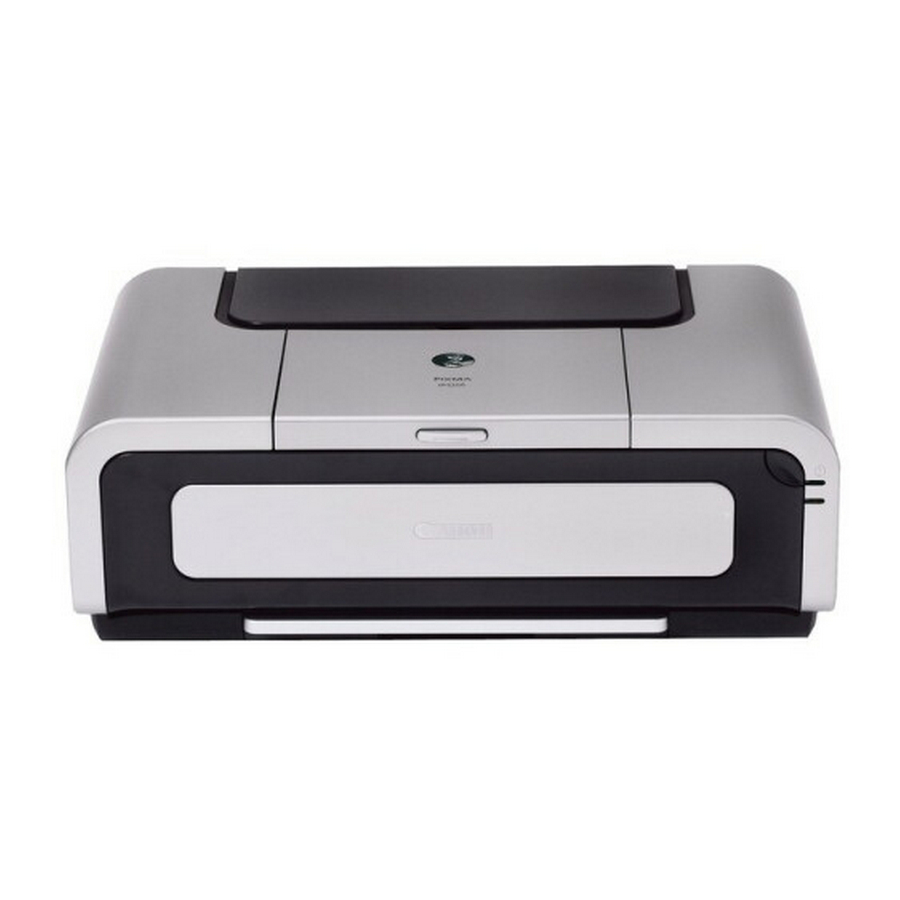
Наша цель — обеспечить Вам самый быстрый доступ к руководству по эксплуатации устройства Canon PIXMA iP5200. Пользуясь просмотром онлайн Вы можете быстро просмотреть содержание и перейти на страницу, на которой найдете решение своей проблемы с Canon PIXMA iP5200.
Для Вашего удобства
Если просмотр руководства Canon PIXMA iP5200 непосредственно на этой странице для Вас неудобен, Вы можете воспользоваться двумя возможными решениями:
- Полноэкранный просмотр -, Чтобы удобно просматривать инструкцию (без скачивания на компьютер) Вы можете использовать режим полноэкранного просмотра. Чтобы запустить просмотр инструкции Canon PIXMA iP5200 на полном экране, используйте кнопку Полный экран.
- Скачивание на компьютер — Вы можете также скачать инструкцию Canon PIXMA iP5200 на свой компьютер и сохранить ее в своем архиве. Если ты все же не хотите занимать место на своем устройстве, Вы всегда можете скачать ее из ManualsBase.
Руководство по эксплуатации Canon PIXMA iP5200
Печатная версия
Многие предпочитают читать документы не на экране, а в печатной версии. Опция распечатки инструкции также предусмотрена и Вы можете воспользоваться ею нажав на ссылку, находящуюся выше — Печатать инструкцию. Вам не обязательно печатать всю инструкцию Canon PIXMA iP5200 а только некоторые страницы. Берегите бумагу.
Резюме
Ниже Вы найдете заявки которые находятся на очередных страницах инструкции для Canon PIXMA iP5200. Если Вы хотите быстро просмотреть содержимое страниц, которые находятся на очередных страницах инструкции, Вы воспользоваться ими.
- Главная
-
Canon
-
Фотопринтеры
-
PIXMA iP5200
На этой странице вы найдёте полный список документов на Фотопринтеры Canon PIXMA iP5200.
Выберите необходимый PDF файл.
-
Фотопринтеры
Canon PIXMA iP5200 Инструкция по эксплуатацииТип файла
PDFРазмер
4.29 MbКол-во страниц
104Просмотров
7945Download / Read online

- 1
Другие Canon Фотопринтеры
-
Canon PIXMA iP4300 Инструкция по эксплуатации
PDF файлов
1Просмотров
32630 -
Canon PIXMA iP5200 Инструкция по эксплуатации
PDF файлов
1Просмотров
10560 -
Canon PIXMA iP5000 Инструкция по эксплуатации
PDF файлов
1Просмотров
9485 -
Canon IP90 Инструкция по эксплуатации
PDF файлов
1Просмотров
4764 -
Canon SELPHY CP400 Инструкция по эксплуатации
PDF файлов
1Просмотров
4670 -
Canon PIXMA iP6700D Инструкция по эксплуатации
PDF файлов
1Просмотров
4466
Другие устройства Canon
-
Принтеры и МФУ
Canon PIXMA MX492 Руководство пользователяPDF файлов
15Просмотров
98558 -
Принтеры
Canon PIXMA MP160 Инструкция по эксплуатацииPDF файлов
1Просмотров
88492 -
Принтеры и МФУ
Canon MAXIFY MB2020 Руководство пользователяPDF файлов
10Просмотров
86067 -
Принтеры и МФУ
Canon MAXIFY MB5020 Руководство пользователяPDF файлов
10Просмотров
76794 -
Принтеры и МФУ
Canon MAXIFY MB2320 Руководство пользователяPDF файлов
10Просмотров
76246 -
Принтеры и МФУ
Canon MAXIFY MB5320 Руководство пользователяPDF файлов
10Просмотров
75015
Вопросы
-
слабая батарея
Ноутбуки
Acer
1310
Alex 12.02.2016 17:26
Ранее вы смотрели
Производители
Aprilaire
Crate Amplifiers
Dansons Group
DeVillbiss Air Power Company
Lenoxx
Napoleon Fireplaces
Optiquest
Space Bag
Tapco
Типы устройств
Лазерные уровни (Лазерные нивелиры)
Смывка краски
Терминалы оплаты банковскими картами (банковские терминалы)
Комбинированные кофеварки
Фильтры
Электрообжимной инструмент
Жесткие диски
Потолочные вентиляторы
Устройства
American Standard Colony Elongated Toilet 2399.012
APW Wyott EF-30NT
Audiovox PRO-9342FT3
De’Longhi A2-5732138300
De’Longhi CF 210
GBC 4180
JVC AV-14145N
Monster HTS5100MKII
NAMCO Bandai Games 90500148
Thule Evolution 675
freeuserguide.ru
About Us
Contacts
Disclamers
Privacy Policy
Эта страница полезна для вас? Поделитесь ссылкой: